
Moodle is the world’s most widely deployed open-source Learning Management System, trusted by universities, corporate training teams, and independent educators globally. If you want full control over your e-learning platform without paying monthly SaaS fees, hosting Moodle on Debian 13 on your own VPS or bare-metal server is one of the most cost-effective and reliable choices available today.
This guide walks you through a complete, production-ready installation of Moodle on Debian 13 (codenamed “Trixie”), released August 9, 2025. You will configure a LAMP stack (Linux, Apache, MariaDB, PHP), create a dedicated Moodle database, tune PHP for optimal performance, configure an Apache virtual host, and secure the entire setup with a free Let’s Encrypt SSL certificate.
By the end of this tutorial, you will have a fully operational Moodle instance running on Debian 13 that is ready to serve real students and courses. Every command is tested against Debian 13 Trixie, which ships with PHP 8.2 and MariaDB 11 by default.
Prerequisites and System Requirements
Before you run a single command, confirm your environment meets these requirements.
Server specs:
- OS: Debian 13 (“Trixie”), fresh installation
- RAM: 2 GB minimum (1 GB absolute floor; more is always better for multi-user loads)
- Disk: 10 GB free minimum
- CPU: 1 vCPU minimum; 2+ recommended for concurrent users
- A non-root user with
sudoprivileges, or direct root access
Network requirements:
- A registered domain name pointed to your server’s public IP address
- Ports 22 (SSH), 80 (HTTP), and 443 (HTTPS) reachable from the internet
Software stack (Moodle 4.5 LTS compatibility):
- Apache 2.4+
- MariaDB 10.6+ (Debian 13 ships MariaDB 11.8, which is fully compatible)
- PHP 8.2 (default on Debian 13; Moodle 4.5 LTS supports PHP 8.1, 8.2, and 8.3)
- Required PHP extensions:
sodium,intl,gd,curl,zip,xml,mbstring,mysql max_input_varsset to at least 5000 inphp.ini
What you are installing:
- Moodle 4.5 LTS (latest: 4.5.10, security support until October 2027)
Step 1: Update and Upgrade Debian 13
Why This Step Matters
Starting with a fully updated system prevents dependency conflicts and ensures APT resolves the correct package versions. Debian 13 uses APT 3.0, which handles dependency resolution differently from Debian 12, so this step is not optional.
Run:
sudo apt update && sudo apt upgrade -yIf the kernel was updated, reboot before continuing:
sudo rebootAfter the reboot, SSH back in and confirm the OS version:
cat /etc/os-releaseExpected output includes PRETTY_NAME="Debian GNU/Linux 13 (trixie)". If you see that line, you are on the right base system.
Step 2: Install Apache Web Server
Install Apache 2.4
Apache is the recommended web server for Moodle because Moodle’s URL routing relies on .htaccess files, which Apache handles natively through mod_rewrite.
sudo apt install apache2 -yEnable and start the service:
sudo systemctl enable apache2
sudo systemctl start apache2
Verify it is running:
sudo systemctl status apache2Look for Active: active (running) in the output.
Enable the Rewrite Module
Moodle needs mod_rewrite for clean URL handling. Enable it now:
sudo a2enmod rewrite
sudo systemctl restart apache2
You can confirm the module is loaded with:
apache2ctl -M | grep rewriteExpected output: rewrite_module (shared)
At this point, visiting your server’s IP address in a browser should display the Apache default page for Debian. That confirms Apache is serving requests correctly.
Step 3: Configure UFW Firewall
Lock Down the Server Before Opening Services
A production Moodle server needs a properly configured firewall. Without one, your server is exposed to brute-force attacks, port scans, and unauthorized access from the moment it is online.
Install UFW if it is not already present:
sudo apt install ufw -yAllow the required ports:
sudo ufw allow OpenSSH
sudo ufw allow 80/tcp
sudo ufw allow 443/tcp
Enable UFW:
sudo ufw enableVerify the active rules:
sudo ufw statusCritical warning: Always allow OpenSSH before enabling UFW. If you forget and enable UFW first, you will lose your SSH session and get locked out of the server entirely.
Step 4: Install MariaDB and PHP 8.2
Install MariaDB Database Server
Moodle stores all course data, user accounts, grades, and configuration in a relational database. MariaDB is the recommended choice on Debian because it ships natively with the OS and is fully compatible with Moodle’s database requirements.
sudo apt install mariadb-server mariadb-client -yEnable and start MariaDB:
sudo systemctl enable mariadb
sudo systemctl start mariadb
Check the service status:
sudo systemctl status mariadbConfirm you see Active: active (running) before moving forward.
Install PHP 8.2 and All Required Extensions
This is where most incomplete guides fall short. Moodle requires a specific set of PHP extensions, and missing even one will cause the installation to fail at the environment check stage.
sudo apt install php php-cli php-intl php-xmlrpc php-soap \
php-mysql php-zip php-gd php-tidy php-mbstring php-curl \
php-xml php-bcmath php-sodium libapache2-mod-php -y
What each key extension does:
| Extension | Purpose |
|---|---|
php-sodium |
Required by Moodle 4.5+ for encryption and hashing |
php-gd |
Image processing for course thumbnails and badges |
php-intl |
Internationalization support for multilingual courses |
php-zip |
Handles course backup and restore packages |
php-curl |
External integrations like LTI and third-party plugins |
php-mbstring |
Multibyte string handling for non-ASCII content |
php-soap |
Web service calls for Moodle’s integration features |
Verify the installed PHP version:
php -vExpected output starts with PHP 8.2.x. Restart Apache to load the PHP module:
sudo systemctl restart apache2Harden MariaDB with the Security Script
Run the built-in security configuration utility:
sudo mariadb-secure-installationAnswer the prompts as follows:
- Enter current password for root: Press Enter (no password set yet)
- Switch to unix_socket authentication: Type
n - Change the root password: Type
Y, then enter and confirm a strong password - Remove anonymous users: Type
Y - Disallow root login remotely: Type
Y - Remove test database: Type
Y - Reload privilege tables now: Type
Y
This locks down MariaDB so it is not accessible with blank credentials or from remote connections as root.
Configure MariaDB InnoDB Settings for Moodle
Moodle uses large text indexes that require specific InnoDB configuration. Without these settings, Moodle’s database installation will throw errors related to row format or index length.
Open the MariaDB server configuration file:
sudo nano /etc/mysql/mariadb.conf.d/50-server.cnfFind the [mysqld] section and add these lines:
default_storage_engine = innodb
innodb_large_prefix = 1
innodb_file_per_table = 1
innodb_file_format = Barracuda
Save the file with Ctrl+O, then Enter, then exit with Ctrl+X.
Restart MariaDB to apply the changes:
sudo systemctl restart mariadbStep 5: Create the Moodle Database and User
Why a Dedicated Database User Matters
Never connect Moodle to MariaDB using the root account. Creating a dedicated user with restricted privileges limits the blast radius if the application is ever compromised.
Log into the MariaDB shell:
sudo mariadb -u root -pRun these SQL commands one by one:
CREATE DATABASE moodle DEFAULT CHARACTER SET utf8mb4 COLLATE utf8mb4_unicode_ci;GRANT ALL PRIVILEGES ON moodle.* TO 'moodle'@'localhost' IDENTIFIED BY 'YourStrongPassword';FLUSH PRIVILEGES;
QUIT;Why utf8mb4_unicode_ci? Moodle requires this exact charset and collation to handle multilingual content, emoji characters, and special symbols correctly. Using the older utf8 charset will cause character encoding problems in course content.
Replace YourStrongPassword with a real, randomly generated password. You will need it during the web installer in Step 8.
Step 6: Download Moodle, Set Permissions, and Configure Apache
This section covers three closely related tasks: getting Moodle files onto the server, setting up the data directory, and configuring Apache to serve Moodle correctly. These steps build on each other, so work through them in order.
Download and Extract Moodle 4.5 LTS
Navigate to the web root directory:
cd /var/wwwDownload Moodle 4.5 LTS directly from the official Moodle download server. Always use the official source to avoid tampered or outdated packages:
sudo wget https://download.moodle.org/download.php/direct/stable405/moodle-latest-405.tgzExtract the archive:
sudo tar -xf moodle-latest-405.tgzRemove the archive file to free up disk space:
sudo rm moodle-latest-405.tgzConfirm the Moodle directory exists:
ls /var/www/moodleYou should see Moodle’s core directories: admin, auth, blocks, course, lib, and others.
Create the Moodle Data Directory
The Moodle data directory (moodledata) stores uploaded files, course backups, session caches, and temporary files. It must live outside the web root. If it is inside /var/www/moodle, those files become directly accessible over HTTP, which is a serious security risk.
Create the directory outside the web root:
sudo mkdir -p /var/www/moodledataSet the correct ownership so Apache (which runs as www-data on Debian) can read and write to both directories:
sudo chown -R www-data:www-data /var/www/moodle /var/www/moodledataSet permissions:
sudo chmod -R 755 /var/www/moodle
sudo chmod -R 770 /var/www/moodledata
Tune PHP Settings for Moodle
Open the PHP configuration file that Apache uses:
sudo nano /etc/php/8.2/apache2/php.iniUpdate these values (use Ctrl+W in nano to search for each directive):
memory_limit = 256M
upload_max_filesize = 100M
post_max_size = 100M
max_execution_time = 300
max_input_vars = 5000
date.timezone = Asia/Jakarta
Key notes:
max_input_vars = 5000is a hard requirement for Moodle 4.5. Setting it lower will cause an environment check failure during the web installer.- Set
date.timezoneto your server’s actual timezone. Use a value from the PHP timezone list (e.g.,America/New_York,Europe/London,Asia/Jakarta).
Save the file and restart Apache:
sudo systemctl restart apache2Configure the Apache Virtual Host for Moodle
Create a new virtual host configuration file:
sudo nano /etc/apache2/sites-available/moodle.confPaste the following block, replacing yourdomain.com with your actual domain:
<VirtualHost *:80>
    DocumentRoot /var/www/moodle/
    ServerName yourdomain.com
    ServerAlias www.yourdomain.com
    ServerAdmin admin@yourdomain.com

    <Directory /var/www/moodle/>
        Options +FollowSymlinks
        AllowOverride All
        Require all granted
    </Directory>

    ErrorLog /var/log/apache2/moodle_error.log
    CustomLog /var/log/apache2/moodle_access.log combined
</VirtualHost>
Why AllowOverride All? This directive tells Apache to process Moodle’s .htaccess file, which controls URL rewriting. Without it, Moodle’s clean URLs will break and you will get 404 errors on course pages.
Enable the Moodle site, disable the default Apache site, test the config, and reload:
sudo a2ensite moodle.conf
sudo a2dissite 000-default.conf
sudo apachectl configtest
sudo systemctl reload apache2
The configtest must return Syntax OK. If it returns any errors, review the virtual host file for typos before reloading Apache.
Step 7: Run the Web-Based Moodle Installer
Complete the Installation Wizard
Open a browser and navigate to your domain:
http://yourdomain.comThe Moodle installation wizard loads automatically. Work through each screen:
- Language — Choose your preferred language and click “Next”
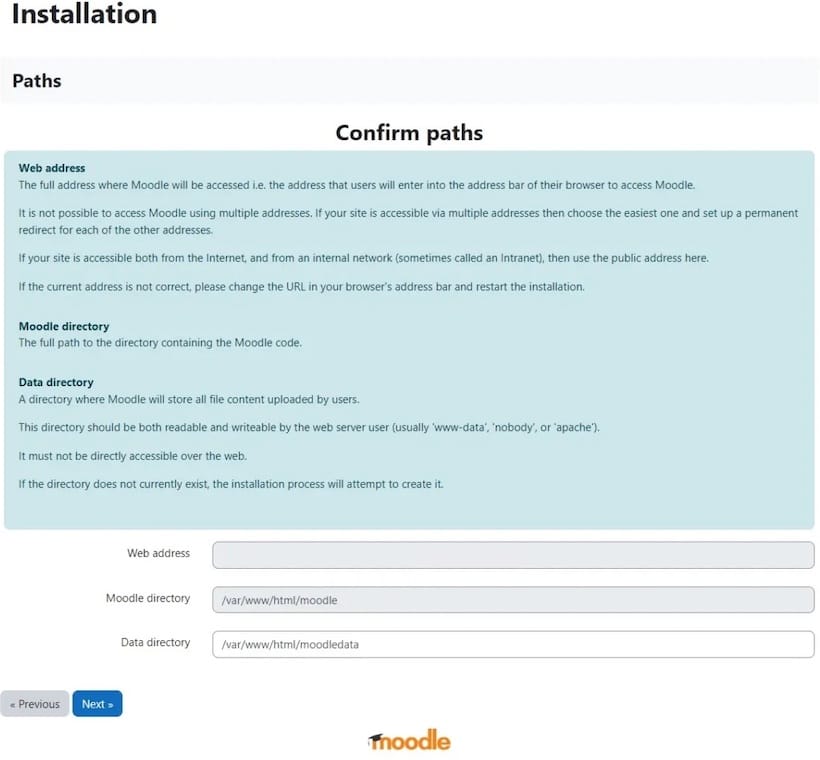
- Confirm paths:
- Web address:
http://yourdomain.com - Moodle directory:
/var/www/moodle - Data directory:
/var/www/moodledata
- Web address:
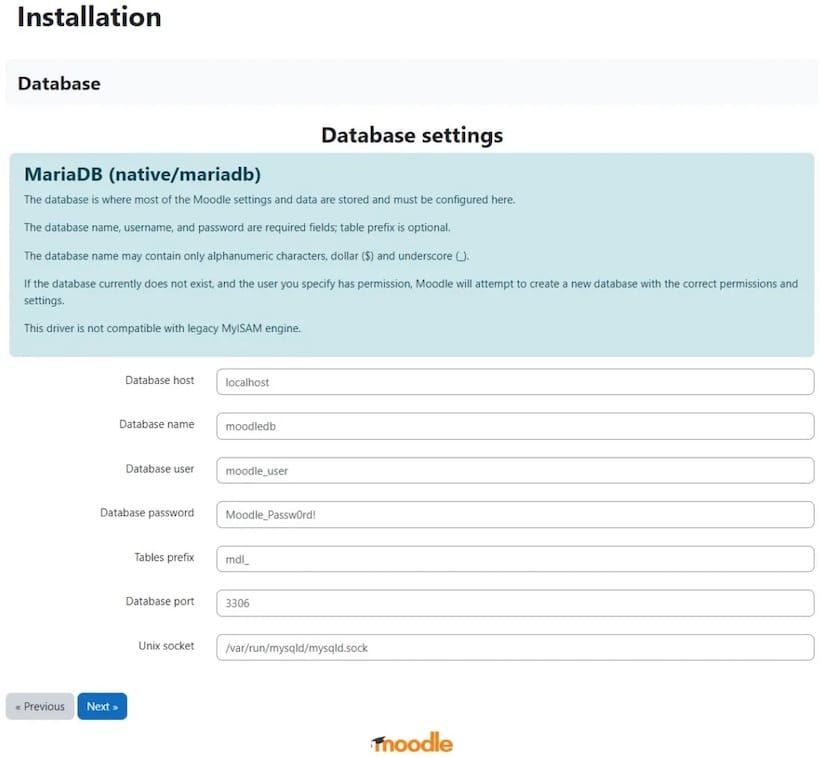
- Database driver — Select MariaDB (native/mariadb)
- Database settings:
- Host:
localhost - Database name:
moodle - Database user:
moodle - Password: the password you set in Step 5
- Host:
- Copyright notice — Read and click “Continue”
- Environment check — Every item should show a green checkmark or “OK.” If any show a red warning, stop and fix those before continuing (see the Troubleshooting section below)
- Database installation — Moodle installs its tables. This takes 2 to 5 minutes on a standard VPS. Do not refresh the page
- Create admin account — Set a strong username, email, and password for the site administrator
- Site settings — Enter the site full name and short name
- Finish — The Moodle dashboard loads
Once logged into the admin dashboard, your Moodle installation on Debian 13 is working. The next step secures it with HTTPS.
Step 8: Secure Moodle with Let’s Encrypt SSL
Why HTTPS Is Non-Negotiable
Running Moodle over plain HTTP means user login credentials, quiz answers, and session tokens all travel in clear text. Let’s Encrypt provides free, auto-renewing SSL certificates that protect all traffic with TLS encryption.
Install Certbot and the Apache plugin:
sudo apt install certbot python3-certbot-apache -yIssue and install the certificate automatically. Replace admin@yourdomain.com and yourdomain.com with your actual values:
sudo certbot --apache --agree-tos --no-eff-email \
  -m admin@yourdomain.com \
  -d yourdomain.com \
  -d www.yourdomain.com
Certbot modifies the Apache virtual host to add SSL directives and redirect all HTTP traffic to HTTPS automatically.
Verify that automatic renewal works:
sudo certbot renew --dry-runA Congratulations, all renewals succeeded message confirms the renewal process is functional. Certificates renew automatically every 90 days via a systemd timer.
Update Moodle’s Site URL to HTTPS
Log into Moodle admin, then go to Site Administration > General > Advanced features and update the site URL to https://yourdomain.com to prevent mixed content warnings in browsers.
Step 9: Configure the Moodle Cron Job
Why Cron Is Required
Moodle relies on a background cron task to send email notifications, process grade calculations, trigger activity completion rules, run scheduled reports, and clean up temporary files. Without cron configured, many core Moodle features simply do not work, regardless of how clean the installation is.
Open the crontab for the www-data user:
sudo crontab -u www-data -eAdd this line to run the Moodle cron task every minute:
* * * * * /usr/bin/php /var/www/moodle/admin/cli/cron.php > /dev/null 2>&1Save and exit. Verify cron is firing from the Moodle admin panel at Site Administration > Server > Cron.
You can also confirm via the task scheduler at Site Administration > Server > Scheduled Tasks, where you will see timestamps for when each task last ran.
Troubleshooting Common Moodle Installation Issues on Debian 13
Even on a clean Debian 13 system, a few issues appear regularly. Here are the most common ones and their fixes.
Issue 1: Environment check fails on max_input_vars
- Cause: The
php.inifile was edited in the wrong location (CLI instead of Apache) - Fix: Confirm you edited
/etc/php/8.2/apache2/php.ini, not/etc/php/8.2/cli/php.ini. Runphp -r "echo ini_get('max_input_vars');"to check the CLI value, but Apache uses its own config. Restart Apache after editing the correct file.
Issue 2: 403 Forbidden error when accessing Moodle
- Cause:
AllowOverride Allis missing ormod_rewritewas not enabled - Fix: Verify
AllowOverride Allis inside the<Directory>block inmoodle.conf, then confirma2enmod rewritewas run. Restart Apache.
Issue 3: Database connection fails during the web wizard
- Cause: The MariaDB grant was not flushed, or the
moodleuser credentials do not match what you typed in the wizard - Fix: Log into MariaDB and run
SHOW GRANTS FOR moodle@localhost;to confirm the grant exists. Re-runFLUSH PRIVILEGES;and retry.
Issue 4: moodledata directory permission denied
- Cause: The
www-datauser does not own the data directory - Fix:
sudo chown -R www-data:www-data /var/www/moodledata
sudo chmod -R 770 /var/www/moodledata
Issue 5: Cron not running or tasks are stuck
- Cause: Crontab entry uses a relative path for
phpinstead of the full path - Fix: Always use
/usr/bin/phpin the crontab. Confirm the path withwhich php. Also verify thatwww-dataowns the Moodle directory.
Congratulations! You have successfully installed Moodle. Thanks for using this tutorial to install the latest version of the Moodle learning management system on Debian 13 “Trixie” system. For additional help or useful information, we recommend you check the official Moodle website.

