How To Install Nagios on Debian 13

Monitoring your IT infrastructure shouldn’t be complicated. Nagios, a powerful open-source monitoring system, provides real-time visibility into servers, networks, and applications, helping you detect problems before they escalate into costly downtime. This comprehensive guide walks you through installing Nagios on Debian 13 (Trixie), the latest stable release of Debian featuring enhanced performance and security improvements.
Whether you’re managing a small business network or enterprise infrastructure, Nagios delivers the monitoring capabilities you need without breaking the budget. Let’s dive into the installation process.
What is Nagios and Why Use It?
Nagios is an enterprise-grade monitoring solution that tracks the health and performance of your entire IT infrastructure. Originally developed as NetSaint in 1999, it has evolved into one of the most widely deployed monitoring platforms worldwide, trusted by organizations ranging from small businesses to Fortune 500 companies.
The platform excels at continuous monitoring of servers, databases, networks, and applications. When anomalies or failures are detected, Nagios sends instant alerts through multiple channels including email, SMS, and custom notification methods. This proactive approach minimizes downtime and helps IT teams respond to incidents before users are affected.
What sets Nagios apart is its flexibility. The system supports thousands of community-developed plugins that extend monitoring capabilities to virtually any device or service. From basic ping checks to complex database queries, Nagios adapts to your specific monitoring requirements.
Key Benefits of Deploying Nagios
Real-Time Infrastructure Visibility
Nagios provides continuous monitoring with real-time status updates across your entire IT environment. Detailed performance metrics help you identify bottlenecks, optimize resource utilization, and make informed capacity planning decisions.
Proactive Problem Detection
Instead of reactive firefighting, Nagios enables proactive incident management. The system detects performance degradation early, allowing you to address issues before they cause service interruptions. This approach reduces emergency response situations and allows better planning for infrastructure upgrades.
Cost-Effective Monitoring Solution
Nagios Core, the open-source version, delivers robust monitoring features at zero cost. Organizations save money by preventing costly downtime and automating routine monitoring tasks. The platform scales from small deployments to enterprise environments monitoring thousands of devices.
Enhanced Security and Compliance
Monitor unauthorized access attempts and security threats across your infrastructure. Nagios maintains detailed logs and generates reports that support regulatory compliance requirements. This documentation proves invaluable during audits and security assessments.
System Requirements for Nagios on Debian 13
Before installation, verify your system meets these requirements:
Hardware Specifications
- CPU: 1 core minimum (2+ cores recommended for production)
- RAM: 512 MB minimum (2 GB recommended)
- Disk Space: 500 MB for Nagios (40 GB+ recommended for logs and data)
- Network connectivity with static IP address
Software Prerequisites
- Debian 13 (Trixie) with root or sudo access
- Updated package repositories
- Internet connection for downloading packages
Debian 13 brings significant performance improvements including up to 18% faster PHP execution and better package management with APT 3.0. The enhanced security stack with AppArmor 4.0 and OpenSSH 9.8 provides a solid foundation for your monitoring infrastructure.
Installing Nagios on Debian 13
Debian offers two installation approaches: using the APT package manager or compiling from source. The package manager method is faster, simpler, and recommended for most users. This guide focuses on the APT installation method, which automatically handles dependencies and simplifies updates.
Step 1: Update System Packages
Start by refreshing your package index to ensure you’re installing the latest versions:
sudo apt updateThis command synchronizes the package database with Debian repositories. It’s crucial to run this before any installation to avoid dependency conflicts.
Step 2: Install Nagios and Required Components
Execute the following command to install Nagios along with essential plugins:
sudo apt install nagios4 nagios4-common monitoring-plugins-contrib nagios-nrpe-pluginWhen prompted, type Y to confirm the installation. This single command installs:
- nagios4: The core Nagios monitoring engine
- nagios4-common: Common files and configurations
- monitoring-plugins-contrib: Collection of standard monitoring plugins
- nagios-nrpe-plugin: Plugin for monitoring remote Linux/Unix hosts
The APT package manager automatically installs dependencies including Apache web server and PHP 8.2. This automated dependency resolution saves time and ensures proper integration between components.
Step 3: Enable and Start Nagios Service
Once installation completes, enable Nagios to start automatically on system boot:
sudo systemctl enable nagios4Verify the Nagios service is running properly:
sudo systemctl status nagios4You should see output indicating the service is active (running) and enabled. If the service isn’t running, start it manually:
sudo systemctl start nagios4Also verify Apache is running since Nagios relies on it for the web interface:
sudo systemctl status apache2Step 4: Configure SSL/TLS (Recommended)
While optional, enabling HTTPS secures communication with the Nagios web interface. This prevents credentials and monitoring data from being transmitted in plain text.
Enable the Apache SSL module:
sudo a2enmod ssl
sudo systemctl restart apache2
For production environments, consider obtaining a certificate from Let’s Encrypt or your organization’s certificate authority.
Configuring Nagios Web Interface
By default, Nagios installs with minimal security. You’ll need to enable authentication and configure Apache to protect your monitoring dashboard.
Enable Nagios Authentication
Open the Nagios CGI configuration file:
sudo nano /etc/nagios4/cgi.cfgLocate the use_authentication parameter (around line 76) and ensure it’s set to 1:
use_authentication=1Save the file and exit (press Ctrl+X, then Y, then Enter). This setting requires users to authenticate before accessing monitoring data.
Configure Apache Authentication
Nagios supports both Basic and Digest authentication through Apache. We’ll configure Basic authentication for simplicity.
First, enable required Apache modules:
sudo a2enmod cgi cgid rewriteEdit the Apache configuration for Nagios:
sudo nano /etc/apache2/conf-available/nagios4-cgi.confFind the DirectoryMatch section and modify it to enable authentication:
<DirectoryMatch (/usr/share/nagios4/htdocs|/usr/lib/cgi-bin/nagios4|/etc/nagios4/stylesheets)>
    Options FollowSymLinks
    DirectoryIndex index.php index.html

    AuthName "Nagios Core"
    AuthType Basic
    AuthUserFile /etc/nagios4/htdigest.users
    Require valid-user
</DirectoryMatch>
Save and close the file.
Create Nagios Admin User
Nagios requires a user named nagiosadmin for full administrative access. Create this user and set a strong password:
sudo htpasswd -c /etc/nagios4/htdigest.users nagiosadminEnter and confirm your password when prompted. The -c flag creates a new password file. For additional users, omit the -c flag to avoid overwriting existing credentials.
Apply Configuration Changes
Restart both Nagios and Apache to apply your changes:
sudo systemctl restart nagios4 apache2Verify both services restarted successfully:
sudo systemctl status nagios4 apache2Accessing the Nagios Dashboard
Open your web browser and navigate to your Nagios installation:
http://YOUR_SERVER_IP/nagios4/Replace YOUR_SERVER_IP with your Debian server’s IP address or hostname. If you configured SSL, use https:// instead of http://.
You’ll be prompted for authentication. Enter:
- Username: nagiosadmin
- Password: The password you created earlier
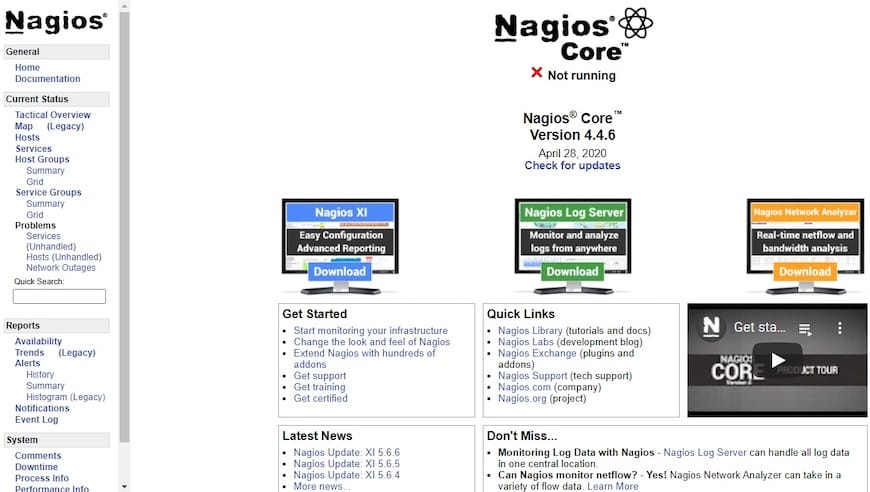
Upon successful login, you’ll see the Nagios dashboard. The interface displays monitoring overview, status maps, and navigation menus for hosts, services, and reports.
Understanding Nagios Directory Structure
Knowing where Nagios stores its files helps with configuration and troubleshooting:
Configuration Directories
- /etc/nagios4/: Main configuration directory containing all Nagios settings
- /etc/nagios4/conf.d/: Additional configuration files for hosts and services
- /etc/apache2/conf-available/nagios4-cgi.conf: Apache integration settings
Plugin Locations
- /usr/lib/nagios/plugins/: Directory containing monitoring check commands
- /etc/nagios-plugins/: Plugin configuration files
Log Files
- /var/log/nagios4/: Nagios log files for troubleshooting
Web Files
- /usr/share/nagios4/htdocs/: Web interface HTML and images
Configuring Basic Monitoring
Nagios comes preconfigured to monitor localhost. Let’s explore the default monitoring and add custom checks.
Default Monitoring Services
Click the Services menu in the Nagios dashboard. You’ll see several services already configured:
- HTTP: Monitors Apache web server
- PING: Basic connectivity check
- Current Load: System CPU load average
- Current Users: Number of logged-in users
- Root Partition: Disk space on / partition
- SSH: Monitors SSH service availability
- Swap Usage: Monitors swap space utilization
- Total Processes: Tracks running processes
These default checks demonstrate Nagios functionality and serve as templates for custom monitoring.
Adding Custom Host Monitoring
To monitor additional hosts, create a configuration file in /etc/nagios4/conf.d/:
sudo nano /etc/nagios4/conf.d/servers.cfgAdd a host definition:
define host {
    use                     generic-host
    host_name              webserver01
    alias                  Production Web Server
    address                192.168.1.100
    max_check_attempts     5
    check_period           24x7
    notification_interval  30
    notification_period    24x7
}
This configuration defines a host named webserver01 with IP address 192.168.1.100. Nagios will monitor its availability continuously.
Adding Service Checks
Define services to monitor on your new host:
define service {
    use                     generic-service
    host_name              webserver01
    service_description    HTTP
    check_command          check_http
}

define service {
    use                     generic-service
    host_name              webserver01
    service_description    SSH
    check_command          check_ssh
}
These services monitor HTTP and SSH availability on webserver01.
Verify Configuration
Before restarting Nagios, verify your configuration syntax:
sudo nagios4 -v /etc/nagios4/nagios.cfgThis command checks for errors in configuration files. If validation passes, you’ll see “Things look okay” at the end of the output. Fix any reported errors before proceeding.
Reload Nagios to apply changes:
sudo systemctl reload nagios4Your new host and services will appear in the Nagios dashboard within a few minutes.
Working with Nagios Plugins
Nagios plugins are executable scripts or binaries that perform actual monitoring checks. Understanding plugin basics helps you customize monitoring for your environment.
Plugin Architecture
Plugins communicate with Nagios through a standardized interface:
- Execute with specific command-line arguments
- Return exit codes (0=OK, 1=Warning, 2=Critical, 3=Unknown)
- Output status information on stdout
Common plugin options include:
- -H or –hostname: Target host to check
- -w or –warning: Warning threshold
- -c or –critical: Critical threshold
- -t or –timeout: Maximum execution time
Testing Plugins Manually
Test plugins from the command line to verify functionality:
/usr/lib/nagios/plugins/check_http -H www.example.comThis tests HTTP connectivity to www.example.com and displays the response. Manual testing helps troubleshoot check configurations before adding them to Nagios.
Common Monitoring Plugins
check_ping: Tests network connectivity
/usr/lib/nagios/plugins/check_ping -H 192.168.1.1 -w 100.0,20% -c 500.0,60%check_disk: Monitors disk space usage
/usr/lib/nagios/plugins/check_disk -w 20% -c 10% -p /check_load: Checks system load average
/usr/lib/nagios/plugins/check_load -w 5,4,3 -c 10,8,6check_ssh: Verifies SSH service availability
/usr/lib/nagios/plugins/check_ssh 192.168.1.100Troubleshooting Common Issues
Nagios Service Won’t Start
Check the Nagios log for errors:
sudo tail -f /var/log/nagios4/nagios.logVerify configuration syntax:
sudo nagios4 -v /etc/nagios4/nagios.cfgAuthentication Not Working
Ensure the password file exists and has correct permissions:
ls -l /etc/nagios4/htdigest.usersVerify Apache configuration loaded correctly:
sudo apache2ctl -tPlugins Return “Permission Denied”
Check plugin file permissions:
ls -l /usr/lib/nagios/plugins/Plugins should be executable. Fix permissions if needed:
sudo chmod +x /usr/lib/nagios/plugins/check_*Web Interface Shows “Error 403 Forbidden”
Review Apache error logs:
sudo tail -f /var/log/apache2/error.logVerify Apache configuration allows access from your IP address.
Security Best Practices
Implement Strong Authentication
Use complex passwords for the nagiosadmin account. Consider implementing two-factor authentication through Apache modules for additional security.
Enable HTTPS
Always use SSL/TLS encryption for the web interface. This prevents credential interception and protects sensitive monitoring data.
Restrict Network Access
Configure Apache to limit access by IP address. Edit /etc/apache2/conf-enabled/nagios4-cgi.conf:
Require ip 192.168.1.0/24This restricts access to your local network only.
Keep Systems Updated
Regularly update Debian and Nagios packages:
sudo apt update && sudo apt upgradeSubscribe to Nagios security announcements to stay informed about vulnerabilities.
Monitor Nagios Itself
Configure monitoring for the Nagios server to detect performance issues or service failures. This meta-monitoring ensures your monitoring infrastructure remains reliable.
Congratulations! You have successfully installed Nagios. Thanks for using this tutorial to install the latest version of the Nagios monitoring tool on Debian 13 “Trixie” system. For additional help or useful information, we recommend you check the official Nagios website.
