Cybersecurity threats are evolving faster than ever. Whether you’re a student, a network administrator, or an ethical hacker building out your home lab, having a reliable vulnerability scanner is no longer optional — it’s essential. Nessus, developed by Tenable, Inc., is one of the most trusted vulnerability assessment tools in the world. It identifies security weaknesses across systems, networks, and devices before attackers do.
If you’re running Linux Mint 22 and want to set up a professional-grade scanning environment without spending a cent, you’re in the right place. This guide walks you through everything — from system prep to running your first scan — in plain, no-fluff language.
What Is Nessus and Why Does It Matter?
Nessus is a proprietary network vulnerability scanner that checks systems for known CVEs, misconfigurations, missing patches, weak credentials, and compliance violations. With over 252,000 plugins and coverage for more than 100,000 CVEs, it is one of the most comprehensive security auditing tools available.
Tenable offers three editions:
- Nessus Essentials — Free forever, scans up to 16 IP addresses; perfect for students, beginners, and home labs
- Nessus Professional — Unlimited IP scanning, scheduled scans, compliance checks, multi-user support, and priority technical support
- Nessus Expert — Adds web application scanning, external attack surface monitoring, and cloud infrastructure auditing
For this guide, the focus is on Nessus Essentials, the free tier — fully capable for learning vulnerability scanning and testing personal or lab environments.
Why Linux Mint 22 Is a Great Host for Nessus
Linux Mint 22 (codename Wilma) is built on Ubuntu 24.04 LTS, which means it uses the Debian package management system and fully supports .deb installations. That is the exact package format Tenable provides for Debian, Ubuntu, and Kali Linux — making Linux Mint a seamless host.
Beyond compatibility, Linux Mint 22 is genuinely popular in security and ethical hacking communities. It is lightweight, stable, and ships with robust built-in security features like UFW (Uncomplicated Firewall), AppArmor, and Fail2Ban support. If you are building a local vulnerability scanning lab, you would struggle to find a better starting point.
Prerequisites: What You Need Before You Begin
Before touching a single command, verify that your environment meets these requirements. Skipping this step is the most common reason installations fail.
- Operating system: Linux Mint 22 (64-bit), with at minimum 2 GB RAM (4 GB recommended) and at least 20 GB of free disk space
- User account: A non-root user with
sudoprivileges — running everything as root is not recommended - Internet access: Required to download the Nessus
.debpackage and to compile plugins post-install - Web browser: Any modern browser (Firefox, Chromium, or similar) to access the Nessus web UI at
https://localhost:8834 - Terminal familiarity: Basic comfort with the Linux command line is enough
- Tenable account: Free to create at tenable.com — needed to receive your Nessus Essentials activation code
- Required packages:
wget,curl,dpkg,apt-transport-https,gnupg2, andsoftware-properties-common
Step 1: Update Your Linux Mint 22 System
Start by bringing your system fully up to date. This ensures compatibility with the latest Nessus packages and patches any existing vulnerabilities on your host.
Open a terminal and run:
sudo apt update
sudo apt upgrade -y
The apt update command refreshes your local package index. The apt upgrade -y command installs all pending updates without prompting for confirmation. If a major kernel update is installed, reboot before continuing:
sudo rebootNext, install the required dependencies:
sudo apt install wget curl apt-transport-https gnupg2 software-properties-common -yThese packages ensure your system can download, verify, and install the Nessus .deb file without errors. Most are already present on a standard Linux Mint installation, but running this command guarantees nothing is missing.
Step 2: Download the Nessus Package
Nessus must be downloaded directly from Tenable’s official website. Never use third-party mirrors or unofficial sources — this is a security tool, and using unverified packages defeats the entire purpose.
Method A — Browser Download (Recommended for Beginners)
- Visit:
https://www.tenable.com/downloads/nessus - Under platform, select Linux — Debian amd64
- Click the latest version to download the
.debfile
Method B — Direct curl Download (Terminal)
curl --request GET \
  --url 'https://www.tenable.com/downloads/api/v2/pages/nessus/files/Nessus-<version>-ubuntu1404_amd64.deb' \
  --output 'Nessus-<version>-ubuntu1404_amd64.deb'
Replace <version> with the actual version number shown on the downloads page (for example, 10.8.3).
Checksum Verification (Recommended)
After downloading, verify your file’s integrity using the SHA256 checksum provided on Tenable’s downloads page:
sha256sum Nessus-<version>-ubuntu1404_amd64.debCompare the output with the value listed on Tenable’s website. If they match, the file is untampered and safe to install.
Step 3: Install Nessus Using dpkg
Navigate to the directory where the file was saved. By default, this is ~/Downloads:
cd ~/DownloadsInstall the package using dpkg:
sudo dpkg -i Nessus-<version>-ubuntu1404_amd64.debThe dpkg -i command installs a local Debian package directly, bypassing the APT repository. You will see a stream of output in the terminal — this is normal. When it finishes, a success message confirms that Nessus has been installed to /opt/nessus/.
Important: Tenable does not support symbolic links for the /opt/nessus/ directory. Do not attempt to move or redirect the installation path.
If you encounter dependency errors during installation, resolve them with:
sudo apt --fix-broken installThen re-run the dpkg command. Confirm the binary is available:
which nessusdIf the path /opt/nessus/sbin/nessusd appears, the installation is complete.
Step 4: Start and Enable the Nessus Service
Nessus runs as a background system daemon called nessusd. Start it with:
sudo systemctl start nessusdEnable it to launch automatically on every system boot:
sudo systemctl enable nessusdOr combine both steps into one:
sudo systemctl enable --now nessusdVerify the service is active and running:
sudo systemctl status nessusdLook for the line that reads active (running). That confirms the Nessus daemon is live. If the service fails to start, check the system logs:
journalctl -u nessusd -xeStep 5: Configure the UFW Firewall
Linux Mint 22 includes UFW (Uncomplicated Firewall). If it is enabled, you must open port 8834 — the default port Nessus uses for its web interface.
Allow SSH and Nessus port access:
sudo ufw allow OpenSSH
sudo ufw allow 8834/tcp
sudo ufw enable
Confirm the rules are active:
sudo ufw statusYou should see port 8834/tcp listed as ALLOW. If UFW was already enabled, reload the rules:
sudo ufw reloadSecurity Note: Only open port 8834 locally unless you specifically require remote access. Exposing a vulnerability scanner interface to external networks is a serious security risk.
To confirm Nessus is listening on that port:
sudo ss -tlnp | grep 8834Step 6: Access the Nessus Web Interface
Open your preferred browser and navigate to:
https://localhost:8834You will immediately see a browser security warning. This happens because Nessus uses a self-signed SSL certificate by default. It is completely safe to proceed. Click Advanced → Accept the Risk and Continue (in Firefox) or the equivalent in your browser.
The Tenable Nessus setup wizard will load. This browser-based interface is where you will complete the rest of the configuration. Keep this tab open throughout the setup process.
Step 7: Activate Nessus Essentials
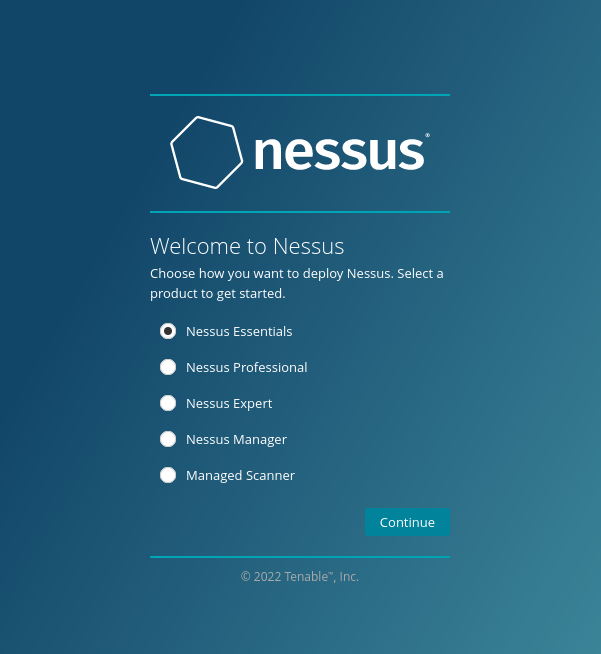
On the Welcome screen, select Nessus Essentials as your product type.
Getting Your Activation Code
If you do not yet have a code, enter your first name, last name, and email address on the registration screen. Tenable will email your activation code within a few minutes. Check your inbox and spam folder, then copy the code.
If you already have a code, click Skip on the email registration screen and paste the code directly.
Creating Your Admin Account
After entering the activation code, you will be prompted to create a username and password for your Nessus instance. Use a strong, unique password — this account controls access to your vulnerability scanner.
Plugin Download and Compilation
Once your account is created, Nessus begins downloading and compiling its plugin database. This process can take anywhere from 10 to 30 minutes, depending on your internet connection and hardware speed.
Do not close the browser, restart the service, or shut down the system during this phase. Plugin compilation is critical — it gives Nessus the intelligence to detect vulnerabilities. Let it run to completion.
Step 8: Log In and Explore the Dashboard
Once plugins have finished loading, you will be redirected to the login screen. Enter the username and password you created in the previous step.
After logging in, you will land on the Nessus Dashboard. Here is a quick orientation:
- Scans — Create, run, and manage all vulnerability scans
- Policies — Define reusable custom scan templates with specific settings
- Plugin Rules — Modify or suppress how specific plugins behave in scan results
- Settings — Manage your account, notifications, proxy settings, and scanner configuration
The left-hand panel shows My Scans and All Scans folders. Bookmark https://localhost:8834 for fast access in future sessions. With Nessus Essentials, you are limited to scanning up to 16 IP addresses — more than enough for home lab work and personal learning.
Step 9: Run Your First Vulnerability Scan
This is where everything comes together. Follow these steps to launch your first scan.
1. Create a New Scan
Click Scans in the left navigation panel, then click the New Scan button in the top-right corner.
2. Choose a Scan Template
You will see a library of scan templates. For your first scan, select Basic Network Scan — it is preconfigured for general-purpose vulnerability detection and requires no advanced setup.
3. Configure the Scan Settings
- Name: Something descriptive like Linux Mint Local Scan or Home Lab Audit
- Targets: Enter the IP address of the system you want to scan. Use
127.0.0.1for localhost, or a local network IP such as192.168.1.10 - Leave all other settings at default for your first scan
Click Save to store the scan configuration.
4. Launch the Scan
Click the launch button next to your scan name. Nessus will immediately begin testing the target. A local scan typically completes in 5–15 minutes.
5. Review the Results
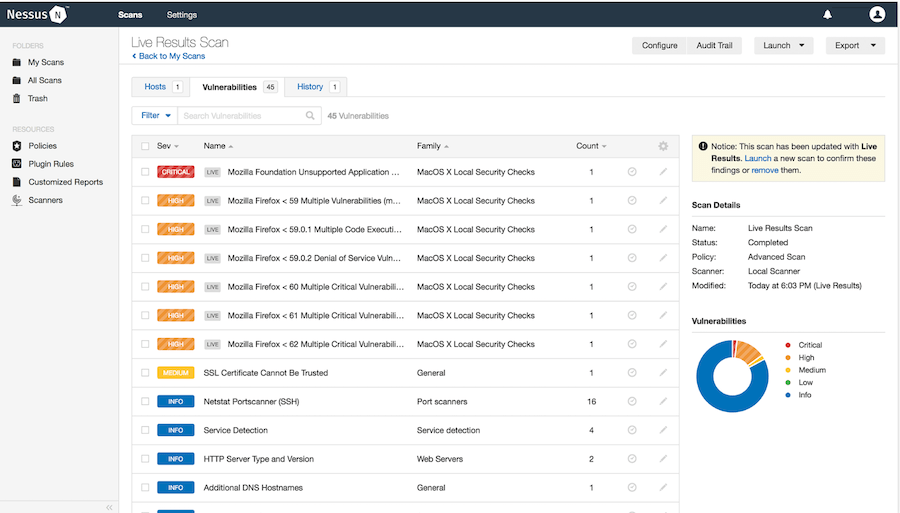
Click the scan name to open the results. Findings are organized by severity:
- 🔴 Critical — Immediate action required
- 🟠 High — Serious vulnerabilities
- 🟡 Medium — Should be addressed soon
- 🔵 Low — Minor issues
- ⚪ Info — Informational findings with no direct risk
Ethical Reminder: Only scan systems you own or have explicit written permission to test. Running unauthorized scans is illegal under computer fraud laws in most jurisdictions.
Nessus Essentials vs. Professional: Key Differences
| Feature | Nessus Essentials | Nessus Professional |
|---|---|---|
| Price | Free | Paid subscription |
| Max IP addresses | 16 IPs | Unlimited |
| Scheduled scans | ✗ | ✓ |
| Compliance audits | ✗ | ✓ |
| Full plugin access | Limited | 252,000+ plugins |
| Multi-user support | ✗ | ✓ |
| Tenable support | Community only | Priority support |
| Web app scanning | ✗ | ✓ (Expert tier) |
For most learners and home lab users, Essentials is more than sufficient. If you are managing a team or scanning enterprise networks, Professional is worth the upgrade.
Troubleshooting Common Nessus Installation Issues
Even careful installations hit snags. Here are the most frequent problems and how to fix them.
Nessus Service Won’t Start
Check for conflicting processes: ps aux | grep nessusd. If another instance is running, kill it and restart. Then review logs with journalctl -u nessusd -xe for specific error messages.
Port 8834 Not Accessible in the Browser
Confirm the port is open in UFW with sudo ufw status and verify Nessus is listening: sudo ss -tlnp | grep 8834. If nothing shows, the service may not have started correctly.
SSL Certificate Warning Won’t Go Away
This is normal for self-signed certificates. It is not a security risk within a local network. Always proceed through your browser’s Advanced option.
Plugin Download Is Frozen or Extremely Slow
Do not restart the service. Plugin compilation on first run is resource-intensive and can genuinely take 20–30 minutes on slower hardware. Check CPU and RAM usage with htop to confirm activity.
dpkg Dependency Errors During Installation
Run sudo apt --fix-broken install, then reinstall the .deb file. If the issue persists, confirm you are using the correct package architecture — amd64 for 64-bit systems.
Activation Code Not Working
Double-check that you selected Nessus Essentials (not Professional or Expert) on the product selection screen. Activation codes are case-sensitive and tied to a single Tenable account.
Congratulations! You have successfully installed Nessus. Thanks for using this tutorial for installing the Tenable Nessus Scanner on Linux Mint 22 system. For additional help or useful information, we recommend you check the official Nessus website.


