How To Install Ntopng on Fedora 43

Network monitoring forms the backbone of effective system administration. Without visibility into traffic patterns, bandwidth usage, and potential security threats, managing modern networks becomes nearly impossible. Ntopng emerges as a powerful open-source solution that transforms raw network data into actionable insights through an intuitive web-based interface.
This comprehensive guide walks you through installing ntopng on Fedora 43, one of the most robust Linux distributions for server deployments. Whether you’re a seasoned network administrator or just starting your journey into network monitoring, you’ll find detailed instructions covering everything from initial installation to configuration best practices. By the end, you’ll have a fully functional network monitoring system capable of analyzing traffic in real-time, identifying bandwidth hogs, and detecting unusual patterns that might indicate security issues.
Prerequisites and System Requirements
Before diving into the installation process, ensuring your system meets the necessary requirements prevents frustration later.
Hardware Specifications
Your Fedora 43 system needs adequate resources to handle packet capture and analysis effectively. A minimum of 2GB RAM and a multi-core processor provides basic functionality, though these specifications barely suffice for small networks. For enterprise environments monitoring high-traffic networks, 4GB or more RAM becomes essential, with additional storage for historical data and traffic logs.
Storage considerations matter significantly. Plan for at least 20GB of disk space initially, scaling upward based on your retention policies and network size.
Software and Access Requirements
You’ll need a fresh or properly maintained Fedora 43 installation with root or sudo privileges. An active internet connection enables package downloads, while terminal access and basic command-line familiarity streamline the process. These aren’t steep requirements, but they’re non-negotiable.
Network Considerations
Understanding which network interfaces require monitoring proves crucial before installation. Take time to identify your network topology and determine which traffic flows you need visibility into. You’ll also need firewall access to open port 3000, ntopng’s default web interface port.
Understanding Ntopng Architecture
Ntopng doesn’t work alone. The suite comprises multiple components working in concert to deliver comprehensive network monitoring capabilities.
The core ntopng package handles the web interface and data presentation. PF_RING accelerates high-speed packet capture, dramatically improving performance on busy networks. For flow collection from routers and switches, nProbe integrates seamlessly, while n2disk provides continuous recording capabilities for forensic analysis.
Two critical libraries underpin the entire system. Libpcap performs the actual packet capture operations, while libmaxminddb enables geolocation features that map traffic sources to physical locations worldwide. Understanding these components helps troubleshoot issues when they arise.
Installation Method 1: Snap Package for Quick Deployment
The snap package method offers the fastest path to a working ntopng installation, particularly for testing environments or administrators new to network monitoring.
Installing Snapd on Fedora 43
Fedora 43 may not include snapd by default. Check its presence, then install if necessary:
sudo dnf install snapdOnce installed, enable the snapd service to start automatically:
sudo systemctl enable --now snapd.socketCreate the symbolic link that snap packages expect:
sudo ln -s /var/lib/snapd/snap /snapThis link ensures snap applications integrate properly with your system.
Deploying Ntopng-Blake
With snapd configured, installing ntopng becomes remarkably simple:
sudo snap install ntopng-blakeThe snap package manager handles all dependencies automatically, creating an isolated environment that won’t conflict with other system packages. Installation typically completes within minutes, depending on your connection speed.
Verify successful installation with:
snap list | grep ntopngYou should see ntopng-blake listed with version information. Check the executable location:
which ntopng-blake.ntopngThis confirms the binary exists in your PATH.
Installation Method 2: Official Repository for Production Systems
Production environments demand more control and integration with system package management. The official ntop repository method delivers exactly that.
Adding the Ntop Repository
Download and install the repository configuration file:
sudo wget https://packages.ntop.org/centos-stable/ntop.repo -O /etc/yum.repos.d/ntop.repoAlternatively, use rpm for repository installation:
rpm -ivh https://packages.ntop.org/centos-stable/ntop.repoVerify the repository was added successfully:
sudo dnf repolist | grep ntopYou should see the ntop repository listed among your system’s package sources.
Installing Required Dependencies
Update your system packages first:
sudo dnf updateInstall the development libraries ntopng requires:
sudo dnf install libpcap-devel libmaxminddb-develThese development packages provide the headers and libraries necessary for ntopng’s packet capture and geolocation features. Optional dependencies like Redis enhance functionality but aren’t strictly required for basic operation.
Installing the Complete Ntopng Suite
Now install the full suite of ntop applications:
sudo dnf install pfring n2disk nprobe ntopngThis command installs all four major components. PF_RING delivers accelerated packet capture, n2disk enables continuous recording, nProbe collects flows from network devices, and ntopng provides the monitoring interface. The installation process prompts for confirmation before proceeding.
Configuring System Services
Start the ntopng service:
sudo systemctl start ntopngEnable automatic startup on boot:
sudo systemctl enable ntopngCheck that the service is running properly:
sudo systemctl status ntopngYou should see “active (running)” in green text, indicating successful startup. Systemd integration ensures ntopng starts automatically after system reboots and restarts if it crashes unexpectedly.
Configuring Firewall Rules
Ntopng’s web interface listens on port 3000 by default. Fedora 43’s firewall blocks this port initially, requiring explicit configuration.
Add a permanent firewall rule:
sudo firewall-cmd --permanent --add-port=3000/tcpReload the firewall to apply changes:
sudo firewall-cmd --reloadVerify the port was opened:
sudo firewall-cmd --list-portsPort 3000/tcp should appear in the output.
Consider security implications carefully. Exposing the web interface to untrusted networks risks unauthorized access. For remote administration, SSH tunneling provides a more secure alternative than opening ports directly.
Initial Configuration Steps
Proper configuration determines whether ntopng becomes a powerful monitoring tool or a frustrating resource drain.
Identifying Network Interfaces
List all network interfaces on your system:
ip aModern systems use predictable interface naming like ens33, enp0s3, or eth0. Identify which interface carries the traffic you want to monitor. For systems with multiple interfaces, you might monitor all of them or focus on specific connections.
Editing the Configuration File
Ntopng’s primary configuration file lives at /etc/ntopng/ntopng.conf. Create a backup before making changes:
sudo cp /etc/ntopng/ntopng.conf /etc/ntopng/ntopng.conf.backupOpen the configuration file with your preferred editor:
sudo nano /etc/ntopng/ntopng.confKey configuration parameters include:
-i=interface_namespecifies which interface to monitor-w=3000sets the web interface port-m="192.168.1.0/24"defines local networks-x=2048sets maximum monitored hosts
A basic configuration might look like:
-i=ens33
-w=3000
-m=192.168.1.0/24
-x=2048
Understanding Configuration Hierarchy
Ntopng accepts configuration from multiple sources: command-line arguments, the configuration file, and web interface settings. Some options become “sticky,” meaning web interface changes persist across restarts. Understanding this hierarchy prevents confusion when settings don’t behave as expected.
Accessing the Web Interface
With ntopng running and firewall rules configured, access the web interface through your browser. Navigate to:
http://Your_Server_IP:3000Replace “Your_Server_IP” with your Fedora 43 system’s IP address. For local access, use:
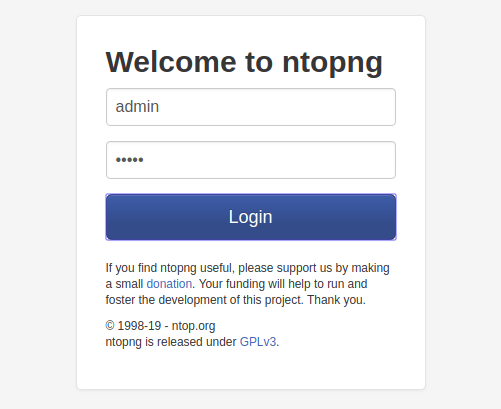
http://localhost:3000The first-time login screen presents a simple authentication prompt. The default username is “admin” with no password initially. Immediately change this after logging in—exposed default credentials invite security disasters.
The dashboard displays network statistics, traffic graphs, and active host information. Take time to explore the interface. Navigation feels intuitive once you understand the layout.
Essential Best Practices
Configuration choices made during initial setup profoundly impact ntopng’s performance and effectiveness.
Setting Local Networks Correctly
The -m parameter defining local networks requires careful attention. Setting it to 0.0.0.0/0 treats all traffic as local, potentially exhausting disk space with excessive data collection. Instead, specify your actual local network ranges accurately.
Sizing Host Parameters Properly
The -x and -X parameters control how many hosts ntopng tracks. Undersizing causes poor performance and missing hosts as ntopng struggles with limited memory. Oversizing wastes resources tracking hosts that don’t exist. A good rule: double your expected host count. If you expect 1000 hosts, set -x=2048.
Leveraging PF_RING ZC
For high-performance packet capture, PF_RING ZC (Zero Copy) dramatically reduces CPU overhead. This becomes critical on networks exceeding 1Gbps sustained throughput. Configure RSS (Receive Side Scaling) to virtualize NIC queues across multiple CPU cores for optimal performance.
Verification and Testing
Confirming everything works correctly prevents discovering issues weeks later when you need the data most.
Check service status again:
sudo systemctl status ntopngVerify the process is running:
ps aux | grep ntopngReview system logs for errors:
sudo journalctl -u ntopngAccess the web interface and verify the dashboard displays traffic statistics. Check that host discovery functions properly. Initial data collection takes a few minutes as ntopng learns your network.
Common Troubleshooting Issues
Even careful installations encounter problems. Knowing how to diagnose issues saves hours of frustration.
Service Fails to Start
Check systemd logs for specific error messages:
sudo journalctl -u ntopng -n 50Verify all dependencies installed correctly:
rpm -qa | grep -E "libpcap|maxminddb"Check for port conflicts with:
sudo ss -tulpn | grep 3000Configuration file syntax errors prevent startup. Review /etc/ntopng/ntopng.conf carefully for typos.
Web Interface Inaccessible
Confirm the service is actually running. Double-check firewall rules opened port 3000 correctly. SELinux on Fedora sometimes blocks unexpected network connections—check for denials:
sudo ausearch -m avc -ts recentVerify you’re using the correct port in your URL.
Frequent Crashes
Remove the --daemon option from your configuration file. This option can cause instability. Update to the latest version, as many stability issues get fixed in newer releases. Check crash logs in /var/log/ntopng/ for clues. Insufficient memory causes crashes under load—monitor with free -h.
No Traffic Data Visible
Verify you specified the correct interface in your configuration. Check interface permissions—some setups require ntopng to run with specific capabilities. Ensure actual network traffic exists to monitor. Generate some traffic by browsing websites or pinging hosts. Review configuration file syntax carefully for errors that might silently break functionality.
Exploring Ntopng Features
Understanding ntopng’s capabilities helps you leverage its full potential.
Real-time bandwidth monitoring shows current usage across your network. Traffic visualization breaks down data by IP address, port number, and protocol, revealing exactly what’s consuming bandwidth. Host discovery automatically identifies active devices, tracking their communication patterns over time.
Geolocation mapping visualizes traffic sources and destinations on a world map, immediately highlighting international connections. Protocol analysis recognizes over 250 Layer-7 protocols through nDPI integration, distinguishing YouTube traffic from VoIP calls or file transfers.
Flow collection capabilities integrate with routers and switches supporting NetFlow, sFlow, or IPFIX protocols. This extends visibility beyond locally monitored segments to your entire network infrastructure. Alert generation notifies you of unusual traffic patterns that might indicate security breaches or misconfigurations. The REST API enables integration with other monitoring platforms and custom automation scripts.
Security Hardening
Network monitoring tools access sensitive data. Securing ntopng isn’t optional.
Change default credentials immediately—this cannot be overstated. Restrict web interface access by IP address, allowing only trusted administrative networks. Configure HTTPS instead of HTTP to encrypt all web traffic. Implement strong authentication mechanisms and create separate user accounts with appropriate permissions.
Keep ntopng updated with regular patches. Security vulnerabilities get discovered and fixed continuously. SSH tunneling provides secure remote access without exposing the web interface directly. Disable unnecessary features to reduce attack surface. Configure user access controls limiting who can view or modify settings.
Congratulations! You have successfully installed Ntopng. Thanks for using this tutorial for installing the Ntopng network traffic monitoring on your Fedora 43 Linux system. For additional Apache or useful information, we recommend you check the official Ntopng website.
