
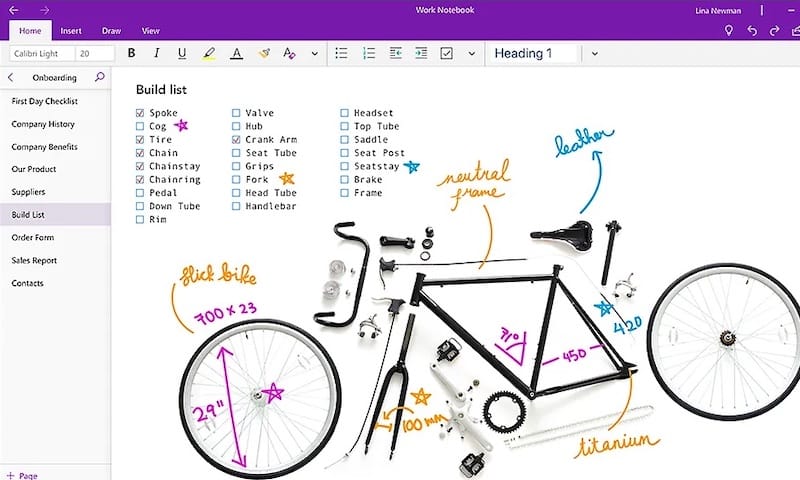
Microsoft OneNote has become an indispensable tool for millions of users worldwide. Its powerful note-taking capabilities, seamless synchronization across devices, and integration with the Microsoft ecosystem make it a top choice for students, professionals, and creative minds alike. However, Linux users have long faced a significant challenge: Microsoft doesn’t provide a native OneNote application for Debian or any other Linux distribution.
Fortunately, the open-source community has stepped up to fill this gap. If you’re running Debian 13 (codenamed Trixie), you can access OneNote functionality through several methods, each with its own advantages and considerations. This comprehensive guide will walk you through multiple installation approaches, from the simplest Snap package installation to more advanced methods, ensuring you can access your notes regardless of your technical expertise or preferences.
Understanding OneNote on Linux Systems
The Native OneNote Dilemma
Microsoft’s decision to skip Linux support for OneNote isn’t surprising given their historical focus on Windows and macOS platforms. This creates a challenge for users who’ve switched to Debian or maintain a dual-boot system. The good news? Community developers have created effective workarounds that bring OneNote functionality to your Linux desktop.
Your OneNote Options on Debian 13
The primary solution is P3X OneNote, an Electron-based application that wraps the OneNote web interface into a standalone desktop application. Think of it as a dedicated browser window specifically for OneNote, but with additional features and better integration with your Debian system. You can also access OneNote directly through web browsers or explore native Linux alternatives.
While P3X OneNote doesn’t match every feature of the native Windows version, it provides the core functionality most users need: note creation, editing, synchronization, notebook organization, and collaboration capabilities.
System Requirements and Prerequisites
Debian 13 Hardware Requirements
Before installing OneNote, verify your system meets these specifications. Debian 13 (Trixie) requires a minimum of 2 GB RAM and 20 GB disk space for basic operation. However, for comfortable desktop use with multiple applications, including OneNote, aim for at least 4 GB RAM and 50 GB of disk space. Your system should have a 64-bit (x86_64) processor.
Additional Software Requirements
You’ll need an active internet connection since OneNote syncs data with Microsoft’s cloud servers. A valid Microsoft account—either personal or corporate—is essential for accessing your notebooks. Depending on your chosen installation method, you may need specific software packages like Snap, Node.js, or NPM.
Method 1: Installing P3X OneNote via Snap
The Snap installation method offers the most straightforward approach for most users. Snap is a universal package management system that handles dependencies automatically and keeps applications updated.
Understanding Snap Benefits
Snap packages run in a sandboxed environment, enhancing security by isolating applications from your core system. They also update automatically in the background, ensuring you always have the latest features and security patches without manual intervention.
Step-by-Step Snap Installation
First, open your terminal application. Update your system packages to ensure compatibility:
sudo apt update && sudo apt upgradeThis command refreshes your package lists and upgrades installed software. Enter your password when prompted.
Next, install the snapd daemon:
sudo apt install snapdDebian requires an additional step to fully initialize Snap support. Install the core snap:
sudo snap install coreThis establishes the Snap framework on your Debian 13 system.
Now install P3X OneNote:
sudo snap install p3x-onenoteThe installation typically completes within 2-5 minutes, depending on your internet speed. You’ll see progress indicators as Snap downloads and configures the application.
For optimal functionality, reboot your system:
sudo rebootSome users can skip this step, but rebooting ensures all Snap services initialize correctly.
Launching Your Application
After rebooting, find P3X OneNote in your application menu. Search for “OneNote” or “P3X” in your desktop environment’s application launcher. Alternatively, launch it from the terminal:
p3x-onenoteThe first launch presents a login screen. Enter your Microsoft account credentials to sync your existing notebooks.
Method 2: Installing P3X OneNote via AppImage
AppImage provides a portable software format that doesn’t require traditional installation. It’s perfect for users who prefer self-contained applications or don’t want to modify their system packages.
Why Choose AppImage
AppImage files are distribution-independent and run without installation. You can store them anywhere, move them between systems, or run multiple versions simultaneously. The P3X OneNote AppImage also includes automatic update functionality.
Step-by-Step AppImage Installation
Open your web browser and navigate to the P3X OneNote GitHub releases page at github.com/patrikx3/onenote. Look for the latest release and download the file ending in .AppImage for x86_64 architecture.
Create a dedicated directory for AppImage applications:
mkdir -p $HOME/optThis keeps your AppImages organized in a central location.
Move the downloaded file to your new directory:
mv ~/Downloads/p3x-onenote-*.AppImage $HOME/opt/The asterisk wildcard matches the version number in the filename.
Make the AppImage executable:
chmod +x $HOME/opt/p3x-onenote-*.AppImageThis command grants execution permissions necessary to run the application.
Launch P3X OneNote:
$HOME/opt/p3x-onenote-*.AppImage &The ampersand runs the application in the background, freeing your terminal.
Creating a Desktop Shortcut
For easier access, create a desktop entry. Use your text editor to create a file at ~/.local/share/applications/p3x-onenote.desktop with appropriate content referencing your AppImage location. This integrates P3X OneNote into your application menu.
Method 3: Installing P3X OneNote via NPM
Developers familiar with Node.js may prefer the NPM installation method. This approach provides tight integration with Node ecosystem tools.
When NPM Makes Sense
Choose this method if you’re already using Node.js for development work or prefer command-line package management. It offers flexibility and control over your installation.
Step-by-Step NPM Installation
Install Node.js and NPM from Debian repositories:
sudo apt install nodejs npmVerify successful installation:
node --version
npm --version
Both commands should display version numbers.
Install P3X OneNote globally:
sudo npm install -g p3x-onenote --unsafe-perm=true --allow-rootThe --unsafe-perm and --allow-root flags allow installation in system directories. Global installation makes the application accessible system-wide.
Launch the application by typing p3x-onenote in your terminal. The application window opens just like other installation methods.
Method 4: Using OneNote Web App in Your Browser
If you prefer avoiding additional software installation, access OneNote directly through your web browser. This method works immediately without any setup beyond having a web browser installed.
Accessing OneNote Online
Navigate to office.com or onedrive.com in your preferred browser. Sign in with your Microsoft account credentials. Click the app launcher icon and select OneNote.
Creating a Progressive Web App
Modern browsers like Microsoft Edge and Google Chrome support installing web applications as standalone apps. While viewing OneNote in your browser, look for the install icon in the address bar or find “Install OneNote” in your browser’s menu.
This creates a desktop icon and allows OneNote to run in its own window, separate from your browser tabs. It feels more like a native application while maintaining the flexibility of web-based access.
Browser Considerations
The web version lacks some advanced features available in Windows OneNote, such as certain formatting options and offline access. However, it provides excellent compatibility and requires no maintenance.
Post-Installation Configuration
Initial Setup Process
Regardless of your installation method, the first launch requires Microsoft account authentication. Enter your email and password associated with your OneNote notebooks.
If you’re using a corporate account, you may encounter additional security verification steps. Follow your organization’s authentication procedures. Your existing notebooks will begin syncing automatically once logged in.
Configuring P3X OneNote Settings
P3X OneNote offers several customization options. Access settings through the application menu. Configure the system tray icon to keep OneNote running in the background. Adjust zoom levels for comfortable reading and editing. Enable or disable the URL bar based on your preferences.
Window management options let you control how P3X OneNote behaves when minimized or closed. Configure these according to your workflow needs.
Managing Offline Access
While P3X OneNote requires internet connectivity for full functionality, it caches recently accessed notebooks for limited offline viewing. Configure sync frequency in settings to balance data freshness with bandwidth usage.
Key Features and Functionality
What Works Well
P3X OneNote successfully handles core note-taking tasks. Create new notes, edit existing content, and organize notebooks into sections and pages. Synchronization works seamlessly, keeping your notes updated across all devices. Collaborative features function properly, allowing you to share notebooks and work with team members.
The application provides access to other Microsoft online applications through integrated links. You can insert tables, format text, add tags, and use most formatting tools available in the web version.
Understanding Limitations
Since P3X OneNote wraps the web interface, it inherits the web version’s limitations. Some Windows-specific features like local notebook storage, certain add-ins, and advanced formatting options aren’t available. Performance may occasionally lag compared to native applications, particularly with very large notebooks or slow internet connections.
Troubleshooting Common Issues
Installation Problems
If Snap installation fails, ensure you’ve updated your system first. Remove any conflicting Snap installations with sudo snap remove p3x-onenote before reinstalling.
AppImage permission errors typically indicate you haven’t executed the chmod command correctly. Verify the file path and ensure you’re using the correct filename.
NPM installation conflicts often relate to permission issues. Consider using a Node version manager like nvm instead of system-wide Node.js installation.
Launch and Runtime Issues
If the application won’t start after installation, check system logs for error messages. Verify all dependencies installed correctly. For Snap installations, ensure snapd service is running:
sudo systemctl status snapdLogin problems usually indicate network connectivity issues or incorrect credentials. Verify your internet connection and Microsoft account status. Reset your password if necessary.
Sync issues often resolve by logging out and back in. Check Microsoft service status online if problems persist across multiple devices.
Performance Optimization
If P3X OneNote runs slowly, close unnecessary browser tabs and applications. Clear the application cache through settings. Reduce the number of open notebooks to improve responsiveness. Consider upgrading your system RAM if you frequently work with large notebooks.
Keeping P3X OneNote Updated
Automatic Updates
Snap installations update automatically in the background. Snap checks for updates multiple times daily and installs them when the application isn’t running.
AppImage versions include built-in update checking. The application notifies you when updates are available and can download them automatically.
Manual Update Process
Force a Snap update manually:
sudo snap refresh p3x-onenoteThis immediately checks for and installs available updates.
For AppImage installations, download the latest version from GitHub and replace your existing file. NPM users can update with:
sudo npm update -g p3x-onenoteCongratulations! You have successfully installed OneNote. Thanks for using this tutorial for installing OneNote note-taking app on Debian 13 “Trixie” system. For additional help or useful information, we recommend you check the official OneNote website.
