
If you want to run professional 2D animation software on Linux without paying a cent, OpenToonz is one of the best tools available. Getting it running on Fedora 43 is straightforward, but there are three different installation paths and each one has trade-offs worth understanding before you start. This guide walks you through exactly how to install OpenToonz on Fedora 43 using DNF, Flatpak, and Snap, covers the post-install FFmpeg configuration that most guides skip, and gives you practical troubleshooting steps for the most common errors you will run into.
What Is OpenToonz and Why Should Linux Animators Care?
OpenToonz is a free, open-source 2D animation software published by DWANGO. It is based on Toonz, which was originally developed in Italy by Digital Video S.p.A. and then customized by Studio Ghibli for its own production pipeline. DWANGO launched the OpenToonz project in cooperation with Digital Video and Studio Ghibli, releasing the source code publicly in 2016.
That heritage matters. This is not a hobbyist tool built in a weekend. It is production-grade software with years of real animation studio use behind it.
Core Features Worth Knowing
Before you commit to the install, here is what OpenToonz actually gives you:
- Hybrid raster and vector drawing engine for flexible scene production
- XSheet (exposure sheet) for frame-based animation timing control
- GTS (Ghibli Technology System) scanning and cleanup tools for hand-drawn animation
- FX Schematic node-based effects and compositing pipeline
- Digital ink-and-paint with advanced color palette and style management
- Multi-plane camera stand for parallax depth compositing
- Full pressure-sensitive tablet input support on Linux via libinput
One important thing to know upfront: the OpenToonz upstream team only publishes official binaries for Windows and macOS. On Linux, you rely on community-maintained packages. On Fedora, that actually works well because Fedora’s packaging team actively maintains an official opentoonz package in the main repository.
Why Fedora 43 Is a Solid Base for Running OpenToonz
Fedora 43 shipped in late October 2025 and brought meaningful improvements relevant to graphics-heavy applications like OpenToonz. It ships with a modern Linux kernel, GNOME 47, and has completed its full transition to Wayland-only sessions, which improves GPU rendering and tablet input performance.
Fedora 43 also moved to DNF 5 as the default package manager, making installations faster and dependency resolution more reliable than in previous Fedora releases.
From a sysadmin perspective, Fedora 43 gives you a stable, up-to-date graphics stack without needing to add third-party PPAs or repos just to get OpenToonz running. The opentoonz package in Fedora 43’s official repository is version 1.7.1-17.fc43, packaged and maintained by the Fedora project.
Prerequisites Before You Install OpenToonz on Fedora 43
Before running any commands, make sure your system meets these requirements.
System Requirements
- OS: Fedora 43 Workstation or Server (x86_64 architecture)
- CPU: Dual-core 2 GHz minimum; quad-core recommended for multi-scene projects
- RAM: 2 GB minimum; 8 GB recommended for complex animations
- Storage: 15 GB free minimum; 40 GB recommended for project files
- Display: 1024×768 or higher resolution
- GPU: OpenGL 2.1+ compatible; dedicated GPU preferred for raster-heavy work
Required Permissions and Tools
- Active
sudoprivileges on the system - Active internet connection for package downloads
- Terminal access (GNOME Terminal, Konsole, or any terminal emulator)
- Fedora 43 fully updated before starting
Update Your System First
Run this before anything else. Installing packages on an outdated system leads to dependency conflicts that are completely avoidable.
sudo dnf update && sudo dnf upgrade -yThis command refreshes the package metadata and upgrades all installed packages to their latest versions. The -y flag skips the confirmation prompt so the update runs non-interactively.
Step 1: Install OpenToonz on Fedora 43 via DNF (Recommended Method)
The DNF method is the fastest and most reliable option for Fedora users. It pulls opentoonz directly from Fedora’s official repository, which means the package includes Fedora-specific patches for stability and integrates cleanly with your system’s shared libraries.
No third-party repositories are needed. No manual dependency management. This is the install method you should use unless you have a specific reason to prefer Flatpak or Snap.
Step 1.1: Check for the Package
Verify the package is available in your current repo index before installing:
dnf search opentoonzYou should see output like this:
============= Name Exactly Matched: opentoonz =============
opentoonz.x86_64 : 2D animation software
This confirms Fedora 43’s repo has the package ready to go.
Step 1.2: Install OpenToonz with DNF
sudo dnf install opentoonz -yDNF will automatically pull in all required dependencies, including Qt libraries, OpenGL components, and any shared libraries OpenToonz needs. The -y flag auto-confirms the installation prompt.
Expected output (abbreviated):
Dependencies resolved.
================================================================================
 Package           Architecture  Version              Repository           Size
================================================================================
Installing:
 opentoonz         x86_64        1.7.1-17.fc43        fedora              ...
Installing dependencies:
 ...

Transaction Summary
================================================================================
Install  X Packages

Total download size: XX M
Installed size: XX M
Downloading Packages:
...
Complete!
Step 1.3: Verify the Installation
opentoonz --versionIf the binary responds with a version string, the installation succeeded. You can also launch it directly from the terminal:
opentoonzOr find it in the GNOME application menu under Graphics or Multimedia.
Trade-off to know: The DNF version tracks Fedora’s release cycle. It may lag a few minor versions behind the latest upstream release on GitHub, but it will always be the most stable and well-tested build for your Fedora version.
Step 2: Install OpenToonz on Fedora 43 via Flatpak (Latest Version)
If you want the most up-to-date build of OpenToonz available on Linux, Flatpak from Flathub is your best option. The Flathub package tracks upstream releases more closely than the DNF repo and delivers OpenToonz in a sandboxed environment that keeps it isolated from your system libraries.
The official Flathub App ID for OpenToonz is io.github.OpenToonz. Fedora 43 ships with Flatpak support pre-installed, so most users will not need to set it up from scratch.
This is also the install method that the Linux animation community most commonly recommends, based on forum discussions and community support activity.
Step 2.1: Verify Flatpak Is Installed
flatpak --versionIf Flatpak is not installed, add it now:
sudo dnf install flatpak -yStep 2.2: Add the Flathub Repository
flatpak remote-add --if-not-exists flathub https://dl.flathub.org/repo/flathub.flatpakrepoThe --if-not-exists flag prevents an error if Flathub is already configured on your system. This is safe to run regardless.
Step 2.3: Install OpenToonz from Flathub
flatpak install flathub io.github.OpenToonz -yFlatpak will download the OpenToonz bundle along with its required runtime (typically the FreeDesktop Platform runtime). Expect a download between 400 MB and 600 MB depending on what runtimes you already have installed.
Step 2.4: Launch OpenToonz via Flatpak
flatpak run io.github.OpenToonzOpenToonz will also appear in your GNOME application menu after installation.
Step 2.5: Update OpenToonz Flatpak Later
flatpak update io.github.OpenToonzImportant sandbox note: Flatpak’s sandboxing restricts filesystem access by default. If OpenToonz cannot read or write project files in custom directories, run this command to grant access to your full home directory:
flatpak override --user --filesystem=home io.github.OpenToonzStep 3: Install OpenToonz on Fedora 43 via Snap
Snap is a third installation option maintained by the Snapcrafters community. The OpenToonz snap is not officially endorsed by DWANGO or the upstream OpenToonz developers, but it does work on Fedora. Use this method only if DNF and Flatpak are not suitable for your setup.
Snap is not installed by default on Fedora 43, so this method requires a few extra setup steps.
Step 3.1: Install snapd
sudo dnf install snapd -yThis installs the snapd daemon, which manages snap packages on your system.
Step 3.2: Create the Required Symbolic Link
sudo ln -s /var/lib/snapd/snap /snapClassic snap confinement requires the /snap directory to exist. This symbolic link points it to where snapd actually stores snaps on Fedora.
Step 3.3: Reboot the System
sudo rebootThis is required. Without a reboot, the system paths for snap will not update correctly and snap commands will fail.
Step 3.4: Install OpenToonz via Snap
sudo snap install opentoonzStep 3.5: Launch OpenToonz
snap run opentoonzKnown issue on Fedora: Fedora 43 enforces SELinux in enforcing mode by default. SELinux policies can conflict with snapd operations, causing permission errors. If you run into this, switching to Flatpak (Step 2) is the cleaner fix. For quick testing only, you can temporarily set SELinux to permissive mode:
sudo setenforce 0Do not leave SELinux in permissive mode on a production system.
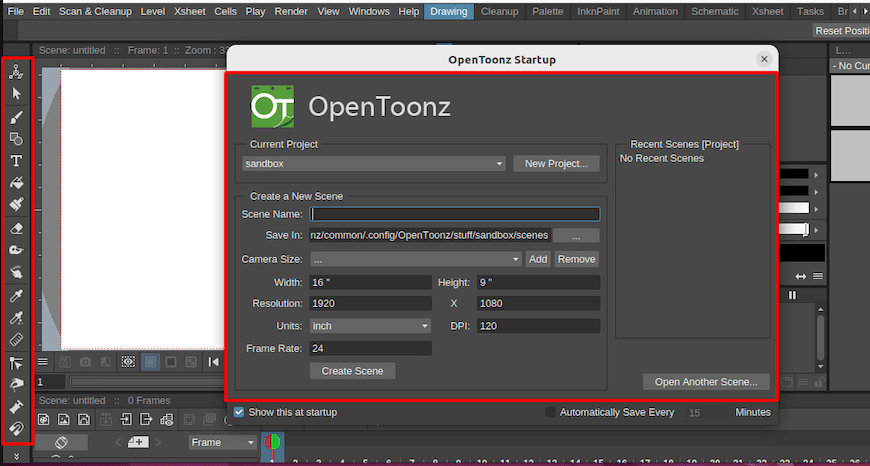
Step 4: Configure OpenToonz on Fedora 43 for First Use
Whether you installed via DNF, Flatpak, or Snap, the first-launch setup process is the same. Getting this right from the start saves you from confusing errors later.
Step 4.1: Set the Stuff Folder
On first launch, OpenToonz prompts you to set the location of the “Stuff” folder. This is where OpenToonz stores all project data, palettes, scene files, and library assets.
Create a dedicated directory before launching:
mkdir -p ~/OpenToonz/stuffPoint the first-launch dialog to ~/OpenToonz/stuff. This keeps all your animation data organized under your home directory and avoids permission issues.
Step 4.2: Understand the Workspace Layout
Once inside OpenToonz, the four panels you need to know immediately are:
- Viewer: The main canvas for drawing, viewing, and playing back animation
- XSheet: The exposure sheet and timeline for managing frame order and timing
- Level Strip: Manages individual animation levels, both raster and vector
- FX Schematic: The node-based effects and compositing graph
Step 4.3: Fix HiDPI Scaling on Wayland
Fedora 43 defaults to Wayland, and if you are on a HiDPI monitor, OpenToonz may appear incorrectly scaled on first launch. Go to File > Preferences > Interface and adjust the UI Scale Factor to match your display.
Save your workspace layout after customizing by going to Rooms > Save Room. This prevents losing your panel arrangement every time you restart the application.
Step 5: Install and Configure FFmpeg for Video Export
This is the step that most installation guides leave out, and it is the reason new users report that OpenToonz “cannot export video.” FFmpeg is required for any video export format in OpenToonz on Linux, including MP4, AVI, and GIF. Without it, you can only export image sequences.
FFmpeg is not included in Fedora’s default repositories due to software patent considerations. You install it from RPM Fusion.
Step 5.1: Enable RPM Fusion Free Repository
sudo dnf install https://download1.rpmfusion.org/free/fedora/rpmfusion-free-release-$(rpm -E %fedora).noarch.rpm -yThis command automatically detects your Fedora version number and installs the correct RPM Fusion release package.
Step 5.2: Install FFmpeg
sudo dnf install ffmpeg -yStep 5.3: Verify FFmpeg Is Installed
ffmpeg -versionConfirm the binary path:
which ffmpegExpected output: /usr/bin/ffmpeg
Step 5.4: Connect FFmpeg to OpenToonz
Open OpenToonz, then go to:
File > Preferences > Import/Export
In the FFmpeg path field, enter:
/usr/binClick OK and restart OpenToonz.
Step 5.5: Test Video Export
Create a short test scene with a few frames and try exporting as MP4. If it renders without error, FFmpeg is configured correctly.
Step 6: Keep OpenToonz Up to Date and Uninstall When Needed
Updating OpenToonz
Run the correct update command based on your installation method:
DNF:
sudo dnf update opentoonz -yFlatpak:
flatpak update io.github.OpenToonzSnap:
sudo snap refresh opentoonzFlatpak updates follow Flathub’s independent release schedule and may deliver newer versions faster than the DNF repo, which is tied to Fedora’s release cycle.
Uninstalling OpenToonz
DNF:
sudo dnf remove opentoonz -yFlatpak:
flatpak uninstall --delete-data io.github.OpenToonz -ySnap:
sudo snap remove opentoonzRemoving OpenToonz via any method does not delete your project files. If you want a full clean removal, also delete the Stuff folder manually:
rm -rf ~/OpenToonzTroubleshooting Common OpenToonz Issues on Fedora 43
Error 1: OpenToonz Crashes Immediately on Startup
This is a known bug specific to Fedora 43 when building OpenToonz from source. The packaged binaries from DNF and Flatpak include Fedora-specific patches (including opentoonz-1.7.1-kissfft-fix.patch) that fix this crash.
Fix: Use the DNF or Flatpak installation method instead of compiling from source. If you must compile from source, check the Fedora package spec file on the Fedora Source Package tracker for the required patches.
Error 2: “FFmpeg Not Found” or Video Export Fails
Cause: FFmpeg is either not installed or the path is not set in OpenToonz preferences.
Fix: Follow Step 5 in this guide completely. Verify that /usr/bin/ffmpeg exists, then set the FFmpeg path in File > Preferences > Import/Export to /usr/bin.
Error 3: Snap Conflicts with SELinux
Cause: Fedora 43 runs SELinux in enforcing mode by default, which blocks certain snapd socket operations.
Fix: Switch to the Flatpak installation method (Step 2). For temporary testing only, you can run sudo setenforce 0 to put SELinux into permissive mode, but restore it with sudo setenforce 1 afterwards.
Error 4: Flatpak Cannot Open Project Files
Cause: Flatpak’s sandbox restricts OpenToonz from accessing directories outside ~/Documents and ~/Downloads by default.
Fix: Grant full home directory access:
flatpak override --user --filesystem=home io.github.OpenToonzError 5: Missing Qt or OpenGL Libraries After DNF Install
Cause: Dependency resolution failed silently during install, or conflicting packages blocked the full install.
Fix:
sudo dnf reinstall opentoonz --allowerasing -yThe --allowerasing flag allows DNF to remove conflicting packages that block a clean installation.
Congratulations! You have successfully installed OpenToonz. Thanks for using this tutorial for installing OpenToonz animation maker on Fedora 43 Linux system. For additional help or useful information, we recommend you check the official OpenToonz website.

