
Fedora 45 is a polished, modern Linux desktop, but archive handling still matters more than many people expect. Whether you receive .zip files from Windows colleagues, unpack .tar.gz backups, inspect .7z archives, or need to create encrypted archives for client deliverables, the default archive tools are not always enough. That is where PeaZip earns its place.
PeaZip is a free, open-source archive manager with support for a wide range of formats, including 7Z, ZIP, TAR, GZ, XZ, BZIP2, ZSTD, RAR extraction, ISO, and many others. It provides a graphical interface, strong compression options, encryption, split archives, checksums, and file-management features that are genuinely useful on a workstation. On Fedora 45, you can install it through the official Fedora repositories, Flathub, or an upstream portable package. Each route has trade-offs, and choosing the wrong one can create unnecessary update friction later.
This guide walks through the reliable installation methods, explains when each one makes sense, and covers the issues that tend to appear in real desktop environments: missing codecs, Wayland quirks, permission problems, large-archive performance, and secure handling of untrusted archives. Fedora 45 was released on November 3, 2026, so the instructions below are aimed at the current stable release rather than an older Fedora version.
Why Use PeaZip on Fedora 45?
Fedora Workstation already includes GNOME Archive Manager, and KDE Plasma ships Ark. Both are perfectly good for everyday extraction. So why install PeaZip?
The short answer is control.
PeaZip is useful when you need more than “right-click and extract.” It supports a broad set of archive formats, can create archives in formats such as 7Z and ZIP, and includes practical features like archive conversion, encrypted archive creation, file hashing, secure deletion, and split archives. For technical users, those features turn an archive manager into a small but valuable desktop utility.
A few common scenarios:
- A designer sends you a
.7zarchive containing layered assets and you need dependable extraction with password support. - You maintain client backups and want to create compressed archives with AES encryption.
- You need to inspect an ISO, extract selected files, and verify checksums without mounting the image.
- You work with large log bundles and want to split a compressed archive into manageable parts.
- You want a consistent archive tool across Fedora, Debian, Ubuntu, and Windows.
PeaZip is not a replacement for command-line tools in every situation. On a server, tar, zstd, xz, 7z, and unzip remain essential. But on a Fedora desktop or workstation, PeaZip fills a practical gap between simplicity and advanced control.
Installation Methods at a Glance
There are three sensible ways to install PeaZip on Fedora 45:
| Method | Command or source | Best for | Update model |
|---|---|---|---|
| Fedora repository | sudo dnf install peazip-qt6 |
Most Fedora Workstation and KDE users | Updated with system packages |
| Flathub | flatpak install flathub io.github.peazip.PeaZip |
Users who prefer sandboxed desktop apps | Updated through Flatpak |
| Portable upstream build | Official PeaZip TAR.GZ | Testing, user-local installs, advanced use | Manual updates |
For most people, the Fedora repository package is the cleanest choice. It integrates with the system package manager, receives updates through normal Fedora upgrades, and avoids the extra disk overhead that Flatpak runtimes can introduce. PeaZip’s official Linux page also provides RPM packages, but repository and Flatpak installations are generally easier to maintain because updates are handled by the package manager.
Before You Begin
Open a terminal with Ctrl + Alt + T, or use the Activities overview and search for Terminal.
First, refresh package metadata and apply pending updates. This matters more than it may seem. Fedora repositories move quickly, and installing software on an outdated base can lead to avoidable dependency conflicts.
sudo dnf upgrade --refreshIf the system prompts you to reboot after a kernel, systemd, or graphics-stack update, do so before continuing. Archive utilities are not usually the source of kernel-related problems, but a reboot ensures that library and desktop-environment changes are fully applied.
Check your Fedora version:
cat /etc/fedora-releaseYou should see output confirming Fedora Linux 45. Fedora 45 includes Workstation, KDE Plasma, Server, Cloud, CoreOS, IoT, Atomic Desktops, and Spins, so the exact desktop environment may vary.
Install PeaZip from Fedora Repositories
This is the recommended method for most Fedora 45 users.
Fedora provides PeaZip packages through DNF. On recent Fedora releases, the Qt6 build is the preferred desktop variant, especially on KDE Plasma and other modern desktop environments. Installing peazip-qt6 explicitly avoids ambiguity if multiple interface variants are available.
Run:
sudo dnf install peazip-qt6Review the transaction summary. DNF will show the packages to be installed, their sizes, and any dependencies. Confirm with y when prompted.
After installation, verify that the package is present:
rpm -q peazip-qt6You can also check for the shared PeaZip data package, if installed as a dependency:
rpm -qa | grep peazipLaunch PeaZip from the application menu, or start it from the terminal:
peazipIf you use KDE Plasma, GNOME, XFCE, or another desktop environment, PeaZip should appear in the applications menu after installation. If it does not, log out and back in. Desktop menu caches occasionally lag behind newly installed applications.
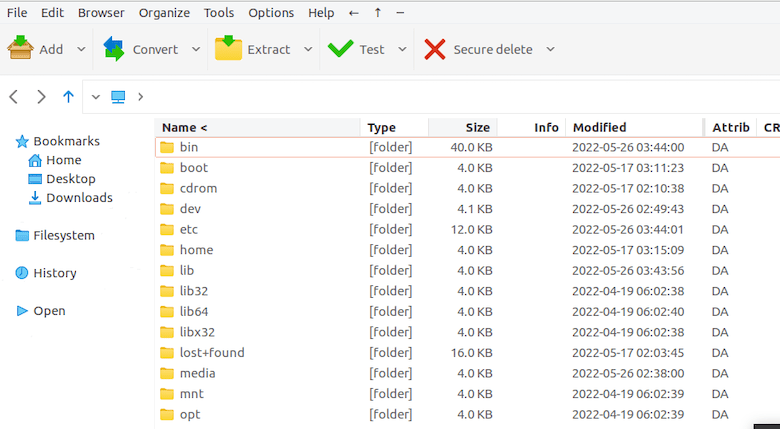
Why Choose the Qt6 Package?
Fedora’s Qt6 package is usually the best fit for current desktops. Qt6 is modern, well supported, and aligns well with KDE Plasma. It also avoids relying on older toolkit libraries that may be less relevant on a fresh Fedora installation.
If you are using GNOME, the toolkit choice is less visually important, but Qt6 remains a sensible default. The application does not need to match your desktop toolkit to work properly; it only affects the interface libraries PeaZip uses.
Install PeaZip from Flathub
Flatpak is a strong alternative if you prefer sandboxed applications or want an upstream-managed version of PeaZip. Flatpak bundles the application with its required runtime dependencies, which reduces compatibility problems across distributions. The trade-off is larger disk usage and occasional desktop-integration differences. PeaZip’s official documentation notes that Flatpak installs dependencies in a sandboxed environment, which can increase the total space required.
First, make sure Flatpak is installed:
sudo dnf install flatpakFedora Workstation normally includes Flatpak support, but minimal installs, server-oriented setups, and some custom spins may not.
Add Flathub if it is not already configured:
flatpak remote-add --if-not-exists flathub https://dl.flathub.org/repo/flathub.flatpakrepoThen install PeaZip:
flatpak install flathub io.github.peazip.PeaZipConfirm the installation:
flatpak list --app | grep -i peazipLaunch it from the menu or with:
flatpak run io.github.peazip.PeaZipWhen Flatpak Makes Sense
Flatpak is a good option if you want the application isolated from the rest of the system. It can also be useful if you use an Atomic Desktop variant such as Fedora Silverblue or Kinoite, where layered RPM packages are less desirable than Flatpak applications.
However, Flatpak is not automatically better. If you already maintain a traditional Fedora system with DNF, the repository package is simpler, lighter, and more tightly integrated with system updates. Flatpak makes the most sense when sandboxing, consistent upstream releases, or Atomic-desktop workflows are priorities.
Install the Portable PeaZip Build
The portable build is useful for testing, running PeaZip from a user directory, or avoiding system-wide installation. PeaZip provides a self-contained TAR.GZ package that can be extracted and launched directly. The official project states that this package is designed to work across distributions and can be started by running the peazip executable.
This method is best for experienced users. It gives you flexibility, but it also means you are responsible for updates, permissions, and dependency checks.
Download the Portable Package
Visit the official PeaZip Linux download page and download the current portable TAR.GZ package for Linux x86_64. Avoid third-party mirrors unless you have a specific reason to trust them.
For example, after downloading the archive to your Downloads directory:
cd ~/Downloads
ls -lh peazip_portable-*.tar.gz
The exact filename will vary by release.
Extract It to a User Directory
A sensible location is ~/.local/opt or ~/Applications. Keeping the application in your home directory avoids permission issues and makes removal straightforward.
mkdir -p ~/.local/opt
tar -xzf peazip_portable-*.tar.gz -C ~/.local/opt
List the extracted directory:
ls ~/.local/optYou should see a PeaZip directory containing the application files.
Launch PeaZip
Move into the extracted directory:
cd ~/.local/opt/peazip*
./peazip
Running the executable from a terminal is useful during the first launch. If a library is missing or the application fails to start, the terminal will usually provide more useful feedback than a desktop launcher. PeaZip’s documentation specifically recommends starting the peazip binary from the console when troubleshooting missing dependencies.
Add PeaZip to the Application Menu
To make the portable version easier to launch, create a desktop entry:
mkdir -p ~/.local/share/applications
nano ~/.local/share/applications/peazip-portable.desktop
Add the following, adjusting the Exec and Icon paths to match your extracted directory:
[Desktop Entry]
Type=Application
Name=PeaZip Portable
Comment=Archive Manager
Exec=/home/YOUR_USERNAME/.local/opt/peazip/peazip
Icon=/home/YOUR_USERNAME/.local/opt/peazip/peazip.png
Terminal=false
Categories=Utility;Archiving;
Save the file, then refresh the desktop database if necessary:
update-desktop-database ~/.local/share/applicationsReplace YOUR_USERNAME with your actual Linux username. You can find it with:
echo $USERWhich Installation Should You Choose?
If you are unsure, install from the Fedora repository.
sudo dnf install peazip-qt6That single command is usually the right answer.
Choose Flathub if you use an Atomic Desktop, value application sandboxing, or prefer to keep third-party desktop software separate from system packages. Choose the portable build only when you need a user-local installation, want to test a specific upstream release, or need a version that is not yet available through Fedora or Flathub.
There is little benefit in installing all three versions at once. It creates duplicate menu entries, wastes disk space, and makes it harder to know which PeaZip binary is opening your archives.
First-Run Configuration
After launching PeaZip, spend a few minutes configuring it. The defaults are usable, but a few settings make the application more comfortable for regular work.
Set the Default Extraction Directory
By default, many archive managers extract files into the current directory. That can be convenient, but it can also scatter files across your Downloads folder.
In PeaZip, open Options or Settings, then configure the default extraction path. A dedicated directory such as ~/Extracted keeps things tidy:
mkdir -p ~/ExtractedThis is a small habit, but it prevents the familiar problem of extracting an archive and losing track of where its contents went.
Enable Confirmation for Overwrites
If you regularly extract archives into existing folders, enable overwrite confirmation. It takes one careless click to replace a file with an older version from an archive. Confirmation prompts are a minor inconvenience compared with recovering overwritten work.
Configure Archive Creation Defaults
For general-purpose archives, 7Z is often a strong default because it offers good compression and encryption support. ZIP remains the safer choice when sending files to Windows users, though modern Windows handles many formats better than it once did.
For Linux-to-Linux backups, TAR combined with ZSTD or XZ compression can be excellent. ZSTD is particularly attractive when speed matters; XZ usually achieves stronger compression but can be considerably slower.
Using PeaZip Effectively
Extract an Archive
Right-click an archive in the Files application and look for PeaZip extraction options, or open PeaZip and browse to the file.
From the terminal, you can also launch PeaZip with a file:
peazip ~/Downloads/example.zipFor a Flatpak installation:
flatpak run io.github.peazip.PeaZip ~/Downloads/example.zipCreate a Compressed Archive
Select the files or folders you want to archive, then choose the archive format and compression level.
A few practical guidelines:
- Use ZIP for maximum compatibility.
- Use 7Z for strong compression and encryption.
- Use TAR.ZST for fast Linux-oriented backups.
- Use TAR.XZ when achieving the smallest possible archive matters more than speed.
- Use split archives when uploading large files to services with size limits.
Do not assume that the highest compression setting is always best. On a laptop, maximum compression can make the system feel sluggish while it works. For routine archives, a medium setting is often the better balance.
Create an Encrypted Archive
Encryption is valuable when archives contain client data, credentials, financial records, or private documents. PeaZip supports encrypted archive creation, particularly through formats such as 7Z.
Use a long passphrase. A short password, even with strong encryption, is a weak link. A passphrase made from several unrelated words is easier to remember and harder to brute-force than an eight-character password full of symbols.
Also remember: encryption protects the archive contents, but it does not protect the original files on your disk. If the source files contain sensitive data, consider full-disk encryption and appropriate file permissions as well.
Troubleshooting PeaZip on Fedora 45
PeaZip Does Not Appear in the Application Menu
First, confirm the package is installed:
rpm -q peazip-qt6If it is installed, try launching it from a terminal:
peazipIf it opens from the terminal but not from the menu, log out and back in. Desktop environments cache application entries, and a session restart often resolves the issue.
For a portable installation, check the Exec path in your .desktop file. A typo in the path is one of the most common causes of a launcher that silently fails.
“Command Not Found” After Installation
If peazip returns command not found, verify which package you installed:
rpm -qa | grep peazipIf nothing appears, the installation did not complete. Reinstall it:
sudo dnf install peazip-qt6If the package is installed but the command is still missing, search for the executable:
rpm -ql peazip-qt6 | grep binThe binary location can vary depending on the package layout.
DNF Dependency Errors
Dependency errors are less common on a freshly updated Fedora system, but they can happen after enabling third-party repositories or mixing packages from different sources.
Start with:
sudo dnf clean all
sudo dnf makecache
sudo dnf upgrade --refresh
Then retry:
sudo dnf install peazip-qt6If DNF reports a conflict, read the full error rather than forcing the installation. Forcing package operations can leave the system in a worse state.
Avoid using --allowerasing casually. It can remove packages that other software depends on. Use it only when you understand exactly what DNF intends to remove.
Flatpak PeaZip Cannot Access a Folder
Flatpak sandboxing can restrict filesystem access. If PeaZip cannot open a directory, grant access to your home folder or the relevant path through Flatseal, or use the Flatpak permission system.
A quick check is to run:
flatpak info io.github.peazip.PeaZipIf you use Flatseal, search for PeaZip and review its filesystem permissions. Be deliberate: granting broad filesystem access reduces the isolation benefit of Flatpak.
Extraction Fails or Produces Corrupted Files
First, confirm the archive itself is intact.
For a ZIP file:
unzip -t archive.zipFor a TAR archive:
tar -tzf archive.tar.gz > /dev/nullFor a 7Z archive, install p7zip if needed:
sudo dnf install p7zip p7zip-pluginsThen test it:
7z t archive.7zIf the archive fails these tests, the problem is likely the file, not PeaZip. Re-download it, request it again, or check the source’s checksum.
RAR Archives Do Not Extract
RAR support can depend on the backend tools available on the system. PeaZip can handle many RAR archives, but certain RAR versions or compression methods may require additional components.
Install common archive backends:
sudo dnf install p7zip p7zip-plugins unzip zip tar gzip xz zstd bzip2Then restart PeaZip. If a specific RAR archive still fails, test whether the file opens with another tool. Some RAR archives use features that require proprietary RAR components, which is one reason open-source archive managers sometimes have uneven RAR support.
PeaZip Freezes on a Large Archive
Large archives can consume significant CPU, memory, and disk bandwidth. Before assuming PeaZip is broken, check system resources:
htop
iostat -xz 2
df -h
Confirm that the destination filesystem has enough free space. A compressed archive can expand dramatically once extracted. Running out of disk space during extraction can leave partial files behind.
Also avoid extracting directly to network storage if the connection is unstable. Extract locally first, then copy the completed result to the network location.