How To Install Pinta on Linux Mint 22

If you need a lightweight, beginner-friendly image editor on Linux and GIMP feels like overkill, Pinta is the tool you want. It gives you layers, drawing tools, image adjustments, and unlimited undo in a clean interface that anyone can pick up in minutes. This guide shows you exactly how to install Pinta on Linux Mint 22 using four proven methods, so you can choose the one that fits your workflow best.
Pinta is a free, open-source paint and image editing application built for simplicity. Version 3.0, released in April 2025, brought a full GTK 4.0 and Libadwaita interface refresh, automatic light/dark mode switching, new effects like Dithering, Voronoi Diagram, Vignette, and restored Add-ins support. Whether you run Linux Mint 22 on a desktop workstation or a Raspberry Pi, all four installation methods covered here support both amd64 and arm64 architectures.
By the end of this tutorial, you will have Pinta installed, verified, and ready to use. You will also know how to update it, uninstall it, and fix the most common errors users run into on Linux Mint 22.
Prerequisites
Before you start, confirm the following:
- Operating System: Linux Mint 22 (codename “Wilma”) or Linux Mint 22.1
- User privileges: A user account with
sudoaccess - Internet connection: Required for downloading packages
- Disk space: At least 500MB free (Pinta with dependencies is well under 200MB, but sandbox runtimes for Flatpak/Snap need extra room)
- Terminal access: Press
Ctrl + Alt + Tto open a terminal at any time
Check your OS version before proceeding:
cat /etc/os-releaseExpected output (example):
NAME="Linux Mint"
VERSION="22 (Wilma)"
ID=linuxmint
Run a system update first, regardless of which method you choose:
sudo apt update && sudo apt upgrade -yThis command refreshes the package index and upgrades any outdated packages before you add new software. Skipping this step is the single most common cause of dependency errors during installation.
What Is Pinta? A Quick Overview
Pinta is an open-source image editor inspired by Paint.NET on Windows. It targets users who need quick, practical editing without a steep learning curve.
Key Features
- Unlimited undo history for non-destructive workflows
- Full layer support with merge, reorder, and opacity controls
- Image adjustments: Brightness/Contrast, Curves, Levels, Hue/Saturation, Sepia, Auto-Level
- Effects: Blur, Sharpen, Noise, Distort, Dithering, Voronoi Diagram, Vignette (new in 3.0)
- Drawing tools: Pencil, Paintbrush, Eraser, Shapes, Fill Bucket, Text
- Supports PNG, JPEG, BMP, TIFF, WebP, and OpenRaster (
.ora) formats - Restored Add-in Manager for extending functionality
- Cross-platform: Linux, Windows, macOS, FreeBSD
Pinta vs. GIMP: Which One Do You Need?
| Feature | Pinta | GIMP |
|---|---|---|
| Learning curve | Low (beginner-friendly) | High (professional-grade) |
| Layers support | Yes (basic) | Yes (advanced) |
| Scripting/macros | No | Yes |
| Startup time | Fast | Slow |
| Best for | Quick edits, annotations, drawing | Photo retouching, complex compositing |
If you just need to crop, annotate, resize, or do basic drawing, Pinta handles the job without the complexity of GIMP.
Step 1: Update Your System
Always start with a clean, fully updated system. This prevents version conflicts and ensures dependency resolution works correctly.
sudo apt update && sudo apt upgrade -yThe apt update command fetches the latest package lists from all enabled repositories. The apt upgrade -y command applies all pending upgrades without asking for confirmation at each step. Run this once before any of the four installation methods below.
Step 2: Choose Your Installation Method
Linux Mint 22 supports four ways to install Pinta. Here is a quick summary before diving into each:
| Method | Latest Version? | Terminal Needed? | Best For |
|---|---|---|---|
| Software Manager (GUI) | Yes (Flatpak) | No | Beginners |
| Flatpak via Terminal | Yes | Yes | Intermediate users |
| Snap | Yes | Yes | Snap ecosystem users |
| APT (default repo) | May be older | Yes | Stability-focused users |
For most Linux Mint 22 users, the Software Manager method or Flatpak terminal method delivers the latest Pinta 3.0 release and is the most reliable path.
Step 3: Install Pinta on Linux Mint 22 via Software Manager (Recommended for Beginners)
This method requires zero terminal commands. Linux Mint 22’s Software Manager ships with Flatpak support pre-configured, so you get the latest Pinta version from Flathub without touching the command line.
How to Install via Software Manager
- Click the Menu button in the bottom-left corner of your desktop
- Search for and open Software Manager
- In the search box at the top right, type Pinta and press
Enter - Select the Pinta result that shows the Flathub source badge
- Click the Install button
- Enter your user password when prompted
- Wait for the download and installation to finish
- Click Launch, or find Pinta under Menu > Graphics > Pinta
Verify the Installation
Open a terminal and confirm Pinta is installed:
flatpak list | grep -i pintaExpected output:
Pinta com.github.PintaProject.Pinta 3.0 stable flathub systemThis method is the cleanest option for new Linux users. It handles dependencies, sandbox setup, and updates automatically through the Software Manager interface.
Step 4: Install Pinta on Linux Mint 22 via Flatpak (Terminal Method)
If you prefer the terminal or want to script the installation across multiple machines, use the Flatpak command-line method. This delivers the same Flathub package as the Software Manager method.
Step 4.1: Confirm Flatpak Is Installed
Linux Mint 22 ships with Flatpak pre-installed. Verify it:
flatpak --versionExpected output:
Flatpak 1.14.xIf Flatpak is not present (uncommon on Mint 22), install it:
sudo apt install flatpak -yStep 4.2: Add the Flathub Repository
Add Flathub as a Flatpak remote source. The --if-not-exists flag prevents errors if it is already configured:
flatpak remote-add --if-not-exists flathub https://flathub.org/repo/flathub.flatpakrepoStep 4.3: Install Pinta from Flathub
flatpak install flathub com.github.PintaProject.PintaType y and press Enter when prompted to confirm the installation. Flatpak will download Pinta along with any required runtime libraries.
Step 4.4: Launch Pinta
Launch from the application menu, or run it directly from the terminal:
flatpak run com.github.PintaProject.PintaStep 4.5: Update Pinta via Flatpak
sudo flatpak updateStep 4.6: Uninstall Pinta via Flatpak
flatpak uninstall --delete-data com.github.PintaProject.PintaRun this optional cleanup command afterward to remove unused runtime libraries:
flatpak uninstall --unusedStep 5: Install Pinta on Linux Mint 22 via Snap
Snap is a valid alternative, but Linux Mint 22 blocks Snap by default using a preference file. You need to remove that block before installing snapd. This is a deliberate design decision by the Linux Mint team, so proceed only if you specifically want the Snap version.
Step 5.1: Remove the Snap Block
sudo rm /etc/apt/preferences.d/nosnap.pref
sudo apt update
The nosnap.pref file tells APT to block Snap-related packages. Removing it re-enables Snap installation through the standard package manager.
Step 5.2: Install snapd
sudo apt install snapd -yStep 5.3: Enable Classic Snap Support
sudo snap install coreThis installs the Snap runtime core, which is required before installing any Snap application.
Step 5.4: Install Pinta via Snap
sudo snap install pintaStep 5.5: Launch Pinta
Find Pinta in your application menu, or launch from the terminal:
snap run pintaStep 5.6: Update and Remove Pinta (Snap)
Update:
sudo snap refresh pintaRemove:
snap remove --purge pintaImportant note: Snap packages run in a strict sandbox. Some users on Linux Mint report file permission issues when saving files to directories outside the home folder. Stick to saving files under /home/yourusername/ to avoid those friction points.
Step 6: Install Pinta on Linux Mint 22 via APT
The APT method is the simplest terminal approach. The trade-off is that the version in the default Ubuntu/Mint repositories may lag behind the latest Pinta release. Use this method if you prioritize stability over cutting-edge features.
Step 6.1: Install Pinta via APT
sudo apt install pinta -yAPT resolves all dependencies automatically and installs Pinta from the configured software repositories.
Step 6.2: Verify the Installed Version
pinta --versionExpected output:
Pinta 2.x.xNote that this version number may be lower than the latest 3.0 release. If you need Pinta 3.0 with GTK 4 support, use the Flatpak method instead.
Step 6.3: (Optional) Install from XtraDeb for a Newer APT Version
For users who want a newer APT-managed version without Flatpak, the XtraDeb repository provides updated Pinta builds:
wget https://launchpad.net/~xtradeb/+archive/ubuntu/apps/+files/xtradeb-apt-source_0.4_all.deb
sudo apt install ./xtradeb-apt-source_0.4_all.deb
rm ./xtradeb-apt-source_0.4_all.deb
sudo apt-get update
sudo apt-get install pinta -y
Step 6.4: Update Pinta via APT
sudo apt update && sudo apt upgrade -yStep 6.5: Uninstall Pinta via APT
sudo apt autoremove --purge pinta -yThe --purge flag removes configuration files along with the package, leaving a clean system.
Step 7: First Launch and Basic Setup of Pinta on Linux Mint 22
Once installed, open Pinta from Menu > Graphics > Pinta, or use the terminal command for your installation method.
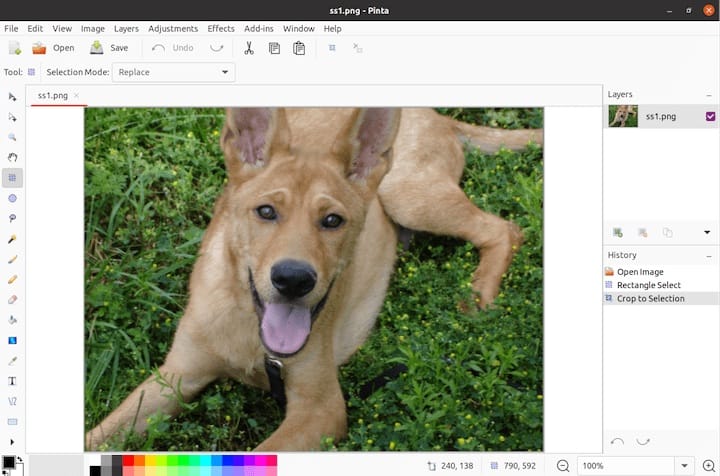
7.1 Interface Overview
- Toolbar (left): Drawing tools including Pencil, Paintbrush, Eraser, Shapes, Fill, Text, and Zoom
- Canvas (center): Your working image area
- Layers panel (right): Add, delete, reorder, and adjust layer opacity
- History panel: Full undo/redo stack for every action
7.2 Creating Your First Image
- Go to File > New and set your canvas dimensions
- Choose a background color or transparent canvas
- Select a drawing tool from the left toolbar
- Use Layer > Add New Layer to work non-destructively
- Save your work with File > Save As for the
.oraformat (preserves layers), or File > Export As for PNG, JPEG, or BMP
7.3 Useful Keyboard Shortcuts
| Action | Shortcut |
|---|---|
| New file | Ctrl + N |
| Open file | Ctrl + O |
| Save | Ctrl + S |
| Undo | Ctrl + Z |
| Redo | Ctrl + Y |
| Zoom in | Ctrl + + |
| Zoom out | Ctrl + - |
| Adjust brush size | [ and ] (new in 3.0) |
| Pinch to zoom | Trackpad pinch gesture (new in 3.0) |
Troubleshooting Common Pinta Installation Issues on Linux Mint 22
Error 1: “Package ‘pinta’ has no installation candidate” (APT Method)
Cause: The default Mint 22 repositories do not always carry the Pinta APT package.
Fix: Switch to the Flatpak method, or add the XtraDeb repository as shown in Step 6.3.
sudo apt update
flatpak install flathub com.github.PintaProject.Pinta
Error 2: “Remote ‘flathub’ not found” (Flatpak Method)
Cause: The Flathub remote was not added to Flatpak’s configuration.
Fix: Re-add the remote manually:
flatpak remote-add --if-not-exists flathub https://flathub.org/repo/flathub.flatpakrepoThen reboot and retry the install command.
Error 3: “snapd: command not found” After Installing snapd
Cause: A system reboot or re-login is needed before snapd becomes active in the current shell session.
Fix:
sudo rebootAfter rebooting, re-run your snap install pinta command.
Error 4: Snap Install Fails with “cannot install” on Linux Mint 22
Cause: The nosnap.pref block file was not fully removed, or APT cache was not refreshed.
Fix:
ls /etc/apt/preferences.d/Confirm nosnap.pref no longer exists. If it does:
sudo rm /etc/apt/preferences.d/nosnap.pref
sudo apt update
sudo apt install snapd -y
Error 5: Pinta Crashes on Startup (Flatpak)
Cause: Outdated runtime libraries or a corrupted Flatpak installation.
Fix: Update all Flatpak packages and retry:
sudo flatpak update
flatpak run com.github.PintaProject.Pinta
Run the launch command from the terminal to see the full error output if the crash persists. That output will tell you exactly which library or permission is causing the issue.
How to Keep Pinta Updated on Linux Mint 22
Keeping Pinta updated ensures you get security patches, bug fixes, and new features. Use the command that matches your installation method:
| Installation Method | Update Command |
|---|---|
| Software Manager | Open Software Manager > Updates tab > Apply updates |
| Flatpak (terminal) | sudo flatpak update |
| Snap | sudo snap refresh pinta |
| APT | sudo apt update && sudo apt upgrade -y |
You can also enable automatic updates in Linux Mint’s Update Manager: go to Edit > Preferences > Automation and toggle on automatic update installation.
Congratulations! You have successfully installed Pinta. Thanks for using this tutorial to install the latest version of Pinta on Debian 13 “Trixie” syetem. For additional help or useful information, we recommend you check the official Pinta website.
