How To Install RabbitMQ on Fedora 43

Message brokers have become the backbone of modern application architectures, enabling seamless communication between distributed services. RabbitMQ stands as one of the most reliable and feature-rich message queuing solutions available today. If you’re running Fedora 43 and need to set up a robust messaging infrastructure, this comprehensive guide walks you through every step of installing and configuring RabbitMQ on your system.
What is RabbitMQ?
RabbitMQ is an open-source message broker software that implements the Advanced Message Queuing Protocol (AMQP). Think of it as a post office for your applications—it receives messages from publishers, stores them safely, and delivers them to the right consumers when they’re ready to process them.
The power of RabbitMQ lies in its versatility. Organizations use it for asynchronous task processing, where time-consuming operations run in the background without blocking user requests. Microservices rely on RabbitMQ to communicate reliably across distributed systems. Event-driven architectures leverage its pub-sub patterns to broadcast notifications across multiple subscribers. Load balancing becomes effortless when distributing work among multiple workers.
What makes RabbitMQ particularly attractive is its reliability through message persistence, flexible routing capabilities that support complex messaging patterns, support for multiple protocols beyond AMQP, and enterprise-grade scalability that handles millions of messages. Written in Erlang, RabbitMQ inherits the language’s legendary fault-tolerance and concurrent processing capabilities.
Prerequisites and System Requirements
Before diving into the installation process, ensure your system meets the necessary requirements.
Hardware Requirements
Your Fedora 43 system needs adequate resources to run RabbitMQ smoothly. For development and testing environments, allocate at least 2 CPU cores and 4 GB of RAM. Disk space requirements start at 4 GB, though you should adjust this based on your message retention policies and queue sizes.
Production deployments demand more substantial resources. Plan for 4 CPU cores minimum and at least 4 GB of RAM, with additional memory for high-throughput scenarios. RabbitMQ’s performance depends heavily on available memory since it stores messages in RAM before persistence.
Software Requirements
You’ll need a Fedora 43 system—either Server or Workstation edition works perfectly. Root or sudo privileges are essential for installing packages and configuring services. An active internet connection enables downloading RabbitMQ and its dependencies. Basic command-line familiarity helps navigate the installation process.
RabbitMQ requires Erlang/OTP as its runtime environment, which we’ll install during this tutorial. Having a text editor like nano, vim, or vi ready makes configuration file editing straightforward. If you plan to access RabbitMQ remotely, understanding firewall configurations proves beneficial.
Step-by-Step Installation Process
Let’s walk through installing RabbitMQ on your Fedora 43 system. Each step builds upon the previous one, creating a fully functional message broker by the end.
Step 1: Update System Packages
Start by updating your system packages to ensure compatibility and security. Open your terminal and execute:
sudo dnf update -yThis command refreshes your package database and upgrades installed software to their latest versions. The -y flag automatically confirms the updates without prompting. Depending on how many packages need updating, this process might take several minutes.
If the update includes kernel modifications, reboot your system to apply those changes. A fresh start ensures the new kernel loads properly before proceeding with RabbitMQ installation.
Step 2: Import GPG Keys for RabbitMQ and Erlang
Package authenticity matters for security. Import the signing keys to verify packages haven’t been tampered with during download.
First, import RabbitMQ’s signing key:
sudo rpm --import https://github.com/rabbitmq/signing-keys/releases/download/3.0/rabbitmq-release-signing-key.ascNext, import the Erlang repository key:
sudo rpm --import https://packagecloud.io/rabbitmq/erlang/gpgkeyThese GPG keys establish trust, allowing DNF to verify that packages come from legitimate sources. Without them, your system would reject the installation for security reasons.
Step 3: Add RabbitMQ and Erlang Repositories
Fedora’s default repositories don’t include the latest RabbitMQ versions. Create a custom repository configuration to access official packages.
Create a new repository file:
sudo nano /etc/yum.repos.d/rabbitmq.repoAdd the following configuration:
[rabbitmq-erlang]
name=rabbitmq-erlang
baseurl=https://packagecloud.io/rabbitmq/erlang/el/9/$basearch
gpgcheck=1
gpgkey=https://packagecloud.io/rabbitmq/erlang/gpgkey
enabled=1
priority=1

[rabbitmq-server]
name=rabbitmq-server
baseurl=https://packagecloud.io/rabbitmq/rabbitmq-server/el/9/$basearch
gpgcheck=1
gpgkey=https://github.com/rabbitmq/signing-keys/releases/download/3.0/rabbitmq-release-signing-key.asc
enabled=1
priority=1
Save the file and exit. This configuration points DNF to PackageCloud repositories hosting RabbitMQ packages. The gpgcheck=1 parameter ensures package signature verification, while priority=1 gives these repositories preference over default ones.
Refresh your repository metadata:
sudo dnf update -yStep 4: Install Erlang
RabbitMQ runs on the Erlang virtual machine, making Erlang a critical dependency. Install it now:
sudo dnf install -y erlangThe package manager downloads and installs Erlang along with its dependencies. This might include development libraries and runtime components necessary for Erlang applications.
Verify the installation succeeded:
erl -versionYou should see Erlang version information displayed. This confirms the Erlang VM is ready to host RabbitMQ.
Step 5: Install RabbitMQ Server
With Erlang in place, install RabbitMQ itself:
sudo dnf install -y rabbitmq-serverDNF downloads the RabbitMQ server package and installs it to your system. The installation creates necessary directories for binaries, configuration files, logs, and data storage.
Check the installation details:
rpm -qi rabbitmq-serverThis command displays package information including version, release date, and installation paths. Knowing where RabbitMQ stores its files helps when troubleshooting or customizing configurations later.
Step 6: Start and Enable RabbitMQ Service
RabbitMQ installs as a systemd service. Start it immediately:
sudo systemctl start rabbitmq-serverConfigure it to start automatically on system boot:
sudo systemctl enable rabbitmq-serverThese commands leverage systemd’s service management capabilities. Starting the service launches the RabbitMQ broker, while enabling ensures it survives system reboots.
Verify the service runs correctly:
sudo systemctl status rabbitmq-serverLook for “Active (running)” in the output. The status display shows the process ID, memory usage, and recent log entries. Green text and “active” status indicate successful startup.
If the service fails to start, check the logs at /var/log/rabbitmq/ for error messages. Common issues include port conflicts or permission problems with data directories.
Step 7: Enable RabbitMQ Management Plugin
RabbitMQ’s management plugin provides a web-based interface for monitoring and managing your message broker. Enable it:
sudo rabbitmq-plugins enable rabbitmq_managementThe management plugin offers invaluable features including a visual dashboard for monitoring queues and exchanges, user management interfaces, real-time performance metrics and graphs, message rate statistics, and connection tracking.
After enabling the plugin, restart RabbitMQ to activate it:
sudo systemctl restart rabbitmq-serverThe management interface listens on port 15672 by default. You’ll access it through your web browser shortly.
Post-Installation Configuration
Installation completes the foundation, but proper configuration ensures security and accessibility.
Create Administrative User
RabbitMQ ships with a default “guest” user, but this account only works from localhost for security reasons. Create a proper administrative user:
sudo rabbitmqctl add_user admin YourStrongPassword123Replace “YourStrongPassword123” with a robust password combining uppercase, lowercase, numbers, and special characters.
Grant administrative privileges:
sudo rabbitmqctl set_user_tags admin administratorSet full permissions for the default virtual host:
sudo rabbitmqctl set_permissions -p / admin ".*" ".*" ".*"The permission syntax follows the pattern: configure, write, read. The “.*” wildcard grants full access to all resources. In production, apply the principle of least privilege by restricting permissions to specific resources.
For enhanced security, consider deleting the guest account:
sudo rabbitmqctl delete_user guestConfigure Firewall Rules
Fedora’s firewall blocks external connections by default. Open the necessary ports for RabbitMQ operation.
Allow the AMQP protocol port:
sudo firewall-cmd --permanent --add-port=5672/tcpOpen the management interface port:
sudo firewall-cmd --permanent --add-port=15672/tcpApply the firewall changes:
sudo firewall-cmd --reloadVerify the ports opened successfully:
sudo firewall-cmd --list-portsYou should see both 5672/tcp and 15672/tcp listed. In production environments, consider restricting access to specific IP addresses rather than opening ports globally.
Access Management Interface
Open your web browser and navigate to:
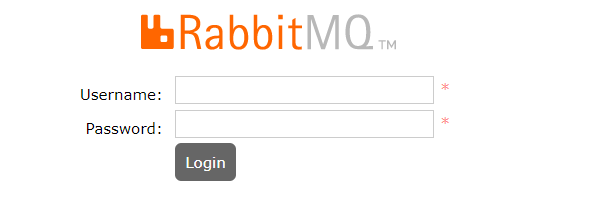
http://your-server-ip:15672/Replace “your-server-ip” with your Fedora system’s IP address. For local installations, use http://localhost:15672/.
Log in with the administrative credentials you created earlier. The dashboard presents an overview of your RabbitMQ instance, including message rates, queue counts, and system resources. Explore the Connections tab to see active client connections, Channels for communication channels, Queues for message queues, and Exchanges for routing mechanisms.
Verification and Testing
Confirming proper installation prevents issues when integrating RabbitMQ with applications.
Verify RabbitMQ listens on the correct port:
sudo ss -tulnp | grep 5672This shows the RabbitMQ process bound to port 5672, accepting AMQP connections.
Check comprehensive RabbitMQ status:
sudo rabbitmqctl statusThe output includes Erlang version, RabbitMQ version, plugin status, and memory usage. Review cluster configuration:
sudo rabbitmqctl cluster_statusSingle-node installations show one node in the cluster. List all users:
sudo rabbitmqctl list_usersYour admin user appears with the administrator tag. View enabled plugins:
sudo rabbitmq-plugins listLook for rabbitmq_management marked as enabled.
Test basic functionality through the management interface. Navigate to the Queues tab and create a test queue. Publish a test message through the interface, then consume it. This validates end-to-end functionality.
Monitor memory consumption:
sudo rabbitmqctl memory_infoThis command displays detailed memory allocation across RabbitMQ components.
Common Troubleshooting Tips
Even careful installations encounter occasional issues. Here’s how to resolve common problems.
Service Won’t Start
Check RabbitMQ logs for error messages:
sudo tail -f /var/log/rabbitmq/rabbit@hostname.logCommon culprits include missing Erlang installation, port 5672 already in use by another service, insufficient permissions on /var/lib/rabbitmq/, or corrupted Mnesia database files.
Cannot Access Management Interface
Verify the plugin enabled successfully:
sudo rabbitmq-plugins list | grep managementConfirm firewall rules allow port 15672. Check that RabbitMQ service runs without errors. Clear your browser cache if the page won’t load.
Memory Issues
RabbitMQ triggers flow control when memory usage exceeds thresholds. Monitor memory consumption:
sudo rabbitmqctl memory_infoAdjust the memory high watermark by creating /etc/rabbitmq/rabbitmq.conf:
vm_memory_high_watermark.relative = 0.6This sets the threshold to 60% of available RAM. Restart RabbitMQ after configuration changes.
Connection Issues
Network connectivity problems prevent client connections. Verify firewall rules haven’t been reset. Check SELinux policies if enabled—SELinux sometimes blocks network services. Test connections locally first using telnet localhost 5672. Authentication failures indicate incorrect credentials or missing user permissions.
Performance Problems
Disk I/O bottlenecks slow message persistence. Use SSDs for RabbitMQ data directories in production. Queue overflow occurs when consumers can’t keep pace with publishers. Implement message TTL (time-to-live) to expire old messages. Message backlogs grow when consumers lag behind. Scale horizontally by adding more consumer instances. Flow control triggers when thresholds breach. Monitor system resources and adjust accordingly.
Basic RabbitMQ Management Commands
Master these essential commands for day-to-day RabbitMQ management.
User management commands:
sudo rabbitmqctl add_user username password
sudo rabbitmqctl delete_user username
sudo rabbitmqctl change_password username newpassword
sudo rabbitmqctl list_users
Queue management:
sudo rabbitmqctl list_queues
sudo rabbitmqctl purge_queue queue_name
Virtual host management:
sudo rabbitmqctl add_vhost vhost_name
sudo rabbitmqctl list_vhosts
sudo rabbitmqctl delete_vhost vhost_name
Service control:
sudo rabbitmqctl stop
sudo rabbitmqctl reset
sudo rabbitmqctl start_app
These commands provide powerful control over your RabbitMQ instance. The reset command clears all data—use it cautiously.
Security Best Practices
Production RabbitMQ deployments require robust security measures.
Remove the default guest account to eliminate a common attack vector. Enforce strong password policies for all users. Implement SSL/TLS encryption for client connections to prevent eavesdropping. Restrict management interface access through IP whitelisting or VPN requirements.
Keep RabbitMQ updated:
sudo dnf update rabbitmq-serverRegular updates patch security vulnerabilities. Configure proper file permissions on configuration files and data directories. Enable audit logging to track administrative actions. Use virtual hosts to isolate multi-tenant environments. Implement network segmentation to separate RabbitMQ from public-facing services.
Backup configurations and critical data regularly. Test disaster recovery procedures periodically. Monitor security logs for suspicious activity. Failed login attempts, unusual connection patterns, and unauthorized access attempts warrant investigation.
Congratulations! You have successfully installed RabbitMQ. Thanks for using this tutorial for installing RabbitMQ open-source message broker applications on your Fedora 43 Linux system. For additional help or useful information, we recommend you check the official official RabbitMQ website.
