How To Install RawTherapee on Debian 13

If you shoot in RAW format, you already know that a powerful processing tool can make or break your post-production workflow. RawTherapee is a free, open-source, non-destructive RAW photo development program that rivals even paid commercial software — and learning how to install RawTherapee on Debian 13 is one of the best investments you can make for your Linux photography setup.
Debian 13, codenamed “Trixie”, was officially released on August 9, 2025, bringing Linux Kernel 6.12, APT 3.0 with Zstandard compression, and improved hardware support out of the box. This combination of a rock-solid OS and a world-class RAW editor gives you a zero-cost, fully professional photography pipeline.
In this guide, you will walk through three proven installation methods — APT (from Debian’s official repository), Flatpak (via Flathub for the latest version), and AppImage (portable, no install required) — plus a bonus Snap method. By the end, you will have RawTherapee running on Debian 13 and know how to configure RawTherapee on Debian 13 for your specific needs.
What Is RawTherapee?
RawTherapee is a cross-platform, advanced RAW image converter and digital photo processor written in C++ with a GTK+ front-end. It runs on Linux, Windows, and macOS, and it is completely free under the GNU General Public License.
What sets it apart from simpler editors is its 96-bit floating-point processing engine, which delivers precision most consumer software cannot match. It supports every major RAW format from virtually all digital cameras, including Foveon and X-Trans sensors.
Unlike destructive editors that overwrite your original file, RawTherapee saves all your adjustments in a sidecar .pp3 processing profile. Your originals stay untouched no matter how many edits you make.
Key Features at a Glance
- Advanced demosaicing algorithms: AMaZE, DCB, AHD, EAHD, HPHD, IGV, LMMSE, and VNG4
- Non-destructive editing with
.pp3sidecar profiles - Batch processing for bulk photo conversion
- File browser with 5-star ratings, flags, and EXIF filtering
- GIMP plugin integration — use RawTherapee as an external RAW editor inside GIMP
- Multi-format output: TIFF (8/16/32-bit), JPEG, PNG, and HDR DNG
- OpenMP multi-threading for fast processing on multi-core CPUs
The current stable package in Debian Trixie is version 5.11-2, with an installed size of approximately 26 MB on amd64.
Why Install RawTherapee on Debian 13 Specifically?
Debian 13 “Trixie” is the current stable branch, which means long-term support, security patches, and a mature package ecosystem. Running RawTherapee on Trixie means you benefit from all of that stability directly.
The new Linux Kernel 6.12 in Trixie brings improved CPU scheduling and better GPU support — two things that directly benefit RawTherapee’s compute-heavy demosaicing and batch workflows. APT 3.0’s Zstandard compression also means faster package downloads and installs compared to older Debian releases.
RawTherapee is officially packaged in Debian’s trixie repository as rawtherapee (binary) and rawtherapee-data (assets), so installation via APT is fully supported with no third-party PPAs needed.
Prerequisites Before You Begin
Before you start this RawTherapee on Debian 13 setup, confirm the following:
- ✅ Operating System: Debian 13 “Trixie” (stable) installed and running
- ✅ User Privileges: A user account with
sudoaccess - ✅ Internet Connection: Active and stable for downloading packages
- ✅ Terminal Access: GNOME Terminal, Konsole, or any terminal emulator
- ✅ Disk Space: At least 500 MB free (rawtherapee-data alone is ~96 MB installed)
- ✅ APT Sources Configured: Ensure
mainandnon-free-firmwarecomponents are active in your/etc/apt/sources.listor Deb822-format.sourcesfile - ✅ Optional:
flatpakorsnapdinstalled if using those methods
Check your Debian version before proceeding:
cat /etc/os-releaseExpected output should show VERSION="13 (trixie)".
Step 1: Verify and Configure Your APT Sources
Before installing anything on a fresh Debian 13 system, make sure your APT sources are correctly configured. This is the most common reason apt install fails on new Trixie installs.
Open your sources file:
sudo nano /etc/apt/sources.listEnsure it contains the following lines (or equivalent in /etc/apt/sources.list.d/debian.sources):
deb http://deb.debian.org/debian/ trixie main non-free-firmware
deb http://security.debian.org/debian-security trixie-security main non-free-firmware
deb http://deb.debian.org/debian/ trixie-updates main non-free-firmware
Save and exit with CTRL+X → Y → Enter. If you prefer the Deb822 format (recommended since Trixie), use /etc/apt/sources.list.d/debian.sources instead.
Step 2: Update the System Package Index
Never skip this step. Running apt install without a fresh package index can install outdated versions or throw dependency errors.
sudo apt update && sudo apt upgrade -yWhat this does:
apt update— fetches the latest package lists from all configured repositoriesapt upgrade -y— upgrades all currently installed packages to their latest available version- The
-yflag auto-confirms all prompts so you don’t have to babysit the terminal
Expected output snippet:
Get:1 http://deb.debian.org/debian trixie InRelease [138 kB]
...
Fetched 16.5 MB in 2s (9,239 kB/s)
All packages are up to date.
Wait for it to complete fully before moving to the next step.
Method 1: Install RawTherapee via APT (Recommended)
The APT method is the simplest and most stable approach. It uses Debian’s official package repository, which means automatic dependency resolution and easy upgrades via apt upgrade. This is the recommended path for most users performing a standard How To Install RawTherapee on Debian 13 setup.
Step 3: Install RawTherapee Using APT
Run the following single command:
sudo apt install rawtherapee -yWhat this does: APT automatically resolves and installs both the rawtherapee binary package and rawtherapee-data (which contains themes, icons, and processing profiles). It will also pull in any shared library dependencies like libcanberra-gtk-module.
Expected output:
Reading package lists... Done
Building dependency tree... Done
The following NEW packages will be installed:
  rawtherapee rawtherapee-data
...
Setting up rawtherapee-data (5.11-2) ...
Setting up rawtherapee (5.11-2+b2) ...
The installed binary is approximately 26.6 MB on amd64 and 23.2 MB on arm64.
Step 4: Verify the Installation
Confirm the install succeeded by checking the version:
rawtherapee --versionYou should see output like:
RawTherapee, version 5.11Step 5: Launch RawTherapee
From terminal:
rawtherapeeFrom the GUI: Open your application launcher (Activities in GNOME or the application menu in XFCE/KDE) and search for RawTherapee. Click the icon to launch.
On first launch, RawTherapee automatically applies a default Processing Profile to any image you open, mimicking the camera’s in-JPEG rendering. You can change this in Preferences → Image Processing.
💡 Pro Tip: The APT version tracks Debian’s repository. It may lag slightly behind the absolute latest upstream release. For the newest features, use Method 2 (Flatpak) instead.
Method 2: Install RawTherapee via Flatpak (Latest Version)
Flatpak gives you the most up-to-date version of RawTherapee directly from Flathub, Debian’s recommended universal app store for sandboxed applications. Use this method when you need the latest features or upstream bug fixes that haven’t reached Debian’s repos yet.
Step 6: Install Flatpak on Debian 13
sudo apt install flatpak -yThis installs the Flatpak runtime and CLI tool on your system.
Step 7: Add the Flathub Repository
Flathub is the official, community-trusted source for RawTherapee’s Flatpak package.
flatpak remote-add --if-not-exists flathub https://dl.flathub.org/repo/flathub.flatpakrepoWhat --if-not-exists does: It prevents errors if Flathub is already configured, making this command safe to run multiple times.
Step 8: Install RawTherapee from Flathub
flatpak install flathub com.rawtherapee.RawTherapeeFlatpak will prompt you to confirm. Type y and press Enter. Alternatively, install it directly using the .flatpakref URL:
flatpak install https://dl.flathub.org/repo/appstream/com.rawtherapee.RawTherapee.flatpakrefStep 9: Launch the Flatpak Version
From terminal:
flatpak run com.rawtherapee.RawTherapeeFrom the GUI: Log out and back in once to refresh the application menu, then search for RawTherapee.
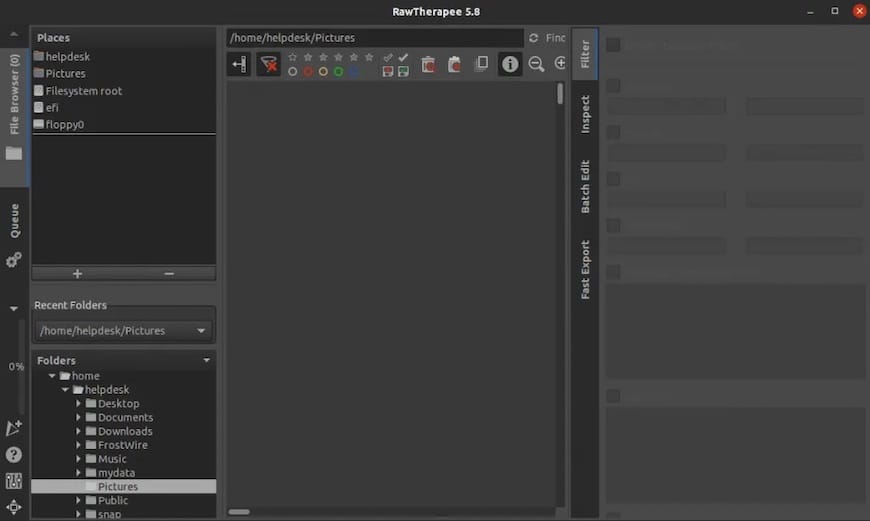
Step 10: Verify the Flatpak Version
flatpak info com.rawtherapee.RawTherapeeThis shows the installed version, branch, and install location (typically ~/.local/share/flatpak for user installs).
⚠️ Sandbox Note: Flatpak apps run in a sandboxed environment. If your RAW files are on an external drive or SD card, grant additional filesystem permissions:
flatpak override --user --filesystem=home com.rawtherapee.RawTherapeeMethod 3: Install RawTherapee via AppImage (Portable)
The AppImage method requires zero system-level installation. One file, download it, make it executable, and run it. This is ideal for users who want to test RawTherapee without modifying their system, or who need a portable version they can carry on a USB drive.
Step 11: Download the AppImage
Visit the official RawTherapee downloads page at rawtherapee.com/downloads/5.11/ and download the latest Linux .AppImage file for your architecture (amd64 for most systems, arm64 for Raspberry Pi or ARM servers). Or use wget to download directly from terminal:
wget -O RawTherapee_5.11.AppImage "https://rawtherapee.com/downloads/5.11/RawTherapee_5.11_linux64.AppImage"Step 12: Install FUSE (Required on Debian 13)
AppImages require FUSE (Filesystem in Userspace) to mount themselves at runtime. Debian 13 may not have libfuse2 installed by default.
sudo apt install libfuse2 -yWhy this matters: Without libfuse2, running the AppImage will throw a fuse: device not found error and the app will silently fail to launch.
Step 13: Make the AppImage Executable
chmod +x RawTherapee_5.11.AppImageWhat chmod +x does: It adds the execute permission bit to the file, telling Linux that this file is allowed to run as a program. Without this step, running it returns a Permission denied error.
Step 14: Run RawTherapee
./RawTherapee_5.11.AppImageRawTherapee will launch immediately. No installation, no package manager, no dependencies beyond libfuse2.
Step 15: Optional — Desktop Integration
Move the AppImage to a dedicated folder for a permanent home:
mkdir -p ~/Applications
mv RawTherapee_5.11.AppImage ~/Applications/
For a desktop menu entry, install AppImageLauncher via APT:
sudo apt install appimagelauncher -yThen double-click the AppImage — AppImageLauncher will offer to integrate it into your application menu automatically.
Bonus Method: Install RawTherapee via Snap
If you already use Snap on Debian 13, this is the fastest one-liner option. Snap packages auto-update in the background without any manual intervention.
Step 16: Install Snapd and RawTherapee
sudo apt update
sudo apt install snapd -y
sudo snap install snapd
sudo snap install rawtherapee
Step 17: Grant Removable Media Access
By default, Snap’s strict confinement blocks access to external drives and SD cards. Fix this with:
sudo snap connect rawtherapee:removable-mediaWhy this matters for photographers: Most photographers store RAW files on SD cards or external SSDs. Without this permission, RawTherapee via Snap cannot see them.
Which Installation Method Should You Choose?
Here is a quick breakdown to help you decide which path fits your workflow best:
| Method | Version | Auto-Updates | Sandboxed | Best For |
|---|---|---|---|---|
| APT | Debian repo (5.11-2) | Manual (apt upgrade) |
No | Stability, system integration |
| Flatpak | Latest (Flathub) | Yes | Yes | Latest features, safety |
| AppImage | Latest (official) | Manual (re-download) | No | Portability, no system changes |
| Snap | Latest (Snap Store) | Automatic | Yes | Snap users, hands-off updates |
The practical recommendation:
- Choose APT if you want a clean, integrated system install and you don’t need bleeding-edge features.
- Choose Flatpak if you want the latest upstream version with automatic updates and a sandboxed environment.
- Choose AppImage if you want zero system footprint or are testing before committing to an install.
How to Configure RawTherapee on Debian 13 After Installation
Once RawTherapee is running, take five minutes to set it up correctly. These settings will save you hours later.
Set Your Default Processing Profile
Go to Preferences → Image Processing → Default Processing Profile. Set it to “Default” for a neutral starting point, or choose “Auto-Matched Curve” to mimic your camera’s in-JPEG rendering.
Configure File Associations
Go to Preferences → File Browser → Parsed Extensions. Make sure your camera’s RAW extension (e.g., .CR3, .NEF, .ARW, .RAF) is listed. Add any missing extensions here.
Enable GIMP Integration
If you use GIMP alongside RawTherapee, install GIMP first:
sudo apt install gimp -yThen in RawTherapee, go to Preferences → General → External Editor and set the path to /usr/bin/gimp. You can now send any file from RawTherapee directly into GIMP for advanced compositing.
Troubleshooting Common Issues
Even on a clean Debian 13 install, you may hit a few snags. Here are the five most common problems and their solutions.
Problem 1: E: Unable to locate package rawtherapee
Cause: Your APT sources are missing the main component or haven’t been updated.
Fix:
sudo nano /etc/apt/sources.list
# Ensure "main" is present in your trixie repo line
sudo apt update
sudo apt install rawtherapee -y
Problem 2: AppImage Fails With fuse: device not found
Cause: libfuse2 is not installed.
Fix:
sudo apt install libfuse2 -y
./RawTherapee_5.11.AppImage
Problem 3: AppImage Crashes With libthai.so: cannot open shared object file
Cause: A known dependency issue with the AppImage binary on some Debian systems.
Fix:
sudo apt install libthai0 -yThen re-run the AppImage.
Problem 4: RawTherapee Not Appearing in App Menu After Flatpak Install
Cause: The desktop menu cache hasn’t refreshed yet.
Fix: Log out of your desktop session and log back in. Alternatively, force a menu refresh:
update-desktop-database ~/.local/share/applicationsProblem 5: Snap Cannot Access External Drives
Cause: Snap’s strict confinement blocks filesystem access beyond your home directory by default.
Fix:
sudo snap connect rawtherapee:removable-mediaHow to Uninstall RawTherapee on Debian 13
Removing RawTherapee is just as straightforward as installing it. Use the command matching your original installation method.
APT uninstall:
sudo apt remove rawtherapee rawtherapee-data -y
sudo apt autoremove -y
Flatpak uninstall:
flatpak uninstall com.rawtherapee.RawTherapeeAppImage uninstall: Simply delete the .AppImage file — there are no system traces.
rm ~/Applications/RawTherapee_5.11.AppImageSnap uninstall:
sudo snap remove rawtherapeeCongratulations! You have successfully installed RawTherapee. Thanks for using this tutorial to install the latest version of the RawTherapee raw image processing program on Debian 13 “Trixie” system. For additional help or useful information, we recommend you check the official RawTherapee website.
