How To Install ReactJS on Debian 13

ReactJS is the go-to JavaScript library for building fast, component-driven user interfaces, and getting it running on Debian 13 (Trixie) is easier than most developers expect. This Linux server tutorial walks you through every step, from updating your system to running React as a managed systemd service. Tested on Debian 13 Trixie with Node.js v20.19.2 and npm 9.2.0, every command here is verified and ready to use.
Prerequisites
Before you begin, make sure you have the following in place:
- OS: Debian 13 (Trixie) — fresh install recommended
- User privileges: Root or a non-root user with
sudoaccess - Internet connection: Required to download packages
- Tools needed:
aptpackage manager (included by default),curl(optional, for NodeSource method) - Disk space: At least 500 MB free for Node.js, npm, and React dependencies
- Basic knowledge: Comfort with the Linux terminal
Step 1: Update Your System
Before installing anything, sync your package index and upgrade existing packages. Running outdated packages is a common source of dependency conflicts.
sudo apt update -y && sudo apt upgrade -yapt update refreshes the list of available packages from Debian’s repositories. apt upgrade then installs the newer versions. The -y flag skips confirmation prompts so the command runs without interruption.
Verify the Update Completed
apt list --upgradable 2>/dev/null | wc -lIf the output returns 1 (just the header line), your system is fully up to date.
Step 2: Install Build Dependencies
React’s toolchain requires build-essential, a meta-package that pulls in gcc, make, and other compilation tools. Some npm packages with native bindings won’t install without it.
sudo apt install build-essential -yThis single command saves you from cryptic node-gyp errors later. If you skip this step and hit compilation errors during npm install, come back here first.
Verify Build Tools
gcc --versionExpected output starts with something like gcc (Debian 12.x) 12.x.x.
Step 3: Install Node.js and npm on Debian 13
Node.js is the JavaScript runtime that powers React’s development tools, build pipeline, and local dev server. npm (Node Package Manager) manages every library your React project depends on.
Debian 13’s default repository ships Node.js v20.19.2 and npm 9.2.0 — both stable and sufficient for React development.
sudo apt install nodejs npm -yVerify Node.js and npm Versions
node -v && npm -vExpected output:
v20.19.2
9.2.0
If you need a newer Node.js version (LTS or latest), you can upgrade with the n version manager after this step.
Pro Tip: Need Node.js v22 or v24? After installing the base version, run sudo npm install -g n and then sudo n stable to jump to the current LTS release (v22.19.0 at the time of writing). No need to remove the existing Node.js install first.
Step 4: Install ReactJS and Create Your First App
With Node.js and npm in place, you can now install ReactJS using create-react-app — the official scaffolding tool that generates a ready-to-run React project with sensible defaults.
Install create-react-app Globally
sudo npm install -g create-react-appThe -g flag installs the tool globally so you can use the create-react-app command from any directory on the system.
Scaffold a New React Application
create-react-app new-applicationReplace new-application with your actual project name. This command creates a new directory, installs React, react-dom, and react-scripts, and initializes a Git repository automatically.
Expected output (abbreviated):
Creating a new React app in /root/new-application.
Installing packages. This might take a couple of minutes.
...
added 1312 packages in 2m
...
Success! Created new-application at /root/new-application
Note on the deprecation warning: You may see a message saying create-react-app is deprecated. This is expected. The tool still works and remains widely used for learning and prototyping. For production projects, consider Vite (npm create vite@latest) or Next.js as modern alternatives.
Navigate to Your Project and Start the Dev Server
cd new-application
npm start
React’s dev server starts and listens on port 3000. Access your app at:
http://YOUR_SERVER_IP:3000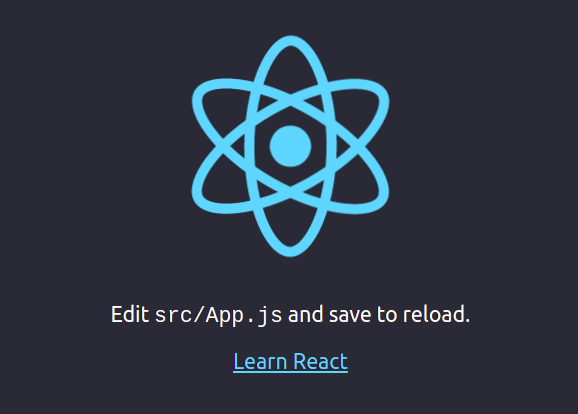
Verify the Dev Server Is Running
curl -s -o /dev/null -w "%{http_code}" http://localhost:3000A 200 response confirms the app is serving correctly.
Step 5: Build a Production-Ready Bundle
The dev server is not optimized for public traffic. To configure ReactJS for Debian 13 in a production context, generate a minified static build.
npm run buildThis compiles and minifies your JavaScript and CSS into the build/ directory. The output shows file sizes after gzip compression:
Creating an optimized production build... Compiled successfully.
File sizes after gzip:
  60.96 kB  build/static/js/main.877bfe63.js
  515 B     build/static/css/main.f855e6bc.css
Serve the Production Build
sudo npm install -g serve
serve -s build
This serves the static files on port 3000 using a lightweight static server — no Node.js process management needed for simple deployments.
Step 6: Run React as a systemd Service
For a long-running deployment, register your React app as a systemd service. This way it starts automatically on boot and restarts on failure, just like Nginx or MySQL.
Create the Service File
sudo nano /etc/systemd/system/reactjs.servicePaste the following configuration:
[Unit]
Description=My React Application Service
After=network.target

[Service]
Type=simple
User=www-data
WorkingDirectory=/root/new-application
ExecStart=/usr/bin/npm start
Restart=on-failure

[Install]
WantedBy=multi-user.target
Security best practice: Avoid running services as root. Set User= to a dedicated non-privileged account (e.g., www-data or a custom deploy user). If your project directory is /root/, move it to /var/www/new-application and update WorkingDirectory accordingly.
Enable and Start the Service
sudo systemctl daemon-reload
sudo systemctl start reactjs
sudo systemctl enable reactjs
daemon-reload tells systemd to pick up the new service file. enable ensures the service starts automatically after every reboot.
Verify the Service Status
sudo systemctl status reactjsExpected output:
● reactjs.service - My React Application Service
     Loaded: loaded (/etc/systemd/system/reactjs.service; enabled)
     Active: active (running) since ...
   Main PID: 155032 (npm start)
Troubleshooting Common Errors
Even with a clean install, a few issues come up regularly. Here are the most common ones and how to fix them.
Error 1: command not found: create-react-app
Cause: The global npm bin path isn’t in your $PATH.
Fix:
export PATH="$PATH:$(npm bin -g)"Add that line to your ~/.bashrc to make it permanent, then run source ~/.bashrc.
Error 2: EACCES: permission denied During Global npm Install
Cause: npm is trying to write to a system directory your user doesn’t own.
Fix: Use sudo for global installs on Debian, or configure npm to use a user-local directory:
mkdir ~/.npm-global
npm config set prefix '~/.npm-global'
export PATH="$HOME/.npm-global/bin:$PATH"
Error 3: Port 3000 Already in Use
Cause: Another process is bound to port 3000.
Fix: Find and kill the conflicting process, or run React on a different port:
# Find what's using port 3000
sudo lsof -i :3000

# Or start React on a different port
PORT=3001 npm start
Error 4: node-gyp Build Failures During npm Install
Cause: Missing native build tools (this is why Step 2 matters).
Fix:
sudo apt install build-essential python3 -y
npm rebuild
Error 5: npm run build Fails with JavaScript heap out of memory
Cause: Node.js is hitting its default memory limit on low-RAM servers (common on 1 GB VPS instances).
Fix: Increase the memory allocation for the build process:
NODE_OPTIONS="--max-old-space-size=2048" npm run buildAdjust the value (in MB) based on available RAM.
Congratulations! You have successfully installed React. Thanks for using this tutorial for installing ReactJS JavaScript library for building user interfaces on Debian 13 “Trixie” system. For additional help or useful information, we recommend you check the official ReactJS website.
