How To Install ReactJS on Linux Mint 22

If you want to install ReactJS on Linux Mint 22, you need three things working correctly before you write a single line of React code: a supported Node.js runtime, the npm package manager, and a modern scaffolding tool to bootstrap your project. Linux Mint 22, codenamed “Wilma,” is built on Ubuntu 24.04 LTS, which means it gets long-term package support through 2029 and pairs naturally with the Node.js ecosystem.
This guide walks you through the full ReactJS on Linux Mint 22 setup from a clean terminal, covering Node.js installation via NodeSource, the alternative NVM method for multi-project developers, and project creation using Vite — the tool that replaced the now-deprecated create-react-app in 2025. By the end, you will have a live React development server running at http://localhost:5173 and a clear understanding of every command you ran and why it worked.
ReactJS is a JavaScript library built and maintained by Meta for constructing fast, interactive user interfaces using a component-based architecture. It powers massive platforms including Facebook, Instagram, and Airbnb, and as of 2026, it remains the most widely adopted front-end library in production environments worldwide.
Before diving in, it helps to understand why the installation path matters. Linux Mint 22’s default APT repository ships Node.js 18.19.x, which reached end-of-life status upstream and causes peer dependency warnings with modern React tooling. That is why this guide installs Node.js 22.x or 24.x through NodeSource, giving you a fully supported runtime that integrates with the React and Vite release cycles without conflict.
Prerequisites
Before you begin, make sure the following are in place:
- Operating system: Linux Mint 22 (Wilma, Xia, or Zara) — 64-bit installation
- User account: A non-root user account with
sudoprivileges - Internet connection: Required to download packages from NodeSource and the npm registry
- Terminal access: GNOME Terminal, Tilix, or any terminal emulator you prefer
- Code editor: VS Code is recommended for React development (optional but strongly advised)
- Git: Optional but recommended for version control from day one
- Existing Node.js: If you have a previous Node.js installation from the default Mint repo, this guide covers how to handle it cleanly before switching to NodeSource
No prior React experience is required. This guide is written for beginner to intermediate Linux users who know basic terminal navigation and are comfortable running commands with sudo.
System Requirements for ReactJS on Linux Mint 22
| Component | Minimum | Recommended |
|---|---|---|
| RAM | 2 GB | 4 GB or more |
| Storage | 20 GB free | 50 GB free |
| Processor | 64-bit single-core | Dual-core (Intel i3 / AMD Ryzen 3) |
| Node.js | v20.x | v22.x or v24.x LTS |
| Display | 1024×768 | 1440×900 |
The React development server itself consumes roughly 300 to 400 MB of RAM during active development. If you run a browser alongside it, budget at least 2 GB dedicated to the development session.
Step 1: Update and Upgrade Linux Mint 22
Always update your package index before installing anything new. This step ensures APT has the latest repository metadata and pulls any pending security patches that could affect your development environment.
sudo apt update
sudo apt upgrade -y
The sudo apt update command refreshes your local package list against all configured repositories. It does not install anything — it only syncs the index. The sudo apt upgrade -y command then applies all available upgrades for installed packages, with the -y flag auto-confirming each prompt.
After both commands finish, run a quick cleanup to remove orphaned packages that are no longer needed:
sudo apt autoremove -yWhy this matters: Skipping updates before a Node.js installation is one of the most common reasons developers hit dependency conflicts. A stale package index can cause APT to pull outdated packages that conflict with the NodeSource repository you add in the next step.
Expected output after sudo apt update:
Hit:1 http://packages.linuxmint.com wilma InRelease
Hit:2 http://archive.ubuntu.com/ubuntu noble InRelease
Reading package lists... Done
Step 2: Install Node.js on Linux Mint 22
Node.js is the JavaScript runtime that ReactJS and all its build tools run on. Without it, you cannot install React, run the Vite development server, or use npm at all. There are two solid methods to install Node.js on Linux Mint 22: NodeSource (recommended for most users) and NVM (recommended for developers working across multiple projects). Choose one method and stick with it.
Method A: Install Node.js via NodeSource (Recommended)
NodeSource is the preferred method when you want one system-wide, supported Node.js version that updates cleanly through APT. The default Mint repo ships Node.js 18.x, which is end-of-life. NodeSource gives you Node.js 22.x or 24.x (current Active LTS) instead.
Step 2a: Install required dependencies
sudo apt install -y curl ca-certificates gpgThis installs curl for downloading the NodeSource signing key, ca-certificates for secure HTTPS validation, and gpg for verifying the key signature.
Step 2b: Create the keyrings directory
sudo install -m 0755 -d /etc/apt/keyringsThis creates a secure directory where APT stores trusted repository signing keys. The -m 0755 flag sets the correct read/execute permissions.
Step 2c: Import the NodeSource GPG key
curl -fsSL https://deb.nodesource.com/gpgkey/nodesource-repo.gpg.key | sudo gpg --dearmor --yes -o /etc/apt/keyrings/nodesource.gpgThis downloads the NodeSource signing key and converts it from ASCII-armored format to the binary format APT expects. Without this key, APT will refuse to trust the repository as a security measure.
Step 2d: Add the NodeSource repository for Node.js 22.x
NODE_MAJOR=22
printf '%s\n' "Types: deb" "URIs: https://deb.nodesource.com/node_${NODE_MAJOR}.x" "Suites: nodistro" "Components: main" "Signed-By: /etc/apt/keyrings/nodesource.gpg" | sudo tee /etc/apt/sources.list.d/nodesource.sources > /dev/null
The NODE_MAJOR=22 variable sets which Node.js major version you want. Change it to 24 if you prefer the newest Active LTS release. The nodistro suite means NodeSource handles Mint/Ubuntu version detection automatically, so no codename mapping is needed.
Step 2e: Install Node.js
sudo apt update
sudo apt install -y nodejs
NodeSource bundles npm inside the nodejs package, so this single command installs both Node.js and npm together.
Expected output:
Hit:2 https://deb.nodesource.com/node_22.x nodistro InRelease
Reading package lists... Done
...
Unpacking nodejs (22.x.x-1nodesource1) ...
Setting up nodejs (22.x.x-1nodesource1) ...
Method B: Install Node.js via NVM (For Multi-Project Developers)
NVM (Node Version Manager) keeps Node.js entirely inside your home directory and lets you switch versions per project with a single command. Use this method if you work on multiple projects that require different Node.js versions simultaneously.
Step 2b-1: Download and run the NVM installer
curl -o- https://raw.githubusercontent.com/nvm-sh/nvm/v0.40.4/install.sh | bashStep 2b-2: Reload your shell profile
source ~/.bashrcNVM is a shell function, not a binary. The source ~/.bashrc command loads the NVM initialization lines the installer appended to your profile without needing to close and reopen the terminal. If you use Zsh, run source ~/.zshrc instead.
Step 2b-3: Verify NVM loaded correctly
command -v nvmExpected output: nvm
Note: Do not use which nvm here. NVM is a shell function, and which only finds binaries.
Step 2b-4: Install the latest LTS version of Node.js
nvm install --lts
nvm use --lts
nvm alias default lts/*
The third command sets the LTS version as the default so it activates automatically in every new terminal session.
Expected output:
Downloading and installing node v22.x.x...
Now using node v22.x.x (npm v10.x.x)
default -> lts/* (-> v22.x.x *)
Step 3: Verify Node.js and npm Are Installed Correctly
Before touching React, confirm that both Node.js and npm are responding correctly. Running into a React installation error because of a broken runtime is frustrating, and this check takes five seconds.
node -v
npm -v
npx -v
Expected output:
v22.x.x
10.x.x
10.x.x
The node -v command confirms the runtime is accessible in your PATH. The npm -v and npx -v commands confirm both the package manager and the package runner are available. npx (Node Package eXecute) is particularly important because Vite uses it under the hood to scaffold new projects without requiring a global install.
If any of these commands return command not found, your installation did not complete correctly. Jump to the Troubleshooting section below.
Step 4: Choose Your React Scaffolding Tool — Vite vs. Create React App
This is a step many older tutorials skip entirely, and it causes confusion for developers who follow outdated guides. create-react-app (CRA) was officially deprecated in early 2025. It no longer receives updates, relies on Webpack (which is significantly slower than modern alternatives), and the React team no longer recommends it in their official documentation.
Vite is the current standard. It uses native ES modules and esbuild under the hood for near-instant server startup and Hot Module Replacement (HMR) that reflects file changes in the browser in under 50ms.
| Feature | Vite | Create React App (Deprecated) |
|---|---|---|
| Dev Server Startup | Near-instant | Slow (Webpack-based) |
| HMR Speed | Under 50ms | Seconds on large projects |
| Build Tool | Rollup + esbuild | Webpack |
| Actively Maintained | Yes | No |
| Recommended (2026) | Yes | No |
Going forward, every React command in this guide uses Vite.
Step 5: Create a New ReactJS App Using Vite on Linux Mint 22
With Node.js confirmed and your scaffolding tool chosen, you are ready to create your first React project. This is where the configure ReactJS on Linux Mint 22 process becomes tangible.
Create the Project
npm create vite@latest my-react-app -- --template reactBreaking down this command:
npm create vite@latest— runs the latest Vite project generator usingnpxunder the hood, no global Vite install requiredmy-react-app— the name of your project folder (change it to whatever fits your project)-- --template react— scaffolds a React + JSX project; use--template react-tsfor TypeScript
Expected output:
Scaffolding project in /home/youruser/my-react-app...

Done. Now run:

  cd my-react-app
  npm install
  npm run dev
Navigate Into the Project Directory
cd my-react-appInstall Project Dependencies
npm installThis command reads your project’s package.json file and downloads every listed dependency into the node_modules/ folder. For a fresh Vite React template, this includes React, ReactDOM, and the Vite development tooling.
The package.json file is your project’s manifest. The package-lock.json file locks the exact version tree so every developer on the team gets identical installs. Never delete package-lock.json from version control.
Important: Add node_modules/ to your .gitignore file immediately. It can contain tens of thousands of files and should never be committed to Git. Vite’s scaffold creates a .gitignore automatically with this already included.
Step 6: Start the React Development Server
npm run devVite reads your vite.config.js, compiles your source files using native ES modules (no full bundle required on first load), and starts the development server.
Expected terminal output:
  VITE v5.x.x  ready in 312ms

  →  Local:   http://localhost:5173/
  →  Network: use --host to expose
Note that Vite uses port 5173 by default, not port 3000 like CRA did. This is an important difference for developers who are migrating from CRA or who have firewall rules based on port 3000.
Open your browser and navigate to:
http://localhost:5173You will see the default Vite + React landing page with the Vite and React logos, an interactive click counter, and links to both documentation sites. Seeing this page confirms that ReactJS is fully installed and running on your Linux Mint 22 system.
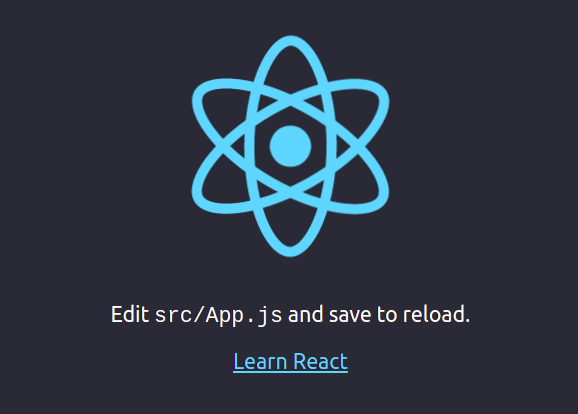
To stop the dev server at any time, press Ctrl + C in the terminal.
Understanding Hot Module Replacement (HMR)
One of Vite’s core advantages is its HMR implementation. When you edit and save src/App.jsx, Vite pushes only the changed module to the browser without a full page reload. This means your component state persists through edits, which dramatically speeds up the iterative development cycle.
Step 7: Explore the Project Structure
Understanding your project layout is not optional — it is what separates developers who write React from developers who understand React.
my-react-app/
├── node_modules/       # All installed packages
├── public/             # Static assets served as-is
├── src/
│   ├── assets/         # Images, fonts, SVGs
│   ├── App.css         # Styles scoped to the App component
│   ├── App.jsx         # Root React component
│   ├── index.css       # Global styles
│   └── main.jsx        # Application entry point
├── index.html          # HTML shell
├── package.json        # Project metadata and scripts
├── package-lock.json   # Locked dependency version tree
├── vite.config.js      # Vite configuration
└── .gitignore          # Files Git should not track
The key insight here is that main.jsx is the true entry point. It imports App.jsx and uses ReactDOM.createRoot() to mount the entire application into the <div id="root"> element inside index.html. Every React component you build flows from App.jsx downward.
Step 8: Build Your React App for Production
At some point you will need to deploy. The development server (npm run dev) is not for production — it serves unoptimized, non-minified code with source maps exposed.
Run the production build:
npm run buildVite compiles your source files, tree-shakes unused code, and produces a minified dist/ folder containing static HTML, CSS, and JavaScript ready for any web server.
To preview the production build locally before deploying:
npm run previewThis serves the dist/ folder on http://localhost:4173/. If the app works correctly here, it will work correctly on your production server. The dist/ folder is what you copy to Nginx, Apache, Netlify, Vercel, or any other static hosting platform.
Troubleshooting Common ReactJS Installation Errors on Linux Mint 22
Error 1: node: command not found
Cause: Node.js was not installed correctly, or the terminal session has not loaded the updated PATH. This is especially common with NVM because the shell profile must be sourced after installation.
Fix:
source ~/.bashrc
node -v
If the error persists after sourcing, re-run the NodeSource setup script or NVM installer and ensure no error messages appeared during the install.
Error 2: EACCES: permission denied During npm Install
Cause: You ran npm install with sudo, or npm tried to write to a directory your user does not own. This is a common mistake when following outdated tutorials.
Fix: Never use sudo with npm install for project-level dependencies. Run the command as your normal user:
npm installIf the issue persists system-wide, switch to the NVM installation method. NVM installs everything in your home directory and avoids system-level permission issues entirely.
Error 3: NodeSource File Overwrite Error on Linux Mint
Cause: An older Node.js installation from the default Mint repository left behind a libnode-dev package that conflicts with the NodeSource package.
Error message:
trying to overwrite '/usr/include/node/common.gypi', which is also in package libnode-devFix: Remove the old packages first, then reinstall from NodeSource:
sudo apt remove --purge -y libnode-dev nodejs npm
sudo apt autoremove
sudo apt install -y nodejs
Error 4: Port 5173 Already in Use
Cause: Another process is already listening on port 5173, preventing Vite from starting.
Fix: Either kill the process using the port or start Vite on a different port:
# Run on a different port
npm run dev -- --port 3000

# Or kill the process using port 5173
sudo fuser -k 5173/tcp
Error 5: npm create vite Fails with Peer Dependency Warnings
Cause: You are running Node.js 18.x from the default Mint repository, which is end-of-life and incompatible with the latest Vite release.
Fix: Upgrade to Node.js 22.x or 24.x using the NodeSource method in Step 2 of this guide. After upgrading, re-run npm create vite@latest.
Congratulations! You have successfully installed React. Thanks for using this tutorial for installing ReactJS JavaScript library for building user interfaces on Linux Mint 22 system. For additional help or useful information, we recommend you check the official ReactJS website.
