How To Install ReactJS on Rocky Linux 10

ReactJS has transformed modern web development with its component-based architecture and efficient virtual DOM implementation. If you’re running Rocky Linux 10, setting up a React development environment provides you with a stable, enterprise-grade platform for building dynamic web applications. This comprehensive guide walks you through every step of installing ReactJS on Rocky Linux 10, from initial system preparation to creating your first React application.
Rocky Linux 10 combines the reliability of enterprise Linux with cutting-edge features, making it an excellent choice for developers seeking a robust foundation for React projects. Whether you’re building a simple single-page application or a complex web platform, this tutorial equips you with the knowledge and tools necessary to establish a professional React development environment.
Prerequisites
Before diving into the installation process, ensure your system meets the necessary requirements for a smooth ReactJS setup.
System Requirements
Your Rocky Linux 10 system should have at least 2GB of RAM, though 4GB is recommended for optimal development performance. You’ll need approximately 5GB of free disk space to accommodate Node.js, npm packages, and your React projects. Additionally, you must have root or sudo privileges to install system packages and configure your development environment.
A stable internet connection is essential for downloading packages and dependencies. Terminal or SSH access to your Rocky Linux 10 server completes the basic requirements.
Required Tools and Software
ReactJS development relies on several key technologies working together. Node.js serves as the JavaScript runtime environment, enabling you to execute JavaScript code outside the browser. The Node Package Manager (npm) handles package installation and dependency management for your React projects. You’ll also need the curl utility for downloading repository configuration files, and the Development Tools group provides essential compilation utilities.
Understanding ReactJS and Its Ecosystem
What is ReactJS?
ReactJS is an open-source JavaScript library developed and maintained by Facebook, designed specifically for building user interfaces. Its component-based architecture allows developers to create reusable UI components that manage their own state, then compose them to build complex interfaces. The virtual DOM implementation ensures efficient updates by minimizing actual DOM manipulations, resulting in faster rendering and improved application performance.
React’s popularity stems from its declarative approach to building UIs. Instead of directly manipulating the DOM, you describe what your UI should look like, and React handles the updates efficiently. This makes code more predictable and easier to debug.
Node.js and npm Relationship
Node.js provides the runtime environment necessary for React development tools and build processes. While React itself runs in the browser, the development workflow—including package management, bundling, and testing—relies heavily on Node.js. The npm package manager, bundled with Node.js, gives you access to thousands of JavaScript libraries and tools that enhance your React development experience.
Understanding this relationship is crucial. You’re not installing React as a standalone application; rather, you’re setting up a development environment where Node.js and npm manage React and its dependencies.
Step 1: Update Your Rocky Linux 10 System
System updates are critical before installing new software packages. Outdated packages can cause compatibility issues and security vulnerabilities that compromise your development environment.
Open your terminal and execute the system update command:
sudo dnf update -yThis command refreshes the package repository metadata and upgrades all installed packages to their latest versions. The -y flag automatically confirms the update without prompting for user input. Depending on how many packages require updates, this process may take several minutes.
After the update completes, it’s good practice to install the Development Tools group if it’s not already present:
sudo dnf groupinstall "Development Tools" -yThese tools include compilers and utilities that some npm packages may require during installation.
Step 2: Install Node.js and npm on Rocky Linux 10
Installing Node.js and npm correctly is the foundation of your React development environment. Rocky Linux 10 offers multiple installation methods, each with specific advantages.
Method 1: Installing Node.js via NodeSource Repository (Recommended)
The NodeSource repository provides the latest stable versions of Node.js, ensuring you have access to modern JavaScript features and security updates. This method is preferred for React development because it offers more recent versions than the default Rocky Linux repositories.
First, install the curl utility if it’s not already available:
sudo dnf install curl -yNext, download and execute the NodeSource repository setup script for Node.js version 22.x:
curl -fsSL https://rpm.nodesource.com/setup_22.x | sudo bash -This script configures your system to use the NodeSource repository. The setup process adds the repository configuration to your system and imports the necessary GPG keys for package verification.
Now install Node.js and npm with a single command:
sudo dnf install nodejs -yThe nodejs package includes both Node.js and npm, streamlining the installation process. This approach ensures compatibility between Node.js and npm versions.
Method 2: Installing Node.js via Rocky Linux AppStream Modules
Rocky Linux 10 includes Node.js in its AppStream repository through the module system. While this method provides slightly older versions, it offers seamless integration with Rocky Linux’s package management.
To view available Node.js module streams:
sudo dnf module list nodejsInstall a specific Node.js module stream:
sudo dnf module install nodejs:22This method works well for production environments where stability takes precedence over having the absolute latest features.
Verifying Node.js and npm Installation
Confirmation of successful installation is essential before proceeding. Check your Node.js version:
node -vYou should see output similar to v22.11.0 or another version 22.x release. Verify npm installation:
npm -vThe output displays your npm version, typically 10.x.x or higher. If both commands return version numbers, your installation succeeded.
Step 3: Install Create-React-App Tool
Create-React-App is the official tool for scaffolding new React applications, providing a zero-configuration development environment that includes everything you need to start building.
Understanding Create-React-App
This tool, developed by the React team, eliminates the complexity of manual webpack configuration, Babel setup, and development server configuration. It provides a modern build setup with no configuration required, including hot module replacement, optimized production builds, and built-in testing support. For beginners and experienced developers alike, Create-React-App offers a standardized starting point that follows React best practices.
The tool includes a development server with fast refresh, ESLint integration for code quality, and automatic code splitting for optimized loading. You get a complete development environment without spending hours on configuration.
Global Installation of Create-React-App
While global installation was once the standard approach, modern best practices have evolved. If you prefer the traditional method:
npm install -g create-react-appThe -g flag installs the package globally, making the create-react-app command available system-wide. However, this approach has drawbacks—you must manually update the global package to access new features.
Alternative: Using npx (Modern Approach)
The npx command, included with npm 5.2 and higher, offers a superior alternative. It executes packages without global installation, always using the latest version. This approach prevents version conflicts and reduces system clutter.
Instead of installing Create-React-App globally, you’ll use npx directly when creating new projects. This method ensures you always use the most current version of the scaffolding tool without manual updates.
Step 4: Create Your First React Application
With Node.js and npm properly configured, you’re ready to create your first React application. This process sets up a complete project structure with all necessary dependencies and configuration files.
Creating a New React Project
Navigate to the directory where you want to create your project. Then execute:
npx create-react-app my-first-appReplace my-first-app with your preferred project name. Use lowercase letters and hyphens instead of spaces for compatibility. The creation process downloads and installs numerous packages—typically over 1,400 dependencies—creating a fully functional React application.
During creation, you’ll see progress indicators as npm installs dependencies, creates the project structure, and initializes a git repository. This process typically takes 2-5 minutes depending on your internet connection and system performance.
Understanding the Project Structure
Once creation completes, examine the generated directory structure. The public folder contains static assets including index.html, which serves as the entry point for your application. The manifest.json file provides metadata for progressive web app features, while robots.txt controls search engine crawler access.
The src directory houses your React code. The index.js file renders your application into the DOM, while App.js contains the main application component. CSS files provide styling, and the App.test.js file sets up basic testing infrastructure. The node_modules folder contains all installed dependencies—this directory can grow quite large and should be excluded from version control.
The package.json file defines your project’s metadata, scripts, and dependencies. It lists both runtime dependencies (required for production) and development dependencies (only needed during development).
Key Configuration Files
The package.json includes several important scripts. The start script launches the development server, while build creates an optimized production bundle. The test script runs your test suite, and eject exposes the underlying configuration (use this with caution—it’s irreversible).
Dependencies are organized into two categories: regular dependencies that your application needs to run, and devDependencies used only during development. React, React-DOM, and React-Scripts form the core dependencies for your application.
Step 5: Running Your React Application
Testing your React application in development mode allows rapid iteration with instant feedback on code changes.
Starting the Development Server
Navigate into your project directory:
cd my-first-appLaunch the development server:
npm startThis command starts the webpack development server, compiles your React application, and automatically opens your default web browser to http://localhost:3000. The compilation process transforms JSX and modern JavaScript into browser-compatible code.
The console displays compilation status and any errors or warnings encountered. Successful compilation shows “Compiled successfully!” along with local and network access URLs.
Accessing Your React App
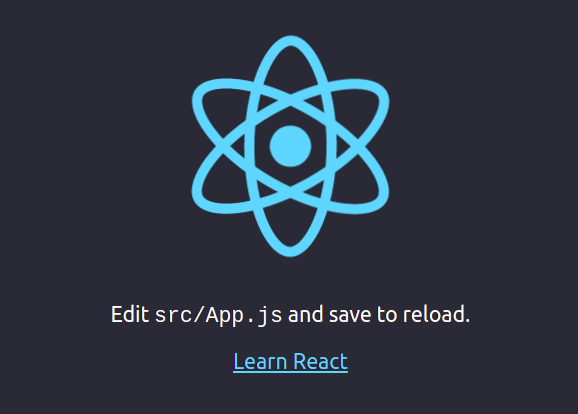
If your browser doesn’t open automatically, manually navigate to http://localhost:3000. You’ll see the default Create-React-App welcome page featuring the React logo and some starter information. This confirms your development environment is functioning correctly.
The development server includes hot module replacement—when you save changes to your source files, the browser updates automatically without manual refresh. This feature dramatically accelerates development by providing instant visual feedback.
Development Server Features
The development server includes numerous helpful features. Error overlays display compilation and runtime errors directly in your browser, making debugging more efficient. ESLint warnings appear in both the console and browser, helping maintain code quality. Source maps enable debugging of original code rather than compiled output, and the fast refresh feature preserves component state during updates when possible.
Step 6: Building React App for Production
Development builds prioritize quick compilation and helpful debugging tools, but production builds focus on performance optimization and minimal file size.
Creating Production Build
When you’re ready to deploy your application, create an optimized production build:
npm run buildThis command triggers an optimized compilation process. React-Scripts minifies JavaScript and CSS, removes development-only code, applies tree shaking to eliminate unused code, and generates unique filenames with content hashes for optimal caching.
The build process typically takes 30-90 seconds depending on your application’s complexity. Progress indicators show the compilation stages and final bundle sizes.
Production Build Contents
The build command creates a build directory containing your optimized application. Inside, you’ll find the static folder organized into subdirectories for CSS, JavaScript, and media files. The main index.html file references these static assets using the hashed filenames.
Production bundles are significantly smaller than development builds. Code splitting creates separate chunks for different parts of your application, allowing browsers to load only necessary code initially. Subsequent chunks load on demand, improving initial page load performance.
Build Optimization Features
Production builds implement several automatic optimizations. Minification removes whitespace, shortens variable names, and eliminates comments, dramatically reducing file size. Tree shaking analyzes your code to remove unused functions and imports. Code splitting divides your application into smaller chunks that load asynchronously. Environment variables set to production mode disable React’s development warnings and enable additional optimizations.
Step 7: Deploying React App with Nginx (Optional)
For production deployment, serving your React application through Nginx provides performance benefits and production-ready features like caching and compression.
Installing Nginx on Rocky Linux 10
Install Nginx using the dnf package manager:
sudo dnf install nginx -yAfter installation, start the Nginx service:
sudo systemctl start nginxEnable Nginx to start automatically on system boot:
sudo systemctl enable nginxVerify Nginx is running:
sudo systemctl status nginxThe status should show “active (running)” confirming successful installation and startup.
Configuring Nginx for React
React applications use client-side routing, requiring special Nginx configuration to handle direct URL access. Create a new server block configuration:
sudo nano /etc/nginx/conf.d/react-app.confAdd the following configuration:
server {
    listen 80;
    server_name your-domain.com;
    root /var/www/react-app;
    index index.html;

    location / {
        try_files $uri $uri/ /index.html;
    }
}
The try_files directive ensures all routes fallback to index.html, allowing React Router to handle navigation. This configuration is critical for single-page applications.
Deploying Build Files
Copy your production build files to the Nginx web root:
sudo mkdir -p /var/www/react-app
sudo cp -r build/* /var/www/react-app/
Set appropriate file permissions:
sudo chown -R nginx:nginx /var/www/react-app
sudo chmod -R 755 /var/www/react-app
Test your Nginx configuration for syntax errors:
sudo nginx -tIf the test succeeds, reload Nginx to apply changes:
sudo systemctl reload nginxYour React application is now accessible through your server’s domain or IP address.
Testing Your React Installation
Thorough testing confirms your development environment is fully functional. Open your React application in a browser and check the browser console for errors. A properly functioning application shows no console errors.
Test the hot reload functionality by modifying src/App.js. Change some text, save the file, and observe the browser update automatically without manual refresh. This confirms the development server’s live reload feature works correctly.
Create a simple test component to verify component rendering:
function TestComponent() {
  return <h1>Hello Rocky Linux!</h1>;
}
Import and render this component in your App.js to confirm component-based development functions as expected.
Common Issues and Troubleshooting
Despite careful installation, you may encounter issues. Understanding common problems and their solutions saves valuable development time.
Node.js Version Compatibility
React and its dependencies require specific Node.js versions. If you encounter errors about unsupported Node.js versions, verify your installed version matches React’s requirements. Create-React-App typically requires Node.js 14.0.0 or higher.
To check Node.js compatibility issues, review error messages carefully. They often specify the minimum required version. If necessary, uninstall your current Node.js version and install a compatible version using the NodeSource repository method described earlier.
Permission Errors
Permission errors during npm installation typically occur when npm tries to write to protected directories. Avoid using sudo with npm commands when possible, as this can create permission inconsistencies.
If you encounter EACCES errors, reconfigure npm to use a different directory for global packages:
mkdir ~/.npm-global
npm config set prefix '~/.npm-global'
Add this to your .bashrc or .bash_profile:
export PATH=~/.npm-global/bin:$PATHThis configuration allows npm to install global packages without requiring root privileges.
Port Already in Use
The default React development server uses port 3000. If another application occupies this port, you’ll see an error message during startup. Check which process is using port 3000:
sudo lsof -i :3000Either stop the conflicting process or configure React to use a different port by setting the PORT environment variable:
PORT=3001 npm startYour application will then start on port 3001 instead.
Build Failures
Build failures often result from missing dependencies or incompatible package versions. When encountering build errors, first try deleting node_modules and reinstalling:
rm -rf node_modules package-lock.json
npm install
This resolves many dependency-related issues by ensuring a clean installation. If problems persist, check the error messages for specific package conflicts and consult the package documentation.
Best Practices for React Development on Rocky Linux
Following established best practices ensures maintainable, secure, and efficient React applications.
Environment Variables Management
Never hardcode sensitive information like API keys directly in your source code. React applications support environment variables through .env files. Create a .env file in your project root:
REACT_APP_API_KEY=your_api_key_here
REACT_APP_API_URL=https://api.example.com
Access these variables in your code using process.env.REACT_APP_API_KEY. Note that all custom environment variables must start with REACT_APP_ to be accessible in your React application.
Never commit .env files containing sensitive data to version control. Add them to .gitignore to prevent accidental exposure.
Project Organization
As your application grows, proper organization becomes crucial. Group related components in directories, separate business logic from presentation components, and maintain consistent naming conventions. Consider organizing files by feature rather than by type—this keeps related code together and improves maintainability.
Use descriptive component names that clearly indicate their purpose. Create a components directory for reusable components and a pages directory for route-level components.
Performance Optimization
React applications benefit from several performance optimization techniques. Implement code splitting to load components on demand, use React.lazy and Suspense for dynamic imports, and memoize expensive computations with useMemo. The React Developer Tools browser extension helps identify performance bottlenecks and unnecessary re-renders.
Monitor your bundle size regularly using the build output statistics. Large bundles slow initial page load, particularly on slower connections. Break large components into smaller pieces and dynamically import heavy dependencies.
Security Considerations
Security should be a priority throughout your development workflow. Keep Node.js and npm packages updated to address known vulnerabilities.
Regularly run npm’s security audit:
npm auditThis command scans your dependencies for known security issues and provides recommendations for fixes. Address high and critical vulnerabilities immediately:
npm audit fixUse environment variables for sensitive configuration data, never committing credentials to source control. Implement proper Content Security Policy headers when deploying to production, and configure your firewall to restrict unnecessary access to your Rocky Linux server.
Keep your Rocky Linux system updated with security patches:
sudo dnf update -yRegular updates protect against system-level vulnerabilities that could compromise your applications.
Congratulations! You have successfully installed React. Thanks for using this tutorial for installing ReactJS JavaScript library for building user interfaces on Rocky Linux 10 system. For additional help or useful information, we recommend you check the official ReactJS website.
