How To Install Rocket.Chat on AlmaLinux 10

Rocket.Chat stands as one of the most robust open-source communication platforms available today, offering enterprise-grade messaging, video conferencing, and collaboration features. Installing this powerful self-hosted solution on AlmaLinux 10 provides organizations with complete control over their communication infrastructure while maintaining the highest security standards.
AlmaLinux 10, with its enterprise-grade stability and Red Hat Enterprise Linux compatibility, creates the perfect foundation for Rocket.Chat deployments. This comprehensive guide walks through every aspect of the installation process, from initial system preparation to advanced configuration and security hardening.
Whether you’re a system administrator looking to deploy team communication tools or an organization seeking alternatives to cloud-based messaging platforms, this tutorial provides the technical expertise needed for a successful implementation.
System Requirements and Prerequisites
Hardware Requirements
AlmaLinux 10 requires minimum specifications of 1.5 GB RAM and 10 GB disk space for basic operation. However, Rocket.Chat deployments demand more substantial resources to ensure optimal performance and scalability.
For production Rocket.Chat installations, allocate at least 4 GB RAM and 20 GB storage for deployments supporting up to 500 concurrent users. CPU requirements scale based on user load, with 2 vCPU cores sufficient for small to medium deployments. Organizations planning larger implementations should consider 8 GB RAM and 4+ CPU cores to handle increased traffic and concurrent connections.
Storage requirements extend beyond the base installation. Plan for log files, user uploads, database growth, and system backups. Fast SSD storage significantly improves MongoDB performance and overall system responsiveness.
Software Prerequisites
Fresh AlmaLinux 10 installations provide the cleanest deployment environment. Root access or sudo privileges remain essential for system-level configuration changes and service management.
Network connectivity ensures successful package downloads and dependency resolution during installation. Domain name configuration, while optional, simplifies SSL certificate management and provides professional deployment aesthetics.
Basic Linux command-line knowledge accelerates the installation process and helps troubleshoot potential issues. Familiarity with systemd service management, firewall configuration, and text editor usage proves invaluable during deployment.
Network Requirements
Firewall configuration must accommodate Rocket.Chat’s network requirements. Port 3000 serves as the default application port, while ports 80 and 443 handle HTTP and HTTPS traffic respectively.
SELinux considerations impact service startup and file access permissions. Understanding SELinux contexts prevents common deployment failures and security conflicts.
Network security planning should include reverse proxy configuration, SSL termination, and access control policies. These elements ensure production deployments meet organizational security requirements.
Preparing AlmaLinux 10 Environment
System Updates and Package Management
Begin with comprehensive system updates to ensure all packages reflect the latest security patches and bug fixes:
sudo dnf update -yInstalling the EPEL repository provides access to additional packages required for Rocket.Chat dependencies:
sudo dnf install epel-release -yConfigure DNF package manager for optimal performance by enabling the fastest mirror selection and parallel downloads:
echo "fastestmirror=True" >> /etc/dnf/dnf.conf
echo "max_parallel_downloads=10" >> /etc/dnf/dnf.conf
Installing Development Tools
Development tools compilation enables proper Node.js module building and system integration:
sudo dnf groupinstall "Development Tools" -y
sudo dnf install GraphicsMagick curl wget tar -y
GraphicsMagick handles image processing requirements for Rocket.Chat’s media handling capabilities. These tools ensure smooth installation of native Node.js modules during the setup process.
User Account Setup
Creating a dedicated system user enhances security through privilege separation and resource isolation:
sudo useradd -M -U -r rocketchat
sudo usermod -L rocketchat
Establish the proper directory structure with appropriate ownership:
sudo mkdir -p /opt/Rocket.Chat
sudo chown -R rocketchat:rocketchat /opt/Rocket.Chat
This configuration prevents unauthorized access while maintaining proper service functionality.
SELinux Configuration
SELinux requires specific configurations to accommodate Rocket.Chat’s operational requirements. Check current SELinux status:
sestatusConfigure necessary boolean values for web applications:
sudo setsebool -P httpd_can_network_connect on
sudo setsebool -P httpd_can_network_relay on
These settings allow reverse proxy configurations and network communications essential for Rocket.Chat operations.
Installing and Configuring MongoDB
MongoDB Installation on AlmaLinux 10
MongoDB serves as Rocket.Chat’s primary database backend, requiring specific configuration for optimal performance. Create the MongoDB repository file:
sudo tee /etc/yum.repos.d/mongodb-org-8.0.repo << EOF
[mongodb-org-7.0]
name=MongoDB Repository
baseurl=https://repo.mongodb.org/yum/redhat/9/mongodb-org/8.0/x86_64/
gpgcheck=1
enabled=1
gpgkey=https://www.mongodb.org/static/pgp/server-8.0.asc
EOF
Install MongoDB Community Edition:
sudo dnf install mongodb-org -yStart and enable MongoDB service:
sudo systemctl enable --now mongodMongoDB Configuration for Rocket.Chat
Rocket.Chat requires MongoDB replica set configuration for optimal performance and data consistency. Edit the MongoDB configuration file:
sudo nano /etc/mongod.confAdd replica set configuration:
replication:
  replSetName: rs01

net:
  port: 27017
  bindIp: 127.0.0.1
Restart MongoDB to apply changes:
sudo systemctl restart mongodInitialize the replica set:
mongosh --eval "printjson(rs.initiate())"MongoDB Security Hardening
Secure MongoDB installation by creating administrative users and enabling authentication:
mongoshWithin the MongoDB shell, create an admin user:
use admin
db.createUser({
  user: "admin",
  pwd: "secure_password_here",
  roles: ["userAdminAnyDatabase", "dbAdminAnyDatabase", "readWriteAnyDatabase"]
})
Enable authentication by updating the configuration file:
security:
  authorization: enabled
Performance Optimization
MongoDB performance optimization involves memory allocation, storage engine configuration, and index management. Configure appropriate cache sizes based on available system memory.
Monitor MongoDB performance using built-in tools and logs. Regular maintenance tasks include index optimization, data compaction, and backup verification.
Installing Node.js and Deno
Node.js Installation
Rocket.Chat requires specific Node.js versions for compatibility and stability. Install the NodeSource repository:
curl -fsSL https://rpm.nodesource.com/setup_lts.x | sudo bash -Install Node.js:
sudo dnf install nodejs -yVerify the installation:
node --version
npm --version
Deno Installation
Recent Rocket.Chat versions require Deno for specific functionality. Install Deno version 1.38.5:
curl -fsSL https://deno.land/install.sh | sh -s v1.38.5Add Deno to the system PATH:
echo 'export PATH="$HOME/.deno/bin:$PATH"' >> ~/.bashrc
source ~/.bashrc
Environment Variable Configuration
Configure system-wide environment variables for Node.js and Deno accessibility. Update the system profile to ensure all users can access these tools.
Verify installations by checking version outputs and confirming PATH configurations work correctly across different user contexts.
Downloading and Installing Rocket.Chat
Downloading Rocket.Chat
Choose stable release versions for production deployments to ensure reliability and support. Download Rocket.Chat version 6.13.0:
curl -L https://releases.rocket.chat/6.13.0/download -o /tmp/rocket.chat.tgzFor latest versions (not recommended for production):
curl -L https://releases.rocket.chat/latest/download -o /tmp/rocket.chat.tgzInstalling Dependencies
Extract the downloaded archive:
tar -xzf /tmp/rocket.chat.tgz -C /tmpNavigate to the server directory and install production dependencies:
cd /tmp/bundle/programs/server
npm install --production
Use the --unsafe-perm flag if encountering permission issues:
npm install --production --unsafe-permFile System Setup
Move the extracted bundle to the proper location:
sudo mv /tmp/bundle /opt/Rocket.ChatSet appropriate ownership and permissions:
sudo chown -R rocketchat:rocketchat /opt/Rocket.Chat
sudo chmod -R 755 /opt/Rocket.Chat
Version 6.10 Specific Steps
Rocket.Chat version 6.10 requires additional configuration steps:
sudo mkdir -p /home/rocketchat/.cache/deno
cd /opt/Rocket.Chat/programs/server/npm/node_modules/@rocket.chat/apps-engine
sudo -u rocketchat DENO_DIR=/home/rocketchat/.cache/deno npm install --production
sudo -u rocketchat npm run postinstall
sudo chown -R rocketchat:rocketchat /home/rocketchat
These steps ensure proper Deno integration and cache directory setup.
Creating and Configuring Rocket.Chat Service
SystemD Service File Creation
Create a comprehensive systemd service file for proper process management:
NODE_PATH=$(which node)
sudo tee /lib/systemd/system/rocketchat.service << EOF
[Unit]
Description=The Rocket.Chat server
After=network.target remote-fs.target nss-lookup.target nginx.service mongod.service

[Service]
ExecStart=$NODE_PATH /opt/Rocket.Chat/main.js
StandardOutput=journal
StandardError=journal
SyslogIdentifier=rocketchat
User=rocketchat
Restart=always
RestartSec=5

[Install]
WantedBy=multi-user.target
EOF
This configuration ensures proper service dependencies and automatic restart capabilities.
Environment Variables Configuration
Configure essential environment variables using systemd’s override mechanism:
sudo systemctl edit rocketchatAdd the following configuration:
[Service]
Environment=ROOT_URL=https://your-domain.com
Environment=PORT=3000
Environment=MONGO_URL=mongodb://localhost:27017/rocketchat?replicaSet=rs01
Environment=MONGO_OPLOG_URL=mongodb://localhost:27017/local?replicaSet=rs01
Replace https://your-domain.com with your actual domain name.
Service Management
Enable and start the Rocket.Chat service:
sudo systemctl daemon-reload
sudo systemctl enable --now rocketchat
Monitor service status:
sudo systemctl status rocketchatCheck service logs for troubleshooting:
sudo journalctl -u rocketchat -fFirewall Configuration
Configure firewalld to allow necessary traffic:
sudo firewall-cmd --permanent --add-port=3000/tcp
sudo firewall-cmd --permanent --add-service=http
sudo firewall-cmd --permanent --add-service=https
sudo firewall-cmd --reload
Test connectivity by accessing http://your-server-ip:3000 in a web browser.
SSL Configuration with Nginx
Nginx Installation and Basic Setup
Install Nginx as a reverse proxy for SSL termination and load balancing:
sudo dnf install nginx -y
sudo systemctl enable --now nginx
Create Rocket.Chat configuration:
sudo tee /etc/nginx/conf.d/rocketchat.conf << EOF
server {
    listen 80;
    server_name your-domain.com;
    return 301 https://\$server_name\$request_uri;
}

server {
    listen 443 ssl http2;
    server_name your-domain.com;

    ssl_certificate /etc/letsencrypt/live/your-domain.com/fullchain.pem;
    ssl_certificate_key /etc/letsencrypt/live/your-domain.com/privkey.pem;

    location / {
        proxy_pass http://localhost:3000;
        proxy_http_version 1.1;
        proxy_set_header Upgrade \$http_upgrade;
        proxy_set_header Connection "upgrade";
        proxy_set_header Host \$http_host;
        proxy_set_header X-Real-IP \$remote_addr;
        proxy_set_header X-Forward-For \$proxy_add_x_forwarded_for;
        proxy_set_header X-Forward-Proto http;
        proxy_set_header X-Nginx-Proxy true;
        proxy_redirect off;
    }
}
EOF
Let’s Encrypt SSL Certificate
Install Certbot and obtain SSL certificates:
sudo dnf install python3-certbot-nginx -yObtain SSL certificate:
sudo certbot --nginx --agree-tos --redirect --hsts --staple-ocsp -d your-domain.comConfigure automatic renewal:
sudo systemctl enable --now certbot-renew.timerAdvanced Nginx Configuration
Enhance Nginx configuration with security headers and performance optimizations:
add_header X-Frame-Options "SAMEORIGIN" always;
add_header X-Content-Type-Options "nosniff" always;
add_header Referrer-Policy "no-referrer-when-downgrade" always;
add_header Content-Security-Policy "default-src 'self' http: https: data: blob: 'unsafe-inline'" always;

gzip on;
gzip_types text/plain text/css application/json application/javascript text/xml application/xml application/xml+rss text/javascript;
HTTPS Enforcement and Security
Test SSL configuration and restart services:
sudo nginx -t
sudo systemctl restart nginx
Update Rocket.Chat environment variables to reflect HTTPS URL:
sudo systemctl edit rocketchatChange ROOT_URL to use HTTPS:
Environment=ROOT_URL=https://your-domain.comRestart Rocket.Chat:
sudo systemctl restart rocketchatInitial Rocket.Chat Configuration
First-Time Setup Wizard
Access Rocket.Chat through your web browser at https://your-domain.com. The setup wizard guides through initial configuration steps.
Create the administrator account with strong credentials. This account manages server settings, user permissions, and organizational configuration.
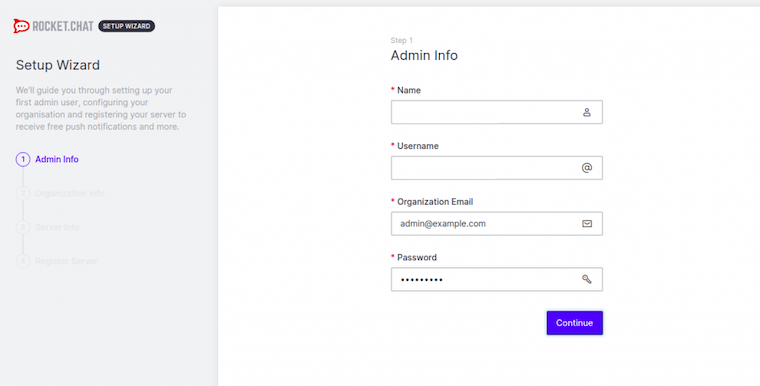
Configure organization information including server name, country, and website details. These settings appear in various interface elements and email communications.
Workspace Registration
Rocket.Chat Cloud registration provides access to additional features and marketplace integrations. Registration remains optional but enables:
- Rocket.Chat marketplace access
- Push notification services
- Advanced analytics and reporting
- Professional support options
Complete email verification if registering with Rocket.Chat Cloud. This process validates administrative contact information and enables cloud-based services.
Basic Settings Configuration
Configure essential server settings including:
- Server Settings: Time zone, language, and regional preferences
- Message Settings: Message limits, editing permissions, and retention policies
- File Upload Settings: Maximum file sizes and allowed file types
- Email Settings: SMTP configuration for notifications and password resets
Create initial channels for team communication and establish user permission structures based on organizational requirements.
Troubleshooting and Monitoring
Log Management and Analysis
Comprehensive logging enables effective troubleshooting and performance monitoring. Access Rocket.Chat logs:
sudo journalctl -u rocketchat -fMongoDB logs provide database-specific information:
sudo journalctl -u mongod -fNginx access and error logs reveal web server issues:
sudo tail -f /var/log/nginx/access.log
sudo tail -f /var/log/nginx/error.log
Common Issues and Solutions
Service startup failures often relate to permission problems or missing dependencies. Verify file ownership and service configurations:
sudo systemctl status rocketchat
sudo ls -la /opt/Rocket.Chat
Database connection problems typically involve MongoDB replica set configuration or network connectivity. Test MongoDB connection:
mongosh --eval "db.runCommand('ismaster')"SSL certificate issues manifest as browser security warnings or connection failures. Verify certificate validity and Nginx configuration:
sudo certbot certificates
sudo nginx -t
Performance Monitoring
Monitor system resource utilization using standard Linux tools:
top
htop
iotop
netstat -tulpn
Database performance monitoring involves query analysis and index optimization:
mongosh
db.serverStatus()
db.stats()
Connection monitoring tracks user sessions and server load. Implement monitoring solutions like Prometheus and Grafana for comprehensive metrics collection.
Health Checks and Maintenance
Establish regular maintenance procedures including:
- System Updates: Monthly security patches and package updates
- Database Maintenance: Weekly backup verification and performance optimization
- Log Rotation: Automated log cleanup and archival
- Certificate Renewal: Automated SSL certificate renewal testing
Create monitoring scripts that check service availability and performance metrics. These scripts enable proactive issue identification and resolution.
Security Best Practices
System Security Hardening
Implement comprehensive security measures beyond basic installation requirements. Configure SSH key-based authentication and disable password authentication:
sudo nano /etc/ssh/sshd_configSet PasswordAuthentication no and restart SSH service.
Firewall configuration should follow the principle of least privilege, allowing only necessary traffic:
sudo firewall-cmd --permanent --remove-service=ssh
sudo firewall-cmd --permanent --add-port=22/tcp --source=trusted-ip-range
sudo firewall-cmd --reload
Regular security updates protect against known vulnerabilities. Configure automatic security updates while maintaining change control:
sudo dnf install dnf-automatic -y
sudo systemctl enable --now dnf-automatic.timer
Rocket.Chat Security Settings
Configure advanced authentication mechanisms including two-factor authentication (2FA) for all administrative accounts. Enable LDAP or SAML integration for enterprise environments.
Rate limiting prevents abuse and ensures service availability:
- Message rate limits: 5 messages per second per user
- API rate limits: 10 requests per second per IP
- Login attempt limits: 5 attempts per 15 minutes
Implement content filtering and spam prevention through built-in moderation tools and custom filtering rules.
MongoDB Security
Database security extends beyond basic authentication. Implement network isolation by binding MongoDB to localhost only:
net:
  bindIp: 127.0.0.1
Configure database-level access controls and audit logging:
auditLog:
  destination: file
  format: JSON
  path: /var/log/mongodb/audit.log
Regular backup testing ensures data recovery capabilities during security incidents or hardware failures.
Maintenance and Updates
Updating Rocket.Chat
Rocket.Chat updates require careful planning and testing procedures. Always backup the system before applying updates:
sudo systemctl stop rocketchat
mongodump --out /backup/rocketchat-$(date +%Y%m%d)
sudo cp -r /opt/Rocket.Chat /backup/rocketchat-app-$(date +%Y%m%d)
Download and install updates following the same process as initial installation:
curl -L https://releases.rocket.chat/6.14.0/download -o /tmp/rocket.chat.tgz
tar -xzf /tmp/rocket.chat.tgz -C /tmp
cd /tmp/bundle/programs/server && npm install --production
sudo systemctl stop rocketchat
sudo rm -rf /opt/Rocket.Chat
sudo mv /tmp/bundle /opt/Rocket.Chat
sudo chown -R rocketchat:rocketchat /opt/Rocket.Chat
sudo systemctl start rocketchat
Test functionality thoroughly before declaring updates successful.
System Maintenance
Regular AlmaLinux maintenance ensures optimal performance and security. Schedule monthly maintenance windows for:
- System package updates
- Security patch installation
- Log rotation and cleanup
- Performance optimization
- Backup verification
MongoDB maintenance includes index optimization and data compaction:
mongosh
db.runCommand({compact: 'collection_name'})
db.runCommand({reIndex: 'collection_name'})
Monitor disk usage and plan storage expansion based on growth projections.
Congratulations! You have successfully installed Rocket.Chat. Thanks for using this tutorial for installing Rocket.Chat customizable open source communications platform on AlmaLinux OS 10 system. For additional help or useful information, we recommend you check the official Rocket.Chat website.
