How To Install Roundcube Webmail on Rocky Linux 10

Roundcube Webmail stands as one of the most popular open-source webmail solutions available today. This browser-based IMAP email client offers a modern, intuitive interface that rivals commercial webmail platforms. With support for multiple languages, drag-and-drop functionality, and extensive plugin architecture, Roundcube transforms email management into an efficient experience. Rocky Linux 10, known for its enterprise-grade stability and Red Hat Enterprise Linux compatibility, provides the perfect foundation for hosting a reliable webmail server. This comprehensive guide walks through every step needed to deploy Roundcube on Rocky Linux 10, from initial system preparation to security hardening. Whether managing personal email or deploying webmail for an organization, this tutorial delivers production-ready results. The installation process typically takes 45-60 minutes, depending on server specifications and network speed.
What is Roundcube Webmail?
Roundcube operates as a web-based IMAP email client built with PHP. Unlike desktop email applications, Roundcube runs entirely in web browsers, providing access to email from any device with internet connectivity. The platform supports essential features including address book management, folder manipulation, spell checking across multiple languages, and sophisticated message searching capabilities. MIME support ensures proper handling of attachments and HTML emails. Compared to alternatives like Horde or SquirrelMail, Roundcube delivers a more contemporary user interface with Ajax-driven interactions. Organizations often deploy Roundcube alongside mail server infrastructure built on Postfix and Dovecot. The active development community releases regular updates, with the current stable version offering enhanced security features and performance improvements. Roundcube works seamlessly with existing IMAP servers, making it an ideal choice for adding webmail functionality to established email infrastructure.
Prerequisites and Requirements
Before beginning the installation, ensure the system meets specific requirements. Rocky Linux 10 must be installed with a minimal or server configuration. The LAMP stack forms the foundation: Linux operating system, Apache web server, MariaDB database, and PHP scripting language. Hardware specifications should include at least 2 CPU cores, 2GB RAM minimum (4GB recommended), and 20GB available disk space. PHP version 7.4 or higher is mandatory, though PHP 8.0 or newer delivers better performance. MariaDB 10.3 or MySQL 5.7 serves as the database backend. This guide focuses on Apache web server, though Nginx works equally well with appropriate configuration adjustments. A fully qualified domain name with proper DNS configuration is essential for production deployments. Configure A records pointing to the server IP address and MX records for mail routing. Root or sudo privileges are required to execute system-level commands. While optional, an SSL/TLS certificate from Let’s Encrypt or another certificate authority is strongly recommended to encrypt webmail traffic. An existing mail server with Postfix SMTP and Dovecot IMAP/POP3 services should already be operational, or external IMAP/SMTP servers must be accessible. Without functioning mail services, Roundcube cannot send or receive messages.
Step 1: Prepare Your Rocky Linux 10 Server
System preparation ensures a clean environment for Roundcube installation. Begin by updating all installed packages to their latest versions using DNF, the package manager for Rocky Linux:
sudo dnf update -yThis command downloads and installs available updates, addressing security vulnerabilities and bug fixes. Set an appropriate hostname that reflects the server’s purpose:
sudo hostnamectl set-hostname mail.yourdomain.comReplace “yourdomain.com” with the actual domain name. Configure the system timezone to ensure accurate email timestamps:
sudo timerctl set-timezone Asia/JakartaAdjust the timezone value based on geographical location. SELinux (Security-Enhanced Linux) provides mandatory access controls but can complicate initial setup. Check the current SELinux status:
sudo getenforceFor production environments, keeping SELinux in enforcing mode is recommended. However, understanding how to configure appropriate policies becomes crucial. Creating a system backup before proceeding protects against potential issues. Use tools like rsync or dedicated backup solutions to snapshot the current system state. Verify network connectivity and DNS resolution:
ping -c 4 google.com
nslookup yourdomain.com
Successful ping responses and correct DNS resolution confirm network configuration.
Step 2: Install Apache Web Server
Apache HTTP Server delivers web content to browsers accessing the Roundcube interface. Install Apache using DNF:
sudo dnf install httpd -yThe httpd package contains the Apache web server and supporting files. After installation completes, start the Apache service and configure it to launch automatically at system boot:
sudo systemctl start httpd
sudo systemctl enable httpd
Verify Apache is running correctly:
sudo systemctl status httpdA status output showing “active (running)” confirms successful startup. Test Apache functionality by opening a web browser and navigating to the server’s IP address. The default Rocky Linux Apache test page should appear. Apache configuration files reside in /etc/httpd/ directory. The main configuration file is /etc/httpd/conf/httpd.conf, while additional configurations are stored in /etc/httpd/conf.d/. Understanding this directory structure helps when creating virtual host configurations later. The default document root is /var/www/html/, where web application files are typically placed.
Step 3: Install and Configure MariaDB Database
MariaDB stores Roundcube configuration data, user preferences, and session information. Install the MariaDB server and client packages:
sudo dnf install mariadb-server mariadb -yStart the MariaDB service and enable it at boot:
sudo systemctl start mariadb
sudo systemctl enable mariadb
Secure the MariaDB installation by running the security script:
sudo mysql_secure_installationThis interactive script prompts for several security-related decisions. Set a strong root password when prompted. Answer “Y” to remove anonymous users, disallow root login remotely, remove test databases, and reload privilege tables. Connect to MariaDB as root:
sudo mysql -u root -pEnter the root password when prompted. Create a dedicated database for Roundcube with UTF-8 character encoding:
CREATE DATABASE roundcubemail CHARACTER SET utf8mb4 COLLATE utf8mb4_unicode_ci;Create a database user with appropriate permissions:
CREATE USER 'roundcube'@'localhost' IDENTIFIED BY 'StrongPassword123!';Replace “StrongPassword123!” with a secure password. Grant all privileges on the Roundcube database to this user:
GRANT ALL PRIVILEGES ON roundcubemail.* TO 'roundcube'@'localhost';
FLUSH PRIVILEGES;
EXIT;
Test the database connection with the new credentials:
mysql -u roundcube -p roundcubemailSuccessful login confirms proper database setup.
Step 4: Install PHP and Required Extensions
PHP executes server-side code that powers Roundcube functionality. Rocky Linux 10 includes PHP in default repositories, but checking for the latest version ensures optimal performance. Install PHP along with essential extensions:
sudo dnf install php php-mysqlnd php-gd php-mbstring php-xml php-json php-curl php-zip php-intl php-ldap php-imagick php-common php-opcache php-bz2 php-imap -yEach extension serves specific purposes: php-mysqlnd enables database connectivity, php-gd handles image processing, php-mbstring manages multibyte string operations, php-xml processes XML data, php-json handles JSON encoding/decoding, php-curl enables HTTP requests, php-zip manages compressed archives, php-intl provides internationalization functions, php-ldap supports LDAP directory access, php-imagick offers advanced image manipulation, php-opcache improves PHP performance through bytecode caching, php-bz2 handles BZip2 compression, and php-imap provides IMAP protocol support. Verify PHP installation:
php -vThis displays the installed PHP version. Configure PHP settings by editing the main configuration file:
sudo nano /etc/php.iniLocate and modify these directives:
upload_max_filesize = 20M
post_max_size = 20M
memory_limit = 256M
date.timezone = Asia/Jakarta
These settings control maximum upload size, POST data limit, memory allocation, and timezone. Save changes and exit the editor. Restart Apache to load PHP modules:
sudo systemctl restart httpdStep 5: Download and Extract Roundcube
Navigate to a temporary directory for downloading files:
cd /tmpDownload the latest stable Roundcube release. Use this command to automatically fetch the newest version:
VER=$(curl -s https://api.github.com/repos/roundcube/roundcubemail/releases/latest | grep tag_name | cut -d '"' -f 4)
wget https://github.com/roundcube/roundcubemail/releases/download/${VER}/roundcubemail-${VER}-complete.tar.gz
This script queries the GitHub API for the latest release tag and downloads the complete archive. Alternatively, manually specify the version:
wget https://github.com/roundcube/roundcubemail/releases/download/1.6.5/roundcubemail-1.6.5-complete.tar.gzExtract the downloaded archive:
tar xzf roundcubemail-*-complete.tar.gzMove extracted files to Apache’s document root:
sudo mv roundcubemail-* /var/www/html/roundcubeSet proper ownership so Apache can access files:
sudo chown -R apache:apache /var/www/html/roundcubeSet appropriate permissions for temporary and log directories:
sudo chmod 755 /var/www/html/roundcube/temp
sudo chmod 755 /var/www/html/roundcube/logs
These directories require write access for storing temporary files and logging events.
Step 6: Initialize Roundcube Database
Roundcube includes SQL scripts for creating necessary database tables. Import the MySQL initialization script:
sudo mysql -u roundcube -p roundcubemail < /var/www/html/roundcube/SQL/mysql.initial.sqlEnter the database password when prompted. This command populates the roundcubemail database with required table structures. Verify tables were created successfully:
sudo mysql -u roundcube -p roundcubemail -e "SHOW TABLES;"Output should display multiple tables including cache, contacts, identities, session, and users. The Roundcube database schema organizes data efficiently for fast retrieval and updates. Understanding this structure helps when troubleshooting database-related issues or performing maintenance tasks.
Step 7: Configure Roundcube
Roundcube configuration determines how the application connects to mail services and databases. Navigate to the configuration directory:
cd /var/www/html/roundcube/configCopy the sample configuration to create the main config file:
sudo cp config.inc.php.sample config.inc.phpEdit the configuration file:
sudo nano config.inc.phpConfigure the database connection string (DSN). Locate the $config['db_dsnw'] line and modify it:
$config['db_dsnw'] = 'mysql://roundcube:StrongPassword123!@localhost/roundcubemail';Replace credentials with actual database username and password. Configure IMAP server settings:
$config['imap_host'] = 'ssl://mail.yourdomain.com:993';
$config['imap_conn_options'] = array(
    'ssl' => array(
        'verify_peer' => false,
        'verify_peer_name' => false,
    ),
);
For SMTP configuration:
$config['smtp_host'] = 'tls://mail.yourdomain.com:587';
$config['smtp_user'] = '%u';
$config['smtp_pass'] = '%p';
$config['smtp_conn_options'] = array(
    'ssl' => array(
        'verify_peer' => false,
        'verify_peer_name' => false,
    ),
);
The %u and %p variables automatically use the login username and password for SMTP authentication. Set product name and branding:
$config['product_name'] = 'Your Company Webmail';Configure support URL:
$config['support_url'] = 'https://yourdomain.com/support';Set default language:
$config['language'] = 'en_US';Enable plugins by adding them to the plugins array:
$config['plugins'] = array('archive', 'zipdownload', 'managesieve');Save and close the file. Set restrictive permissions on the configuration file to protect sensitive data:
sudo chmod 640 /var/www/html/roundcube/config/config.inc.phpStep 8: Create Apache Virtual Host
Virtual hosts allow Apache to serve multiple websites from one server. Create a virtual host configuration for Roundcube:
sudo nano /etc/httpd/conf.d/roundcube.confAdd the following configuration:
<VirtualHost *:80>
    ServerName mail.yourdomain.com
    DocumentRoot /var/www/html/roundcube

    <Directory /var/www/html/roundcube/>
        Options -Indexes +FollowSymLinks
        AllowOverride All
        Require all granted
    </Directory>

    ErrorLog /var/log/httpd/roundcube_error.log
    CustomLog /var/log/httpd/roundcube_access.log combined
</VirtualHost>
Replace “mail.yourdomain.com” with the actual domain name. This configuration sets the document root, enables .htaccess overrides, and specifies custom log file locations. Test Apache configuration syntax:
sudo apachectl configtestA “Syntax OK” message indicates proper configuration. Restart Apache to apply changes:
sudo systemctl restart httpdStep 9: Configure Firewall Rules
Firewalld manages network traffic on Rocky Linux. Check firewall status:
sudo systemctl status firewalldIf inactive, start and enable firewalld:
sudo systemctl start firewalld
sudo systemctl enable firewalld
Open HTTP port 80 through the firewall:
sudo firewall-cmd --permanent --add-service=httpOpen HTTPS port 443:
sudo firewall-cmd --permanent --add-service=httpsReload firewall rules to apply changes:
sudo firewall-cmd --reloadVerify rules are active:
sudo firewall-cmd --list-allOutput should show http and https services in the allowed services list. Mail services also require specific ports: port 25 (SMTP), port 587 (submission), port 465 (SMTPS), port 993 (IMAPS), and port 995 (POP3S).
Step 10: Configure SELinux Policies
SELinux enforces security policies that may restrict Apache and Roundcube operations. Allow Apache to make network connections:
sudo setsebool -P httpd_can_network_connect onThis boolean permits Apache to connect to remote IMAP and SMTP servers. Set appropriate SELinux context for Roundcube directories:
sudo semanage fcontext -a -t httpd_sys_rw_content_t "/var/www/html/roundcube/temp(/.*)?"
sudo semanage fcontext -a -t httpd_sys_rw_content_t "/var/www/html/roundcube/logs(/.*)?"
sudo restorecon -Rv /var/www/html/roundcube
These commands label temporary and log directories with contexts allowing Apache write access. Check current SELinux mode:
sudo getenforceWhen troubleshooting, temporarily switch to permissive mode:
sudo setenforce 0This disables enforcement while still logging violations. After resolving issues, re-enable enforcement:
sudo setenforce 1Step 11: Install SSL/TLS Certificate
SSL certificates encrypt data transmitted between browsers and servers. Install Certbot for obtaining Let’s Encrypt certificates:
sudo dnf install certbot python3-certbot-apache -yRequest a certificate for the mail domain:
sudo certbot --apache -d mail.yourdomain.comCertbot prompts for an email address and agreement to terms of service. It automatically configures Apache for HTTPS and creates a redirect from HTTP to HTTPS. Configure automatic certificate renewal:
sudo systemctl enable certbot-renew.timer
sudo systemctl start certbot-renew.timer
Test certificate renewal:
sudo certbot renew --dry-runSuccessful output confirms automatic renewal will work. The virtual host configuration now includes SSL settings in /etc/httpd/conf.d/roundcube-le-ssl.conf. After SSL installation, update Roundcube configuration to use secure connections by setting verify_peer to true in SSL options for production environments.
Step 12: Access and Test Roundcube Installation
Open a web browser and navigate to the Roundcube URL:
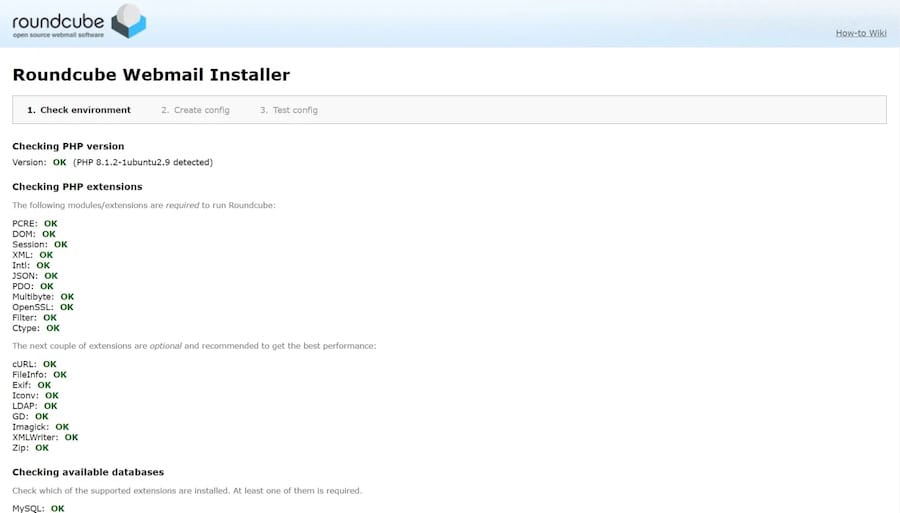
https://mail.yourdomain.comThe Roundcube login page should appear with username and password fields. Enter email credentials for an existing account on the mail server. Successful login displays the Roundcube interface with inbox, folders, and email management tools. Test sending an email by clicking the compose button, entering a recipient address, subject, and message body, then clicking send. Verify email delivery by checking the sent folder and recipient inbox. Test receiving emails by sending a message to the account from an external email address. The message should appear in the Roundcube inbox within seconds. Check attachment functionality by composing a message and attaching a file. Send the message and verify the recipient receives the attachment. Access the address book and add a new contact with name, email address, and additional details. Test searching emails using the search box with keywords from existing messages. Verify autocomplete suggests email addresses when typing in the recipient field during composition.
Step 13: Post-Installation Security Hardening
Security hardening protects Roundcube from potential threats. Remove the installer directory immediately after successful setup:
sudo rm -rf /var/www/html/roundcube/installerThe installer contains sensitive configuration tools that shouldn’t remain accessible. Alternatively, disable the installer in configuration:
sudo nano /var/www/html/roundcube/config/config.inc.phpSet this option:
$config['enable_installer'] = false;Restrict file permissions on configuration files:
sudo chmod 640 /var/www/html/roundcube/config/config.inc.php
sudo chown root:apache /var/www/html/roundcube/config/config.inc.php
Configure secure session handling by adding these settings to config.inc.php:
$config['session_lifetime'] = 10;
$config['session_samesite'] = 'Strict';
$config['use_https'] = true;
These settings limit session duration, prevent cross-site request forgery, and enforce HTTPS. Enable CSRF protection:
$config['request_token'] = true;Implement IP restrictions if Roundcube should only be accessible from specific networks. Install and configure fail2ban to protect against brute-force login attempts:
sudo dnf install fail2ban -y
sudo systemctl enable fail2ban
sudo systemctl start fail2ban
Create a fail2ban filter for Roundcube by editing /etc/fail2ban/filter.d/roundcube.conf:
[Definition]
failregex = IMAP Error: Login failed for .* from <HOST>
ignoreregex =
Add a jail in /etc/fail2ban/jail.local:
[roundcube]
enabled = true
port = http,https
filter = roundcube
logpath = /var/www/html/roundcube/logs/errors.log
maxretry = 5
bantime = 3600
Restart fail2ban to apply configuration. Schedule regular security updates:
sudo dnf install dnf-automatic -y
sudo systemctl enable --now dnf-automatic.timer
Configure comprehensive logging by ensuring all error levels are captured in /var/www/html/roundcube/config/config.inc.php:
$config['log_driver'] = 'file';
$config['log_date_format'] = 'd-M-Y H:i:s O';
Troubleshooting Common Issues
Database connection errors typically stem from incorrect credentials or permissions. Verify database settings in config.inc.php match actual database user and password. Test database connectivity manually using mysql command. IMAP and SMTP connection failures often result from incorrect server addresses, ports, or SSL/TLS settings. Check mail server logs for authentication attempts. Use telnet to test connectivity:
telnet mail.yourdomain.com 993Missing PHP extensions cause installation checker failures. Review required extensions and install any missing packages using dnf. Permission denied errors for temp and logs directories indicate incorrect ownership or file permissions. Verify apache user can write to these directories. SELinux blocking connections appears in audit logs. Check for denials:
sudo ausearch -m avc -ts recentGenerate and apply appropriate SELinux policies or adjust boolean settings. SSL certificate verification issues occur when using self-signed certificates. Disable verification in config.inc.php for testing, but use valid certificates in production. Authentication failures require checking Dovecot logs at /var/log/maillog and verifying user credentials exist in the mail server. Firewall blocking access prevents browser connections to webmail. Ensure firewall rules allow HTTP and HTTPS traffic. Apache virtual host not loading suggests syntax errors or missing configuration inclusion. Review Apache error logs at /var/log/httpd/error_log for specific messages. Roundcube error logs provide detailed debugging information at /var/www/html/roundcube/logs/errors.log. Apache error logs reveal web server issues. Test IMAP connectivity manually:
openssl s_client -connect mail.yourdomain.com:993Performance Optimization Tips
Enable PHP OpCache for bytecode caching and improved PHP performance. Edit /etc/php.d/10-opcache.ini:
opcache.enable=1
opcache.memory_consumption=128
opcache.max_accelerated_files=10000
opcache.revalidate_freq=60
Configure database query caching in MariaDB by editing /etc/my.cnf.d/server.cnf:
[mysqld]
query_cache_type = 1
query_cache_size = 32M
Optimize Apache settings for Roundcube by enabling compression. Create /etc/httpd/conf.d/compression.conf:
<IfModule mod_deflate.c>
    AddOutputFilterByType DEFLATE text/html text/plain text/xml text/css text/javascript application/javascript
</IfModule>
Enable browser caching by adding cache headers to the Apache virtual host:
<FilesMatch "\.(jpg|jpeg|png|gif|css|js)$">
    Header set Cache-Control "max-age=31536000, public"
</FilesMatch>
Configure PHP-FPM for better resource management if using PHP-FPM instead of mod_php. Regular database maintenance prevents performance degradation:
sudo mysqlcheck -u root -p --optimize roundcubemailRun this weekly via cron job. Consider implementing memcached for session storage in high-traffic environments.
Congratulations! You have successfully installed Roundcube. Thanks for using this tutorial for installing Roundcube Webmail on your Rocky Linux 10 system. For additional help or useful information, we recommend you check the official Roundcube Webmail website.
