Remote desktop software has transformed how we work and provide technical support in today’s distributed computing environment. RustDesk emerges as a compelling open-source alternative to commercial solutions like TeamViewer and AnyDesk, offering robust security features, complete data sovereignty, and cross-platform compatibility. This comprehensive guide walks you through installing RustDesk on Fedora 43, configuring it for optimal performance, and leveraging its powerful remote access capabilities.
What is RustDesk?
RustDesk is a free, open-source remote desktop application written in Rust, designed to provide secure and efficient remote access across multiple platforms. Unlike proprietary alternatives, RustDesk gives users complete control over their data through self-hosting capabilities while maintaining enterprise-grade security standards.
The software supports Windows, macOS, Linux, iOS, and Android devices, making it an ideal solution for heterogeneous computing environments. RustDesk implements end-to-end encryption using the NaCl cryptographic library with crypto_secretbox_xsalsa20poly1305 for symmetric encryption, ensuring all remote sessions remain confidential.
Key features include seamless file transfer capabilities, clipboard synchronization, multi-monitor support, and an intuitive user interface that requires minimal technical expertise. For organizations prioritizing data privacy, RustDesk eliminates dependency on third-party relay servers by allowing complete self-hosted infrastructure.
Advantages Over Commercial Solutions
RustDesk stands out from commercial remote desktop tools through several compelling advantages. The software is completely free with no subscription fees or connection limits, making it economically attractive for individuals and businesses alike. Its open-source nature allows security audits and custom modifications, providing transparency that proprietary solutions cannot match.
The ability to self-host RustDesk servers gives organizations complete control over their remote access infrastructure, addressing compliance requirements and data sovereignty concerns. Performance-wise, RustDesk delivers comparable speed to TeamViewer while consuming fewer system resources.
System Requirements and Prerequisites
Before beginning the installation process, verify that your Fedora 43 system meets the necessary requirements. RustDesk is designed as a lightweight application, but optimal performance requires specific hardware and software configurations.
Hardware Specifications
A dual-core processor represents the minimum requirement, though quad-core CPUs provide smoother performance, especially during high-resolution remote sessions. RustDesk operates efficiently with 4GB RAM, but 8GB or more is recommended for handling multiple concurrent connections.
Storage requirements are modest. The application itself consumes less than 100MB, but allocate at least 1GB free space for installation, updates, and session recordings. Network connectivity significantly impacts user experience—a stable broadband connection with minimum 5Mbps upload and download speeds ensures responsive remote control.
Software Prerequisites
Fedora 43 ships with Linux kernel 6.17, which brings enhanced hardware support, improved AMD Ryzen processor scheduling, and better Intel graphics handling. The default GNOME 49 desktop environment operates exclusively on Wayland, providing improved security through sandboxed applications and better HDR support.
Your system should have the DNF package manager pre-configured and root or sudo privileges available for software installation. Both X11 and Wayland display servers are supported, though Wayland is now the default in Fedora 43.
Pre-Installation Setup
Proper preparation ensures a smooth RustDesk installation experience. Follow these essential configuration steps before proceeding with the main installation.
Updating Your System
System updates provide critical security patches and bug fixes that improve overall stability. Open your terminal application and execute the following commands:
sudo dnf check-update
sudo dnf upgrade -y
The first command checks for available updates across all installed packages. The second command downloads and applies these updates automatically. If kernel updates are included, reboot your system to activate the new kernel:
sudo systemctl rebootFirewall Configuration
RustDesk requires specific network ports to be accessible for proper communication between client and server components. Configure your Fedora firewall using these commands:
sudo firewall-cmd --permanent --add-port=21114-21119/tcp
sudo firewall-cmd --permanent --add-port=21116/udp
sudo firewall-cmd --reload
The TCP ports 21114 through 21119 handle ID/Rendezvous server communication, while UDP port 21116 facilitates the relay server functionality. The --permanent flag ensures these rules persist across system reboots.
Verify the firewall rules were applied correctly:
sudo firewall-cmd --list-portsFor systems running SELinux in enforcing mode, the default policies typically accommodate RustDesk without modification. However, if you encounter permission denials, check the audit logs:
sudo ausearch -m avc -ts recentMethod 1: Installing RustDesk Using RPM Package (Recommended)
The RPM package installation method offers the simplest and most reliable approach for most Fedora users. This method automatically handles dependency resolution and integrates cleanly with the system package manager.
Downloading the RPM Package
Navigate to the official RustDesk GitHub releases page to access the latest stable version. Look for RPM packages specifically compiled for Fedora distributions, typically named rustdesk-1.3.x-fedora28-centos8.rpm or similar.
Download the package using wget:
wget https://github.com/rustdesk/rustdesk/releases/download/1.4.4/rustdesk-1.4.4-0.x86_64.rpmAlternatively, download directly from the GitHub releases page if you prefer a graphical interface. The download typically completes within seconds, depending on your connection speed.
Verify the downloaded file’s integrity by checking its size and comparing against the published specifications on the releases page. This step prevents installation of corrupted or tampered packages.
Installing via DNF Package Manager
Navigate to the directory containing your downloaded RPM file. If you downloaded to the Downloads folder:
cd ~/DownloadsExecute the installation command:
sudo dnf install ./rustdesk-1.4.4-0.x86_64.rpmDNF automatically identifies and installs required dependencies, including graphics libraries, audio components, and system integration tools. The installation process typically completes within one to two minutes.
Monitor the installation output for any errors or warnings. Successful installation displays a “Complete!” message at the end of the process.
Verifying Installation
Confirm RustDesk installed correctly by querying the RPM database:
rpm -qa | grep rustdeskThis command should return the full package name and version number. Check the installation path:
which rustdeskThe command should output /usr/bin/rustdesk, indicating the executable is in your system PATH.
Launch RustDesk from the application menu by searching for “RustDesk” in GNOME’s application overview. You can also start it directly from the terminal:
rustdeskMethod 2: Building RustDesk from Source (Advanced)
Advanced users who need the latest development features or want to customize their build should consider compiling RustDesk from source. This method provides access to cutting-edge functionality not yet available in stable releases.
Installing Build Dependencies
Comprehensive build dependencies must be installed before compiling RustDesk:
sudo dnf install git rust cargo gcc-c++ make cmake libXfixes-devel libXi-devel libxcb-devel libxdo-devel alsa-lib-devel pulseaudio-libs-devel libXdamage-devel libXtst-develThis command installs the Rust programming language toolchain, C++ compiler, build automation tools, and necessary development headers for graphics and audio systems.
Verify Rust installation:
rustc --version
cargo --version
Both commands should display version information confirming successful installation.
Cloning and Compiling
Clone the official RustDesk repository:
git clone https://github.com/rustdesk/rustdesk.git
cd rustdesk
Initiate the build process:
cargo build --releaseCompilation time varies based on system specifications—expect 15 to 30 minutes on typical hardware. The --release flag enables compiler optimizations, producing a faster and more efficient binary.
Monitor compilation progress. The cargo build system downloads additional dependencies and compiles all project components.
Manual Installation
After successful compilation, install the binary:
sudo cp target/release/rustdesk /usr/local/bin/Create a desktop entry for application menu integration:
sudo cp rustdesk.desktop /usr/share/applications/Set appropriate permissions:
sudo chmod +x /usr/local/bin/rustdeskUpdate the desktop database:
sudo update-desktop-databaseInitial Configuration and Setup
Proper configuration ensures RustDesk operates securely and efficiently.
First Launch and ID Generation
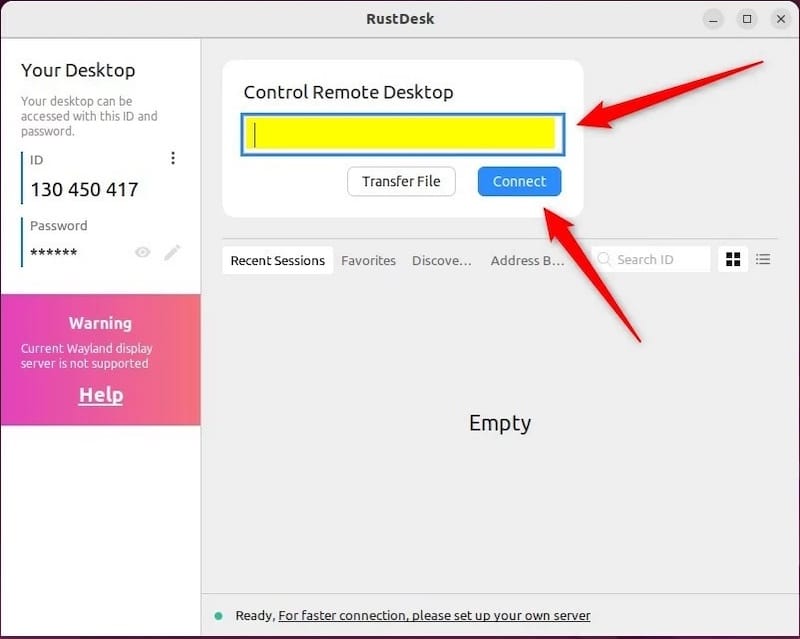
Launch RustDesk from your application menu or terminal. The application automatically generates a unique identifier upon first launch. This ID serves as your device’s address for remote connections.
The ID appears in the main window and remains constant unless you reinstall RustDesk or manually regenerate it. Record this ID securely—you’ll need it to establish remote connections.
Setting Connection Password
Navigate to the password field in the main RustDesk window. Create a strong password combining uppercase and lowercase letters, numbers, and special characters.
RustDesk offers two password modes. Permanent passwords remain active until changed, suitable for personal devices requiring frequent access. One-time passwords expire after a single use, providing enhanced security for occasional connections.
Click “Set Password” to activate your chosen password.
Configuring Display and Performance Settings
Access the settings menu through the gear icon. Display quality options range from low to ultra-high, with automatic adjustment based on network conditions.
Codec selection impacts both visual quality and bandwidth consumption. VP9 provides better compression for bandwidth-constrained connections, while H264 offers broader hardware acceleration support.
Frame rate adjustments balance responsiveness against network load. Set to 30 FPS for standard desktop work or increase to 60 FPS for smoother mouse tracking and video playback.
Audio settings enable remote system sound transmission. Select the appropriate audio capture device and adjust quality settings based on your needs.
Connecting to Remote Systems
RustDesk’s straightforward connection process makes remote access intuitive.
Establishing Connections
Enter the remote device’s ID in the designated field on the main window. Click “Connect” to initiate the connection request.
The remote system displays a connection prompt allowing the user to accept or deny access. Upon acceptance, enter the pre-configured password.
Authentication completes within seconds, and the remote desktop appears in your RustDesk window.
Connection Types and Performance
RustDesk attempts direct peer-to-peer connections first, providing optimal latency and bandwidth utilization. When direct connections fail due to restrictive NAT or firewall configurations, RustDesk automatically falls back to relay server connections.
Relayed connections display a notification indicating the connection type. While slightly higher latency may be noticeable, relay servers ensure connectivity in challenging network environments.
Encryption status indicators confirm that all connections use end-to-end encryption regardless of connection type.
Remote Session Features
The toolbar provides access to essential remote control functions. File transfer functionality enables bidirectional file movement between local and remote systems.
Clipboard synchronization automatically shares copied content between connected devices. Multi-monitor support allows viewing and controlling specific displays on multi-screen remote systems.
The chat feature facilitates real-time text communication without interrupting the remote session. Screen recording captures remote sessions for documentation or training purposes.
Optional: Setting Up Self-Hosted RustDesk Server
Self-hosting RustDesk servers provides maximum privacy, better performance on local networks, and complete control over remote access infrastructure.
Understanding Server Components
The ID/Rendezvous Server (hbbs) manages peer discovery and NAT traversal, enabling clients to find each other across different networks. The Relay Server (hbbr) facilitates connections when direct peer-to-peer communication proves impossible.
Both components work together to provide seamless connectivity regardless of network topology.
Docker-Based Server Installation
Install Docker on your Fedora 43 system:
sudo dnf install docker
sudo systemctl start docker
sudo systemctl enable docker
Pull and run the RustDesk server container:
sudo docker run -d --name rustdesk-server --net=host rustdesk/rustdesk-server:latestThe --net=host parameter ensures the container directly accesses host network interfaces, simplifying port management.
Verify the container is running:
sudo docker psRetrieve the server’s public key for client configuration:
sudo docker exec rustdesk-server cat /root/id_ed25519.pubRecord this key—clients require it to authenticate your server.
Configuring Clients for Custom Server
Open RustDesk client settings and navigate to the ID/Relay Server configuration section. Enter your server’s domain name or IP address.
Paste the public key retrieved from the server. Click “Apply” to save the configuration.
Test the connection by attempting to connect to another device configured with the same custom server. Successful connections display “Direct” or “Encrypted” status without relayed warnings.
Troubleshooting Common Issues
Installation Problems
Dependency conflicts sometimes occur with custom repository configurations. Resolve by temporarily disabling third-party repositories:
sudo dnf install --disablerepo="*" --enablerepo="fedora,updates" ./rustdesk-x86_64.rpmArchitecture mismatches happen when downloading ARM packages on x86_64 systems or vice versa. Verify your system architecture:
uname -mDownload the matching package for your architecture.
Connection Issues
Relayed connections indicate firewall or NAT configuration problems. Verify ports 21115-21119 are accessible:
sudo nc -zv your-server-ip 21115-21119Timeout errors suggest network connectivity problems between client and server. Check internet connectivity and DNS resolution:
ping rustdesk.comDisplay and Performance Issues
Black screens on Wayland sessions sometimes occur with older RustDesk versions. Switch to X11 session temporarily or update to the latest RustDesk release.
Audio problems often stem from incorrect device selection. Verify the correct audio input/output devices in RustDesk settings and system audio configuration.
High CPU usage typically indicates codec inefficiency. Switch to H264 hardware encoding if your GPU supports it, reducing CPU load significantly.
Security Best Practices
Client Security Measures
Generate strong, unique passwords for each device using password managers. Avoid reusing passwords across multiple systems.
Regular password rotation reduces the window of vulnerability if credentials become compromised. Change passwords quarterly or after any suspected security incident.
Disable unattended access when not actively using remote desktop functionality. This prevents unauthorized connections even if credentials are compromised.
Monitor connection logs regularly for suspicious access attempts. RustDesk maintains logs of all connection attempts, successful and failed.
Network Security
RustDesk’s end-to-end encryption using NaCl cryptographic library ensures data confidentiality during transmission. The encryption employs crypto_sign_ed25519 for signature verification, crypto_box_curve25519xsalsa20poly1305 for asymmetric cryptography, and crypto_secretbox_xsalsa20poly1305 for symmetric encryption.
Avoid conducting sensitive remote sessions over public Wi-Fi networks without additional VPN protection. Public networks present increased man-in-the-middle attack risks.
For self-hosted servers, implement SSL/TLS certificates for additional transport layer security. Configure firewall rules to restrict server access to known IP addresses when possible.
Performance Optimization Tips
Codec selection dramatically impacts performance and bandwidth usage. VP9 offers superior compression, reducing bandwidth requirements by up to 30% compared to VP8.
Display quality adjustments provide immediate performance improvements. Lower quality settings reduce bandwidth consumption and CPU load, beneficial for slower connections.
Hardware acceleration leverages GPU resources for video encoding and decoding. Enable this feature in RustDesk settings if your graphics card supports it.
LAN mode optimizes connections for local network environments where bandwidth is abundant but latency matters. This mode prioritizes quality over compression.
Disable unnecessary features during active sessions. Turn off clipboard synchronization and file transfer permissions when not needed to reduce overhead.
Congratulations! You have successfully installed RustDesk. Thanks for using this tutorial for installing the RustDesk open-source remote desktop on your Fedora 43 Linux system. For additional help or useful information, we recommend you check the official RustDesk website.

