How To Install Seafile on Debian 13

Self-hosted cloud storage has become increasingly important for individuals and organizations seeking complete control over their data. Seafile stands out as one of the most reliable open-source file synchronization and sharing platforms available today, offering robust features comparable to commercial solutions like Dropbox or Google Drive. Built with enterprise-grade security and privacy in mind, Seafile allows you to maintain full ownership of your files while providing seamless synchronization across multiple devices. This comprehensive guide walks you through the complete installation process of Seafile on Debian 13 (Trixie), from initial system preparation to production-ready deployment with SSL encryption.
Whether you’re a system administrator deploying cloud storage for your organization or a privacy-conscious individual looking for alternatives to commercial cloud services, this tutorial provides everything needed to set up a fully functional Seafile server. You’ll learn how to configure the database backend, set up a reverse proxy, secure your installation with SSL certificates, and optimize performance for real-world use.
Understanding Seafile Architecture
Before diving into the installation process, understanding how Seafile’s components work together helps ensure a smooth deployment. The platform consists of several interconnected services that handle different aspects of file storage and synchronization.
The core Seafile server manages file storage, version control, and synchronization protocols. Seahub provides the web-based interface where users access their files through a browser. MariaDB serves as the database backend, storing user information, file metadata, and system configurations across three separate databases. Memcached improves performance by caching frequently accessed data, reducing database queries and speeding up response times.
These components communicate through specific network ports. Seahub typically runs on port 8000, while the file server operates on port 8082. Understanding this architecture helps troubleshoot issues and optimize your deployment for specific use cases.
System Requirements
Choosing the right hardware specifications ensures your Seafile installation runs smoothly and can handle your expected workload. The minimum requirements include a dual-core processor, 2GB of RAM (or 1GB with 512MB swap), and at least 15GB of storage for the system files. However, these bare-minimum specifications should only be considered for testing or very light personal use.
For production environments or team deployments, aim for higher specifications. A quad-core processor at 2GHz or higher provides better performance under load. Allocate at least 4GB of RAM to prevent performance bottlenecks during peak usage. Storage requirements depend on your data needs—allocate 50GB for system files and consider SSD drives for better I/O performance, which significantly impacts file synchronization speed.
Network configuration also matters. A static IP address or domain name simplifies configuration and SSL certificate management. Consider RAID configurations for improved data redundancy and read performance if you’re hosting critical data.
Prerequisites and Planning
Successful deployment starts with proper planning and preparation. You’ll need a fresh Debian 13 installation with root or sudo privileges. Secure Shell (SSH) access allows you to manage the server remotely, which is essential for cloud-hosted installations.
Obtain a domain name and configure DNS records to point to your server’s IP address. This becomes crucial when setting up SSL certificates and providing users with memorable access URLs. Prepare database credentials in advance, including strong passwords for the MariaDB root user and dedicated Seafile database user.
Consider your firewall strategy early. You’ll need to allow traffic on ports 80 and 443 for web access while restricting direct access to internal ports 8000 and 8082. Plan your backup strategy before storing any production data—knowing how to recover from failures prevents data loss.
Decide on your installation directory early. Most administrators prefer /opt/seafile for its clarity and separation from system files. This organizational decision affects configuration files and service definitions throughout the installation.
Step 1: Update System and Install Dependencies
Begin by ensuring your Debian 13 system has the latest security patches and package information. Connect to your server via SSH and run:
sudo apt update
sudo apt upgrade -y
If kernel updates are installed, reboot the system to apply them. Now install the required packages that Seafile depends on:
sudo apt install -y python3 python3-setuptools python3-pip python3-dev \
  mariadb-server mariadb-client default-libmysqlclient-dev \
  libmemcached-dev zlib1g-dev memcached nginx certbot \
  python3-certbot-nginx wget tar curl
This command installs Python 3 and its development libraries, which Seafile uses as its primary runtime environment. MariaDB provides the database backend for storing user accounts and file metadata. Memcached improves response times through intelligent caching. Nginx serves as the reverse proxy, handling SSL termination and forwarding requests to Seafile. Certbot automates SSL certificate acquisition from Let’s Encrypt.
Each dependency serves a specific purpose. Development libraries enable compilation of Python packages with C extensions. The memcached daemon reduces database load by caching query results. Wget and curl facilitate downloading Seafile packages from official repositories.
Step 2: Configure MariaDB Database
Database security forms the foundation of your Seafile installation. Secure your MariaDB installation by running the security script:
sudo mysql_secure_installationFollow the prompts to set a strong root password, remove anonymous users, disable remote root login, delete the test database, and reload privilege tables. These steps eliminate common security vulnerabilities in default MariaDB installations.
Next, create the three databases Seafile requires. Log into MariaDB as root:
sudo mysql -u root -pExecute these SQL commands to create databases and a dedicated user:
CREATE DATABASE `ccnet-db` CHARACTER SET = 'utf8';
CREATE DATABASE `seafile-db` CHARACTER SET = 'utf8';
CREATE DATABASE `seahub-db` CHARACTER SET = 'utf8';

CREATE USER 'seafile'@'localhost' IDENTIFIED BY 'your_secure_password';

GRANT ALL PRIVILEGES ON `ccnet-db`.* TO 'seafile'@'localhost';
GRANT ALL PRIVILEGES ON `seafile-db`.* TO 'seafile'@'localhost';
GRANT ALL PRIVILEGES ON `seahub-db`.* TO 'seafile'@'localhost';

FLUSH PRIVILEGES;
EXIT;
Replace your_secure_password with a strong, randomly generated password. The ccnet-db stores user and group information. The seafile-db manages file metadata and library structures. The seahub-db handles web interface settings and preferences. Separating these databases improves organization and allows for targeted optimization.
Step 3: Install Python Dependencies
Seafile requires several Python packages that aren’t available through Debian’s package repositories. Install them using pip3:
sudo pip3 install --timeout=3600 Pillow pylibmc captcha django-simple-captcha \
  jinja2 sqlalchemy==1.4.3 django-pylibmc python3-ldap mysqlclient
The timeout parameter prevents installation failures on slower connections. Pillow handles image processing for thumbnails and previews. Pylibmc provides the Python interface to Memcached. SQLAlchemy version 1.4.3 ensures compatibility with Seafile’s database layer. The mysqlclient package enables Python to communicate with MariaDB efficiently.
Installing these dependencies system-wide simplifies service management. However, advanced users might prefer creating a Python virtual environment for better isolation from system packages.
Step 4: Create Seafile User and Directory Structure
Running services as dedicated system users follows security best practices by limiting potential damage from compromised processes. Create a dedicated seafile user:
sudo useradd -m -d /opt/seafile -s /bin/bash seafileThis command creates a user with a home directory at /opt/seafile. The bash shell allows interactive login when needed for maintenance tasks.
Create the installation directory structure:
sudo mkdir -p /opt/seafile
sudo chown -R seafile:seafile /opt/seafile
Setting appropriate ownership ensures the seafile user can read, write, and execute files within its directory. This separation prevents the service from accessing or modifying system files, containing security breaches if they occur.
Step 5: Download and Extract Seafile Server
Switch to the seafile user and navigate to the installation directory:
sudo su - seafile
cd /opt/seafile
Visit the official Seafile download page to identify the latest version. Download the server package:
wget https://s3.eu-central-1.amazonaws.com/download.seadrive.org/seafile-server_11.0.9_x86-64.tar.gzReplace the version number with the current stable release. Extract the archive:
tar -xzf seafile-server_11.0.9_x86-64.tar.gzThe extraction creates a directory named seafile-server-11.0.9. Navigate into it:
cd seafile-server-11.0.9Remove the downloaded archive to conserve disk space:
rm ../seafile-server_11.0.9_x86-64.tar.gzStep 6: Run Seafile Installation Script
Seafile includes an interactive setup script that configures the initial installation. Execute it:
./setup-seafile-mysql.shThe script presents several prompts requiring your input. When asked for the server name, provide a descriptive name like “My Company Cloud” that users will see in client applications. Enter your domain name or server IP address for the server hostname.
Accept the default Seafile data directory or specify a custom location. The default fileserver port 8082 works for most installations.
Select option 2 for MySQL/MariaDB when prompted for database type. Enter localhost for the MySQL host and 3306 for the port. When asked whether to create databases automatically, answer “no” since you created them manually.
Enter the database credentials you created earlier:
- MySQL user: seafile
- MySQL password: your_secure_password
- ccnet database: ccnet-db
- seafile database: seafile-db
- seahub database: seahub-db
The script validates your inputs and generates configuration files. Review the summary carefully before confirming. Configuration files are created in the conf directory within your installation path.
Step 7: Configure Seahub Web Interface
Modify the Seahub configuration to allow network access. Edit the gunicorn configuration:
nano conf/gunicorn.conf.pyLocate the bind parameter and change it from 127.0.0.1:8000 to 0.0.0.0:8000. This modification allows Nginx to forward requests to Seahub. Save and close the file.
Edit the Seahub settings to configure the service URL:
nano conf/seahub_settings.pyAdd these lines, replacing yourdomain.com with your actual domain:
SERVICE_URL = 'https://yourdomain.com'
FILE_SERVER_ROOT = 'https://yourdomain.com/seafhttp'
These settings ensure download links and synchronization clients use the correct URLs.
Step 8: Start Seafile Services
Launch the Seafile server:
./seafile.sh startVerify it started successfully by checking for the process. Now start Seahub:
./seahub.sh startThe first time you run Seahub, it prompts you to create an administrator account. Enter your email address and a strong password. Confirm the password when prompted. This account has full system privileges, so protect these credentials carefully.
Verify both services are running:
ps aux | grep seafile
ps aux | grep seahub
Check the log files for any errors:
tail -f logs/seahub.log
tail -f logs/seafile.log
Step 9: Configure Nginx Reverse Proxy
Exit from the seafile user back to your sudo-enabled account:
exitCreate an Nginx configuration file for Seafile:
sudo nano /etc/nginx/sites-available/seafile.confAdd this configuration, replacing yourdomain.com with your domain:
server {
    listen 80;
    server_name yourdomain.com;

    client_max_body_size 10G;

    location / {
        proxy_pass http://127.0.0.1:8000;
        proxy_set_header Host $host;
        proxy_set_header X-Real-IP $remote_addr;
        proxy_set_header X-Forwarded-For $proxy_add_x_forwarded_for;
        proxy_set_header X-Forwarded-Proto $scheme;
        proxy_read_timeout 1200s;
    }

    location /seafhttp {
        rewrite ^/seafhttp(.*)$ $1 break;
        proxy_pass http://127.0.0.1:8082;
        proxy_set_header X-Forwarded-For $proxy_add_x_forwarded_for;
        client_max_body_size 0;
        proxy_connect_timeout 36000s;
        proxy_read_timeout 36000s;
        proxy_send_timeout 36000s;
        send_timeout 36000s;
    }
}
The client_max_body_size directive allows uploading large files. Timeout values accommodate slow connections and large file transfers. Enable the site:
sudo ln -s /etc/nginx/sites-available/seafile.conf /etc/nginx/sites-enabled/Test the Nginx configuration:
sudo nginx -tIf the test passes, restart Nginx:
sudo systemctl restart nginxStep 10: Secure with SSL/TLS
Obtain a free SSL certificate from Let’s Encrypt using Certbot:
sudo certbot --nginx -d yourdomain.comFollow the prompts to enter your email address and agree to the terms of service. When asked about redirecting HTTP to HTTPS, choose yes for automatic redirection.
Certbot automatically modifies your Nginx configuration to enable HTTPS. It adds SSL certificate paths, enables HTTP/2, and configures secure protocols. Edit the Nginx configuration to add security headers:
sudo nano /etc/nginx/sites-available/seafile.confIn the HTTPS server block, add these headers:
add_header Strict-Transport-Security "max-age=31536000; includeSubDomains" always;
add_header X-Frame-Options SAMEORIGIN;
add_header X-Content-Type-Options nosniff;
Generate DH parameters for enhanced security:
sudo openssl dhparam -out /etc/nginx/dhparam.pem 2048Add this line to your HTTPS server block:
ssl_dhparam /etc/nginx/dhparam.pem;Restart Nginx to apply the changes:
sudo systemctl restart nginxTest automatic certificate renewal:
sudo certbot renew --dry-runStep 11: Configure Firewall
Install and configure UFW (Uncomplicated Firewall) to restrict access:
sudo apt install ufw
sudo ufw allow 22/tcp
sudo ufw allow 80/tcp
sudo ufw allow 443/tcp
sudo ufw enable
These rules allow SSH, HTTP, and HTTPS traffic while blocking everything else. Verify the rules:
sudo ufw statusThe firewall prevents direct access to internal Seafile ports, forcing all traffic through the secured Nginx proxy.
Step 12: Create Systemd Service for Auto-Start
Create a systemd service file for automatic startup. First, create the Seafile service:
sudo nano /etc/systemd/system/seafile.serviceAdd this content:
[Unit]
Description=Seafile
After=network.target mariadb.service

[Service]
Type=forking
ExecStart=/opt/seafile/seafile-server-latest/seafile.sh start
ExecStop=/opt/seafile/seafile-server-latest/seafile.sh stop
User=seafile
Group=seafile
Restart=on-failure

[Install]
WantedBy=multi-user.target
Create the Seahub service:
sudo nano /etc/systemd/system/seahub.serviceAdd this content:
[Unit]
Description=Seafile Hub
After=network.target seafile.service

[Service]
Type=forking
ExecStart=/opt/seafile/seafile-server-latest/seahub.sh start
ExecStop=/opt/seafile/seafile-server-latest/seahub.sh stop
User=seafile
Group=seafile
Restart=on-failure

[Install]
WantedBy=multi-user.target
Reload systemd and enable the services:
sudo systemctl daemon-reload
sudo systemctl enable seafile.service
sudo systemctl enable seahub.service
Stop the manually started services and restart using systemd:
sudo su - seafile -c "/opt/seafile/seafile-server-latest/seafile.sh stop"
sudo su - seafile -c "/opt/seafile/seafile-server-latest/seahub.sh stop"
sudo systemctl start seafile
sudo systemctl start seahub
Verify the services are running:
sudo systemctl status seafile
sudo systemctl status seahub
Step 13: Test the Installation
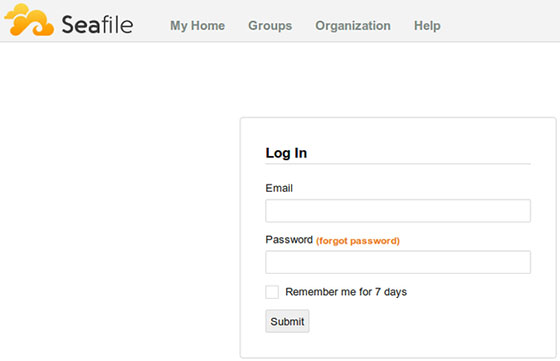
Open a web browser and navigate to https://yourdomain.com. You should see the Seafile login page. Log in with your administrator credentials created during setup.
Create a test library by clicking “New Library” and giving it a name. Upload several files to verify the upload functionality works correctly. Download files to confirm the file server operates properly. Test sharing features by generating a share link for a file or folder.
Install the Seafile desktop client on your computer and configure it to sync with your server. Add your test library to verify synchronization works bidirectionally. Create a file on your desktop and confirm it appears in the web interface.
Check the logs for any warnings or errors:
sudo su - seafile
tail -f logs/seahub.log
tail -f logs/seafile.log
Post-Installation Configuration
Optimize Memcached by editing its configuration:
sudo nano /etc/memcached.confIncrease the memory allocation to at least 256MB for better performance. Restart Memcached:
sudo systemctl restart memcachedConfigure email notifications by editing conf/seahub_settings.py as the seafile user. Add SMTP settings:
EMAIL_USE_TLS = True
EMAIL_HOST = 'smtp.gmail.com'
EMAIL_HOST_USER = 'your_email@gmail.com'
EMAIL_HOST_PASSWORD = 'your_app_password'
EMAIL_PORT = 587
DEFAULT_FROM_EMAIL = EMAIL_HOST_USER
SERVER_EMAIL = EMAIL_HOST_USER
Configure storage quotas by setting USER_QUOTA in the same file. Enable or disable user registration with the ENABLE_SIGNUP parameter.
Set up automated backups. Create a backup script that exports databases and copies the seafile-data directory:
#!/bin/bash
BACKUP_DIR="/backup/seafile"
DATE=$(date +%Y%m%d)
mysqldump -u seafile -p'password' ccnet-db > $BACKUP_DIR/ccnet-db-$DATE.sql
mysqldump -u seafile -p'password' seafile-db > $BACKUP_DIR/seafile-db-$DATE.sql
mysqldump -u seafile -p'password' seahub-db > $BACKUP_DIR/seahub-db-$DATE.sql
tar -czf $BACKUP_DIR/seafile-data-$DATE.tar.gz /opt/seafile/seafile-data
Schedule this script with cron to run daily.
Troubleshooting Common Issues
If services fail to start, check log files in /opt/seafile/logs/ for detailed error messages. Database connection errors typically indicate incorrect credentials in configuration files or MariaDB not running. Verify MariaDB status:
sudo systemctl status mariadbFile upload failures often relate to client_max_body_size in Nginx. Ensure this value exceeds your largest expected file size. Check available disk space with df -h as full disks prevent uploads.
SSL certificate issues require checking Nginx error logs at /var/log/nginx/error.log. Verify your domain’s DNS records point correctly to your server IP. Test certificate validity:
sudo certbot certificatesPerformance problems warrant monitoring system resources. Use htop to check CPU and memory usage. Slow database queries might require optimizing MariaDB configuration. Enable slow query logging to identify problematic queries.
For help, consult the official Seafile manual, browse the community forum for similar issues, or examine GitHub issues in the Seafile repository. Log files provide essential debugging information—check them first when troubleshooting.
Maintenance and Best Practices
Establish a comprehensive backup routine covering both databases and file data. Test restoration procedures regularly to ensure backups actually work when needed. Keep Seafile updated by checking for new releases periodically and following the upgrade documentation.
Monitor disk usage closely. Seafile stores file versions that consume additional space over time. Configure version retention policies based on your storage capacity and recovery needs. Review log files weekly for unusual activity or error patterns.
Keep your Debian system current with security patches:
sudo apt update && sudo apt upgradeAudit user accounts quarterly, removing inactive users and reviewing permissions. Document custom configurations and procedural changes for future reference.
Congratulations! You have successfully installed Seafile. Thanks for using this tutorial to install the latest version of Seafile on Debian 13 “Trixie” system. For additional help or useful information, we recommend you check the official Seafile website.
