
If your team ships code without automated quality checks, bugs and security holes accumulate silently until they become real problems. SonarQube is the tool that catches those issues early, before they hit production. In this guide, you will learn exactly how to install SonarQube on Debian 13 (“Trixie”), configure it with a PostgreSQL database, set it up as a system service, and put Nginx in front of it as a reverse proxy.
This tutorial covers every command you need, explains what each one does, and includes expected output so you always know whether things are working. By the end, you will have a fully operational SonarQube server ready to plug into your CI/CD pipeline.
What Is SonarQube and Why Run It on Debian 13?
SonarQube is an open-source continuous code inspection platform developed by SonarSource. It performs static analysis on your codebase and surfaces bugs, security vulnerabilities, code smells, and coverage gaps across more than 30 programming languages.
The current Long-Term Active (LTA) release is SonarQube 2026.1, which focuses on AI-native developer workflows and includes critical security backports. For teams who need maximum stability, the 2025.1 LTA remains a well-supported option for self-hosted production deployments.
Debian 13 “Trixie” was released on August 9, 2025. It ships with the Linux 6.12 LTS kernel and the new APT 3.0 package manager, making it a natural fit for production server workloads where long-term stability matters more than bleeding-edge features.
Prerequisites
Before you run a single command, confirm you have everything below in place.
Hardware minimums (small-scale installation):
- 4 GB of RAM
- 2 CPU cores (64-bit, x86-64)
- 30 GB of disk space (SSD strongly recommended for Elasticsearch I/O)
- 10% free disk space at all times
Software and access:
- A fresh Debian 13 “Trixie” server
- A non-root user with
sudoprivileges - Root or sudo access to edit system files
- A domain name or static IP address for the web interface
Tools this guide installs:
- OpenJDK 21 (Java 21 or Java 25 are the only supported versions)
- PostgreSQL 15 or higher
- Nginx (reverse proxy)
- SonarQube 2026.1 LTA (Community Build)
Important: SonarQube cannot run as the root user on Linux. This is a hard requirement enforced by the embedded Elasticsearch engine.
Step 1: Update Your System and Install Dependencies
Always start with a clean, fully updated system. Outdated packages cause dependency conflicts that are painful to debug mid-installation.
Run the system update:
sudo apt update && sudo apt upgrade -yNow install the utility packages SonarQube’s setup process depends on:
sudo apt install wget curl unzip gnupg2 ca-certificates lsb-release apt-transport-https -yHere is what each package does:
wget/curl— download files from the internetunzip— extract the SonarQube zip archivegnupg2— verify GPG signatures on repository keysca-certificates— ensures HTTPS connections work correctlylsb-release— provides the OS codename (trixie) for repo configurations
Verify you are running Debian 13 before continuing:
lsb_release -aExpected output:
Distributor ID: Debian
Description:    Debian GNU/Linux 13 (trixie)
Release:        13
Codename:       trixie
If the codename shows trixie, you are good to proceed. If it shows anything else, stop and confirm your OS version before continuing. This guide is written specifically for Debian 13.
Step 2: Install Java 21 (OpenJDK)
SonarQube 2026.x requires Java 21 or Java 25. Do not install Java 17 — support for it has been deprecated in current SonarQube releases.
Debian 13’s default APT repositories include OpenJDK 21 natively, so no external PPA or manual repo addition is needed.
Install OpenJDK 21:
sudo apt install openjdk-21-jdk -yVerify the installation completed correctly:
java -versionExpected output:
openjdk version "21.x.x" 2024-xx-xx
OpenJDK Runtime Environment (build 21.x.x+xx-Debian)
OpenJDK 64-Bit Server VM (build 21.x.x+xx-Debian, mixed mode, sharing)
Now set the JAVA_HOME environment variable. SonarQube references this at startup:
sudo nano /etc/environmentAdd the following line at the bottom of the file:
JAVA_HOME="/usr/lib/jvm/java-21-openjdk-amd64"Save the file with Ctrl+X, then Y, then Enter. Apply the change immediately:
source /etc/environment
echo $JAVA_HOME
You should see /usr/lib/jvm/java-21-openjdk-amd64 printed back. If the path is empty, double-check the line you added to /etc/environment for typos.
Tip: If you have multiple Java versions installed, use
sudo update-alternatives --config javato confirm which one is active and get the correct path.
Step 3: Install and Configure PostgreSQL
SonarQube requires a proper relational database to store project metadata, issue histories, and quality profiles. The embedded H2 database is for local evaluation only — never use it in production. PostgreSQL is the recommended and best-supported option.
Install PostgreSQL
sudo apt install postgresql postgresql-contrib -y
sudo systemctl enable --now postgresql
Verify the service is running:
sudo systemctl status postgresqlLook for Active: active (running) in the output. If you see inactive or failed, run sudo journalctl -xe to check for errors.
Create the SonarQube Database and User
Switch to the postgres system account and open the interactive psql shell:
sudo -u postgres psqlRun these SQL commands inside the shell:
CREATE USER sonar WITH ENCRYPTED PASSWORD 'Use_A_Strong_Password_Here!';
CREATE DATABASE sonarqube OWNER sonar;
GRANT ALL PRIVILEGES ON DATABASE sonarqube TO sonar;
\q
Replace Use_A_Strong_Password_Here! with an actual strong password. You will need this password again in Step 6 when configuring sonar.properties, so save it somewhere secure.
Verify the Connection
Test that the new user can log in:
psql -U sonar -d sonarqube -h 127.0.0.1 -WIf it prompts for a password and then shows a sonarqube=# prompt, the database is configured correctly. Type \q to exit.
Step 4: Create a Dedicated SonarQube System User
Running SonarQube as a non-login system user is a security best practice. It limits what the process can access on your server if something goes wrong.
Create the dedicated group and user:
sudo groupadd sonarqube
sudo useradd -r -s /bin/bash -d /opt/sonarqube -g sonarqube sonarqube
The flags explained:
-rcreates a system account (no aging information)-s /bin/bashsets the login shell-d /opt/sonarqubesets the home directory to the installation path-g sonarqubeassigns the primary group
This user will own all SonarQube files and will be the process owner in the systemd service you create in Step 8.
Step 5: Download and Install SonarQube
Navigate to the /opt directory and download the SonarQube zip archive. Always grab the latest stable version from the official SonarSource download page.
cd /opt
sudo wget https://binaries.sonarsource.com/Distribution/sonarqube/sonarqube-2026.1.x.zip
Note: Replace
2026.1.xwith the actual build number shown on the official downloads page at the time of your installation.
Extract the archive:
sudo unzip sonarqube-2026.1.x.zipRename the extracted folder to a clean, version-agnostic directory name:
sudo mv sonarqube-2026.1.x sonarqubeSet the sonarqube user as the owner of the entire installation directory:
sudo chown -R sonarqube:sonarqube /opt/sonarqubeClean up the zip file to save disk space:
sudo rm sonarqube-2026.1.x.zipConfirm the directory structure looks correct:
ls /opt/sonarqube/Expected output:
bin conf data elasticsearch extensions lib logs temp webImportant: Never install SonarQube in a directory path that starts with a digit. This causes a startup failure that is difficult to diagnose.
Step 6: Configure SonarQube on Debian 13
This is where you wire SonarQube to the PostgreSQL database you created in Step 3. Open the main configuration file:
sudo nano /opt/sonarqube/conf/sonar.propertiesDatabase Connection
Find and uncomment the following lines, then fill in your credentials:
sonar.jdbc.username=sonar
sonar.jdbc.password=Use_A_Strong_Password_Here!
sonar.jdbc.url=jdbc:postgresql://localhost:5432/sonarqube
Make sure the H2 embedded database line is commented out:
#sonar.embeddedDatabase.port=9092Web Server Settings
Set the host and port SonarQube listens on:
sonar.web.host=0.0.0.0
sonar.web.port=9000
Java Memory Settings
Tune the JVM heap for a standard small-scale deployment:
sonar.web.javaOpts=-Xmx512m -Xms128m -XX:+HeapDumpOnOutOfMemoryError
sonar.ce.javaOpts=-Xmx512m -Xms128m -XX:+HeapDumpOnOutOfMemoryError
sonar.search.javaOpts=-Xmx512m -Xms512m -XX:+HeapDumpOnOutOfMemoryError
Data and Log Paths
Explicitly define where SonarQube stores its data and logs:
sonar.path.data=/opt/sonarqube/data
sonar.path.logs=/opt/sonarqube/logs
Save the file when done. These settings complete the core SonarQube on Debian 13 configuration.
Step 7: Set Linux Kernel Parameters for Elasticsearch
SonarQube bundles Elasticsearch internally. Elasticsearch has strict Linux kernel requirements that Debian does not meet by default. If you skip this step, SonarQube will appear to start but Elasticsearch will crash silently, and your logs will show a confusing flood of errors.
Edit the system-level sysctl configuration:
sudo nano /etc/sysctl.confAdd these two lines at the end of the file:
vm.max_map_count=524288
fs.file-max=131072
Apply the changes immediately without rebooting:
sudo sysctl -pExpected output:
vm.max_map_count = 524288
fs.file-max = 131072
Now set the file descriptor and thread limits for the sonarqube user:
sudo nano /etc/security/limits.confAdd these lines at the bottom:
sonarqube   -   nofile   131072
sonarqube   -   nproc    8192
These limits tell Linux how many files and threads the sonarqube process is allowed to open simultaneously. Elasticsearch needs both values to be this high during index operations.
Step 8: Create a systemd Service for SonarQube
Managing SonarQube with systemd gives you automatic startup on boot, clean process supervision, and easy log access via journalctl.
Create the service unit file:
sudo nano /etc/systemd/system/sonarqube.servicePaste the following content exactly:
[Unit]
Description=SonarQube Service
After=syslog.target network.target postgresql.service

[Service]
Type=forking
ExecStart=/opt/sonarqube/bin/linux-x86-64/sonar.sh start
ExecStop=/opt/sonarqube/bin/linux-x86-64/sonar.sh stop
User=sonarqube
Group=sonarqube
Restart=always
LimitNOFILE=65536
LimitNPROC=4096

[Install]
WantedBy=multi-user.target
The After=postgresql.service directive ensures PostgreSQL is fully up before SonarQube tries to connect to it. The Restart=always directive restarts SonarQube automatically if the process crashes.
Reload systemd and enable the service:
sudo systemctl daemon-reload
sudo systemctl enable --now sonarqube
Check the service status:
sudo systemctl status sonarqubeSonarQube takes 1-3 minutes to fully initialize. Watch the startup progress in real time:
tail -f /opt/sonarqube/logs/sonar.logLook for this line before moving on:
SonarQube is operationalStep 9: Configure Nginx as a Reverse Proxy
Running SonarQube directly on port 9000 works, but it is not appropriate for production. Nginx handles SSL termination, serves the app on standard ports 80 and 443, and hides your internal port from the internet.
sudo apt install nginx -y
sudo systemctl enable --now nginx
Create a new server block for SonarQube:
sudo nano /etc/nginx/sites-available/sonarqubePaste this configuration:
server {
    listen 80;
    server_name your-domain.com;

    access_log  /var/log/nginx/sonarqube.access.log;
    error_log   /var/log/nginx/sonarqube.error.log;

    location / {
        proxy_pass         http://127.0.0.1:9000;
        proxy_http_version 1.1;
        proxy_set_header   Host              $host;
        proxy_set_header   X-Real-IP         $remote_addr;
        proxy_set_header   X-Forwarded-For   $proxy_add_x_forwarded_for;
        proxy_set_header   X-Forwarded-Proto $scheme;
    }
}
Replace your-domain.com with your actual domain or server IP address.
Enable the configuration and test it:
sudo ln -s /etc/nginx/sites-available/sonarqube /etc/nginx/sites-enabled/
sudo nginx -t
Expected output:
nginx: the configuration file /etc/nginx/nginx.conf syntax is ok
nginx: configuration file /etc/nginx/nginx.conf test is successful
Reload Nginx to apply:
sudo systemctl reload nginxOptional: Add SSL with Certbot
For any public-facing server, SSL is not optional — it is required. Install Certbot and the Nginx plugin:
sudo apt install certbot python3-certbot-nginx -y
sudo certbot --nginx -d your-domain.com
Certbot will automatically obtain a free Let’s Encrypt certificate and update your Nginx config to redirect HTTP to HTTPS.
Step 10: Access the SonarQube Web Interface
Open your browser and navigate to http://your-domain.com or http://your-server-ip. You should see the SonarQube login page.
Default credentials:
- Username:
admin - Password:
admin
SonarQube forces a password change on your first login. Choose a strong, unique password immediately.
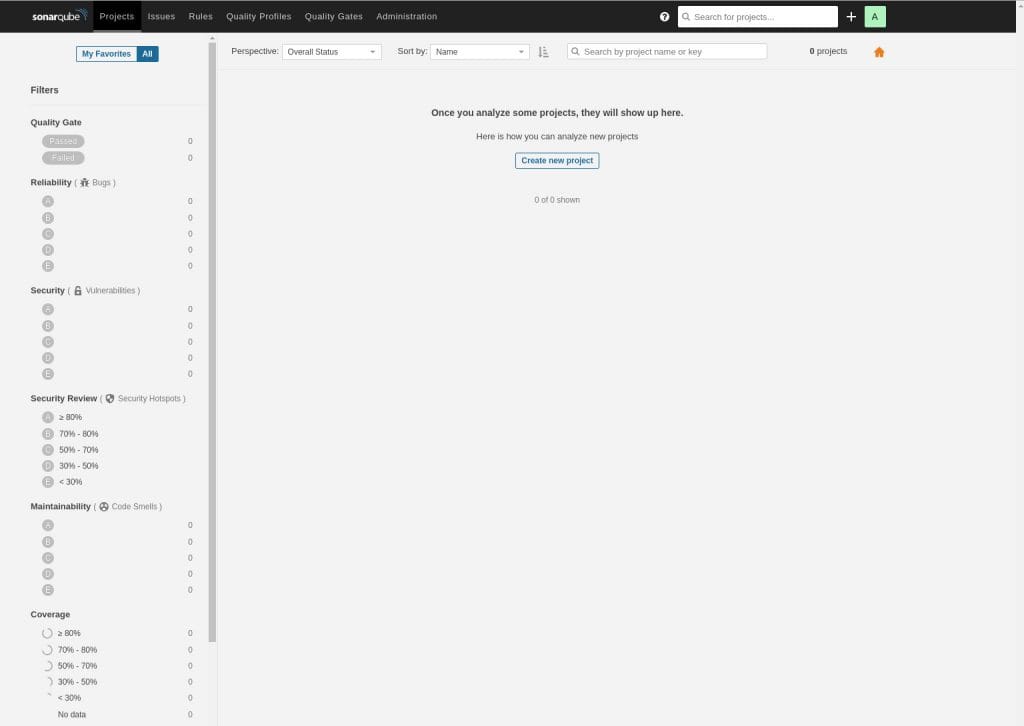
After logging in, take a moment to explore the interface:
- Projects — where you add your code repositories for analysis
- Quality Gates — define pass/fail thresholds for your pipeline
- Quality Profiles — manage the rules active for each language
- Administration > System — confirm the database connection and review system health
To connect SonarQube to your first project, go to Administration > Security > Users, generate an analysis token, and use that token with SonarScanner in your CI pipeline.
Post-Installation Best Practices for SonarQube on Debian 13 Setup
Getting SonarQube running is only half the job. Follow these steps to keep your instance secure and stable.
- Change all default credentials right after first login. The admin/admin default is publicly documented and actively scanned for by bots on exposed servers.
- Restrict network access with UFW. If SonarQube is not meant to be publicly accessible, allow only specific IP ranges:
sudo ufw allow from <trusted-ip> to any port 80. - Back up your PostgreSQL database regularly. Use
pg_dumpon a cron schedule:pg_dump -U sonar sonarqube > /backups/sonarqube-$(date +%F).sql. - Configure email notifications. Go to Administration > Configuration > Email to enable quality gate alerts and issue assignment emails.
- Keep SonarQube updated. SonarSource ships LTA releases with security patches. Always test upgrades on a staging instance before applying them to production.
Troubleshooting Common Issues
SonarQube Fails to Start / Elasticsearch Crashes
This is almost always caused by an incorrect vm.max_map_count value. Run sudo sysctl -p and verify the output shows vm.max_map_count = 524288. Check /opt/sonarqube/logs/es.log for Elasticsearch-specific error messages.
Cannot Connect to Database Error
Verify three things: PostgreSQL is running (sudo systemctl status postgresql), the credentials in sonar.properties match exactly what you created in psql, and pg_hba.conf allows local connections. Restart PostgreSQL after any config changes: sudo systemctl restart postgresql.
Port 9000 Not Accessible
Check whether UFW is active: sudo ufw status. If it is, open the port: sudo ufw allow 9000. Also confirm SonarQube is actually bound to 0.0.0.0 and not just 127.0.0.1 in your sonar.properties file.
Nginx Returns 502 Bad Gateway
SonarQube takes up to 3 minutes to fully start. Wait and refresh the browser. If the 502 persists beyond 5 minutes, check the SonarQube log: tail -100 /opt/sonarqube/logs/sonar.log. Look for SonarQube is operational to confirm the app is actually ready.
Running as Root Startup Error
Confirm the sonarqube system user owns the installation directory: ls -la /opt/sonarqube. If root owns it, fix it: sudo chown -R sonarqube:sonarqube /opt/sonarqube. Also verify the User=sonarqube line is present in your systemd service file.
Congratulations! You have successfully installed SonarQube. Thanks for using this tutorial for installing SonarQube on Debian 13 “Trixie” Linux system. For additional help or useful information, we recommend you check the official SonarQube website.

