
If you have ever reformatted a USB drive just to boot a different ISO, you already know how tedious that process gets. Ventoy solves that problem completely by turning a single USB drive into a multi-boot launcher where you simply drop ISO files and boot. This guide covers everything you need to install Ventoy on Fedora 43, including three different installation methods, Secure Boot configuration, how to add and boot ISO files, and a practical troubleshooting section for the most common errors.
Whether you are a developer who tests multiple Linux distros, a sysadmin who carries a USB rescue toolkit, or a Fedora beginner who just wants a smarter bootable drive, this tutorial walks you through every step clearly.
What Is Ventoy and Why Fedora 43 Users Need It
Ventoy is a free, open-source bootable USB solution that supports ISO, WIM, IMG, VHD(x), and EFI file formats. Once you install Ventoy on a USB drive, you never need to reformat it again. You just copy ISO files onto the drive, reboot, and Ventoy presents a clean boot menu listing every ISO automatically.
Traditional tools like Rufus, Etcher, or Fedora Media Writer are single-ISO tools. Every time you want to boot a new operating system, you wipe the entire drive. Ventoy replaces that whole workflow with a one-time setup.
Why this matters for Fedora 43 users specifically:
- Fedora releases multiple spins: Workstation, KDE Plasma, XFCE, Silverblue, and more. Carrying all of them on one USB is genuinely useful.
- Sysadmins often carry rescue tools like SystemRescueCD, Clonezilla, MemTest86, and GParted Live alongside installation media.
- Developers testing hardware compatibility across distros can switch ISOs without touching the drive setup.
- Ventoy supports both UEFI and Legacy BIOS boot modes, and it handles both MBR and GPT partition styles, which means it works across virtually all x86 hardware you will encounter.
Ventoy 1.1.10 confirmed support for Fedora 43, so you are running a compatible, tested setup from day one.
Prerequisites Before You Begin
Before you run a single command, verify these items. Skipping this step is the number one reason installations go wrong.
System requirements:
- Fedora 43 (Workstation or Server edition) running on x86_64
- Minimum 2 GHz dual-core CPU, 2 GB RAM (Fedora 43 baseline hardware)
- Root or sudo privileges on your account
- Active internet connection to download the Ventoy tarball
USB drive requirements:
- Minimum 8 GB capacity (16 GB or larger is strongly recommended if you plan to carry multiple ISOs)
- USB 3.0 or higher for faster copy speeds
- All data on the USB drive will be erased during Ventoy installation. Back up anything important before continuing.
Tools that should already be installed on Fedora 43:
bash,tar,wgetorcurl(all installed by default)lsblkandfdiskfor device identification
Critical pre-check: Run lsblk before plugging in your USB drive, then again after. The new entry that appears is your USB device node (typically /dev/sdb or /dev/sdc). Never guess this value.
Step 1: Update Your Fedora 43 System
Always update your system before installing new tools. This ensures your kernel, libraries, and DNF metadata are current, which prevents dependency conflicts and compatibility issues.
Update via DNF
sudo dnf update -yThis command refreshes all package metadata and applies every available update. The -y flag auto-confirms all prompts so you do not have to sit and approve each package manually.
After the update finishes, reboot if a new kernel was installed:
sudo rebootSkipping the reboot after a kernel update can cause unexpected behavior when tools interact with kernel modules or block device drivers.
Step 2: Download Ventoy on Fedora 43
Download Ventoy directly from the official GitHub releases page. Never download from third-party mirror sites, as tampered binaries are a real risk with bootloader tools.
Download the Linux Tarball
wget https://github.com/ventoy/Ventoy/releases/download/v1.1.10/ventoy-1.1.10-linux.tar.gzThis pulls the official ventoy-1.1.10-linux.tar.gz tarball from the Ventoy GitHub repository. Replace v1.1.10 with the latest version number if a newer release is available when you read this.
Verify the SHA-256 Checksum (Recommended)
sha256sum ventoy-1.1.10-linux.tar.gzCompare the output hash against the SHA256 value listed on the official Ventoy GitHub releases page. If the hashes match, the file is intact and unmodified.
Extract the Tarball
tar -xzf ventoy-1.1.10-linux.tar.gz
cd ventoy-1.1.10
The tar -xzf command decompresses and extracts the archive. After extraction, navigate into the directory with cd. Run ls -lh inside to confirm these files exist:
Ventoy2Disk.sh
VentoyGUI.x86_64
VentoyGUI.aarch64
boot/
ventoy/
If Ventoy2Disk.sh is missing, the archive is corrupt. Re-download it.
Step 3: Identify Your USB Drive Device Node
This is the most critical step in the entire process. Writing to the wrong device will destroy data on your system drive.
Use lsblk to Find Your USB Device
lsblkExpected output (example):
NAME   MAJ:MIN RM   SIZE RO TYPE MOUNTPOINT
sda      8:0    0 512.0G  0 disk
├─sda1   8:1    0   512M  0 part /boot/efi
├─sda2   8:2    0     1G  0 part /boot
└─sda3   8:3    0 510.5G  0 part /
sdb      8:16   1  14.9G  0 disk
└─sdb1   8:17   1  14.9G  0 part /run/media/user/USB
In this example, sda is the internal system drive. sdb is the USB drive (confirmed by the RM column showing 1 for removable, and the 14.9G size matching a 16GB USB stick).
Your installation target is /dev/sdb in this scenario, not /dev/sdb1. Ventoy needs the whole disk device, not a partition.
Step 4: How To Install Ventoy on Fedora 43
Ventoy provides three installation methods. Choose the one that fits your workflow. All three produce the same end result.
Method 1: Install Ventoy Using the CLI (Command Line)
The CLI method is the fastest and most reliable approach. It works on any Fedora 43 setup, including headless servers and minimal installs.
Run the Installation Script
sudo sh Ventoy2Disk.sh -i /dev/sdbBreaking down this command:
sudoruns the script with root privileges, required to write to a block deviceVentoy2Disk.shis the official installer script-iinstalls Ventoy (this flag fails if Ventoy is already present on the drive, protecting you from accidental overwrites)/dev/sdbis the target USB device (replace with your actual device node)
Ventoy will ask for confirmation twice. Type y and press Enter both times.
Expected output:
**********************************************
      Ventoy: 1.1.10  x86_64
**********************************************
Disk : /dev/sdb
Model: SanDisk Ultra USB 3.0 (scsi)
Size : 14 GB
Style: MBR

Attention:
You will install Ventoy to /dev/sdb.
All the data on the disk /dev/sdb will be lost!!!

Continue? (y/n) y

All the data on the disk /dev/sdb will be lost!!!
Double-check, Continue? (y/n) y

Create partitions on /dev/sdb by parted in MBR style ...
Format partition 1 with exFAT filesystem ...
mkexfatfs ...
Installing Ventoy to /dev/sdb...
Ventoy has been successfully installed to /dev/sdb
Force Install on an Already-Used Drive
If the drive already has a previous Ventoy installation or a conflicting partition table, use -I (capital i) to force overwrite:
sudo sh Ventoy2Disk.sh -I /dev/sdbUse GPT Instead of MBR (Recommended for Modern Systems)
By default, Ventoy uses MBR partition style. For UEFI systems or USB drives larger than 2 TB, use the -g flag to switch to GPT:
sudo sh Ventoy2Disk.sh -i -g /dev/sdbGPT is the modern standard. If your system uses UEFI (most machines made after 2012 do), GPT is the safer and more compatible choice.
Verify the Installation
lsblkAfter successful installation, your USB drive should show two partitions:
sdb      8:16   1  14.9G  0 disk
├─sdb1   8:17   1  14.8G  0 part  /run/media/user/Ventoy
└─sdb2 8:18 1 32M 0 partsdb1is the large Ventoy data partition (exFAT) where you copy ISO filessdb2is the small VTOYEFI partition (~32 MB) that holds the Ventoy bootloader
Method 2: Install Ventoy on Fedora 43 Using the GUI
The GUI method is ideal for users who prefer a visual workflow, especially on Fedora Workstation with a desktop environment running.
Make the GUI Binary Executable
chmod +x VentoyGUI.x86_64This gives the binary execute permissions. Without this step, Fedora will refuse to run the file.
Launch the GUI with Root Privileges
sudo ./VentoyGUI.x86_64You may see Gtk-CRITICAL warning messages in the terminal. These are harmless GTK display warnings and do not affect functionality. The GUI window will open normally.
For KDE Plasma users on Fedora 43, add the --qt5 flag for better theming integration:
sudo ./VentoyGUI.x86_64 --qt5Configure and Install via GUI
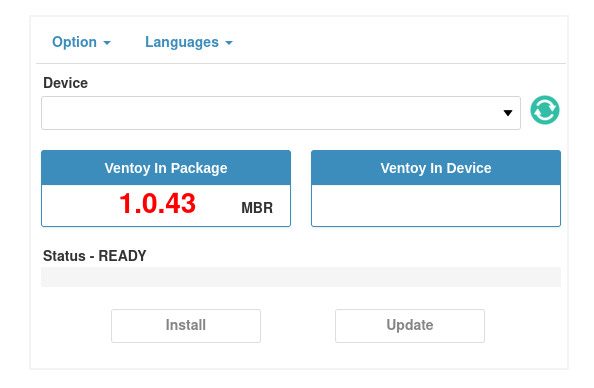
Follow these steps inside the GUI:
- Select your USB drive from the dropdown menu at the top. Verify the device name and size match your USB drive.
- Set partition style (optional): Click “Option” in the menu bar and choose between MBR and GPT. Select GPT for UEFI systems.
- Enable Secure Boot (optional): Under “Option,” toggle Secure Boot support on if you plan to use Ventoy on machines with Secure Boot enabled in BIOS.
- Click “Install” and confirm both warning dialogs.
- Wait for the “Ventoy has been successfully installed” confirmation message.
Once complete, the GUI displays the installed Ventoy version and the partition layout, confirming everything worked correctly.
Method 3: Install Ventoy on Fedora 43 via COPR (DNF Package)
COPR (Cool Other Package Repo) is Fedora’s community package repository, similar to Ubuntu’s PPA system. This method lets you install and update Ventoy through DNF like any other package.
Enable the Ventoy COPR Repository
sudo dnf copr enable karlisk/ventoyThis adds the community-maintained Ventoy repository to your DNF configuration.
Install Ventoy via DNF
sudo dnf install ventoy -yDNF handles the download and installation automatically. After installation completes, run ventoy from the terminal or launch it from your application menu.
Update Ventoy via DNF in the Future
sudo dnf upgrade ventoyImportant caveat: The COPR package is community-maintained, not officially supported by the Ventoy developers or the Fedora Project. For production systems or security-sensitive environments, use the official tarball method instead. The COPR method is best for desktop workstations where update convenience matters more than strict version control.
Step 5: Add ISO Files to Your Ventoy USB Drive
Once Ventoy is installed, adding ISO files requires no special tools or commands. The process is as simple as copying a file.
Copy ISO Files Using the Terminal
cp ~/Downloads/Fedora-Workstation-Live-x86_64-43.iso /run/media/$USER/Ventoy/For large ISO files (over 4 GB), use rsync with a progress indicator so you can track the copy:
rsync -ah --progress ~/Downloads/Fedora-Workstation-Live-x86_64-43.iso /run/media/$USER/Ventoy/The -ah flags enable archive mode and human-readable output. The --progress flag shows a real-time transfer rate and estimated time remaining.
Organize Multiple ISOs in Subfolders
Ventoy recursively scans all directories on the data partition, so you can organize ISO files into folders without any extra configuration:
/run/media/$USER/Ventoy/
├── Linux/
│   ├── Fedora-Workstation-43.iso
│   ├── ubuntu-24.04-desktop.iso
│   └── archlinux-2026.04.01.iso
├── Windows/
│   └── Win11_23H2_x64.iso
└── Recovery/
    ├── systemrescue-11.iso
    └── gparted-live-1.6.0.iso
No ISO conversion or extraction is needed at any point. The file is bootable the moment copying finishes.
Step 6: Enable Secure Boot Support
Modern UEFI systems ship with Secure Boot enabled by default. Secure Boot rejects unsigned bootloaders, which can prevent Ventoy from launching. Since Ventoy 1.0.76, built-in Secure Boot support is available.
Enable Secure Boot During CLI Install
Use the -s flag when running Ventoy2Disk.sh:
sudo sh Ventoy2Disk.sh -i -s /dev/sdbThe MOK Enrollment Process
On the first boot with Secure Boot enabled, a blue MOK (Machine Owner Key) enrollment screen appears. This is expected behavior. Follow these steps:
- Select “Enroll Key” (recommended over “Enroll Hash”)
- Navigate to confirm enrollment
- Enter the password when prompted (default:
ventoy) - Reboot
This enrollment only needs to happen once per computer. After that, Ventoy boots without interruption on that machine.
When Secure Boot Enrollment Fails
If a non-blue error screen appears (such as a Linpus lite error), Ventoy’s Secure Boot solution is incompatible with that specific firmware implementation. The fix is to disable Secure Boot in your BIOS/UEFI settings entirely. Access BIOS by pressing F2, Del, or F10 during power-on depending on your hardware vendor.
Step 7: Boot from Your Ventoy USB
Enter the BIOS Boot Menu
Plug in the Ventoy USB drive and power on or reboot your machine. Press the boot menu key during startup:
| Hardware Brand | Boot Menu Key |
|---|---|
| Dell | F12 |
| HP | F10 or F9 |
| Lenovo | F12 or Fn+F12 |
| ASUS | F8 or ESC |
| Gigabyte | F12 |
| Most others | F12 or DEL |
Select your USB drive from the list. If the USB does not appear, check that Fast Boot is disabled in BIOS settings.
Navigate the Ventoy Boot Menu
The Ventoy menu lists every ISO file it found on the drive. Use the arrow keys to highlight your target ISO and press Enter to boot. ISO files inside subfolders are also listed. The boot experience after selecting an ISO is identical to booting from a dedicated USB drive made with any other tool.
Step 8: Update Ventoy on Fedora 43
New Ventoy releases add ISO compatibility fixes, Secure Boot improvements, and new hardware support. Updating Ventoy preserves all ISO files on the data partition.
Update via CLI
sudo sh Ventoy2Disk.sh -u /dev/sdbThe -u flag updates only the small VTOYEFI boot partition. Your ISOs on the large Ventoy data partition stay completely untouched.
Update via GUI
Launch the GUI (sudo ./VentoyGUI.x86_64) with your USB drive connected. If a version mismatch is detected between the installed Ventoy version on the USB and the version of the downloaded package, the “Install” button changes to an “Update” button. Click it to proceed.
Update via DNF (COPR Method)
sudo dnf upgrade ventoyTroubleshooting Common Errors
Error 1: USB Drive Not Detected by VentoyGUI or lsblk
Symptom: The GUI shows no devices, or your USB is absent from lsblk output.
Fix:
sudo dmesg | tail -20Look for USB device registration messages. Try a different USB port (directly on the motherboard, not through a hub). If the drive still does not appear, test the USB on another machine to rule out hardware failure.
Error 2: Ventoy Installation Fails on Fedora 43 (Runtime or Library Error)
Symptom: Running Ventoy2Disk.sh throws a runtime error or references a missing shared library.
Fix: This typically means you downloaded an older Ventoy version that predates Fedora 43’s updated glibc. Download Ventoy 1.1.10 or later, which includes explicit Fedora 43 compatibility. Verify with:
./Ventoy2Disk.sh --versionError 3: USB Drive Not Showing in UEFI Boot Menu
Symptom: You plug in the Ventoy USB and reboot, but the UEFI does not list it as a boot option.
Fix:
- Enter BIOS and disable Fast Boot (also called “Fast Startup” on some firmware)
- Disable Secure Boot temporarily to test if it is the blocker
- Manually add the USB as a boot entry under BIOS boot order settings
Error 4: ISO File Not Appearing in Ventoy Boot Menu
Symptom: You copied an ISO to the USB but it does not show up in the Ventoy menu.
Fix:
- Confirm the ISO copy completed fully. A partial copy produces an undetectable file:
ls -lh /run/media/$USER/Ventoy/- If the ISO is inside a deeply nested folder, verify Ventoy is set to recursive search (it is by default)
- Rename the file to remove spaces or special characters from the filename
Error 5: VentoyGUI Displays a Blank or Black Window on Fedora 43 Wayland
Symptom: The GUI launches but shows a completely black or blank window under a Wayland session.
Fix: Launch the GUI with an explicit DISPLAY variable preserved, or switch to an X11 session before running:
sudo --preserve-env=DISPLAY ./VentoyGUI.x86_64Alternatively, log out, select “GNOME on Xorg” at the login screen, and launch the GUI from that session.
Congratulations! You have successfully installed Ventoy. Thanks for using this tutorial for installing the Ventoy bootable USB drive on Fedora 43 Linux system. For additional help or useful information, we recommend you check the Ventoy website.

