How To Install VSCodium on Debian 13
VSCodium represents a significant choice for developers seeking a truly open-source code editor without proprietary telemetry or licensing restrictions. Built from the same source code as Microsoft’s Visual Studio Code, VSCodium delivers identical functionality while respecting user privacy. This comprehensive guide walks you through multiple installation methods on Debian 13, ensuring you can choose the approach that best fits your workflow.
Whether you’re transitioning from VS Code, exploring new development tools, or building a privacy-focused development environment, installing VSCodium on Debian 13 is straightforward. You’ll learn three distinct installation methods: the official APT repository approach, the simplified Extrepo method, and the containerized Flatpak option. Each method offers unique advantages depending on your system configuration and preferences.
Understanding VSCodium and Its Advantages
VSCodium differs from Visual Studio Code in crucial ways that matter to privacy-conscious developers. Microsoft’s official VS Code includes telemetry tracking, proprietary licensing elements, and branded components. VSCodium strips away these additions, providing a purely open-source alternative released under the MIT license.
The functionality remains identical. You get the same powerful code editing features, integrated terminal, debugging capabilities, and Git integration. The interface looks and behaves exactly like VS Code because it’s built from the same codebase. The primary difference lies in what happens behind the scenes—no data collection, no tracking, no proprietary restrictions.
Extension support works through Open VSX Registry instead of Microsoft’s proprietary marketplace. While most popular extensions are available, some Microsoft-specific extensions may require manual installation. For most developers, this trade-off is minimal compared to the privacy benefits gained.
System Requirements and Prerequisites
Before beginning the installation process, ensure your Debian 13 system meets the basic requirements. VSCodium supports both amd64 (64-bit Intel/AMD) and arm64 (ARM 64-bit) architectures. Your system should have at least 500 MB of free disk space and an active internet connection.
You’ll need administrative privileges through sudo access. Most Debian installations include sudo by default, but if you’re using a minimal installation, you may need to configure it first. Terminal access is essential—whether through GNOME Terminal, Konsole, or an SSH connection.
Updating your system before installation ensures compatibility and security. Run a quick system update to refresh your package lists and apply any pending security patches. This prevents potential conflicts during the VSCodium installation process.
Method 1: Installing VSCodium via APT Repository
The APT repository method provides the most integrated experience on Debian systems. This approach adds VSCodium’s official repository to your system, enabling automatic updates through Debian’s native package management.
Preparing Your System
Start by updating your package index and upgrading existing packages:
sudo apt update && sudo apt upgrade -yThis command refreshes the list of available packages and upgrades any outdated software. The process typically takes a few minutes depending on your system’s current state and internet speed.
Next, install the required dependency packages for managing the VSCodium repository:
sudo apt install wget gpg -yThe wget utility downloads files from the internet, while gpg handles cryptographic key verification. These tools ensure secure repository authentication, preventing package tampering or unauthorized modifications.
Adding the GPG Signing Key
VSCodium signs its packages with a GPG key that verifies authenticity. Modern Debian systems store repository keys in the /usr/share/keyrings/ directory using the newer, more secure keyring format.
Download and add the VSCodium GPG key:
wget -qO - https://gitlab.com/paulcarroty/vscodium-deb-rpm-repo/raw/master/pub.gpg | gpg --dearmor | sudo dd of=/usr/share/keyrings/vscodium-archive-keyring.gpgThis command pipes the public key through gpg for conversion and stores it securely in your system’s keyring directory. No output indicates success—the key is now ready for repository verification.
Configuring the Repository
Debian 13 supports the modern DEB822 repository format, which offers better structure and readability than legacy formats. Create the repository configuration file:
echo "Types: deb
URIs: https://download.vscodium.com/debs
Suites: vscodium
Components: main
Architectures: amd64 arm64
Signed-By: /usr/share/keyrings/vscodium-archive-keyring.gpg" | sudo tee /etc/apt/sources.list.d/vscodium.sources
This configuration tells APT where to find VSCodium packages and how to verify them. The file structure clearly defines each parameter: repository type, download location, suite name, available components, supported architectures, and the signing key location.
Installing the VSCodium Package
Refresh your package index to include the newly added repository:
sudo apt updateYou should see VSCodium’s repository being scanned. Now install VSCodium:
sudo apt install codium -yThe installation downloads approximately 100-150 MB of packages and completes within a few minutes. APT automatically handles dependencies and system integration. When finished, VSCodium is ready to launch.
Method 2: Installing VSCodium via Extrepo
Extrepo simplifies external repository management in Debian. This Debian-maintained tool provides curated repository definitions, reducing manual configuration while maintaining security standards.
Understanding Extrepo Benefits
Extrepo acts as a trusted intermediary between users and third-party repositories. The Debian community maintains and verifies repository definitions, offering added assurance beyond direct repository addition. This method is particularly valuable for users who prefer Debian-vetted configurations.
Install Extrepo if it’s not already present:
sudo apt update
sudo apt install extrepo -y
Enabling VSCodium Through Extrepo
Activate the VSCodium repository with a single command:
sudo extrepo enable vscodiumExtrepo automatically handles GPG key management, repository configuration, and format compatibility. The tool creates a configuration file at /etc/apt/sources.list.d/extrepo_vscodium.sources with properly formatted repository information.
Update your package index and install VSCodium:
sudo apt update
sudo apt install codium -y
The installation process proceeds identically to the manual APT method. Extrepo simply streamlines the initial repository setup.
Method 3: Installing VSCodium via Flatpak
Flatpak offers a sandboxed installation approach, isolating VSCodium from your base system. This method provides enhanced security through containerization and works consistently across different Linux distributions.
Setting Up Flatpak
Debian 13 may include Flatpak by default, but verify its presence:
flatpak --versionIf Flatpak isn’t installed, add it:
sudo apt install flatpak -yAdd the Flathub repository, which hosts the official VSCodium Flatpak:
flatpak remote-add --if-not-exists flathub https://flathub.org/repo/flathub.flatpakrepoInstalling VSCodium as a Flatpak
Install VSCodium from Flathub:
flatpak install flathub com.vscodium.codium -yFlatpak downloads the application and its runtime dependencies. The initial installation is larger than the APT version because it includes the entire runtime environment. Future updates only download changed components, making subsequent updates smaller.
Flatpak Considerations
Flatpak’s sandboxing restricts file system access by default. You may need to grant additional permissions for accessing project directories outside your home folder. The Flatseal application provides a graphical interface for managing Flatpak permissions:
flatpak install flathub com.github.tchx84.FlatsealUse Flatseal to adjust VSCodium’s file system access, environment variables, and system integration permissions as needed.
Verifying Your Installation
Confirm VSCodium installed correctly by checking its version:
codium --versionThe output displays the version number, commit hash, and architecture. For Flatpak installations, use:
flatpak run com.vscodium.codium --versionVerify the binary location:
which codiumAPT installations place the binary at /usr/bin/codium, while Flatpak uses its own path structure.
Launching VSCodium
Start VSCodium from the terminal:
codiumOpen a specific directory immediately:
codium /path/to/your/projectYou can also launch VSCodium through your desktop environment’s application menu. Look for “VSCodium” in the development or programming category. The icon appears alongside other installed applications, providing quick GUI access.
For Flatpak installations, use:
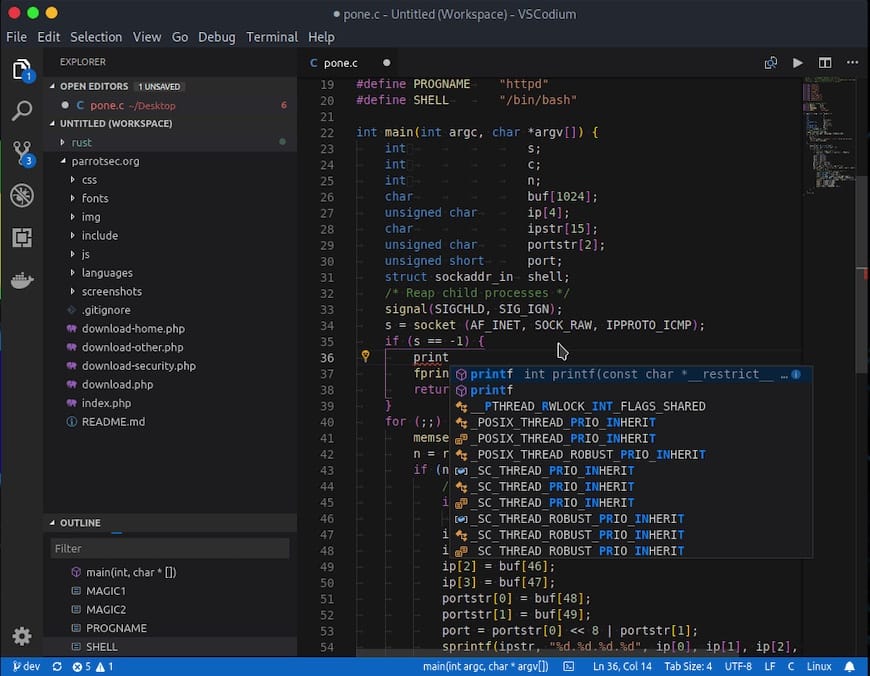
flatpak run com.vscodium.codiumThe first launch presents a welcome screen with customization options. Choose your preferred color theme, configure keyboard shortcuts, and install recommended extensions.
Post-Installation Configuration
Configuring the Extensions Marketplace
VSCodium uses Open VSX Registry for extensions instead of Microsoft’s marketplace. Open VSX hosts thousands of popular extensions, including most tools developers rely on daily. Access the extensions panel through the sidebar or press Ctrl+Shift+X.
Search and install extensions directly within VSCodium. Most mainstream extensions work identically to their VS Code counterparts. Some Microsoft-proprietary extensions require manual installation as VSIX files from GitHub or other sources.
Essential Initial Settings
Configure auto-save to prevent data loss. Navigate to File > Preferences > Settings, search for “auto save,” and select your preferred option. “afterDelay” provides a good balance, automatically saving changes after a short pause.
Set up terminal integration for seamless command-line access within the editor. VSCodium detects your system shell automatically, but you can customize the default terminal through settings if needed.
Configure Git for version control. Open a terminal within VSCodium and set your identity:
git config --global user.name "Your Name"
git config --global user.email "your.email@example.com"
Updating VSCodium
Updating APT or Extrepo Installations
VSCodium updates automatically through your regular system updates. Run:
sudo apt update && sudo apt upgradeThis command updates all system packages, including VSCodium. For targeted VSCodium updates only:
sudo apt update && sudo apt install --only-upgrade codiumCheck for available updates before upgrading:
apt list --upgradable | grep codiumUpdating Flatpak Installations
Update VSCodium through Flatpak:
flatpak update com.vscodium.codiumUpdate all Flatpak applications simultaneously:
flatpak updateFlatpak checks for updates periodically and can notify you when new versions are available.
Troubleshooting Common Issues
Blank Window Problem
Some users encounter a blank or white window when launching VSCodium. This typically occurs due to GPU acceleration conflicts or corrupted cache files.
Remove the GPU cache:
rm -rf ~/.config/VSCodium/GPUCacheRestart VSCodium after clearing the cache. If the problem persists, disable hardware acceleration. Open settings, search for “disable hardware acceleration,” and enable the option.
Flatpak Permission Issues
Flatpak’s security model restricts file system access. If you cannot open files in certain directories, adjust permissions using Flatseal. Launch Flatseal, select VSCodium from the application list, and grant access to required file system paths.
Alternatively, override permissions from the command line:
flatpak override --user --filesystem=home com.vscodium.codiumThis grants full home directory access. Adjust the path for more specific permissions.
Extension Installation Problems
If an extension isn’t available in Open VSX, download the VSIX file from its GitHub repository or official website. Install manually through VSCodium by opening the Extensions panel, clicking the “…” menu, and selecting “Install from VSIX.”
Verify extension compatibility with VSCodium before installation. Most extensions work without modification, but some may require VSCodium-specific versions.
Repository Connection Errors
Network issues or firewall restrictions can prevent repository access. Verify your internet connection and DNS resolution. If behind a corporate firewall, configure proxy settings in APT:
sudo nano /etc/apt/apt.conf.d/proxy.confAdd your proxy configuration as needed.
GPG key verification failures often result from clock synchronization issues. Ensure your system time is accurate:
timedatectl statusEnable automatic time synchronization if disabled.
Uninstalling VSCodium
Removing APT Installations
Uninstall VSCodium while keeping configuration files:
sudo apt remove codiumCompletely remove VSCodium and its dependencies:
sudo apt autoremove codiumRemove the repository configuration:
sudo rm /etc/apt/sources.list.d/vscodium.sources
sudo rm /usr/share/keyrings/vscodium-archive-keyring.gpg
For Extrepo installations, disable the repository:
sudo extrepo disable vscodiumRemoving Flatpak Installations
Uninstall the Flatpak version:
flatpak uninstall com.vscodium.codiumRemove unused Flatpak dependencies:
flatpak uninstall --unusedCleaning User Configuration
Delete user configuration files and extensions:
rm -rf ~/.config/VSCodium
rm -rf ~/.vscode-oss
rm -rf ~/.cache/VSCodium
For Flatpak installations, remove application data:
rm -rf ~/.var/app/com.vscodium.codiumRunning VSCodium Alongside VS Code
VSCodium coexists peacefully with Visual Studio Code. The applications use different binary names (codium vs code) and separate configuration directories. You can run both editors simultaneously without conflicts.
Verify both installations:
which codium && which codeThis setup benefits developers who need both editors for different projects or testing purposes. Extensions and settings remain independent, preventing cross-contamination.
Congratulations! You have successfully installed VSCodium. Thanks for using this tutorial to install the latest version of the VSCodium on Debian 13 “Trixie” system. For additional help or useful information, we recommend you check the official VSCodium website.
