How To Install Warp Terminal on AlmaLinux 10

Modern terminal applications have revolutionized how developers and system administrators interact with Linux systems. Warp Terminal stands out as a cutting-edge solution that combines artificial intelligence capabilities with traditional command-line functionality, offering an enhanced user experience for AlmaLinux 10 users.
This comprehensive guide provides multiple installation methods, detailed configuration steps, and troubleshooting solutions to help you successfully install and optimize Warp Terminal on your AlmaLinux 10 system. Whether you’re a seasoned Linux professional or new to terminal applications, this tutorial ensures a smooth installation process with practical insights for maximizing productivity.
Understanding Warp Terminal and AlmaLinux 10 Compatibility
What Makes Warp Terminal Special
Warp Terminal represents a significant advancement in terminal technology, built with Rust for optimal performance and security. Unlike traditional terminals, Warp incorporates AI-powered command suggestions, intelligent autocomplete, and modern user interface elements that streamline command-line workflows.
The terminal offers block-based command execution, allowing users to organize commands into logical groups with enhanced readability. Advanced features include built-in SSH integration, Git workflow optimization, and collaborative tools that facilitate team-based development projects.
AlmaLinux 10 Architecture Benefits
AlmaLinux 10 “Purple Lion” provides excellent compatibility with modern applications like Warp Terminal. The distribution features enhanced x86-64-v2 architecture support, improved frame pointers for better debugging capabilities, and updated system libraries that meet Warp’s requirements.
The operating system’s RHEL compatibility ensures stable package management through DNF, making installation processes straightforward and reliable. AlmaLinux 10’s security-focused approach aligns perfectly with Warp Terminal’s emphasis on secure command execution and data protection.
Prerequisites and System Requirements
Essential System Specifications
Before installing Warp Terminal, ensure your AlmaLinux 10 system meets the minimum hardware requirements. The installation requires a 64-bit processor with x86_64 architecture support, essential for running modern terminal applications efficiently.
Memory requirements include at least 2 GB RAM for basic functionality, though 4 GB or more provides optimal performance when utilizing AI features. Storage space should include minimum 10 GB free disk space, with 20 GB recommended for comfortable operation and future updates.
Software Dependencies and Libraries
Warp Terminal requires glibc version 2.31 or higher, which AlmaLinux 10 exceeds by default. The system must support either OpenGL ES 3.0+ or Vulkan for proper graphics rendering, ensuring smooth visual performance during terminal operations.
Network connectivity is essential for downloading packages, receiving updates, and accessing AI-powered features. Stable internet connection enables automatic updates and cloud-based functionality that enhances the terminal experience.
User Permissions and Access Control
Installation procedures require root privileges or sudo access for system-wide package installation. Users should understand basic DNF package manager operations and terminal navigation commands before proceeding with installation steps.
File system permissions knowledge helps troubleshoot potential installation issues. Understanding user and group permissions ensures proper terminal access and configuration file management after successful installation.
Preparing Your AlmaLinux 10 System
Complete System Updates
Begin preparation by updating all system packages to ensure compatibility and security. Execute the following command to refresh package repositories and install available updates:
sudo dnf clean all && sudo dnf update -yThis command combination clears the DNF cache and updates all installed packages. The process may take several minutes depending on the number of available updates and your internet connection speed.
After updating packages, check if a kernel update requires system restart. Reboot your system if kernel updates were installed to ensure all changes take effect properly.
Installing Essential Development Tools
Install necessary tools for downloading and verifying packages during the installation process. The wget utility enables reliable file downloads, while curl provides alternative download capabilities:
sudo dnf install wget curl gnupg2 -yThese tools ensure successful package downloads and enable GPG signature verification for security purposes. The installation also includes development utilities that may be required for certain Warp Terminal features.
Installation Method 1: RPM Package Installation
Downloading the Official RPM Package
Navigate to a temporary directory for downloading the Warp Terminal package. The /tmp directory provides appropriate space for temporary files:
cd /tmpDownload the latest x86_64 RPM package directly from Warp’s official release repository:
wget https://releases.warp.dev/stable/v0.2024.09.24.08.02.stable_01/warp-terminal-v0.2024.09.24.08.02.stable_01-1.x86_64.rpmVerify the download completed successfully by checking file size and integrity. The downloaded file should be approximately 50-80 MB, depending on the specific version and included dependencies.
Installing Using DNF Package Manager
Install the downloaded RPM package using DNF, which automatically handles dependency resolution:
sudo dnf install ./warp-terminal-*.rpm -yDNF analyzes the package requirements and installs any missing dependencies automatically. This process ensures all necessary libraries and components are properly configured for Warp Terminal operation.
Monitor the installation output for any error messages or dependency conflicts. Successful installation displays confirmation messages and package installation statistics.
Verifying Successful Installation
Confirm the installation completed correctly by checking the installed version:
warp-terminal --versionThis command should display version information, confirming that Warp Terminal is properly installed and accessible from the command line.
Installation Method 2: Repository-Based Installation
Adding Warp Official Repository
Import the official Warp GPG signing key for package verification:
sudo rpm --import https://releases.warp.dev/linux/keys/warp.ascCreate the repository configuration file to enable automatic updates:
sudo sh -c 'echo -e "[warpdotdev]\nname=warpdotdev\nbaseurl=https://releases.warp.dev/linux/rpm/stable\nenabled=1\ngpgcheck=1\ngpgkey=https://releases.warp.dev/linux/keys/warp.asc" > /etc/yum.repos.d/warpdotdev.repo'This configuration enables the Warp repository for both initial installation and future updates through the standard package management system.
Installing from Repository
Refresh the package manager cache to recognize the new repository:
sudo dnf clean all && sudo dnf makecacheInstall Warp Terminal directly from the configured repository:
sudo dnf install warp-terminal -yRepository installation provides automatic update capabilities and ensures you receive the latest security patches and feature updates through standard system maintenance procedures.
Installation Method 3: AppImage Deployment
Setting Up AppImage
Download the Warp Terminal AppImage for portable installation:
curl -L "https://app.warp.dev/download?package=appimage" -o Warp-x64.AppImageMake the AppImage executable:
chmod +x Warp-x64.AppImageAppImage provides a self-contained installation option that doesn’t require system-wide package installation or administrator privileges for execution.
Creating Desktop Integration
Create a desktop entry for easy application launching:
cat > ~/.local/share/applications/warp-terminal.desktop << EOF
[Desktop Entry]
Name=Warp Terminal
Comment=Modern AI-powered terminal
Exec=/path/to/Warp-x64.AppImage
Icon=terminal
Type=Application
Categories=System;TerminalEmulator;
EOF
Replace /path/to/ with the actual location where you saved the AppImage file. This integration allows launching Warp Terminal from your desktop environment’s application menu.
Initial Configuration and Setup
First Launch Configuration
Launch Warp Terminal for the initial setup process:
warp-terminalThe welcome wizard guides you through basic configuration options including theme selection, shell integration preferences, and account creation for cloud features.
Choose your preferred shell integration (bash, zsh, or fish) during the setup process. The terminal automatically configures shell-specific features and command completion capabilities.
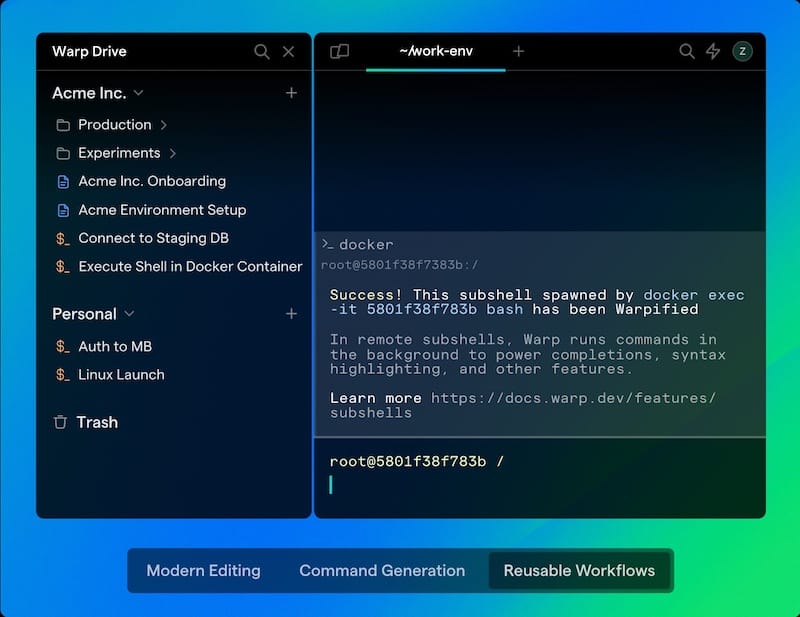
Shell Integration Setup
Warp Terminal integrates seamlessly with popular shells. For bash users, the terminal automatically configures command history and completion features. Zsh users benefit from enhanced autocompletion and plugin compatibility.
The integration process modifies shell configuration files to enable Warp-specific features while preserving existing customizations. Backup your current shell configuration before proceeding if you have extensive customizations.
Theme and Visual Customization
Access the settings menu to customize visual appearance and behavior. Warp Terminal offers multiple color schemes optimized for different lighting conditions and personal preferences.
Configure font settings for optimal readability, adjusting size and family based on your display characteristics. The terminal supports ligature fonts for enhanced code readability and modern typography features.
Essential Features and Usage Guide
Core Terminal Capabilities
Warp Terminal’s block-based command execution organizes commands into visual groups, improving readability and workflow organization. Each command block maintains separate output areas, reducing confusion in complex terminal sessions.
The intelligent command completion system analyzes command history, current directory context, and available system commands to provide relevant suggestions. This feature significantly reduces typing time and helps discover new commands.
Built-in SSH integration simplifies remote server management with connection profiles, key management, and session persistence. Git integration provides visual status indicators and simplified workflow commands for version control operations.
AI-Powered Assistance Features
The AI assistant helps explain command syntax, troubleshoot errors, and suggest alternative approaches to common tasks. Natural language queries can generate appropriate commands for specific objectives.
Error explanation features analyze failed commands and provide clear explanations of what went wrong, along with suggested corrections. This educational approach helps users learn from mistakes and improve their command-line skills.
Advanced Workflow Integration
Custom workflows enable automation of repetitive tasks through saved command sequences. Team collaboration features allow sharing workflows and command templates across development teams.
Integration with development tools includes IDE connections, testing framework integration, and deployment pipeline support. These features streamline the development process from code editing to production deployment.
Troubleshooting Common Installation Issues
Package Manager Problems
If DNF reports dependency conflicts, clear the package cache and retry installation:
sudo dnf clean all
sudo dnf makecache
Repository connection failures often result from network issues or firewall restrictions. Verify internet connectivity and check firewall settings for the required ports.
GPG key verification errors require re-importing the signing key:
sudo rpm --import https://releases.warp.dev/linux/keys/warp.ascGraphics and Display Issues
OpenGL compatibility problems may occur on older hardware or virtual machines. Check graphics driver installation and update to the latest available version for your hardware.
Wayland compatibility issues can be resolved by switching to X11 mode temporarily:
export GDK_BACKEND=x11
warp-terminal
Font rendering problems often result from missing font packages. Install additional font packages through DNF to resolve display issues.
Performance and System Integration
Memory usage optimization involves adjusting Warp Terminal settings for available system resources. Disable unnecessary features on lower-spec systems to improve performance.
Network connectivity issues for AI features require checking firewall rules and DNS resolution. Ensure the system can reach Warp’s cloud services for full functionality.
Shell integration conflicts can be resolved by resetting configuration files and rerunning the integration setup process.
Security Considerations and Best Practices
Package Verification and Trust
Always verify GPG signatures when downloading packages directly. The official signing key ensures package authenticity and prevents tampering during download or storage.
Use official repositories whenever possible to maintain security and receive timely updates. Third-party repositories may contain outdated or modified packages that compromise system security.
Regular security updates should be applied promptly to address discovered vulnerabilities. Configure automatic updates for security-critical packages while maintaining control over feature updates.
Privacy and Data Protection
Review Warp Terminal’s privacy policy to understand data collection practices. Configure privacy settings to control what information is shared with cloud services.
Local-only mode disables cloud features but maintains full terminal functionality for security-sensitive environments. Enterprise deployments should evaluate data handling policies against organizational requirements.
Network traffic encryption protects sensitive information during transmission. Verify that all cloud communications use appropriate encryption protocols.
Advanced Configuration and Optimization
Performance Tuning Options
Optimize memory allocation settings based on available system resources. Higher memory limits improve performance when working with large command outputs or multiple terminal sessions.
Graphics rendering optimization involves selecting appropriate rendering backends for your hardware configuration. GPU acceleration improves visual performance but may consume additional power on mobile systems.
Command execution performance can be enhanced through cache configuration and history management settings. Balance performance improvements with memory usage based on your specific needs.
Enterprise and Multi-User Setup
System-wide installation considerations include shared configuration files and user permission management. Create appropriate user groups for terminal access control in multi-user environments.
Network configuration for team features requires opening appropriate firewall ports and configuring proxy settings if necessary. Document these requirements for IT administration purposes.
License management becomes important for team accounts and enterprise features. Track user assignments and ensure compliance with licensing terms.
Maintenance and Updates
Keeping Warp Terminal Updated
Repository-based installations automatically receive updates through standard system maintenance procedures:
sudo dnf update warp-terminalAppImage installations require manual updates by downloading new versions. Configure update checking to receive notifications about available updates.
Version management allows rolling back to previous versions if updates introduce compatibility issues. Maintain backup configurations before major updates.
System Maintenance Integration
Coordinate Warp Terminal updates with regular system maintenance schedules. Include terminal-specific checks in automated maintenance scripts.
Log file management prevents excessive disk usage from terminal session logs. Configure appropriate log rotation and cleanup policies.
Configuration backup strategies should include terminal settings and customizations. Store backups securely and test restoration procedures regularly.
Alternative Terminal Options Comparison
Traditional Terminal Alternatives
GNOME Terminal provides basic functionality with minimal resource usage but lacks advanced features like AI assistance and modern interface elements. Konsole offers more customization options but doesn’t match Warp’s innovative approach.
Performance comparisons show Warp Terminal utilizing more memory than traditional terminals while providing significantly enhanced functionality. The trade-off benefits users who value productivity improvements over minimal resource usage.
Modern Terminal Competitors
Alacritty focuses on performance and GPU acceleration but lacks integrated AI features. Kitty provides extensive customization options and good performance but requires more configuration effort.
Feature comparison matrices help evaluate options based on specific requirements. Consider workflow integration, team collaboration needs, and performance requirements when selecting terminal applications.
Congratulations! You have successfully installed Warp. Thanks for using this tutorial for installing the Warp Linux Terminal on your AlmaLinux OS 10 system. For additional or useful information, we recommend you check the official Warp website.
