
Managing WireGuard VPN from the command line works fine for a single peer, but it gets tedious and error-prone fast once you have five, ten, or twenty clients to manage. That is exactly where WGDashboard steps in. This Linux server tutorial walks you through the complete process to install WGDashboard on Linux Mint 22, from updating your system to creating peers and locking down your dashboard with two-factor authentication. By the end of this guide, you will have a fully functional browser-based VPN management panel running natively on your Linux Mint 22 machine.
What Is WGDashboard and Why Does It Matter?
WGDashboard is an open-source web interface built with Python (Flask backend) and Vue.js (frontend) that sits on top of WireGuard and gives you a clean graphical panel to manage everything.
The dashboard auto-discovers any WireGuard configuration file stored in /etc/wireguard, which means you do not have to import anything manually. You get real-time peer monitoring, QR code generation for mobile clients, per-peer data transfer limits, expiration dates, and built-in TOTP two-factor authentication to protect the admin panel.
Linux Mint 22, codenamed “Wilma,” is based on Ubuntu 24.04 LTS. That means it shares the exact same apt package repositories, the same kernel, and the same WireGuard kernel module availability as Ubuntu 24.04 LTS. Every command in this guide was tested against that environment.
What Is WireGuard?
WireGuard is a modern VPN protocol built directly into the Linux kernel since version 5.6. Its codebase sits at roughly 4,000 lines, compared to tens of thousands for OpenVPN or IPSec, which makes it far easier to audit for security vulnerabilities.
Under the hood, WireGuard uses:
- Curve25519 for key exchange
- ChaCha20 for symmetric encryption
- Poly1305 for message authentication
- BLAKE2s for hashing
Performance benchmarks consistently show WireGuard outperforming both OpenVPN and IPSec in throughput and latency, especially on modern hardware. It runs on Linux, Windows, macOS, iOS, and Android, making it practical for any mix of client devices.
Prerequisites Before You Start
Before running a single command, confirm you have the following in place:
System Requirements:
- Linux Mint 22 (Wilma) installed with a desktop or server environment
- Minimum 1 CPU core, 1 GB RAM, and 10 GB available disk space
- Root or a sudo-privileged user account
- Active internet connection
Network Requirements:
- A static IP address or a DDNS hostname so VPN clients can reach your server consistently
- UDP port
51820open for WireGuard traffic - TCP port
10086open for the WGDashboard web interface - Basic familiarity with CIDR notation (e.g.,
10.0.0.1/24)
Software Requirements:
gitfor cloning the WGDashboard repositorypython3version 3.10 or higherwireguard-toolsfor thewgandwg-quickutilitiesnet-toolsfor network diagnostics
Step 1: Update Your Linux Mint 22 System
Starting with a clean, fully updated system prevents dependency conflicts and closes known security holes before you add new software. Run these two commands first:
sudo apt update
sudo apt upgrade -y
The apt update command refreshes your package index so apt knows what the latest versions are. The apt upgrade -y command installs all available upgrades without prompting you to confirm each one.
After the upgrade finishes, check your Linux Mint version to confirm you are on version 22:
lsb_release -aYou should see output like DISTRIB_RELEASE=22 and DISTRIB_CODENAME=wilma. If the upgrade included a kernel update, reboot your machine before moving on:
sudo rebootA fresh boot ensures everything runs with the updated kernel and shared libraries, which avoids subtle compatibility issues later in the installation.
Step 2: Install WireGuard on Linux Mint 22
Linux Mint 22 pulls from Ubuntu 24.04 LTS repositories, so WireGuard installs directly from the default apt sources. No PPA required.
sudo apt install wireguard-tools net-tools --no-install-recommends -yThis installs both wireguard-tools (which gives you the wg and wg-quick commands) and net-tools (which provides netstat and related utilities). The --no-install-recommends flag keeps the install lean by skipping optional packages.
Confirm the installation worked:
wg --versionYou should see output similar to: wireguard-tools v1.0.20210914 - https://www.wireguard.com
Load the WireGuard kernel module explicitly:
sudo modprobe wireguardNow create the WireGuard configuration directory and lock down its permissions:
sudo mkdir -p /etc/wireguard
sudo chmod 700 /etc/wireguard
Setting 700 here keeps this directory readable and writable only by root. This matters because WireGuard stores private keys in this directory, and you never want those exposed to other system users.
Step 3: Install Required Dependencies
WGDashboard needs Python 3 and Git to run. Linux Mint 22 includes Python 3 by default, but you should install python3-pip and python3-dev explicitly to avoid pip-related errors during installation.
sudo apt install git python3 python3-pip python3-dev -yHere is what each package does:
gitclones the WGDashboard source code from GitHubpython3is the runtime that executes the Flask-based backendpython3-pipinstalls the Python packages listed in WGDashboard’srequirements.txtpython3-devprovides header files needed to compile a few Python C extensions
Verify each tool installed successfully:
git --version
python3 --version
pip3 --version
Python 3 must report version 3.10 or above. If it reports anything lower, the WGDashboard install script will fail during the virtual environment setup.
Step 4: Clone the WGDashboard Repository
The /opt directory is the conventional Linux location for optional third-party software. Navigate there and clone the official WGDashboard repository:
cd /opt
sudo git clone https://github.com/WGDashboard/WGDashboard.git
This downloads the complete source code, including the wgd.sh installer script, all Python application files, and the Vue.js frontend assets.
Only clone from the official WGDashboard GitHub organization. Third-party forks may contain outdated or modified code that introduces unexpected behavior or security risks.
Move into the source directory where the installer lives:
cd WGDashboard/srcAll remaining commands in this guide run from inside this directory unless stated otherwise.
Step 5: Run the WGDashboard Installation Script
This is the core step. The wgd.sh script automates the entire installation process and handles several critical tasks for you.
First, make the script executable:
sudo chmod u+x wgd.shNow run the installer:
sudo ./wgd.sh installBehind the scenes, the script does the following:
- Creates an isolated Python virtual environment (
venv/) to keep WGDashboard’s dependencies separate from system packages - Runs pip to install all required packages from
requirements.txt, including Flask and Gunicorn - Registers a systemd service unit (
wg-dashboard.service) so you can manage the dashboard with standard systemd commands
During installation, you will see pip download progress for each package. The process typically takes one to three minutes depending on your internet connection. A success message at the end confirms the install completed without errors.
If the Installation Fails
If you see a pip error mid-install, run the package installation manually:
sudo ./venv/bin/python3 -m pip install -r requirements.txtThis forces pip to reinstall every dependency. Check that Python 3.10 or higher is available if the error mentions an unsupported version.
Step 6: Set WireGuard Directory Permissions
WGDashboard needs to read and write the WireGuard configuration files in /etc/wireguard to manage interfaces and peers. Set the correct permissions now:
sudo chmod -R 755 /etc/wireguardThe 755 permission means:
- Owner (root): read, write, execute
- Group and others: read and execute only
This gives WGDashboard the access it needs while keeping write control restricted to root. Do not use 777 here. Setting world-writable permissions on /etc/wireguard exposes private keys to every user on the system, which is a serious security flaw.
Step 7: Enable IPv4 Forwarding
Without IP forwarding, your server receives VPN packets but cannot route them anywhere. Every VPN client would connect successfully but have no internet access. Fix this now with a persistent configuration:
sudo echo "net.ipv4.ip_forward=1" >> /etc/sysctl.conf
sudo sysctl -p /etc/sysctl.conf
The first command appends the forwarding directive to /etc/sysctl.conf, making it survive reboots. The second command applies the change immediately without requiring a restart.
Verify the setting is active:
cat /proc/sys/net/ipv4/ip_forwardThe output must be 1. If you see 0, the change did not apply. Re-run sudo sysctl -p /etc/sysctl.conf and check the file for typos.
Step 8: Configure UFW Firewall on Linux Mint 22
Linux Mint 22 ships with UFW (Uncomplicated Firewall). You need to open two ports and configure NAT masquerading so VPN clients can reach the internet through your server.
Allow WireGuard traffic:
sudo ufw allow 51820/udpAllow WGDashboard web access:
sudo ufw allow 10086/tcpIf you want to restrict dashboard access to your local network only (a good idea for production setups), use this rule instead:
sudo ufw allow from 192.168.1.0/24 to any port 10086Replace 192.168.1.0/24 with your actual LAN subnet.
Configure NAT Masquerading
Open the UFW pre-rules file:
sudo nano /etc/ufw/before.rulesAdd the following block at the very top of the file, before the *filter section:
*nat
:POSTROUTING ACCEPT [0:0]
-A POSTROUTING -s 10.0.0.0/24 -o eth0 -j MASQUERADE
COMMIT
Replace 10.0.0.0/24 with your WireGuard subnet and eth0 with your actual internet-facing interface. Find your interface name with ip a if you are unsure.
Enable and verify UFW:
sudo ufw enable
sudo ufw status verbose
You should see rules for port 51820/udp and 10086/tcp listed as ALLOW.
Step 9: Start WGDashboard and Access the Web Interface
Start the dashboard service:
sudo ./wgd.sh startAlternatively, use systemd directly:
sudo systemctl start wg-dashboardConfirm the service is running:
sudo systemctl status wg-dashboardLook for the line that reads Active: active (running). If you see any error lines, check the service logs immediately:
sudo journalctl -u wg-dashboard -n 50With the service running, open a browser on your Linux Mint 22 machine or any device on the same network and navigate to:
http://YOUR_SERVER_IP:10086Find your server IP with hostname -I if you are unsure. The WGDashboard login screen appears. Use these default credentials to log in:
- Username:
admin - Password:
admin
Change these credentials immediately. Leaving default credentials in place is the single most common mistake on any self-hosted admin panel. Go to Settings, update both the username and password, and enable TOTP two-factor authentication by scanning the provided QR code with Google Authenticator or Authy.
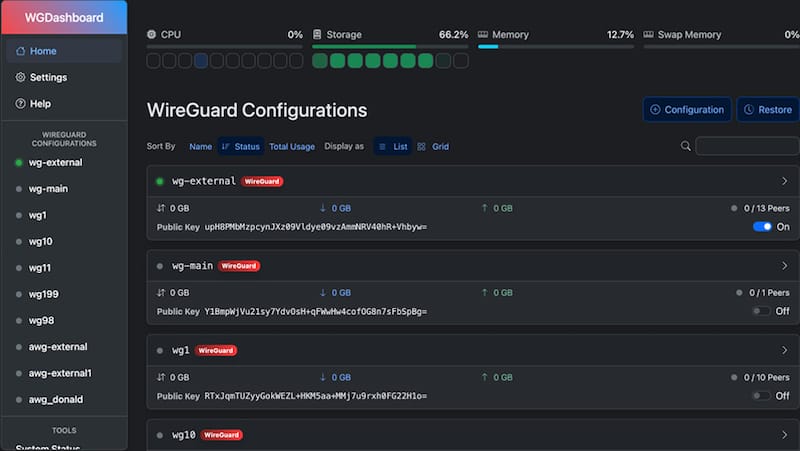
Step 10: Create Your First WireGuard Interface and Add Peers
Creating a WireGuard Interface
Click “New Configuration” from the main WGDashboard panel. Fill in the following fields:
- Interface Name:
wg0 - Listen Port:
51820 - IP Address/CIDR:
10.0.0.1/24 - DNS (optional):
1.1.1.1or8.8.8.8
WGDashboard auto-generates a cryptographic key pair for the interface. Never share the private key. Click Save, then toggle the interface to Active.
Confirm the interface is up from the terminal:
sudo wg showThe output lists wg0 with its public key, listen port, and peer count.
Adding VPN Peers (Clients)
Click the wg0 interface card, then click “Add Peer.” Fill in:
- Name: A descriptive label like
Johns-iPhoneorOffice-Laptop - Allowed IPs:
0.0.0.0/0for a full-tunnel VPN, or a specific subnet for split-tunnel - Persistent Keepalive:
25(recommended for clients behind NAT)
WGDashboard assigns the next available IP automatically. You can also set a data transfer limit or an expiration date per peer, which is useful for temporary or guest access.
To distribute the config to clients, either scan the QR code with the WireGuard mobile app on iOS or Android, or download the .conf file for desktop clients on Windows, macOS, or Linux.
Step 11: Enable WGDashboard and WireGuard to Start at Boot
A server reboot should not take down your VPN without warning. Enable both services to start automatically:
sudo systemctl enable wg-dashboard
sudo systemctl enable wg-quick@wg0
Test it by rebooting:
sudo rebootAfter the system comes back up, verify both services are active:
sudo systemctl status wg-dashboard
sudo systemctl status wg-quick@wg0
Both should report Active: active (running). If either service fails, check the logs with sudo journalctl -u wg-dashboard -n 50 for details.
Troubleshooting Common WGDashboard Issues on Linux Mint 22
Even with careful setup, things sometimes go sideways. Here are the five most common issues and how to fix them.
Issue 1: WGDashboard Fails to Start
Check your Python version first. It must be 3.10 or above:
python3 --versionIf the virtual environment is broken, reinstall dependencies manually:
sudo ./venv/bin/python3 -m pip install -r requirements.txtCheck whether port 10086 is already occupied by another process:
sudo netstat -tlnp | grep 10086If something else is using that port, either stop the conflicting service or change WGDashboard’s port in wg-dashboard.ini.
Issue 2: WireGuard Interfaces Missing from Dashboard
This almost always comes down to permissions. Check them:
ls -la /etc/wireguard/Reset them if needed:
sudo chmod -R 755 /etc/wireguardAlso confirm the WireGuard kernel module is loaded:
lsmod | grep wireguardIf nothing returns, load it manually with sudo modprobe wireguard.
Issue 3: Peers Connect but Have No Internet Access
This issue points to either IP forwarding being off or a missing NAT rule. Check forwarding:
cat /proc/sys/net/ipv4/ip_forwardIf the output is 0, re-run sudo sysctl -p /etc/sysctl.conf. Then confirm your NAT masquerade rule exists in /etc/ufw/before.rules and that UFW is enabled.
Issue 4: Service Does Not Survive Reboot
Confirm the systemd service is enabled, not just started:
systemctl list-unit-files | grep wg-dashboardThe output should show enabled. If it shows disabled, run sudo systemctl enable wg-dashboard and repeat for wg-quick@wg0.
Issue 5: Login Page Unreachable
First check that the service is running with sudo systemctl status wg-dashboard. Then verify UFW allows TCP port 10086:
sudo ufw status | grep 10086If the rule is missing, add it with sudo ufw allow 10086/tcp. Also confirm you are using the correct server IP address in the browser URL.
Congratulations! You have successfully installed WGDashboard. Thanks for using this tutorial for installing WGDashboard GUI management of WireGuard VPN servers on Linux Mint 22 system. For additional help or useful information, we recommend you check the official WGDashboard website.

