How To Install WoeUSB on Debian 13

Creating a bootable Windows USB drive on Linux used to mean booting into Windows or hunting for obscure workarounds. WoeUSB (and its modern successor, WoeUSB-ng) solves that problem directly — it writes a Windows ISO to a USB stick straight from your terminal or GUI. This guide walks you through the complete process to install WoeUSB on Debian 13 (codenamed “Trixie”, released August 9, 2025), covering every command you need from a fresh system.
Prerequisites
Before you start, make sure you have the following:
- Operating System: Debian 13 “Trixie” (tested on Debian 13 stable, released August 9, 2025)
- User permissions: A user account with
sudoprivileges - Internet connection: Required to download packages and clone the repository
- A USB drive: Minimum 8 GB, formatted or ready to be wiped
- A Windows ISO: Downloaded from Microsoft’s official site (Windows 10/11 recommended)
- Tools pre-installed:
git,python3,pip3— installed in the steps below
🔒 Security Note: Always download Windows ISO files from Microsoft’s official website only. Verify the SHA-256 checksum before use to confirm file integrity.
Step 1: Update Your System
Start with a clean package cache. Running updates before installing anything prevents dependency conflicts.
sudo apt update && sudo apt upgrade -yWhat this does: apt update refreshes the local package index from Debian’s repositories. apt upgrade -y installs all pending upgrades automatically. Skipping this step is a common cause of broken installs.
Verify the update completed successfully:
apt list --upgradable 2>/dev/null | wc -lExpected output: 1 (just the header line, meaning no pending upgrades remain).
Step 2: Install WoeUSB-ng Dependencies
WoeUSB-ng requires several system packages before you can install the Python application. These handle filesystem support, bootloader writing, archive extraction, and the GUI toolkit.
sudo apt install -y git p7zip-full python3-pip python3-wxgtk4.0 \
  grub2-common grub-pc-bin parted dosfstools ntfs-3g wimtools
What Each Package Does
git— Clones the WoeUSB-ng source repositoryp7zip-full— Extracts large Windows ISO archivespython3-pip— The Python package manager, needed to install WoeUSB-ngpython3-wxgtk4.0— Provides the GUI for WoeUSB-nggrub2-common/grub-pc-bin— Writes the legacy BIOS bootloader to the USBparted— Manages disk partitions on the target USB drivedosfstools— Formats partitions as FAT32 (required for UEFI boot)ntfs-3g— Formats and mounts NTFS partitions (required for large ISO files)wimtools— Handles WIM image files found in Windows 11 ISOs
Verify all packages installed:
dpkg -l git python3-pip python3-wxgtk4.0 grub2-common parted dosfstools ntfs-3g | grep ^iiYou should see ii at the start of each line, confirming each package is properly installed.
Step 3: Clone the WoeUSB-ng Repository
Instead of relying on an outdated PPA, pull the source directly from GitHub. This guarantees you get the latest code.
git clone https://github.com/WoeUSB/WoeUSB-ng.git
cd WoeUSB-ng
What this does: git clone downloads the full project repository into a local WoeUSB-ng folder. The cd command moves you into that directory so the next commands run in the right context.
Verify the clone succeeded:
ls -laYou should see files including setup.py, woeusb, and woeusbgui in the directory listing.
Step 4: Handle the “Externally Managed Environment” Error on Debian 13
Debian 13 enforces PEP 668, which blocks pip from installing packages system-wide to prevent conflicts with apt. This is the most common installation blocker on modern Debian systems.
You have two options:
Option A: Use a Virtual Environment (Recommended)
This is the clean, sysadmin-approved method that doesn’t touch system Python.
python3 -m venv ~/woeusb-env
source ~/woeusb-env/bin/activate
pip install .
💡 Pro Tip: To make WoeUSB-ng accessible system-wide without activating the venv each time, create a wrapper script:
echo -e '#!/bin/bash\nsource ~/woeusb-env/bin/activate && woeusb "$@"' | sudo tee /usr/local/bin/woeusb
sudo chmod +x /usr/local/bin/woeusb
Option B: Allow System-Wide pip Install (Use With Caution)
If you prefer a single-command install and understand the risk of bypassing system package isolation:
sudo pip3 install . --break-system-packagesWhat --break-system-packages does: It overrides Debian’s protection and installs into the system Python environment. Use this only on a dedicated workstation, not a production server.
Verify installation:
woeusb --versionExpected output: a version string like WoeUSB-ng 0.4.2. Any version string confirms a successful install.
Step 5: Identify Your USB Drive
This step is critical. Writing to the wrong device will erase data permanently.
lsblkExpected output:
NAME   MAJ:MIN RM   SIZE RO TYPE MOUNTPOINT
sda      8:0    0 238.5G  0 disk
├─sda1   8:1    0   512M  0 part /boot/efi
└─sda2   8:2    0   238G  0 part /
sdb      8:16   1  14.9G  0 disk
└─sdb1   8:17   1  14.9G  0 part /media/user/USB
In this example, /dev/sdb is the USB drive. Your system may label it differently (/dev/sdc, /dev/sdd, etc.). Never assume — always confirm with lsblk.
Unmount the USB If Already Mounted
sudo umount /dev/sdb*Why: WoeUSB cannot write to a mounted device. This command unmounts all partitions on sdb.
Step 6: Configure WoeUSB on Debian 13 and Create the Bootable USB
WoeUSB-ng supports two modes. Choose based on your use case.
Option A: Format the Entire Device (Most Common)
This erases everything on the USB drive and sets it up fresh as a Windows installer.
sudo woeusb --device /path/to/windows11.iso /dev/sdbWhat happens:
- WoeUSB formats the entire USB drive
- Extracts ISO contents
- Installs the bootloader (legacy BIOS or UEFI depending on the ISO)
- Cleans up and verifies the result
Expected terminal output:
Formatting device...
Extracting the ISO...
Installing boot loader...
Unmounting and cleaning up...
Done! The target device should now be bootable.
Option B: Write to an Existing Partition
sudo woeusb --partition /path/to/windows11.iso /dev/sdb1Targeting Filesystem Type Explicitly
For UEFI boot (Windows 10/11), use FAT32:
sudo woeusb --device --target-filesystem FAT /path/to/windows11.iso /dev/sdbFor Legacy/MBR systems or ISOs with files over 4 GB (common with Windows 11):
sudo woeusb --device --target-filesystem NTFS /path/to/windows11.iso /dev/sdbVerify the USB is bootable:
lsblk -f /dev/sdbYou should see a FAT32 or NTFS filesystem with a label, confirming the write was successful.
Step 7: Launch the WoeUSB-ng GUI (Optional)
If you prefer a graphical interface, WoeUSB-ng ships a GUI called woeusbgui.
sudo woeusbgui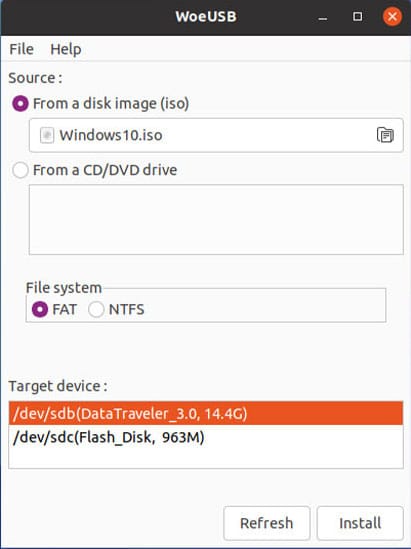
The GUI lets you:
- Browse to your Windows ISO using a file picker
- Select the target USB device from a dropdown
- Click Install to begin the process
💡 Note: If running inside a virtual environment, activate it first: source ~/woeusb-env/bin/activate, then run sudo woeusbgui.
Troubleshooting
Error: externally-managed-environment When Running pip3
Cause: Debian 13 enforces PEP 668, blocking system-wide pip installs.
Fix: Use a virtual environment (Step 4, Option A) or append --break-system-packages to your pip command.
Error: Target device /dev/sdX is already mounted
Cause: The USB drive has auto-mounted partitions.
Fix:
sudo umount /dev/sdX*Then re-run the woeusb command.
Error: libwxgtk3.0-0v5 Dependency Not Installable
Cause: Older guides reference libwxgtk3.0-0v5, which is not available in Debian 13 repos. Debian 13 uses python3-wxgtk4.0 instead.
Fix: Make sure you’re installing python3-wxgtk4.0 (version 4.x). Re-run the dependency command from Step 2.
Windows 11 ISO Fails — Files Over 4 GB
Cause: Windows 11 ISOs contain install.wim files larger than 4 GB, which FAT32 cannot store.
Fix:
sudo woeusb --device --target-filesystem NTFS /path/to/win11.iso /dev/sdbMake sure ntfs-3g and wimtools are installed (Step 2 covers both).
Error: woeusb: command not found After Virtual Environment Install
Cause: The virtual environment isn’t active in the current shell session.
Fix:
source ~/woeusb-env/bin/activate
woeusb --version
FAQ
Does WoeUSB work on Debian 13 “Trixie”?
Yes. Debian 13 was released on August 9, 2025, and WoeUSB-ng installs cleanly using the source installation method in this guide. The key is using a Python virtual environment to bypass the PEP 668 restriction.
What’s the Difference Between WoeUSB and WoeUSB-ng?
WoeUSB is the original bash-based project. WoeUSB-ng is a full Python rewrite that adds GUI support and active maintenance. For Debian 13, always use WoeUSB-ng.
Can I Configure WoeUSB on Debian 13 to Create UEFI-Bootable Drives?
Yes. Pass --target-filesystem FAT for UEFI boot. For systems with large install files, use NTFS and verify your target machine supports NTFS UEFI boot.
What USB Drive Size Do I Need?
A minimum of 8 GB for Windows 10 ISOs and 16 GB for Windows 11 ISOs. Windows 11 install images frequently exceed 5–6 GB uncompressed.
Is Ventoy a Better Alternative to WoeUSB?
Ventoy is faster and supports multiple ISOs on a single drive — excellent for sysadmins who regularly deploy different OS images. WoeUSB-ng remains the better choice when you want a dedicated, single-purpose Windows installer USB with full bootloader configuration.
Congratulations! You have successfully installed WoeUSB. Thanks for using this tutorial for installing WoeUSB on Debian 13 “Trixie” system. For additional help or useful information, we recommend you check the official WoeUSB website.
