
Remote access to a Linux machine shouldn’t require you to be physically present. If you manage a Fedora 43 server or workstation, setting up XRDP gives you full graphical desktop access from any Windows, macOS, or Linux machine — using the familiar Remote Desktop Protocol. This guide walks you through every step to install XRDP on Fedora 43, configure your desktop environment, lock down SELinux, open the firewall, and connect remotely within minutes.
XRDP is an open-source implementation of Microsoft’s Remote Desktop Protocol (RDP) for Linux. Unlike VNC, it speaks native RDP — meaning Windows users can connect with zero extra software. It supports two-way clipboard transfer (text, bitmap, file), audio redirection, and local drive mounting on the remote session. For sysadmins and developers managing Linux machines without physical access, XRDP is one of the most practical remote desktop solutions available.
Fedora 43 introduces a few important changes compared to older releases. GNOME now defaults to Wayland, and Xorg has been removed from the Workstation edition. XRDP works best over X11, which means your desktop environment choice matters greatly here. This guide covers the correct approach for Fedora 43 specifically — including the XFCE setup that works reliably, Wayland caveats, SELinux policy modules, and the dnf5-compatible commands you need.
Whether you’re a beginner setting up remote access for the first time or an intermediate sysadmin migrating from an older Fedora version, this tutorial gives you everything you need to get XRDP running cleanly and securely.
Prerequisites
Before you start, make sure you have the following in place:
- Operating System: Fedora 43 (Workstation, Server, or minimal install — any spin works)
- User Permissions: A non-root user with
sudoprivileges - Network: Active internet connection for
dnfpackage downloads - Desktop Environment: Not required upfront — Step 2 covers installation
- RDP Client on the machine you’re connecting from:
- Windows: Remote Desktop Connection (
mstsc) — built-in, no install needed - Linux: Remmina or FreeRDP (
sudo dnf install remmina) - macOS: Microsoft Remote Desktop (free from the App Store)
- Windows: Remote Desktop Connection (
- Basic terminal knowledge: You need to be comfortable running commands in a terminal
Note for Fedora 43 users: Fedora 43 uses dnf5 as the default package manager. The syntax is largely backward-compatible with dnf4, but some group names have changed. This guide uses dnf5-compatible commands throughout.
Step 1: Update Your Fedora 43 System
Always update your system before installing new software. This avoids dependency mismatches and ensures you’re working with the latest package versions.
sudo dnf upgrade --refreshThe --refresh flag forces DNF to sync repository metadata before running the upgrade. Without it, DNF might work from a stale cache and miss recent package updates.
After the upgrade completes — especially if the kernel was updated — reboot your system:
sudo rebootWhy This Step Matters
On Fedora 43, XRDP and its dependencies (xorgxrdp, xrdp-selinux) require glibc and Xorg libraries that may not be fully up to date on a fresh install. Skipping the upgrade is the most common cause of unexpected dependency errors during XRDP installation.
Step 2: Install a Desktop Environment
XRDP needs a graphical desktop to launch when a user connects remotely. If you installed Fedora Server or a minimal image, no desktop is present by default. Even on a full Workstation install, you need to confirm your desktop environment is X11-compatible — because XRDP on Fedora 43 does not work reliably with Wayland sessions.
Check Available Desktop Groups
Run this to see which desktop groups are available:
sudo dnf grouplist -vOn Fedora 43 with dnf5, some groups are hidden. List all options including hidden ones:
dnf group list --hidden | grep -iE "xfce|kde|gnome"Option A: Install XFCE (Recommended)
XFCE is the most reliable desktop environment to pair with XRDP on Fedora 43. It is lightweight, uses X11 natively (XFCE 4.20 on Fedora 43 is not yet Wayland-enabled), and has minimal conflict with XRDP session management.
sudo dnf group install -y xfce-desktopUse lowercase xfce-desktop — this is the correct group ID for dnf5 on Fedora 43. The old capitalized Xfce group name may return a “group not found” error.
Option B: Install KDE Plasma
KDE Plasma works with XRDP but requires the X11 session package explicitly installed:
sudo dnf install @kde-desktop-environment plasma-workspace-x11 -yThe plasma-workspace-x11 package provides the X11 session entry in SDDM, which XRDP requires to launch a proper KDE session.
Option C: Install GNOME
sudo dnf group install -y gnome-desktopCaution: GNOME on Fedora 43 defaults to Wayland. The XRDP login screen loads, but the connection drops immediately after authentication. If you must use GNOME, install gnome-session-xsession and select “GNOME on Xorg” — this is an advanced configuration not covered in this guide.
Set the Graphical Target
After installing your desktop, set the system to boot into a graphical interface by default:
sudo systemctl set-default graphical.targetThen reboot to apply:
sudo rebootStep 3: Install XRDP on Fedora 43
With your desktop environment ready, it’s time to install the core XRDP packages for your Fedora 43 XRDP setup.
Install XRDP and the SELinux Policy Module
sudo dnf install xrdp xrdp-selinux -yxrdp— the core XRDP server daemonxrdp-selinux— a pre-built SELinux policy module that authorizes XRDP binaries under Fedora’s enforcing SELinux configuration
For better visual performance and audio redirection over local networks, also install xorgxrdp:
sudo dnf install xorgxrdp -yxorgxrdp enables the Xorg backend instead of the default Xvnc backend. Xorg delivers higher image quality, lower latency, and full audio pass-through.
Enable and Start the XRDP Service
sudo systemctl enable xrdp.service --nowThe --now flag enables the service at boot and starts it immediately — no need to run enable and start separately.
Also enable the XRDP session manager:
sudo systemctl enable xrdp-sesman --nowVerify XRDP Is Running
sudo systemctl status xrdpExpected output:
● xrdp.service - xrdp daemon
     Loaded: loaded (/usr/lib/systemd/system/xrdp.service; enabled)
     Active: active (running) since Tue 2026-03-10 09:00:00 WIB; 12s ago
Confirm XRDP is listening on port 3389:
ss -tlnp | grep 3389Expected output:
LISTEN 0 10 0.0.0.0:3389 0.0.0.0:* users:(("xrdp",pid=XXXX,fd=11))If the port is empty, XRDP hasn’t bound to 3389. Check journalctl -u xrdp for error details.
Step 4: Configure the Desktop Session for XRDP
This is the step most tutorials skip — and it’s the #1 cause of black screens and dropped connections after login on Fedora 43. XRDP needs to know which desktop session to launch after a user authenticates. Without this configuration, XRDP attempts to start a session with no command, causing an immediate disconnect.
Set the System-Wide Preferred Desktop
sudo tee /etc/sysconfig/desktop << EOF > /dev/null
PREFERRED=xfce4-session
EOF
For KDE, replace xfce4-session with startkde.
Create a Per-User Session File
XRDP looks for a ~/startwm.sh file in the home directory of the connecting user. Create one now:
cat > ~/startwm.sh << 'EOF'
#!/bin/sh
dbus-launch --exit-with-session /usr/bin/startxfce4
EOF
chmod 755 ~/startwm.sh
Using dbus-launch is critical. Without it, XFCE applications like the file manager and settings panels fail to launch properly inside the RDP session.
Switch the XRDP Backend from Xvnc to Xorg
Open /etc/xrdp/xrdp.ini:
sudo nano /etc/xrdp/xrdp.iniComment out the [Xvnc] block and uncomment the [Xorg] block so it looks like this:
[Xorg]
name=Xorg
lib=libxup.so
username=ask
password=ask
ip=127.0.0.1
port=-1
code=20

#[Xvnc]
#name=Xvnc
#lib=libvnc.so
#username=ask
#password=ask
#ip=127.0.0.1
#port=-1
Save the file, then restart XRDP:
sudo systemctl restart xrdp xrdp-sesmanStep 5: Configure FirewallD to Allow RDP Traffic
Fedora 43 ships with FirewallD active by default. Port 3389 (the standard RDP port) is blocked unless you explicitly allow it. Without this step, your RDP client will time out on every connection attempt.
Method 1: Allow the RDP Service by Name (Recommended)
sudo firewall-cmd --permanent --add-service=rdp
sudo firewall-cmd --reload
Using the service name rdp is cleaner than a raw port number — FirewallD already maps rdp to port 3389/tcp.
Method 2: Allow Port 3389 Directly
sudo firewall-cmd --permanent --add-port=3389/tcp
sudo firewall-cmd --reload
Verify the Rule Is Active
sudo firewall-cmd --list-allLook for rdp under services: or 3389/tcp under ports: in the output.
Restrict to a Trusted Subnet (Production Environments)
Never expose port 3389 to the open internet. Restrict access to a specific IP range using a rich rule:
sudo firewall-cmd --permanent --add-rich-rule='rule family=ipv4 source address=192.168.1.0/24 service name=rdp accept'
sudo firewall-cmd --reload
Replace 192.168.1.0/24 with your actual trusted network.
Step 6: Configure SELinux for XRDP
SELinux runs in Enforcing mode by default on Fedora 43. It will silently block XRDP binaries if they lack the correct security context — making this the second-most common reason XRDP fails after installation.
Method 1: Install the SELinux Policy Module (Recommended)
If you installed xrdp-selinux in Step 3, this is already handled. Verify the module loaded:
sudo semodule -l | grep xrdpYou should see xrdp in the list. If not, reinstall:
sudo dnf install xrdp-selinux -yMethod 2: Apply SELinux Context Manually
If the package isn’t resolving your issue, apply the file context to XRDP binaries directly:
sudo chcon --type=bin_t /usr/sbin/xrdp
sudo chcon --type=bin_t /usr/sbin/xrdp-sesman
Audit SELinux Denials
To check whether SELinux is actively blocking XRDP:
sudo ausearch -c 'xrdp' --raw | audit2allow -M xrdp-custom
sudo semodule -i xrdp-custom.pp
Never disable SELinux to “fix” XRDP. Setting SELINUX=disabled removes a critical system security layer. The policy module approach above takes two minutes and keeps your system fully protected.
Step 7: Connect to Your Fedora 43 Desktop via RDP
Your system is now running XRDP and ready for remote connections. This is the payoff for the configure XRDP on Fedora 43 setup you’ve just completed.
Find Your Fedora 43 IP Address
hostname -INote the local IP — typically something like 192.168.1.X.
Connect from Windows
- Press
Win + R, typemstsc, and press Enter - Enter the Fedora IP address (e.g.,
192.168.1.100) and click Connect - Accept the certificate warning on first connection
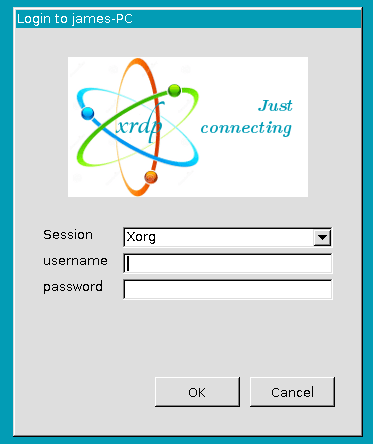
- At the XRDP login screen, set Session to Xorg (not Xvnc)
- Enter your Fedora username and password — your XFCE desktop loads within seconds
Connect from Linux (Remmina)
- Open Remmina → click New Connection Profile
- Protocol: RDP
- Server:
192.168.1.100:3389 - Username/Password: your Fedora credentials
- Click Connect
Connect from macOS (Microsoft Remote Desktop)
- Open Microsoft Remote Desktop → click Add PC
- PC Name:
192.168.1.100 - User Account: add your Fedora credentials
- Double-click the connection to start
Wayland vs. X11 on Fedora 43 — What You Need to Know
Fedora 43 defaults to Wayland for GNOME sessions, and Xorg has been removed from the Workstation edition. XRDP currently has no stable Wayland backend — connecting to a Wayland session results in an immediate disconnect right after the XRDP login screen.
XFCE 4.20 on Fedora 43 is X11-only — it is not yet Wayland-enabled, making it the safest choice for XRDP right now. If you use KDE, plasma-workspace-x11 is required and you must select “Plasma (X11)” in SDDM. Wayland-based KDE sessions will fail the same way GNOME does.
Wayland support for XRDP is under active development, but it remains unstable for production use on Fedora 43. The recommendation stands: use XFCE with the Xorg XRDP backend until native Wayland support matures.
Troubleshooting Common XRDP Issues on Fedora 43
Error 1: Connection Drops Immediately After Login
Cause: Missing ~/startwm.sh, or XRDP is using Xvnc instead of Xorg.
Fix:
cat > ~/startwm.sh << 'EOF'
#!/bin/sh
dbus-launch --exit-with-session /usr/bin/startxfce4
EOF
chmod 755 ~/startwm.sh
sudo systemctl restart xrdp xrdp-sesman
Also confirm /etc/xrdp/xrdp.ini has [Xorg] uncommented and [Xvnc] commented out.
Error 2: Black Screen After Successful Login
Cause: A stale or corrupted X11 socket directory at /tmp/.X11-unix.
Fix:
[ -L /tmp/.X11-unix ] && sudo rm /tmp/.X11-unix
sudo mkdir -p /tmp/.X11-unix
sudo chmod 1777 /tmp/.X11-unix
sudo systemctl restart xrdp xrdp-sesman
Error 3: Unable to open display :10
Cause: xorgxrdp not installed, or /etc/xrdp/sesman.ini points to the wrong Xorg path.
Fix:
sudo dnf install xorgxrdp -yCheck /etc/xrdp/sesman.ini and confirm param=/usr/libexec/Xorg is correctly set. Restart XRDP after changes.
Error 4: Port 3389 Unreachable (Connection Timed Out)
Cause: FirewallD is blocking port 3389, or XRDP isn’t running.
Fix:
sudo systemctl status xrdp
sudo firewall-cmd --permanent --add-service=rdp
sudo firewall-cmd --reload
Error 5: XRDP Disconnects After Idle, Reconnection Fails
Cause: GNOME/Wayland screen blanking in Fedora 43 Workstation forcibly terminates idle RDP sessions and blocks new connections until reboot.
Fix: Go to Settings → Power → Screen Blank → set to Never. Also disable Automatic Screen Lock under Settings → Privacy → Screen Lock. This issue does not occur on XFCE.
Security Best Practices for XRDP on Fedora 43
Running XRDP securely takes more than just getting it online. Apply these practices immediately:
- Never expose port 3389 to the internet directly — use a VPN or SSH tunnel to wrap your RDP traffic
- Keep XRDP updated:
sudo dnf upgrade xrdp xorgxrdp xrdp-selinux - Use strong passwords for every user account accessible via XRDP
- Consider fail2ban to block brute-force RDP login attempts
- Keep SELinux in Enforcing mode — never set it to
permissiveordisabledas a shortcut - Restrict firewall rules to trusted subnets using FirewallD rich rules, not open-to-all port allowances
Congratulations! You have successfully installed XRDP. Thanks for using this tutorial for installing the XRDP (Remote Desktop) on Fedora 43 Linux system. For additional help or useful information, we recommend you check the official XRDP website.

