
Managing multiple databases from a command-line interface works fine until your team grows or your workflow demands speed and visual clarity. That is where a GUI-based SQL manager like Beekeeper Studio changes everything. This guide walks you through how to install Beekeeper Studio on AlmaLinux 10 using three proven methods — the official RPM repository, Snap, and Flatpak — so you can pick the one that best fits your setup. By the end of this tutorial, you will have a fully working Beekeeper Studio installation, a live database connection, and the knowledge to maintain and update the tool going forward.
What Is Beekeeper Studio?
Beekeeper Studio is a free, open-source, cross-platform SQL editor and database management GUI. It is licensed under the MIT license, which means you can use it freely in both personal and commercial environments.
It supports a wide range of database engines out of the box:
- MySQL and MariaDB
- PostgreSQL
- SQLite
- Microsoft SQL Server
- Amazon Redshift
- CockroachDB
- libSQL (Turso)
Why Beekeeper Studio Stands Out on Linux
Beekeeper Studio brings several features that make it worth installing on a production or development AlmaLinux 10 server:
- SQL autocomplete with syntax highlighting speeds up query writing
- Multiple tabs let you run parallel queries without switching windows
- SSH tunneling and SSL support allow secure connections to remote database hosts through firewalls
- Dark and light themes keep the interface readable during long work sessions
- CSV, JSON, and SQL export makes it easy to extract data in the format you need
- Saved connections with encrypted local password storage protect your credentials
Beekeeper Studio supports both x86_64 (standard desktops, laptops, and servers) and ARM64 (like Raspberry Pi) architectures on Linux.
Beekeeper Studio vs. CLI Tools
Running raw mysql or psql commands works fine for quick checks. But when you need to browse table schemas, run multi-step queries, export results, or share a database view with a colleague, a GUI tool like Beekeeper Studio cuts the time in half. It is the kind of tool senior developers reach for when the job calls for both speed and precision.
Prerequisites
Before you start, confirm your environment meets the following requirements.
Operating System and Hardware:
- AlmaLinux 10 installed and running (stable release, kernel 6.12.0+)
- Minimum 4 GB RAM for comfortable GUI usage
- At least 10 GB of free disk space
- A desktop environment (GNOME or KDE) for launching the application graphically
- Architecture: x86_64 or ARM64
Access and Permissions:
- A user account with
sudoprivileges - An active internet connection for downloading packages
curlinstalled — verify withcurl --version, or install it withsudo dnf install curl -y
Choose Your Installation Method:
| Method | Best For | Handles Updates |
|---|---|---|
| RPM Repository | Most AlmaLinux users | sudo dnf upgrade |
| Snap | Users familiar with the Snap ecosystem | Automatic via snapd |
| Flatpak | Sandboxed, isolated installs | flatpak update |
The RPM repository method is the recommended approach for AlmaLinux 10. It integrates with the native dnf package manager and follows the standard RHEL package management workflow.
Step 1: Update Your AlmaLinux 10 System
Always update your system before installing new software. This ensures your existing packages are current, reduces the chance of dependency conflicts, and pulls in the latest security patches from the AlmaLinux 10 repositories.
sudo dnf update -yYou will see DNF check for updates across all enabled repositories and apply any available upgrades. Wait for the process to complete before moving on.
Expected output (abbreviated):
Last metadata expiration check: 0:02:14 ago on Fri 13 Mar 2026 10:00:00 AM WIB.
Dependencies resolved.
Nothing to do.
Complete!
If packages are updated, the system may prompt you to reboot. Go ahead and reboot if a kernel update is included:
sudo rebootStep 2: Install Beekeeper Studio via the Official RPM Repository (Recommended)
This is the cleanest and most maintainable installation method for AlmaLinux 10. The official RPM repository integrates directly with dnf, so future updates happen alongside your regular system upgrades.
Step 2.1: Add the Official Beekeeper Studio RPM Repository
The following command downloads the .repo file from Beekeeper Studio’s official RPM mirror and saves it to /etc/yum.repos.d/, the standard directory for DNF repository definitions on RHEL-compatible systems:
sudo curl -o /etc/yum.repos.d/beekeeper-studio.repo \
  https://rpm.beekeeperstudio.io/beekeeper-studio.repo
This tells DNF where to find Beekeeper Studio packages and how to verify them on every install or upgrade.
Step 2.2: Import the GPG Public Key
Before installing any package from an external repository, you should import and verify its GPG signing key. This protects you from installing tampered or compromised packages. AlmaLinux 10 enforces GPG verification by default, and this step satisfies that requirement:
sudo rpm --import https://rpm.beekeeperstudio.io/beekeeper.keyNo output on success. If you see an error here, check your internet connection or verify the URL is reachable with curl -I https://rpm.beekeeperstudio.io/beekeeper.key.
Step 2.3: Verify the Repository Configuration
Confirm DNF can see the new repository before trying to install:
dnf repolistLook for a line containing beekeeper-studio in the output. If it appears, the repository is active and ready.
Expected output (partial):
repo id                           repo name
appstream                         AlmaLinux 10 - AppStream
baseos                            AlmaLinux 10 - BaseOS
beekeeper-studio                  Beekeeper Studio
extras                            AlmaLinux 10 - Extras
Step 2.4: Install Beekeeper Studio with DNF
Run the install command. The -y flag automatically confirms the transaction so you do not need to type “yes” at each prompt:
sudo dnf install beekeeper-studio -yDNF resolves dependencies, verifies the GPG signature, downloads the package, and installs it. On AlmaLinux 10’s x86_64-v3 optimized environment, the binary is placed at /usr/bin/beekeeper-studio.
Expected output (abbreviated):
Installed:
  beekeeper-studio-5.x.x-1.x86_64

Complete!
Step 2.5: Verify the Installation
Confirm the package installed correctly and check the version:
rpm -q beekeeper-studioAlso confirm the binary is accessible from the system path:
which beekeeper-studioExpected output:
/usr/bin/beekeeper-studioStep 3: Install Beekeeper Studio via Snap (Alternative Method)
Use this method if you prefer the Snap ecosystem or need a self-contained installation that isolates app dependencies from your system libraries.
Step 3.1: Add the EPEL Repository
Snapd is not in the default AlmaLinux 10 repositories. You need to add the Extra Packages for Enterprise Linux (EPEL) repository maintained by the Fedora Project first:
sudo dnf install \
  https://dl.fedoraproject.org/pub/epel/epel-release-latest-10.noarch.rpm -y
EPEL provides hundreds of additional packages not included in the core AlmaLinux repos, and snapd is one of them.
Step 3.2: Refresh Repositories and Install snapd
After adding EPEL, refresh your package metadata and install snapd:
sudo dnf upgrade -y
sudo dnf install snapd -y
DNF pulls in snapd along with its dependencies including snap-confine, snapd-selinux, and xdelta.
Step 3.3: Enable and Configure snapd
Enable the snapd socket so the daemon starts automatically at boot:
sudo systemctl enable --now snapd.socketCreate the symlink required for classic snap support:
sudo ln -s /var/lib/snapd/snap /snapAt this point, reboot your system or log out and back in to ensure snap paths initialize correctly:
sudo rebootStep 3.4: Install Beekeeper Studio via Snap
After rebooting, run:
sudo snap install beekeeper-studioExpected output:
beekeeper-studio 5.x.x from Beekeeper Studio (matthew-rathbone) installedStep 3.5: Enable SSH Key Access for the Snap Version
If you plan to use SSH tunneling, you must explicitly grant the snap access to your .ssh directory due to Snap’s security model. Without this, SSH tunnel connections will fail silently:
sudo snap connect beekeeper-studio:ssh-keys :ssh-keysImportant note: The Snap version cannot access your SSH Agent. If your workflow depends on SSH Agent forwarding, use the RPM method instead.
Step 4: Install Beekeeper Studio on AlmaLinux 10 via Flatpak
Flatpak packages Beekeeper Studio in a sandboxed container with all its dependencies bundled inside. This makes the install portable and fully isolated from your host OS libraries.
Step 4.1: Install Flatpak
Flatpak is available in the default AlmaLinux 10 AppStream repository:
sudo dnf install flatpak -yStep 4.2: Add the Flathub Remote Repository
Flathub is the primary source for Flatpak applications. Add it to your system with:
sudo flatpak remote-add --if-not-exists flathub \
  https://flathub.org/repo/flathub.flatpakrepo
The --if-not-exists flag prevents an error if Flathub was already added previously.
Step 4.3: Install Beekeeper Studio from Flathub
Install using the official Beekeeper Studio application ID from Flathub:
flatpak install flathub io.beekeeperstudio.Studio -yFlatpak downloads the app bundle along with any required runtime dependencies. The download is larger than the RPM install because the runtime is self-contained.
Step 4.4: Verify the Flatpak Installation
List your installed Flatpak apps and filter for Beekeeper:
flatpak list | grep -i beekeeperExpected output:
Beekeeper Studio io.beekeeperstudio.Studio 5.x.x stable flathub systemStep 5: Launch Beekeeper Studio
Launch from the Desktop
Open your GNOME Activities menu or KDE Application Launcher and type Beekeeper Studio in the search bar. Click the icon to open the application.
Launch from the Terminal
Each installation method has its own launch command:
RPM:
beekeeper-studioSnap:
snap run beekeeper-studioFlatpak:
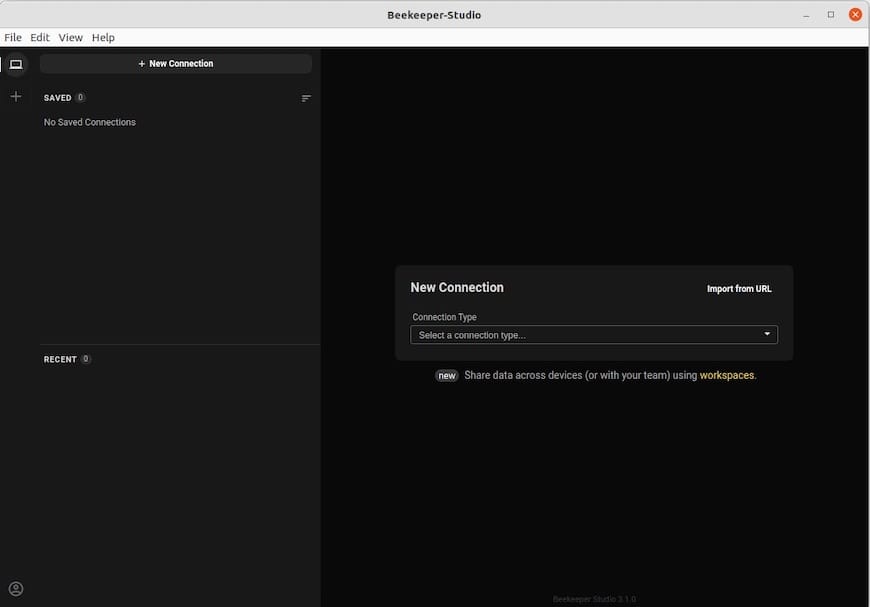
flatpak run io.beekeeperstudio.StudioThe application opens to a connection dialog where you choose your database type and enter connection details.
Step 6: Connect Beekeeper Studio to a Database
This section walks through a real-world example connecting to a MariaDB instance running locally on your AlmaLinux 10 server. This is the most common setup for developers and sysadmins.
Step 6.1: Install and Start MariaDB
sudo dnf install mariadb-server -y
sudo systemctl enable --now mariadb
sudo mariadb-secure-installation
Follow the security prompts to set a root password and harden the installation.
Step 6.2: Create a Test Database and User
Log in to the MariaDB shell:
sudo mysql -u root -pThen run the following SQL commands to create a test database and a dedicated user:
CREATE DATABASE sampleDB;
CREATE USER 'admin'@'localhost' IDENTIFIED BY 'SecurePass123!';
GRANT ALL PRIVILEGES ON sampleDB.* TO 'admin'@'localhost';
FLUSH PRIVILEGES;
EXIT;
Use a strong password in place of SecurePass123! in any real environment.
Step 6.3: Configure the Connection in Beekeeper Studio
Open Beekeeper Studio and fill in the connection form:
- Connection type: MySQL / MariaDB
- Host:
localhost - Port:
3306 - Username:
admin - Password:
SecurePass123!
Click Test Connection to validate the connection. If it succeeds, click Connect.
Step 6.4: Using SSH Tunneling for Remote Databases
For remote databases behind a firewall, click the SSH Tunnel tab in the connection dialog and fill in:
- SSH Host and port (usually 22)
- SSH Username
- SSH Key file path (e.g.,
~/.ssh/id_rsa)
Beekeeper Studio establishes an encrypted tunnel through the SSH server before connecting to the database port.
Step 7: Keep Beekeeper Studio Updated
Staying current protects you from bugs and security vulnerabilities. Use the appropriate command based on your installation method:
| Method | Update Command |
|---|---|
| RPM Repository | sudo dnf upgrade beekeeper-studio |
| Snap | sudo snap refresh beekeeper-studio |
| Flatpak | flatpak update io.beekeeperstudio.Studio |
For the RPM method, you can also update all system packages at once with sudo dnf upgrade -y, which includes Beekeeper Studio automatically.
Step 8: Uninstall Beekeeper Studio
If you need to remove Beekeeper Studio, use the command that matches your installation method.
RPM:
sudo dnf remove beekeeper-studio -y
sudo rm /etc/yum.repos.d/beekeeper-studio.repo
Snap:
sudo snap remove beekeeper-studioFlatpak:
flatpak uninstall io.beekeeperstudio.Studio -yRemoving the .repo file (RPM only) prevents DNF from querying a now-unused repository on future updates.
Troubleshooting Common Issues
Error 1: DNF Cannot Fetch Repository Metadata
Symptom:
Error: Failed to download metadata for repo 'beekeeper-studio'Fix: Re-run the curl command to regenerate the .repo file, then verify your internet connection:
sudo curl -o /etc/yum.repos.d/beekeeper-studio.repo \
  https://rpm.beekeeperstudio.io/beekeeper-studio.repo
ping -c 4 google.com
Error 2: snap Command Not Found After Installing snapd
Symptom:
bash: snap: command not foundFix: Reboot the system, then verify the symlink exists:
sudo reboot
ls -la /snap
If the symlink is missing, recreate it:
sudo ln -s /var/lib/snapd/snap /snapError 3: GPG Key Verification Failure During DNF Install
Symptom:
GPG key retrieval failed: [Errno 14] curl#6 - Could not resolve hostFix: Manually re-import the GPG key after confirming DNS resolution works:
sudo rpm --import https://rpm.beekeeperstudio.io/beekeeper.keyError 4: Flatpak App Refuses to Connect to localhost Database
Symptom: Connection refused when Beekeeper Studio (Flatpak) tries to reach a local database on localhost.
Fix: Grant the required Flatpak permissions:
flatpak override --user --socket=system-bus io.beekeeperstudio.StudioThen relaunch the application and retry the connection.
Error 5: Beekeeper Studio UI Looks Blurry on Wayland
Symptom: The application interface appears blurry or scaled incorrectly when running on GNOME with Wayland.
Fix: Create a flags config file and enable native Wayland mode:
touch ~/.config/bks-flags.conf
echo "--ozone-platform-hint=auto" >> ~/.config/bks-flags.conf
echo "--enable-features=UseOzonePlatform" >> ~/.config/bks-flags.conf
Restart Beekeeper Studio to apply the changes.
Congratulations! You have successfully installed Beekeeper Studio. Thanks for using this tutorial for installing the Beekeeper Studio AlmaLinux OS 10 system. For additional help or useful information, we recommend you check the official Beekeeper Studio website.

