Password reuse is still the number one reason accounts get compromised. If you manage systems, write code, or just live online, a password manager is not optional anymore — it is infrastructure. This guide walks you through exactly how to install Bitwarden on Fedora 43 using four proven methods: Flatpak, Snap, RPM, and self-hosted Docker. Whether you are a developer running GNOME on a workstation or a sysadmin setting up a private vault for a small team, this Linux server tutorial covers every step with real commands, clear reasoning, and honest troubleshooting.
Bitwarden is a free, open-source password manager built on end-to-end encryption. Unlike proprietary alternatives, you can audit its source code, run your own server, and keep full control of your data. It supports Linux natively and ships official packages for every major install method. Fedora 43 introduces some changes that affect how apps like Bitwarden behave — most notably the switch to Wayland-only mode in GNOME 49 and DNF5 as the default package manager. Knowing these changes upfront saves you from troubleshooting a blank window or a broken snap daemon at the worst possible time.
This article covers the Bitwarden on Fedora 43 setup from start to finish. By the end, you will have Bitwarden installed, verified, and running with 2FA enabled.
Prerequisites
Before you run a single command, make sure your environment checks every box below.
- Operating System: Fedora 43 (64-bit, x86_64)
- User Permissions: A user account with
sudoaccess - RAM: Minimum 2 GB for desktop client; 4 GB recommended for self-hosted Docker stack
- Internet Connection: Required to pull packages from Flathub, Snapcraft, or Bitwarden’s CDN
- DNF5: Fedora 43 ships DNF5 by default; verify with
dnf --version - Flatpak: Pre-installed on Fedora 43; verify with
flatpak --version - Docker: Required only for the self-hosted method (covered in Step 5)
- Domain or Static IP: Required only for self-hosted Bitwarden with SSL
Step 1: Update Your Fedora 43 System Before You Install Bitwarden on Fedora 43
Never install software on a stale system. Fedora 43 uses DNF5, and its metadata cache can fall behind quickly on a busy repo. Running a full system upgrade first guarantees you are working with current GPG keys, the latest shared libraries, and a clean dependency tree.
sudo dnf upgrade --refreshWhat this does: The upgrade command pulls all pending package updates. The --refresh flag forces DNF5 to rebuild its metadata cache from scratch rather than relying on a possibly outdated local copy.
Why it matters: Bitwarden’s desktop client depends on libsecret for GNOME Keyring integration. If that library is outdated, Bitwarden can silently fail to save session tokens — meaning you get prompted for your master password every single time you launch the app. A fresh system update eliminates this class of problem before it starts.
Expected output ends with something like:
Complete!If it shows Nothing to do, your system is already current.
Step 2: Install Bitwarden via Flatpak (Recommended Method)
Flatpak is the best installation method for Bitwarden on Fedora 43. Fedora’s desktop team endorses Flatpak as the primary delivery system for third-party applications, and the Bitwarden Flatpak on Flathub is published and signed by 8bit Solutions LLC (Bitwarden’s parent company).
Flatpak also sandboxes Bitwarden in an isolated runtime. A password manager has access to your most sensitive credentials, so running it inside a security sandbox is not just convenient — it is the right call.
Step 2.1: Add the Flathub Repository
Fedora 43 includes Flatpak but does not always pre-configure the Flathub remote.
flatpak remote-add --if-not-exists flathub https://flathub.org/repo/flathub.flatpakrepoWhy: Without this remote, flatpak install has nowhere to pull from. The --if-not-exists flag makes this command safe to run even if Flathub is already configured — no duplicate entries, no errors.
Step 2.2: Refresh Flatpak Metadata
flatpak updateWhy: This pulls the latest package index from Flathub. If you skip this, you might install a cached older release of Bitwarden instead of the current version.
Step 2.3: Install Bitwarden
flatpak install flathub com.bitwarden.desktopWhy the full app ID: Using com.bitwarden.desktop instead of just bitwarden ensures you pull from the official, publisher-verified package. Community forks exist on Flathub — using the full ID eliminates any ambiguity.
When prompted, press Y to confirm. The download size is approximately 170–200 MB.
Step 2.4: Launch Bitwarden
flatpak run com.bitwarden.desktopYou can also launch it from the GNOME application grid after installation.
Step 2.5: Fix Keyring Access (If Needed)
If Bitwarden asks for your master password every time you open it, the Flatpak sandbox is blocking access to GNOME Keyring. Fix it with one command:
flatpak override com.bitwarden.desktop --filesystem=~/.local/share/keyringsWhy: Flatpak’s sandbox denies filesystem access outside a strict boundary by default. Bitwarden needs ~/.local/share/keyrings to store encrypted session tokens. This override grants that specific access without opening up the rest of your filesystem.
Step 3: Install Bitwarden via Snap
Snap is a solid alternative if you prefer a package format that updates automatically in the background. The official Bitwarden Snap is published by 8bit Solutions LLC on Snapcraft.
Note for Fedora 43 users: Fedora does not ship Snapd by default, and Fedora 43’s GNOME environment is Wayland-only. Some users on Fedora 43 KDE have reported Snap startup failures related to /etc/fstab parsing. If you hit those issues, fall back to the Flatpak method.
Step 3.1: Install Snapd
sudo dnf install snapd -yWhy: Fedora does not include the Snap daemon out of the box. This command pulls snapd from Fedora’s default repos using DNF5.
Step 3.2: Enable the Snapd Socket
sudo systemctl enable --now snapd.socketWhy: Snapd runs as a socket-activated service. The socket must be active before any snap CLI command can communicate with the daemon. Without this step, every snap command returns “cannot connect to the snap daemon.”
Step 3.3: Create the Snap Symlink
sudo ln -s /var/lib/snapd/snap /snapWhy: Fedora does not include /snap in its default filesystem hierarchy. Classic-confinement snaps expect this path to exist. Without it, a snap may install correctly but crash immediately on launch.
Step 3.4: Reload Your Shell Environment
Log out and back in, or reboot. This refreshes your $PATH so that /snap/bin is recognized by your shell.
Step 3.5: Verify Snapd Is Running
systemctl status snapd.socketLook for active (running) in the output before continuing.
Step 3.6: Install Bitwarden via Snap
sudo snap install bitwardenWhy: This pulls the official, signed Bitwarden snap from Snapcraft with automatic delta updates enabled.
Launch it from the application menu or type bitwarden in your terminal.
Step 4: Install Bitwarden via RPM Package
The RPM method installs Bitwarden as a native system package. It fits sysadmins who want traditional package management without containers or runtimes.
Step 4.1: Download the Official RPM
Visit https://bitwarden.com/download/ and download the Linux .rpm file.
Why download from the official site: Bitwarden signs all its release binaries. Pulling from the official source guarantees you have a signed package from the verified publisher — not a repackaged third-party build.
Alternatively, use curl to download directly:
curl -Lo Bitwarden.rpm "https://vault.bitwarden.com/download/?app=desktop&platform=linux&variant=rpm"Step 4.2: Install the RPM with DNF5
sudo dnf install ./Bitwarden.rpmWhy use dnf install instead of rpm -i: DNF5 resolves and pulls in any missing shared library dependencies automatically. Raw rpm -i bypasses the dependency resolver entirely — if a required library is missing, the app installs but fails to start.
Step 4.3: Verify the Installation
rpm -qi bitwardenWhy: This command confirms the installed package version, vendor, and build date. It is basic security hygiene — you are verifying the installation is complete and came from the correct publisher.
Expected output includes:
Name        : bitwarden
Version     : 2025.x.x
Vendor      : Bitwarden Inc.
Step 4.4: Launch the App
bitwardenOr find it in your application menu under “Bitwarden.”
To update the RPM later: re-download the latest .rpm from bitwarden.com/download and re-run sudo dnf install ./Bitwarden.rpm. DNF5 automatically handles the upgrade if a newer version is detected.
Step 5: Self-Host Bitwarden on Fedora 43 with Docker
This method is for sysadmins who need complete data sovereignty. Your vault never touches Bitwarden’s cloud — the entire stack runs on your own machine or server.
This is the right choice for teams working under GDPR, HIPAA, or any data residency policy that prohibits third-party cloud storage.
Step 5.1: Install Docker and Docker Compose
sudo dnf install docker docker-compose -y
sudo systemctl enable --now docker
Why enable at boot: Bitwarden’s server runs as a set of Docker containers. If Docker is not active when your system restarts, your vault goes offline. --now starts it immediately; enable ensures it starts on every reboot.
Step 5.2: Create a Dedicated Bitwarden User
Running server software as root is a security mistake. Create a dedicated user with the minimum permissions needed:
sudo adduser bitwarden
sudo usermod -aG docker bitwarden
sudo mkdir /opt/bitwarden
sudo chown bitwarden: /opt/bitwarden
Why a separate user: This follows the principle of least privilege. If the Bitwarden process is ever exploited, the attacker is limited to the bitwarden user’s permissions — they cannot touch the rest of your system.
Step 5.3: Switch to the Bitwarden User
sudo su - bitwarden
cd /opt/bitwarden
Step 5.4: Download and Run the Install Script
curl -Lso bitwarden.sh https://go.btwrdn.co/bw-sh
chmod +x bitwarden.sh
./bitwarden.sh install
Why chmod +x: Linux does not make downloaded scripts executable by default. This is intentional — it prevents accidental execution of files you did not mean to run. You explicitly grant execute permission here because you trust the source.
The installer will ask for:
- Your domain name or server IP
- Whether to use Let’s Encrypt for SSL (choose yes for internet-facing servers)
- Your installation ID and key from
bitwarden.com/host
Step 5.5: Start Bitwarden
./bitwarden.sh startExpected output:
Starting Bitwarden ...
 ...
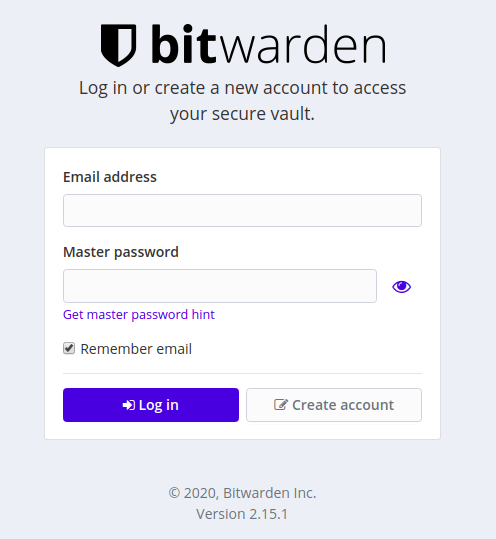
Bitwarden is up and running!
Access your vault at https://your-domain.com in a browser.
Step 5.6: Open Required Firewall Ports
sudo firewall-cmd --add-service=https --permanent
sudo firewall-cmd --add-service=http --permanent
sudo firewall-cmd --reload
Why: Fedora 43 ships with firewalld active by default. Even with Docker running and Bitwarden started, external traffic cannot reach the server until you explicitly allow ports 80 and 443 through the firewall.
Step 6: Post-Installation Setup and Hardening
Installation is only half the job. These steps make your Bitwarden setup actually secure.
Step 6.1: Enable Two-Factor Authentication
Navigate to Account Settings > Security > Two-Step Login and enable at least one 2FA method. An authenticator app like Aegis (open-source, Linux-friendly) is the strongest free option.
Why this is non-negotiable: A password manager without 2FA is a single point of failure. If your master password is ever exposed in a phishing attack or data breach, 2FA is the only remaining barrier between an attacker and your entire vault.
Step 6.2: Install the Browser Extension
Install the Bitwarden extension for Firefox or your Chromium-based browser. Both the desktop app and the extension sync against the same vault — you get autofill in the browser while the desktop client serves as a full vault viewer and editor.
Step 6.3: Check Your Vault Export Settings
Go to Tools > Export Vault and understand the process now, before you ever need it in an emergency. Keep an encrypted backup copy of your vault export in a separate secure location (an encrypted external drive works well).
Troubleshooting: Common Issues When You Configure Bitwarden on Fedora 43
| Problem | Cause | Fix |
|---|---|---|
| Blank or white screen on launch | Wayland + Electron rendering bug (common on Fedora 43 Flatpak) | Launch with flatpak run com.bitwarden.desktop --ozone-platform=wayland, or reinstall via RPM |
| Keyring unlock prompt on every launch | Flatpak sandbox blocks keyring access | Run flatpak override com.bitwarden.desktop --filesystem=~/.local/share/keyrings |
| Snap daemon fails to start | /etc/fstab parsing bug in Fedora 43 | Switch to Flatpak method; or verify /etc/fstab with sudo findmnt --verify |
| RPM install fails with dependency errors | Raw rpm -i used instead of dnf |
Re-install using sudo dnf install ./Bitwarden.rpm |
| Self-hosted vault unreachable after reboot | Docker service not enabled at boot | Run sudo systemctl enable --now docker then ./bitwarden.sh start |
| Let’s Encrypt SSL fails | Ports 80/443 blocked by firewall | Run sudo firewall-cmd --add-service=http --add-service=https --permanent && sudo firewall-cmd --reload |
Which Method Should You Use? (Quick Decision Guide)
| Your Situation | Best Method |
|---|---|
| Desktop user on GNOME/KDE Wayland | Flatpak |
| Sysadmin preferring native packages | RPM |
| Cross-distro workflow, auto-updates preferred | Snap |
| Team or enterprise needing data ownership | Self-hosted Docker |
The short answer for most users: Go with Flatpak. It gives you the official signed Bitwarden client, solid Wayland compatibility on Fedora 43’s GNOME 49 environment, and automatic sandboxing. It is the method most likely to work correctly out of the box on Fedora 43 without extra configuration.
Congratulations! You have successfully installed Bitwarden. Thanks for using this tutorial for installing the Bitwarden open-source password management on your Fedora 43 Linux system. For additional or useful information, we recommend you check the official Bitwarden website.
[su_box title=”VPS Manage Service Offer” style=”bubbles” box_color=”#000000″ radius=”10″]If you don’t have time to do all of this stuff, or if this is not your area of expertise, we offer a service to do “VPS Manage Service Offer”, starting from $10 (Paypal payment). Please contact us to get the best deal![/su_box]

