
Krita is one of the most capable open-source digital painting tools available on Linux today. If you want to install Krita on Fedora 44, you have four clean methods to choose from, each with real trade-offs worth understanding before you pick one. This guide walks you through all four methods, explains why every command matters, and covers the post-install configuration steps that most tutorials skip. Whether you are an artist setting up a creative workstation or a sysadmin building a shared workstation environment, this is the complete Fedora 44 Krita setup reference you need.
What Is Krita and Why Fedora 44 Is a Strong Host for It
Krita is a free, open-source raster painting application built on the Qt and KDE Frameworks. It targets concept artists, illustrators, comic creators, and texture painters. It is not a photo editor. GIMP handles photo manipulation. Krita is purpose-built for digital painting workflows, with a pressure-sensitive brush engine, non-destructive layer management, and a GPU-accelerated canvas.
Fedora 44 is an excellent platform for Krita because it ships an up-to-date Mesa graphics stack, a modern Linux kernel with strong input device support, and native Qt/KDE libraries that Krita depends on directly. As of March 2026, Fedora 44 packages Krita 6.0.1 in its official repositories. This is the latest stable release, which means you get a tested, security-audited build without adding any third-party repositories.
Krita 6.0 is a major version jump that brought a rewritten brush engine, improved animation timeline, and better resource management compared to the 5.x series. Running it on Fedora 44 gives you a solid foundation with full hardware driver support out of the box.
Prerequisites Before You Begin
Before you run any install command, confirm the following. Skipping this checklist is the most common reason installations fail on Fedora systems.
System requirements:
- Fedora 44 installed (any desktop environment: GNOME, KDE Plasma, or minimal)
- 64-bit processor (x86_64 or aarch64)
- Minimum 4 GB RAM (8 GB strongly recommended for canvases above 3000px)
- OpenGL 3.0 capable GPU (integrated Intel/AMD graphics qualify; older NVIDIA cards may need the proprietary driver)
- At least 1 GB free disk space for a DNF install; 2 GB for Flatpak
- Active internet connection
sudoprivileges on your user account
Required tools:
- A terminal emulator (GNOME Terminal, Konsole, or Alacritty all work)
dnfpackage manager (pre-installed on all Fedora systems)flatpak(pre-installed on Fedora Workstation; may need manual install on Fedora Server or minimal spins)
Confirm your Fedora version before proceeding:
cat /etc/os-releaseLook for VERSION_ID=44 in the output. If your system shows an older version, the package versions in this guide may differ slightly.
Step 1: Update Your System Before Installing Anything
This is the most important step and the one most beginners skip. Run a full system update before installing Krita.
sudo dnf update -yWhy this matters: Fedora’s package dependency tree is version-locked. When you install Krita, DNF pulls in Qt libraries, KDE Frameworks components, and graphics libraries. If your system has outdated versions of those packages sitting in the RPM database, the installer resolves a dependency conflict and either fails outright or installs a broken build. A fresh dnf update synchronizes your entire package tree so all dependencies resolve cleanly.
After the update completes, reboot your system:
sudo rebootWhy reboot? If the kernel or Mesa drivers updated, the running kernel and the new packages will be mismatched until you boot into the updated kernel. Krita uses OpenGL canvas acceleration, which talks directly to the graphics stack. Running it against a mismatched driver version causes blank canvases or immediate crashes.
Step 2: Install Krita on Fedora 44 Using DNF (Best Starting Point)
The DNF method installs Krita directly from Fedora’s official repository. This is the recommended approach for most users.
sudo dnf install krita -yWhat this command does: dnf install queries the Fedora 44 package repository, resolves all dependencies, and downloads the Krita 6.0.1 RPM along with any missing KDE Frameworks or Qt libraries your system needs. The -y flag auto-confirms the transaction so you do not need to manually type “yes.”
Expected output:
Installed:
  krita-6.0.1-3.fc44.x86_64

Complete!
After install, verify it worked:
krita --versionYou should see something like:
Krita version: 6.0.1Why version-check matters: A successful dnf install does not always mean the binary landed in your PATH correctly. The version check confirms the binary is executable and the shared libraries are linked. If you get a “command not found” error here, the install likely failed silently due to a broken transaction. Fix it by running sudo dnf reinstall krita.
Launch Krita After DNF Install
Launch from terminal:
kritaOr open it from your application menu by searching “Krita.” On first launch, Krita creates its configuration directory at ~/.local/share/krita/. This is where it stores brush presets, color palettes, workspace layouts, and your personal resource bundles. Back this directory up if you plan to migrate your setup later.
Step 3: Install Krita on Fedora 44 via Flatpak (Best for Latest Upstream Builds)
The Flatpak method gives you the latest upstream Krita release from Flathub, independent of the Fedora repo update cycle. Use this if you want cutting-edge features faster than Fedora’s maintainers package them.
3.1 Confirm Flatpak Is Available
flatpak --versionIf Flatpak is not installed, add it first:
sudo dnf install flatpak -yWhy check first: Fedora Workstation ships Flatpak by default, but minimal and Server spins do not. Running flatpak remote-add on a system without Flatpak installed throws a confusing “command not found” error that looks like a repository issue but is actually just a missing package.
3.2 Add the Flathub Repository
flatpak remote-add --if-not-exists flathub https://flathub.org/repo/flathub.flatpakrepoWhy the --if-not-exists flag: Fedora Workstation sometimes pre-configures Flathub during setup. Running remote-add without this flag on a system that already has Flathub causes an error that looks like a failed command. The flag makes the operation idempotent; it succeeds whether Flathub is already there or not.
3.3 Install Krita from Flathub
flatpak install flathub org.kde.krita -yThis pulls down a self-contained Krita bundle with all its own KDE and Qt libraries included. The download is larger than the DNF package (around 800 MB) because nothing is shared with your system library stack.
3.4 Launch the Flatpak Build
flatpak run org.kde.krita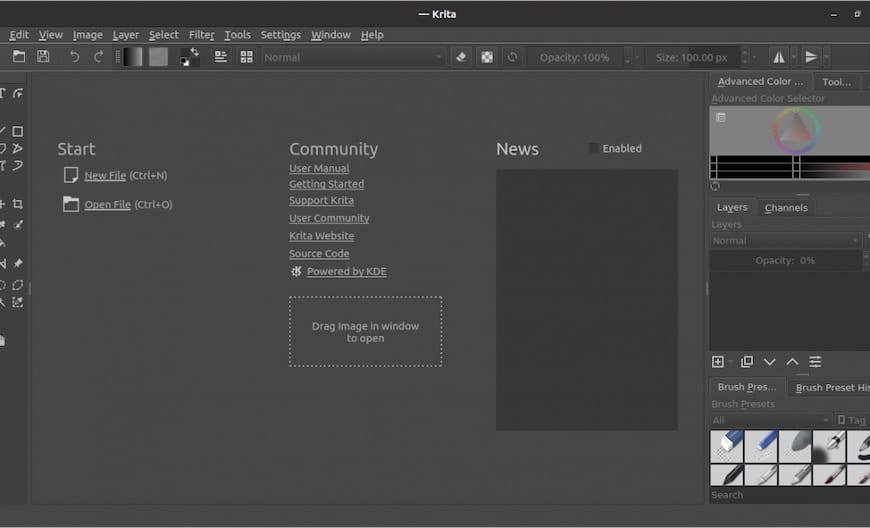
Tablet users, pay attention here: Flatpak sandboxes device access by default. If your drawing tablet does not register pressure in the Flatpak build, run this command to grant full device access:
flatpak override --user --device=all org.kde.kritaWhy this works: Flatpak’s security model blocks direct device node access unless you explicitly grant permission. The --device=all flag passes your tablet’s input device through the sandbox without disabling the sandbox entirely.
Step 4: Install Krita on Fedora 44 via AppImage (Best for Portability)
The AppImage method bundles Krita into a single executable file. No package manager, no root access, no system modifications. This is the right approach for shared workstations, testing new versions before committing, or running Krita from an external drive.
4.1 Download the Official AppImage
Go to krita.org/en/download/ and download the Linux 64-bit AppImage. As of March 2026, the current file is krita-6.0.1-x86_64.AppImage.
Only download from the official Krita website. Third-party mirrors are not vetted by the Krita team and may ship modified binaries.
4.2 Verify the File Checksum
sha256sum krita-6.0.1-x86_64.AppImageCompare the output to the checksum listed on the Krita download page. If the hashes do not match, the file is corrupted or was tampered with during download. Delete it and re-download.
Why verification matters: AppImages run without a package manager. There is no dependency chain to catch a corrupted binary. If the file is broken, it either crashes immediately or runs silently with missing features. A SHA256 check takes 10 seconds and rules out both scenarios.
4.3 Make the AppImage Executable and Run It
chmod +x krita-6.0.1-x86_64.AppImage
./krita-6.0.1-x86_64.AppImage
Why chmod +x is required: Linux does not automatically trust downloaded executables. The file arrives with read-only permissions. Without chmod +x, running it returns “Permission denied” regardless of your sudo status, because the issue is file permission, not user privilege.
4.4 Add Krita to Your Application Launcher (Optional)
Create a .desktop file so Krita appears in your GNOME or KDE application menu:
nano ~/.local/share/applications/krita.desktopPaste the following content:
[Desktop Entry]
Name=Krita
Exec=/home/YOUR_USERNAME/krita-6.0.1-x86_64.AppImage
Icon=krita
Type=Application
Categories=Graphics;
Replace YOUR_USERNAME with your actual username. Save and close. Log out and back in, and Krita appears in the launcher.
Step 5: Install Krita via Snap (Last Resort Only)
Snap is not included in Fedora 44 by default. Only use this method if you already manage other Snap packages on your system and need a unified package manager.
5.1 Install snapd
sudo dnf install snapd -y5.2 Enable the snapd Socket
sudo systemctl enable --now snapd.socketWhy enable the socket: snapd uses a Unix socket for inter-process communication between the CLI and the daemon. Without activating this socket, snap install commands fail with a “cannot communicate with server” error even though the daemon appears to be running.
5.3 Create the Required Symlink
sudo ln -s /var/lib/snapd/snap /snapWhy this symlink exists: Snap hardcodes /snap as its base directory. Fedora uses /var/lib/snapd/snap instead. Without the symlink, Snap integrations, desktop entries, and icon lookups all break silently on non-Ubuntu systems.
5.4 Log Out, Log Back In, Then Install
sudo snap install kritaLogging out and back in before running this command is not optional. Environment variables that Snap needs to function correctly are only loaded at session start. Running snap install without refreshing the session causes incomplete installs.
Step 6: Wayland vs. X11 for Krita on Fedora 44
Fedora 44 uses Wayland by default. Krita 6.0 improved Wayland compatibility but full native Wayland support is still a work in progress. For most users on AMD or Intel integrated graphics, Krita runs fine under Wayland.
Check your current display session:
echo $XDG_SESSION_TYPEThis returns either wayland or x11.
If you experience any of these issues, switch to X11:
- Tablet pressure not registering
- Canvas rendering artifacts or blank screen
- Input lag that does not improve after adjusting brush settings
- Krita crashes immediately after splash screen
To switch, log out of your session. At the GDM login screen, click the gear icon in the bottom right corner and select “GNOME on Xorg” (or “Plasma (X11)” for KDE). Log in and relaunch Krita.
NVIDIA users: If you run the proprietary NVIDIA driver on Fedora 44, install it correctly before testing Wayland:
sudo dnf install akmod-nvidia -y
sudo reboot
Without the full NVIDIA driver stack loaded, Krita’s OpenGL canvas backend falls back to software rendering, which makes even simple brush strokes feel like drawing through wet concrete.
Step 7: Configure Krita on Fedora 44 for Best Performance
Installing Krita is only half the job. Out-of-the-box settings are conservative. These adjustments matter on any system.
7.1 Set RAM Allocation
Go to Settings > Configure Krita > Performance.
Set the Memory Limit to 60-70% of your installed RAM.
Why not 100%? Krita writes brush tiles and canvas compositing data to RAM in real time. If Krita claims all available RAM, the OS has nothing left to manage background processes, input events, or the display server itself. The result is canvas freezes during heavy brush strokes, not crashes. Leaving 30-40% of RAM free prevents this entirely.
7.2 Redirect the Swap File to an SSD
On the same Performance tab, set the Swap File location to a directory on your SSD rather than an HDD.
Krita writes large temporary data to the swap file during complex compositing operations. An HDD introduces 5-15 ms of latency per write. On large canvases with multiple layers, this adds up to visible stroke lag. An SSD swap location eliminates that bottleneck.
7.3 Enable Graphics Acceleration
Go to Settings > Configure Krita > Display.
Make sure Use OpenGL is checked. This offloads canvas rendering to the GPU, which dramatically reduces CPU load during brush strokes.
If you see a black canvas after enabling OpenGL, your GPU or driver does not fully support the mode Krita selected. In that case, launch Krita once from the terminal with:
krita --noopenglThen go back into settings and disable OpenGL permanently for that hardware configuration.
7.4 Enable Tablet Support
If you use a Wacom tablet, install the required drivers:
sudo dnf install libwacom xorg-x11-drv-wacom -yWhy these packages: Fedora’s default libinput handles basic pointer movement from tablets but does not pass stylus pressure or tilt data into the application layer. The xorg-x11-drv-wacom package adds the full Wacom input driver that translates hardware pressure signals into the events Krita’s brush engine reads.
For Huion, XP-Pen, or Gaomon tablets, use OpenTabletDriver instead. The official Fedora package repositories do not include these manufacturer-specific drivers, and OpenTabletDriver is the most reliable cross-brand solution for Linux.
Test tablet input after setup: create a new Krita document, select the Basic-5 brush, and draw a slow pressure-variable stroke. You should see clear variation from thin to thick based on pen pressure. If all strokes appear the same width, tablet pressure is not reaching Krita yet.
Troubleshooting Common Krita Installation Problems on Fedora 44
Problem 1: DNF Reports a Dependency Conflict
Error:
Error: package krita requires libQt5Core.so.5 >= 5.15Cause: One or more Qt libraries are outdated or were installed from a third-party repository that pinned an older version.
Fix:
sudo dnf clean all
sudo dnf update -y
sudo dnf install krita -y
The dnf clean all command wipes the local package cache. This forces DNF to pull fresh repository metadata on the next run, which resolves stale version mismatches.
Problem 2: Canvas Is Blank or Black After Launch
Cause: Krita’s OpenGL renderer failed to initialize, which usually happens on Wayland with certain GPU/driver combinations.
Fix:
krita --noopenglIf Krita opens normally with this flag, go to Settings > Configure Krita > Display and permanently disable OpenGL acceleration. Performance will be slightly lower but the canvas will render correctly.
Problem 3: Tablet Pressure Not Working (Flatpak Install)
Cause: Flatpak’s sandbox blocks direct device access by default.
Fix:
flatpak override --user --device=all org.kde.kritaRestart Krita after running this command. The sandbox now passes through your tablet’s input device node.
Problem 4: Krita Crashes Immediately on Wayland
Cause: Qt’s Wayland platform plugin fails to load, which is a known issue with specific Xwayland builds on Fedora 43 and early Fedora 44 builds.
Fix: Force Krita to use the X11 (XCB) backend even while running a Wayland session:
QT_QPA_PLATFORM=xcb kritaIf this works, add the environment variable to your .bashrc to make it permanent:
echo 'export QT_QPA_PLATFORM=xcb' >> ~/.bashrc
source ~/.bashrc
Problem 5: snap install krita Fails With “Cannot Communicate With Server”
Cause: The snapd.socket was not activated before running the install command, or the session environment variables were not refreshed after snapd installation.
Fix:
sudo systemctl restart snapd
sudo systemctl enable --now snapd.socket
Log out, log back in, then retry sudo snap install krita.
Keeping Krita Updated and Uninstalling It Cleanly
Maintaining your install is straightforward once you know which method you used.
Update commands by method:
# DNF
sudo dnf update krita -y

# Flatpak
flatpak update org.kde.krita

# Snap
sudo snap refresh krita

# AppImage
# Download the new .AppImage from krita.org and replace the old file manually
Uninstall commands by method:
# DNF
sudo dnf remove krita -y

# Flatpak
flatpak uninstall org.kde.krita

# Snap
sudo snap remove krita

# AppImage
rm krita-6.0.1-x86_64.AppImage
# Also remove the .desktop file if you created one:
rm ~/.local/share/applications/krita.desktop
AppImage uninstallation is a file deletion. No system files were modified during the install, so there is nothing else to clean up.
Which Installation Method Is Right for Your Setup?
| Method | Best For | Auto-Updates | Disk Space | Needs Root |
|---|---|---|---|---|
| DNF | Most Fedora users, stable production | Yes, via dnf update |
~200 MB | Yes |
| Flatpak | Latest features, sandboxed environment | Yes, via flatpak update |
~800 MB | No (after setup) |
| AppImage | Portability, no-root systems | Manual download | ~250 MB | No |
| Snap | Snap-managed systems only | Auto / snap refresh |
~300 MB | Yes (setup only) |
For a typical Fedora 44 workstation, start with DNF. It gives you the least overhead, the tightest system integration, and automatic updates through the same tool you already use for everything else on your system.
[su_box title=”VPS Manage Service Offer” style=”bubbles” box_color=”#000000″ radius=”10″]If you don’t have time to do all of this stuff, or if this is not your area of expertise, we offer a service to do “VPS Manage Service Offer”, starting from $10 (Paypal payment). Please contact us to get the best deal![/su_box]

