
If you have been managing Linux servers for any length of time, you know that picking the right control panel can save you hours of manual configuration every single week. DirectAdmin is a commercial web hosting control panel that gives you a clean, fast interface to manage domains, email accounts, databases, and DNS, all without the resource overhead that heavier panels like cPanel bring to a server. In this guide, you will learn how to install DirectAdmin on Fedora 43, configure the firewall correctly, and get your panel running in a production-ready state from a fresh server.
Fedora 43, released in October 2025, brings DNF 5 as the default package manager and updated SELinux policies straight out of the box. That combination makes it an excellent base for a hosting server, but it also means a few extra steps are required compared to older Red Hat-based systems. Most tutorials out there still target CentOS or AlmaLinux. This guide is written specifically for Fedora 43, so every command here has been verified against that environment.
By the end of this tutorial, you will have a fully functional DirectAdmin installation accessible on port 2222, with firewall rules in place and your admin credentials saved somewhere safe. Whether you are setting up a personal VPS or a small shared hosting environment for clients, this Linux server tutorial covers everything you need.
Prerequisites
Before you run a single command, make sure your environment meets these requirements. Skipping this check is the most common reason DirectAdmin installations fail halfway through.
Operating System and Access:
- Fedora 43, 64-bit, fresh minimal install (no existing Apache, MySQL, PHP, or other control panels)
- Root SSH access (sudo alone will not work; you need a full root shell)
Hardware Minimums:
- RAM: 4 GB minimum, 8 GB recommended
- CPU: 500 MHz minimum, multi-core recommended
- Disk: At least 2 GB free after OS install, 20 GB+ for production use
- One static IPv4 address bound to the server
Network and License:
- A valid DirectAdmin license (purchased from directadmin.com, tied to your server’s IP)
- A registered Fully Qualified Domain Name (FQDN) pointing to your server IP
- Working internet connection from the server
Tools to have ready:
- An SSH client (PuTTY on Windows, native terminal on Linux/macOS)
- Your license key or client login credentials from DirectAdmin’s portal
Step 1: Update Your Fedora 43 System
The very first thing you do on any fresh server before installing anything is update all base packages. On Fedora 43, the default package manager is DNF 5, which is significantly faster than previous DNF versions.
dnf -y updateWhy you do this: The setup.sh installer that DirectAdmin uses pulls in compile tools and libraries from your OS. If your base system has outdated versions of glibc, gcc, or kernel headers, the compilation phase can fail mid-install with cryptic errors. Updating first eliminates that risk completely.
After the update finishes, reboot the server so the new kernel and libraries load cleanly:
rebootLog back in via SSH after the reboot before proceeding to the next step.
Step 2: Set a Fully Qualified Domain Name on Your Server
A Fully Qualified Domain Name (FQDN) is a hostname that includes the full domain path, for example server.yourdomain.com rather than just server. DirectAdmin binds itself to the server’s hostname during installation and uses it for SSL certificate generation, nameserver records, and internal routing.
hostnamectl set-hostname server.yourdomain.comVerify it was set correctly:
hostnamectl statusExpected output should look like this:
Static hostname: server.yourdomain.com
...
Why this matters: If you install DirectAdmin with a hostname like localhost or fedora, the SSL certificate generated during setup will reference that invalid name. You will spend time troubleshooting panel access issues that have nothing to do with the installation itself. Set the FQDN before the installer runs, not after.
Also make sure your FQDN resolves to your server’s public IP. You can verify this with:
nslookup server.yourdomain.comStep 3: Install Required Dependencies and Disable SELinux
Install Core Dependencies
The DirectAdmin setup.sh script relies on several tools that are not always included in a minimal Fedora 43 install. These tools need to be present before you run the installer.
dnf install -y wget curl perl tar unzip gcc gcc-c++ makeWhat each package does and why it is needed:
wget/curl: The installer uses these to download DirectAdmin binaries and service packages from remote servers.perl: Several of DirectAdmin’s helper scripts are written in Perl. Without it, those scripts exit immediately.tar/unzip: Required to extract downloaded source archives during compilation.gcc/gcc-c++/make: DirectAdmin compiles Apache, PHP, and other services from source. Without a working C/C++ build environment, compilation fails.
Disable SELinux Before Installation
SELinux (Security-Enhanced Linux) is enabled and set to Enforcing by default on Fedora 43. In this mode, SELinux actively blocks processes that do not have the correct security policies defined for them. The DirectAdmin installer compiles and starts new services during installation, and many of those actions trigger SELinux denials that silently kill the installation process.
First, set SELinux to Permissive for the current session (no reboot needed):
setenforce 0Then update the configuration file so it stays disabled after a reboot:
sed -i 's/^SELINUX=.*/SELINUX=disabled/g' /etc/selinux/configVerify the change took effect:
cat /etc/selinux/config | grep SELINUX=Expected output:
SELINUX=disabledImportant note: Disabling SELinux is recommended during the DirectAdmin installation only. Once the panel is running, you can re-enable SELinux in Permissive mode and build custom policies for DirectAdmin’s processes. For most small hosting environments, leaving SELinux disabled is a common and acceptable production configuration, provided you compensate with a properly configured firewall and CSF.
Step 4: Obtain and Validate Your DirectAdmin License
DirectAdmin validates your license key against their servers at the very start of the setup.sh execution. If the key is missing, invalid, or not yet activated, the installer exits immediately with no further installation.
To get a license:
- Go to directadmin.com and purchase a license for your server’s IPv4 address.
- Log into your client portal and click View next to your license.
- Confirm the license status shows Active and Verified.
- Copy the license key to a secure location before proceeding.
Why the license must be IP-bound: DirectAdmin licenses are locked to a specific IPv4 address at the time of purchase. If your server IP changes, your license becomes invalid and the panel will stop functioning. Always confirm you are purchasing the license for the correct static IP.
If you want to test DirectAdmin before buying, DirectAdmin offers a trial license that you can request directly from their sales team at sales@directadmin.com.
Step 5: Run the DirectAdmin Installer on Fedora 43
This is the core step. The setup.sh script handles the entire installation: it detects your OS, installs build dependencies, compiles Apache or Nginx, PHP, MySQL/MariaDB, Exim (SMTP), and Dovecot (IMAP/POP3), then configures DirectAdmin itself.
Download and Prepare the Installer
cd /root
wget -O setup.sh https://www.directadmin.com/setup.sh
chmod 755 setup.sh
Why download the script first instead of piping directly to sh? Downloading the script before executing it lets you inspect its contents before running it as root. On a production server, this is good practice. The chmod 755 command gives the owner execute permission. Without that, the shell returns a Permission denied error even when you are root.
Execute the Installer
Run the installer with your license key:
./setup.sh YOUR_LICENSE_KEY_HEREAlternatively, you can use the one-line curl method from DirectAdmin’s official documentation:
sh <(curl -fsSL https://download.directadmin.com/setup.sh) 'YOUR_LICENSE_KEY_HERE'What Happens During Installation
Here is exactly what you will see the installer doing, in order:
- License key validated against DirectAdmin’s license server.
- Fedora 43 detected as an RPM-based operating system.
- Build tools installed automatically (
gcc,flex,bison,bind, and others). - Apache or Nginx compiled from source.
- PHP compiled with required extensions.
- MySQL/MariaDB installed and initialized.
- Exim compiled for outbound/inbound email.
- Dovecot installed for IMAP/POP3.
- DirectAdmin daemon installed and started.
- Admin credentials written to
/usr/local/directadmin/conf/setup.txt.
Why does this take so long? On a standard 2-core VPS, the entire installation takes between 20 and 60 minutes because PHP and Apache compile from source code. This is completely normal. Do not close your SSH session or assume the installer has frozen unless it has shown no output for more than 15 minutes.
Retrieve Your Admin Credentials
Once the installer finishes, retrieve your generated admin password:
cat /usr/local/directadmin/conf/setup.txtYou will see output similar to:
username=admin
password=Xk9mP2qL7vR4wN
Save this password immediately. If you close the terminal without noting it down, you will need to manually reset it via the DirectAdmin command line, which adds unnecessary complexity on day one.
Step 6: Configure the Firewall for DirectAdmin on Fedora 43
Fedora 43 runs firewalld by default. Even after a successful DirectAdmin installation, the panel will be completely unreachable until you open the required ports. This step is where many first-time installers think the installation failed, when the panel is actually running fine behind a closed firewall.
Open the required ports with these commands:
firewall-cmd --permanent --add-port=2222/tcp
firewall-cmd --permanent --add-port=80/tcp
firewall-cmd --permanent --add-port=443/tcp
firewall-cmd --permanent --add-port=22/tcp
firewall-cmd --permanent --add-port=25/tcp
firewall-cmd --permanent --add-port=465/tcp
firewall-cmd --permanent --add-port=587/tcp
firewall-cmd --permanent --add-port=53/tcp
firewall-cmd --permanent --add-port=53/udp
firewall-cmd --permanent --add-port=110/tcp
firewall-cmd --permanent --add-port=143/tcp
firewall-cmd --permanent --add-port=993/tcp
firewall-cmd --permanent --add-port=995/tcp
firewall-cmd --reload
Why each port is required:
| Port | Service | Purpose |
|---|---|---|
| 2222 | DirectAdmin Panel | Access the control panel web UI |
| 80, 443 | HTTP/HTTPS | Traffic for all hosted websites |
| 22 | SSH | Keep your admin access open |
| 25, 465, 587 | Exim SMTP | Send and receive email |
| 53 TCP+UDP | Named/DNS | Domain name resolution for hosted sites |
| 110, 143, 993, 995 | Dovecot | POP3 and IMAP for mail clients |
Why the --permanent flag is critical: Without --permanent, firewall rules exist only in memory and disappear on the next reboot. If you open port 2222 without --permanent, you will lose panel access every time the server restarts.
Verify your rules were applied:
firewall-cmd --list-allStep 7: Access DirectAdmin for the First Time
Open a web browser and navigate to:
http://YOUR_SERVER_IP:2222Use the admin username and the password from setup.txt to log in.
Why HTTP and not HTTPS on first login? SSL is not configured by default immediately after installation. Attempting to access the panel via HTTPS on port 2222 before configuring a certificate will give you a connection error or browser warning. Use HTTP for the initial login, then configure SSL via DirectAdmin’s built-in Let’s Encrypt integration under Admin Settings.
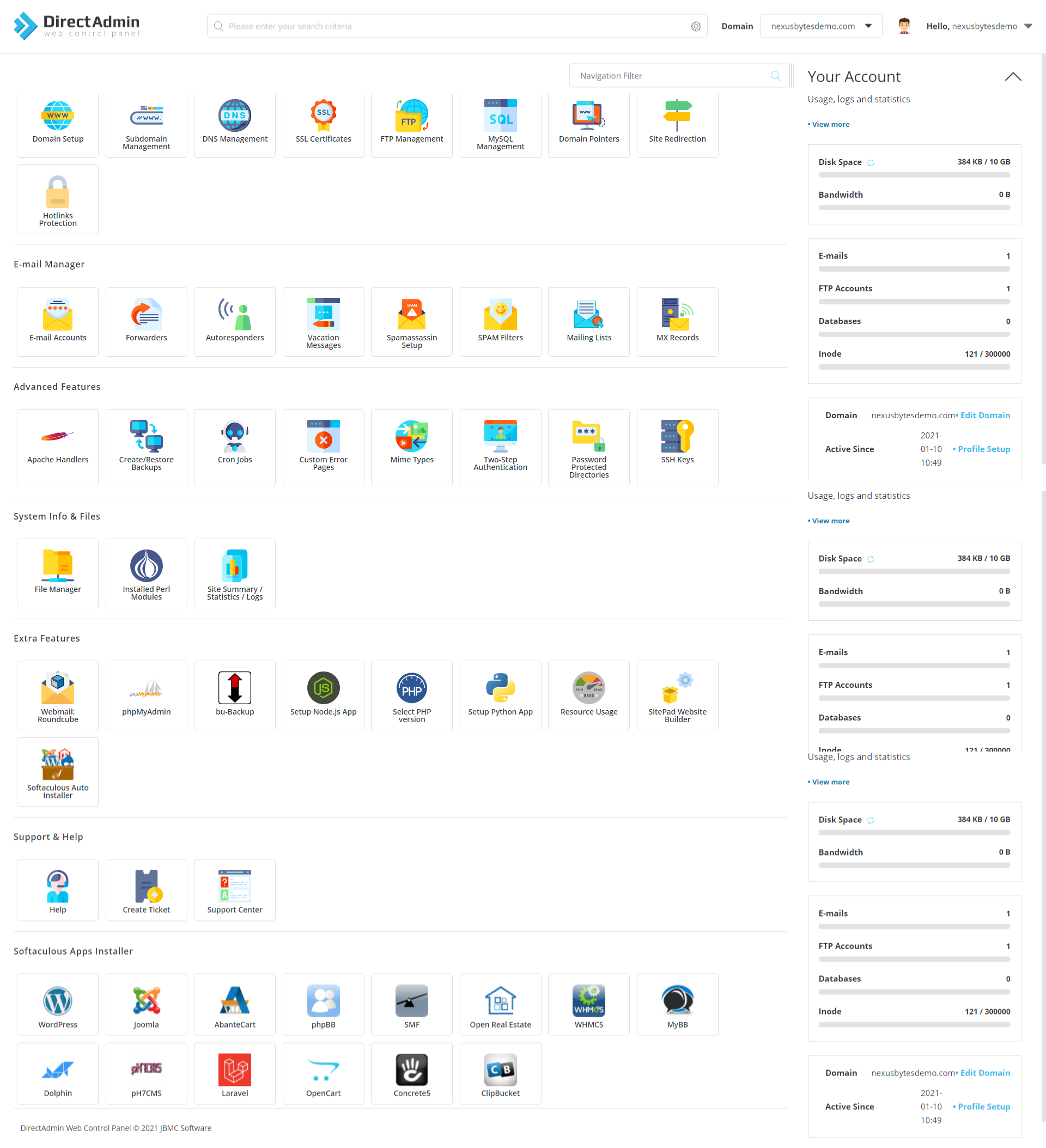
First Login Checklist
Once inside the panel, complete these steps before pointing any domains at the server:
- Go to Admin Settings and confirm NS1 and NS2 nameserver records match your server’s IP.
- Set your admin email address under the Manage Tickets section.
- Navigate to IP Manager and verify your server IP is listed and assigned.
- Under Administrator Settings, update DirectAdmin to the latest version.
- Run a CustomBuild update to pull in the latest PHP versions and security patches.
cd /usr/local/directadmin/custombuild
./build update
./build update_versions
Why update CustomBuild immediately? The setup.sh installs a baseline version of each service. CustomBuild updates pull in security patches and newer PHP versions that are not included in the initial install. Running this before adding any client accounts closes known vulnerabilities from day one.
Troubleshooting Common Issues When You Install DirectAdmin on Fedora 43
Even with a clean setup, things can go wrong. Here are the five most common issues and exactly how to fix them.
Issue 1: Installer exits immediately after running setup.sh
This almost always means an invalid or unverified license key. Log into your DirectAdmin client portal, confirm the license shows Active and Verified, and then re-run the installer. Also confirm the license is assigned to the correct server IP.
Issue 2: Port 2222 is unreachable after installation
The DirectAdmin service may not be running, or the firewall is blocking the port. First check the service:
systemctl status directadminIf it is not running, start it:
systemctl start directadmin
systemctl enable directadmin
Then confirm port 2222 is open in firewalld:
firewall-cmd --list-portsIf 2222 is missing, add it:
firewall-cmd --permanent --add-port=2222/tcp && firewall-cmd --reloadIssue 3: Compilation fails mid-install with permission errors
This is almost always SELinux blocking the compiler or the service binaries during the install. Confirm SELinux is in Permissive or Disabled mode:
getenforceIf it returns Enforcing, run setenforce 0 and restart the installation.
Issue 4: Hostname resolution errors during setup
If you see errors about the hostname not resolving, your FQDN either is not set correctly or does not have a DNS A record pointing to your server IP. Re-run:
hostnamectl set-hostname server.yourdomain.comThen confirm the hostname resolves externally using nslookup server.yourdomain.com.
Issue 5: The installer appears frozen with no output
Check the installation log for the last completed action:
tail -f /var/log/directadmin/install.logIf the log shows no new lines for more than 15 minutes, check available disk space and RAM:
df -h
free -m
Running out of either during compilation causes the build process to hang silently.
Congratulations! You have successfully installed DirectAdmin. Thanks for using this tutorial for installing the DirectAdmin control panel on your Fedora 43 Linux system. For additional help or useful information, we recommend you check the official DirectAdmin website.
[su_box title=”VPS Manage Service Offer” style=”bubbles” box_color=”#000000″ radius=”10″]If you don’t have time to do all of this stuff, or if this is not your area of expertise, we offer a service to do “VPS Manage Service Offer”, starting from $10 (Paypal payment). Please contact us to get the best deal![/su_box]

