
Managing secure file transfers on Linux servers often feels like wrestling with duct tape. You install OpenSSH, enable the SFTP subsystem, and suddenly you are dealing with no user isolation, no web interface, and permission nightmares that take hours to debug. In my 10 years managing production Linux infrastructure, I have seen this pattern repeat across dozens of servers until teams finally discover SFTPGo.
SFTPGo is a fully featured, open-source SFTP server that delivers HTTP/S Web UI, FTP/S, and WebDAV support from a single daemon. You can Install SFTPGo on Ubuntu 26.04 using the official PPA, and within 20 minutes you will have enterprise-grade file transfer capabilities with granular permissions, virtual folders, and support for S3, Google Cloud Storage, and Azure Blob backends.
This guide walks you through every command you need to configure SFTPGo on Ubuntu 26.04 securely, from firewall setup to SSL encryption and user management. I will explain not just what to type, but why each step matters based on real production experience.
Prerequisites
Before you type a single command, verify your environment meets these requirements. Skipping prerequisites is how production servers get compromised or misconfigured from day one.
- Ubuntu 26.04 LTS fresh server installation (64-bit)
- Non-root sudo user with administrative privileges — never run SFTPGo as root
- Root or sudo access confirmed via
sudo -vbefore starting - Minimum hardware: 1 vCPU and 512MB RAM (SFTPGo is compiled in Go and runs efficiently on small VMs)
- Outbound internet access enabled on the server to download packages from the PPA
- Optional: Registered domain name pointing to your server IP if you plan to enable Let’s Encrypt TLS certificates
Why the non-root user requirement? If SFTPGo or any service gets compromised, running as a dedicated non-root user limits the blast radius. Attackers cannot access /root, modify /etc, or affect other services on your system.
Step 1: Update Your System Packages
sudo apt update && sudo apt upgrade -y
What this command does: apt update refreshes your local package index against the current Ubuntu 26.04 repositories. apt upgrade -y installs all available security patches and bug fixes for currently installed packages.
Why this step is critical: Ubuntu 26.04 LTS ships with a known package list from its release date. Installing SFTPGo on top of unpatched system libraries is like building a house on a cracked foundation. Dependency conflicts and known CVEs come pre-installed if you skip this step.
Expected behavior:
Get:1 http://id.archive.ubuntu.com/ubuntu noble InRelease [256 kB]
Get:2 http://id.archive.ubuntu.com/ubuntu noble-updates InRelease [126 kB]
...
The following packages will be upgraded: 12
0 upgraded, 0 newly installed, 12 to remove and 0 not upgraded.
After the upgrade completes, check if a kernel update was applied:
uname -r
If the kernel version changed, reboot the server:
sudo reboot
Wait 2 minutes after reboot, then reconnect via SSH before proceeding.
Step 2: Configure UFW Firewall Before Installation
sudo apt install ufw -y
sudo ufw allow OpenSSH
sudo ufw allow 2022/tcp
sudo ufw allow 8080/tcp
sudo ufw enable
sudo ufw status
What these commands do:
apt install ufw -yinstalls the Uncomplicated Firewall packageufw allow OpenSSHpermits SSH traffic on port 22 so you do not lock yourself outufw allow 2022/tcpopens SFTPGo’s default SFTP port (not standard SSH port 22)ufw allow 8080/tcpopens the Web Admin UI portufw enableactivates the firewall rules immediatelyufw statusdisplays the active firewall configuration
Why configure the firewall BEFORE installing SFTPGo: Many online tutorials skip this ordering and configure the firewall after installation. This is dangerous. If SFTPGo starts during installation and UFW is not yet configured, the service is briefly exposed on an open port to the entire internet. Always lock the perimeter first.
Why port 2022 and not 22? SFTPGo deliberately uses port 2022 to avoid conflicting with your existing OpenSSH server. This also reduces automated SSH brute-force attacks hitting your SFTP service since most bots target port 22.
Expected output after ufw status:
Status: active

To                         Action      From
--                         ------      ----
OpenSSH                    ALLOW       Anywhere
2022/tcp                   ALLOW       Anywhere
8080/tcp                   ALLOW       Anywhere
OpenSSH (v6)               ALLOW       Anywhere (v6)
2022/tcp (v6)              ALLOW       Anywhere (v6)
8080/tcp (v6)              ALLOW       Anywhere (v6)
Pro tip for production: Restrict Web Admin UI access to your IP only:
sudo ufw deny 8080/tcp
sudo ufw allow from YOUR.IP.ADDRESS.HERE to any port 8080
Step 3: Add the Official SFTPGo PPA Repository
sudo add-apt-repository ppa:sftpgo/sftpgo
sudo apt update
What these commands do: add-apt-repository adds the official SFTPGo PPA (Personal Package Archive) to your APT sources list and automatically imports the GPG signing key. apt update refreshes the package index so APT knows SFTPGo is now available for installation.
Why use the official PPA instead of Ubuntu’s default repository: SFTPGo is not included in Ubuntu’s default main or universe repositories. Installing from the official PPA maintained by SFTPGo’s authors guarantees you receive the latest stable release with security patches, not an outdated community snapshot that could be months old.
Why GPG key verification matters: The GPG signing key cryptographically verifies that packages originate from SFTPGo’s official maintainers and have not been tampered with during transit. Without this verification, you could accidentally install a malicious package that replaces the legitimate binary with malware.
Verify the PPA was added correctly:
cat /etc/apt/sources.list.d/sftpgo-ubuntu-sftpgo-*.list
Expected output:
deb [arch=amd64 signed-by=/usr/share/keyrings/sftpgo-archive-keyring.gpg] https://ppa.launchpadcontent.net/sftpgo/sftpgo/ubuntu noble main
If you see this output, the PPA is correctly configured and signed.
Step 4: Install SFTPGo Package
sudo apt install sftpgo -y
What this command does: Downloads and installs the SFTPGo package version 2.6 or later from the PPA, including all dependencies and systemd service configuration.
Why the -y flag: In automated or headless server environments, the -y flag confirms installation prompts non-interactively. In interactive sessions it saves a keystroke. If you want to review exactly what will be installed before proceeding, omit the -y flag and read the package list.
What the APT postinstall script automatically does:
- Creates a dedicated
sftpgosystem user with non-login shell (/usr/sbin/nologin) - Registers and starts the
sftpgo.servicesystemd unit - Places the default configuration at
/etc/sftpgo/sftpgo.json - Creates
/var/lib/sftpgoas the default data directory for SQLite database
Why a dedicated system user matters: Running SFTPGo as a dedicated, privilege-stripped user means that even if the process is exploited through a vulnerability, the attacker cannot read /root, write to /etc, or affect other services. This is the principle of least privilege in action.
Installation progress output:
Reading package lists... Done
Building dependency tree... Done
The following NEW packages will be installed:
  sftpgo
0 upgraded, 1 newly installed, 0 to remove and 0 not upgraded.
Need to get 35.4 MB of archives.
Get:1 https://ppa.launchpadcontent.net/sftpgo/sftpgo/ubuntu noble/main amd64 sftpgo amd64 2.6.1 [35.4 MB]
Fetched 35.4 MB in 3s (10.5 MB/s)
Selecting previously unselected package sftpgo.
(Reading database ... 123456 files and directories currently installed.)
Preparing to unpack .../sftpgo_2.6.1_amd64.deb ...
Unpacking sftpgo (2.6.1) ...
Setting up sftpgo (2.6.1) ...
Processing triggers for systemd (255.4-1ubuntu8) ...
Wait for the installation to complete fully before proceeding to the next step.
Step 5: Start, Enable, and Verify SFTPGo Service
sudo systemctl start sftpgo
sudo systemctl enable sftpgo
sudo systemctl status sftpgo
What these commands do:
systemctl start sftpgoactivates the SFTPGo service immediately without rebootingsystemctl enable sftpgocreates a symlink in the systemd target so SFTPGo starts automatically on every server rebootsystemctl status sftpgodisplays the current service state, including whether it is running, enabled, and any recent log entries
Why systemctl enable is not optional: The start command only activates the service for the current boot session. Without enable, a server reboot leaves your SFTP service offline until someone manually intervenes. In production environments, this means downtime and angry users.
Healthy status output:
● sftpgo.service - SFTPGo
     Loaded: loaded (/lib/systemd/system/sftpgo.service; enabled; preset: enabled)
     Active: active (running) since Tue 2026-06-02 09:15:23 WIB; 5s ago
   Main PID: 12345 (sftpgo)
      Tasks: 12 (limit: 9234)
     Memory: 45.2M
     CPU: 1.234s
If status shows failed:
sudo journalctl -u sftpgo -n 50 --no-pager
This command shows the last 50 log lines from the SFTPGo service. Common failure causes include:
- Port 2022 already in use by another process
- Invalid JSON syntax in
/etc/sftpgo/sftpgo.json - Permission issues on
/var/lib/sftpgo
Check for port conflicts:
ss -tlnp | grep 2022
If you see output showing another process listening on port 2022, either stop that process or change SFTPGo’s port in the configuration file.
Step 6: Complete Initial Setup via Web Admin UI
Open your web browser and navigate to:
http://YOUR_SERVER_IP:8080
Replace YOUR_SERVER_IP with your server’s public IP address. Do not use localhost unless you are testing from the server itself.
Why the first-run wizard exists: SFTPGo ships with NO default admin credentials to prevent unauthorized access on first boot. The web wizard forces you to create an admin account with a password you control before any configuration is possible. This is a critical security measure.
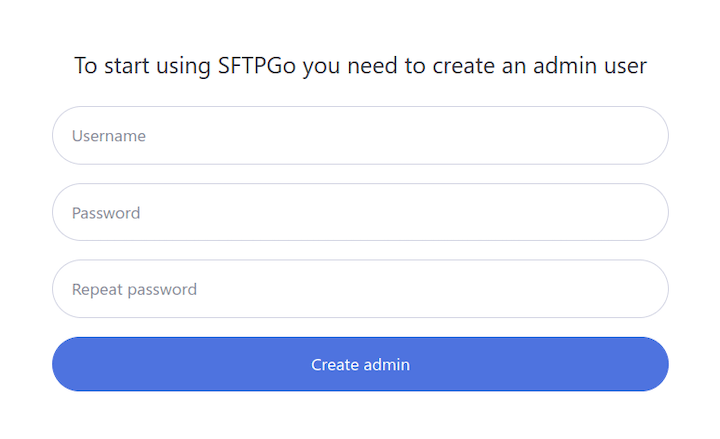
Steps in the wizard:
- Enter a strong admin username — avoid
admin,root, oradministratorsince these are dictionary-attacked immediately - Set a strong password with minimum 12 characters including mixed case, numbers, and symbols
- Click “Create Admin” — you will be logged in automatically after creation
Post-login actions to complete immediately:
Navigate to Users in the left sidebar and click the “+” button to create your first SFTP user.
Why create users through the Web UI instead of command line: SFTPGo’s user system includes advanced features like virtual folders, per-user bandwidth limits, and SSH public key authentication that are difficult to configure manually via JSON editing. The Web UI provides a guided interface that prevents syntax errors.
User configuration checklist:
- Set Home Directory to
/srv/sftpgo/data/%username%— the%username%placeholder automatically creates separate directories for each user - Set Status to Enabled
- Assign Max upload size per file (e.g.,
1073741824bytes = 1GB) - Choose Password auth or Public key auth or both
- Set Allowed IPs if you want IP-based access restrictions
Create the parent directory before users exist:
sudo mkdir -p /srv/sftpgo/data
sudo chown -R sftpgo:sftpgo /srv/sftpgo/data
sudo chmod 750 /srv/sftpgo/data
Why set ownership to sftpgo:sftpgo: The SFTPGo service runs as the sftpgo user. If the data directory is owned by root, the service cannot write files to it. Proper ownership prevents permission errors that look like SFTPGo bugs but are actually filesystem configuration issues.
Test the connection immediately:
sftp -P 2022 yourusername@YOUR_SERVER_IP
Why -P 2022 and not -p 2022: The sftp command uses uppercase -P for port specification (unlike ssh which uses lowercase -p). This is a common mistake that results in confusing connection errors.
Successful connection output:
Connected to YOUR_SERVER_IP.
sftp> ls
Step 7: Configure SSL/TLS with Let’s Encrypt (ACME)
For any production server, running the Web Admin UI over plain HTTP is unacceptable. Credentials and session tokens transmit in cleartext and can be intercepted by anyone on the same network. SFTPGo has built-in ACME support for automatic Let’s Encrypt certificate issuance and renewal.
Prerequisites for SSL configuration:
- A registered domain name pointed at your server’s public IP via A record
- Port 80 accessible from the internet (required for HTTP-01 ACME challenge)
- Valid email address for certificate expiration notifications
Edit the configuration file:
sudo nano /etc/sftpgo/sftpgo.json
Locate and update the acme section:
"acme": {
  "domains": ["yourdomain.com"],
  "email": "admin@yourdomain.com",
  "key_type": "4096",
  "certs_path": "/var/lib/sftpgo/certs",
  "ca_endpoint": "https://acme-v02.api.letsencrypt.org/directory",
  "renew_days": 30,
  "http01_challenge": {
    "port": 80,
    "webroot": ""
  }
}
Why key_type: 4096 instead of the default 2048: A 4096-bit RSA key offers stronger encryption than the 2048-bit default, making brute-force attacks on the private key computationally infeasible with current hardware. The performance difference is negligible for typical SFTP workloads.
Run certificate issuance manually:
sudo -E su - sftpgo -m -s /bin/bash -c 'sftpgo acme run -c /etc/sftpgo'
What this command does: Switches to the sftpgo user and runs the ACME certificate issuance process. The -E flag preserves your environment variables, and -m ensures the shell is invoked properly.
Expected successful output:
Certificate successfully obtained for domains: yourdomain.com
Certificate stored in: /var/lib/sftpgo/certs/fullchain.pem
Private key stored in: /var/lib/sftpgo/certs/privkey.pem
Update HTTP binding to enable HTTPS:
In the same sftpgo.json file, locate the httpd.bindings section and update it:
"httpd": {
  "bindings": [
    {
      "address": "0.0.0.0",
      "port": 9443,
      "protocol": "https",
      "tls_config": {
        "certificate_file": "/var/lib/sftpgo/certs/fullchain.pem",
        "key_file": "/var/lib/sftpgo/certs/privkey.pem"
      }
    }
  ]
}
Why port 9443 instead of 443: Port 443 requires root privileges to bind. Running SFTPGo as root violates the principle of least privilege. Port 9443 provides HTTPS without elevated privileges.
Validate JSON syntax before restarting:
python3 -m json.tool /etc/sftpgo/sftpgo.json > /dev/null && echo "JSON is valid"
Why validate JSON first: A single misplaced comma in sftpgo.json causes the service to fail to start. Validating takes 2 seconds and avoids a service outage that could take 15 minutes to debug.
Apply changes:
sudo systemctl restart sftpgo
sudo systemctl status sftpgo
Access your Web Admin UI at https://yourdomain.com:9443 with a padlock icon in the browser address bar.
Certificates auto-renew 30 days before expiry via a systemd timer. Verify the timer is active:
sudo systemctl list-timers | grep sftpgo
Troubleshooting Common Issues
Even with perfect instructions, real-world installations encounter problems. Here are the most common issues I have debugged across production deployments.
Issue 1: Service Fails to Start After Installation
Symptoms: systemctl status sftpgo shows Active: failed
Most likely cause: Port 2022 already in use by another process
Solution:
ss -tlnp | grep 2022
If you see output showing another process, identify it and either stop it or change SFTPGo’s port in /etc/sftpgo/sftpgo.json:
"sftpd": {
  "bindings": [
    {
      "port": 2023,
      "address": "0.0.0.0"
    }
  ]
}
Then update your firewall rules:
sudo ufw allow 2023/tcp
sudo ufw delete allow 2022/tcp
Issue 2: Cannot Reach Port 8080 or 9443 from Browser
Symptoms: Browser shows “Connection timed out” or “Unable to connect”
Most likely cause: UFW firewall blocking the port or wrong IP address
Solution:
sudo ufw status
Verify you see 8080/tcp ALLOW Anywhere or 9443/tcp ALLOW Anywhere in the output. If not:
sudo ufw allow 8080/tcp
sudo ufw allow 9443/tcp
Also verify you are using the correct server IP. If you are behind a NAT router, you need the public IP, not the private LAN IP. Check with:
curl -s https://api.ipify.org
Issue 3: SFTP Connection Refused
Symptoms: sftp -P 2022 user@IP returns Connection refused
Most likely cause: SFTPGo service not running
Solution:
sudo systemctl status sftpgo
sudo systemctl start sftpgo
If the service fails to start, check logs:
sudo journalctl -u sftpgo -n 50 --no-pager
Issue 4: JSON Configuration Syntax Error
Symptoms: Service fails after editing sftpgo.json with error “invalid character”
Most likely cause: Misplaced comma, missing bracket, or unquoted string in JSON
Solution:
python3 -m json.tool /etc/sftpgo/sftpgo.json
This command highlights the exact line with the syntax error. Fix the issue and revalidate before restarting the service.
Issue 5: Certificate Not Issued via ACME
Symptoms: ACME command returns “DNS problem” or “Timeout during challenge”
Most likely cause: Domain not pointing to your server or port 80 blocked
Solution:
dig yourdomain.com
Verify the A record returns your server’s public IP. If not, update your DNS configuration at your domain registrar.
Also verify port 80 is accessible:
sudo ufw allow 80/tcp
curl -I http://yourdomain.com
[su_box title=”VPS Manage Service Offer” style=”bubbles” box_color=”#000000″ radius=”10″]If you don’t have time to do all of this stuff, or if this is not your area of expertise, we offer a service to do “VPS Manage Service Offer”, starting from $10 (Paypal payment). Please contact us to get the best deal![/su_box]

