
Passwords are the first line of defense between your accounts and the rest of the world. Yet most people still reuse them, scribble them on sticky notes, or store them in plain text files. That stops today.
KeePassXC is a free, open-source password manager that keeps every credential locked inside an AES-256 encrypted database stored directly on your machine — no cloud sync, no subscriptions, no third-party servers involved. Pair it with Fedora 43, one of Linux’s most security-forward distributions, and you have a seriously tight digital security setup.
This guide walks through every practical method to install KeePassXC on Fedora 43: via DNF (the recommended approach), Flatpak through Flathub, and the portable AppImage format. You will also learn how to create your first password vault, connect a browser extension for seamless autofill, and unlock advanced features like TOTP code generation and SSH key management. Whether you are a seasoned Linux sysadmin or relatively new to Fedora, everything you need is right here.
What Is KeePassXC?
KeePassXC is a community-driven fork of KeePassX — itself a cross-platform port of the original KeePass Password Safe for Windows. The project was built to solve performance and feature limitations in KeePassX, and it has since grown into one of the most capable offline password managers available on any operating system.
All your data lives inside a .kdbx database file encrypted with AES-256-CBC by default. Prefer something different? You can switch to Twofish or ChaCha20 at the database creation stage. The encrypted vault never leaves your hardware unless you deliberately copy it somewhere. That is the fundamental design guarantee: your credentials belong to you alone, not a corporation.
KeePassXC runs on Linux, Windows, and macOS with full feature parity across all three platforms. The .kdbx format is also compatible with KeePass2, KeePassX, MacPass, and KeeWeb, so switching clients later is completely painless — no painful data migration required.
Why Use KeePassXC on Fedora 43?
Fedora 43, officially released on October 28, 2025, ships with Linux kernel 6.17, GNOME 49, and — as a landmark change — a fully Wayland-only GNOME session with X11 removed entirely from the desktop. It is built on Red Hat’s upstream development cycle, which means it gets new technologies fast while staying stable enough for serious daily use.
The pairing of Fedora 43 and KeePassXC makes sense philosophically. Fedora prioritizes security, transparency, and open-source purity. KeePassXC delivers exactly the same values in the password management space. No proprietary servers. No behavioral telemetry. Just encrypted local storage that you fully control.
Practically speaking, KeePassXC is available directly in Fedora’s official RPM repositories. That means it is packaged, tested, and maintained specifically for Fedora, receives timely security updates, and will not introduce dependency conflicts with your system. For users who want the absolute latest upstream release before it hits the Fedora repos, Flatpak via Flathub is an equally solid option.
Key Features of KeePassXC
Before getting into the installation steps, here is a quick inventory of what makes this open-source password manager worth your time:
- AES-256-CBC encryption by default, with optional Twofish-256 and ChaCha20 cipher choices
- Browser integration supporting Firefox, Chrome, Chromium, Brave, and Vivaldi via the KeePassXC-Browser extension
- TOTP generation — time-based one-time passwords built directly into the vault, replacing standalone authenticator apps
- SSH Agent integration — automatically loads SSH keys from the database when unlocked and removes them when locked
- Built-in CLI (
keepassxc-cli) for scripting, automation, and headless server environments - Password generator with configurable length, character sets, and diceware passphrase mode
- CSV import compatible with LastPass, Bitwarden, 1Password, and other major password managers
- Auto-Type for desktop application form filling (with Wayland caveats — covered in the Troubleshooting section)
- Key file support for two-factor database authentication combining a master password and a physical file
Prerequisites Before You Begin
A smooth KeePassXC installation on Fedora 43 starts with proper groundwork. Confirm you have all of the following ready:
- A running Fedora 43 installation — Workstation edition is recommended for desktop users
- A user account with sudo privileges; verify by running
sudo -vin the terminal - A stable internet connection for pulling packages from Fedora’s official mirrors or Flathub
- Basic GNOME Terminal familiarity — open it from the Activities overlay or press
Ctrl+Alt+T - At least 200 MB of free disk space for the DNF method; Flatpak requires approximately 500 MB including its runtime bundle
- Optionally, a ready Firefox or Chromium-based browser for the browser integration setup
Check your exact Fedora version before starting:
cat /etc/fedora-releaseExpected output: Fedora release 43 (Forty Three)
Installation Methods at a Glance
Three main installation paths exist for KeePassXC on Fedora 43. Each has distinct trade-offs worth understanding before you begin.
| Method | Source | Sandboxed | Best For |
|---|---|---|---|
| DNF | Fedora Official Repos | No | Most users — simplest setup, best browser integration |
| Flatpak | Flathub | Yes | Users wanting the newest upstream release |
| AppImage | GitHub Releases | No | Portable use, no system installation needed |
Recommendation: DNF is the right choice for the vast majority of Fedora 43 users. It is the fastest path, integrates most cleanly with the system, and makes browser extension setup far less complicated.
Method 1: Install KeePassXC via DNF (Recommended)
DNF — Dandified YUM — is Fedora’s default package manager. It resolves dependencies automatically, pulls software from trusted Fedora-maintained mirrors, and keeps everything tightly integrated with the rest of your system. This is the cleanest, most reliable route to a working KeePassXC installation on Fedora 43.
Step 1: Update Your Fedora 43 System
Always refresh your system before installing new software. Stale package metadata causes dependency errors and version conflicts. Run:
sudo dnf upgrade --refreshThe --refresh flag forces DNF to pull fresh repository metadata even if the local cache has not expired. This is especially important after a clean Fedora 43 install or after a long period of inactivity. Press y when prompted to confirm any pending updates, then wait for the process to finish completely before moving on.
Step 2: Install KeePassXC
With your system fully updated, run the install command:
sudo dnf install keepassxcDNF automatically calculates and resolves all required dependencies. It then displays a transaction summary showing every package that will be installed. Type y and press Enter. The version pulled from the Fedora 43 repository is specifically tested against this release — typically the latest stable KeePassXC build available upstream. The keepassxc-cli command-line tool is included automatically as part of this install.
Step 3: Verify the Installation
Once installation completes, confirm everything landed correctly:
rpm -q keepassxcExpected output: keepassxc-2.7.11-1.fc43.x86_64
Also verify the CLI is accessible:
keepassxc-cli --versionA clean version number with no errors confirms your KeePassXC installation on Fedora 43 is ready to use.
Method 2: Install KeePassXC via Flatpak (Flathub)
Flatpak sandboxes applications away from your system libraries. It is a good fit if you want the newest KeePassXC release — Flathub typically tracks upstream releases faster than Fedora’s repos — or if you value application-level isolation. Fedora 43 Workstation ships with Flatpak pre-installed.
Step 1: Enable the Flathub Repository
First, confirm Flatpak is active on your system:
flatpak --version
flatpak remotes
If Flathub does not appear in the remotes list, add it now:
sudo flatpak remote-add --if-not-exists flathub https://dl.flathub.org/repo/flathub.flatpakrepoThe --if-not-exists flag makes this command idempotent — safe to run regardless of whether Flathub is already configured on your system.
Step 2: Install KeePassXC via Flatpak
For a system-wide install accessible to all users:
sudo flatpak install flathub org.keepassxc.KeePassXC -yFor a per-user install that does not require root access:
flatpak install --user flathub org.keepassxc.KeePassXCThe -y flag auto-confirms download prompts. Expect Flatpak to download KeePassXC plus its runtime environment — around 300–500 MB total on a fresh Fedora 43 system.
Step 3: Verify the Flatpak Installation
Confirm the app appears in your installed Flatpak list:
flatpak list --app | grep -i keepassExpected output: KeePassXC org.keepassxc.KeePassXC 2.7.x stable system
Launch it from the terminal to catch any startup errors in real time:
flatpak run org.keepassxc.KeePassXCCritical browser integration note: Mixing installation methods — KeePassXC via Flatpak and your browser via DNF, or vice versa — will almost certainly break browser integration on Fedora 43. The Flatpak sandbox restricts the socket-based proxy that KeePassXC uses to communicate with browser extensions. If browser integration is important to you, use the DNF method for both KeePassXC and your browser.
Method 3: Install KeePassXC via AppImage
AppImage delivers KeePassXC as a fully self-contained, portable executable. Nothing gets installed to your system. It is ideal for running KeePassXC on multiple machines from a USB drive, testing newer versions without affecting your primary setup, or simply keeping your Fedora system free of extra packages.
Download the latest AppImage from the official KeePassXC GitHub releases page:
curl -L -o KeePassXC-x86_64.AppImage <paste-release-url-here>Replace the URL placeholder with the actual download link from the KeePassXC GitHub releases page at github.com/keepassxreboot/keepassxc/releases.
Make the file executable:
chmod +x KeePassXC-x86_64.AppImageRun it immediately with no further setup:
./KeePassXC-x86_64.AppImageZero installation steps, zero root access, zero system changes. The only real drawback: AppImages do not auto-update. You will need to manually download each new release from GitHub and replace the old file.
Launching KeePassXC on Fedora 43
Once installed via any method, there are several ways to open KeePassXC:
- GNOME Activities overlay: Press the Super key, type “KeePassXC,” and click the icon — this works universally across all three installation methods
- DNF/AppImage terminal launch:
keepassxc - Flatpak terminal launch:
flatpak run org.keepassxc.KeePassXC
Open from the terminal at least once on your first run. Any startup warnings or library errors will print directly to stdout, giving you instant feedback before the GUI even appears. If you already have a .kdbx database from another KeePass-compatible client, double-clicking it in GNOME Files should open it directly in KeePassXC once file associations are registered.
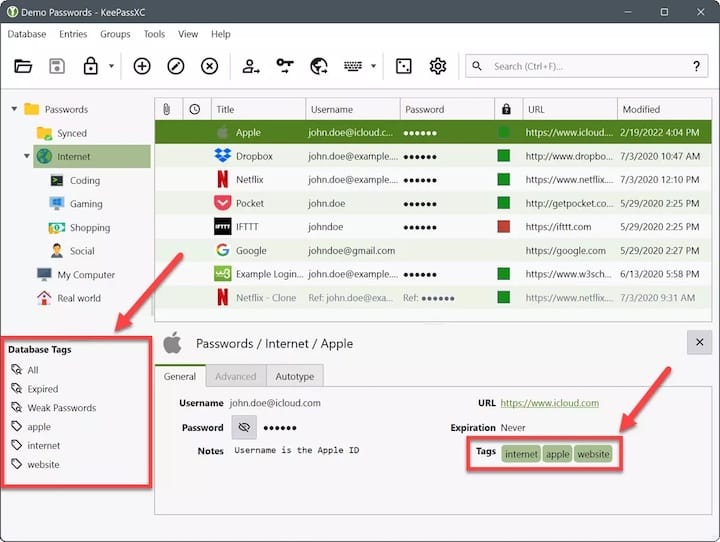
Creating Your First Password Database
On first launch, KeePassXC presents a clean welcome screen. Click “Create new database” to begin.
Database name and description: Choose something descriptive — “Personal Vault” or “Work Credentials” works well. This label is embedded inside the encrypted database and does not affect the file name on disk.
Encryption settings: The default AES-256-CBC cipher is more than sufficient for virtually every use case. The decryption time slider controls the computational cost of unlocking the database — a higher value means more resistance to brute-force attacks at the cost of a slightly longer unlock time. A target of 100–200 milliseconds strikes a practical balance for desktop use.
Master password: Use a passphrase rather than a single complex password. Four or more random, unrelated words — strung together with hyphens or spaces — are statistically stronger and dramatically easier to remember than P@ssw0rd123!. KeePassXC displays real-time password strength feedback as you type, so you will know immediately if it meets a solid security threshold.
Key file (optional): Enabling a key file adds a second authentication factor to your database. An attacker would need both your master passphrase and the physical key file to open the vault. Store the key file on a separate device from the database itself.
Save your .kdbx file to a location that is regularly backed up — an external drive, an encrypted USB key, or an end-to-end encrypted cloud folder. The database is already encrypted, so cloud backup adds convenience without meaningfully reducing security.
Add your first entry with Ctrl+N. Fill in the Title, Username, Password, URL, and optional Notes fields. Click the dice icon in the password field to use the built-in password generator for each new site. Organize entries into Groups — “Banking,” “Social Media,” “Dev Tools,” “Email” — to keep navigation clean as your vault grows.
Setting Up Browser Integration
Browser integration transforms KeePassXC into a full autofill engine for every website you use. It is one of the most impactful features for day-to-day productivity and one of the top reasons Linux users choose KeePassXC over other local password managers.
Step 1: Inside KeePassXC, navigate to Tools → Settings → Browser Integration. Check “Enable browser integration” and select your browser from the list — Firefox, Chrome, Chromium, Brave, and Vivaldi are all supported natively.
Step 2: Install the KeePassXC-Browser extension for your browser:
- Firefox: Search for “KeePassXC-Browser” on the Mozilla Add-Ons store
- Chrome, Chromium, Brave: Search for “KeePassXC-Browser” on the Chrome Web Store
Step 3: Open your browser, click the KeePassXC-Browser toolbar icon, and press “Connect.” KeePassXC will prompt you to name the connection — use something identifiable like firefox-fedora43. Click OK to authorize it.
Step 4: Test everything by visiting a login page with a saved entry. Press Ctrl+Shift+U or click the extension icon to trigger autofill. If your credentials populate automatically, the integration is working perfectly.
If you are using the Flatpak version and still want to attempt browser integration, grant the necessary filesystem permissions manually:
flatpak override --user --filesystem=xdg-run/app/org.keepassxc.KeePassXC org.mozilla.firefoxResults may vary depending on exact version combinations across Flatpak runtimes.
Advanced Features You Should Know
TOTP — Two-Factor Authentication Codes
KeePassXC can generate time-based one-time passwords directly alongside your stored credentials, completely eliminating the need for Google Authenticator, Authy, or any separate authenticator app. Right-click any vault entry, select “Set up TOTP,” then scan the QR code from the service or paste the secret key manually. KeePassXC generates fresh rotating six-digit codes in real time, all within the same encrypted vault.
SSH Agent Integration
Developers who manage multiple remote servers via SSH will find this feature invaluable. Enable it under Tools → Settings → SSH Agent. Once active, KeePassXC automatically loads your SSH private keys — stored as encrypted attachments inside vault entries — whenever the database is unlocked, and removes them from the agent the moment the database locks. No more running ssh-add manually at the start of every session.
KeePassXC CLI (keepassxc-cli)
The built-in command-line interface opens up KeePassXC for scripting, automation, and use on headless Linux servers:
# List all entries in a database
keepassxc-cli ls vault.kdbx

# Retrieve credentials for a specific entry
keepassxc-cli show vault.kdbx "GitHub"

# Generate a secure 5-word diceware passphrase
keepassxc-cli diceware -W 5
These commands are especially useful in DevOps workflows, deployment scripts, or any situation where you need programmatic access to stored credentials without launching a graphical interface.
How to Update KeePassXC on Fedora 43
Staying current with updates means you are always running the latest security patches and bug fixes. Outdated password manager software is an unnecessary risk — version currency matters.
- DNF: KeePassXC updates automatically alongside your regular system upgrade —
sudo dnf upgrade --refresh - Flatpak: Must be updated separately from system packages —
sudo flatpak update - AppImage: Download the latest release from the KeePassXC GitHub releases page and replace your existing
.AppImagefile manually
Consider enabling automatic update checks through GNOME Software, or set a weekly calendar reminder to run system and Flatpak updates manually. Consistent maintenance keeps both your Fedora 43 system and your KeePassXC installation secure.
How to Remove KeePassXC from Fedora 43
DNF removal:
sudo dnf remove keepassxcVerify it is gone with: rpm -q keepassxc — expected response: package keepassxc is not installed
Flatpak removal:
sudo flatpak uninstall org.keepassxc.KeePassXC --delete-data
sudo flatpak uninstall --unused
The --delete-data flag wipes app-specific configuration data stored in your home directory. The --unused command removes orphaned Flatpak runtimes no longer needed by any other installed application.
⚠️ Important: Removing KeePassXC through any method does not delete your .kdbx database file. Your vault remains in your home directory exactly where you saved it. Back it up to a separate location before proceeding, and never delete the file unless you are certain you no longer need any of its contents.
Troubleshooting Common Issues
Browser Integration Not Connecting
Ensure KeePassXC is actively running with a database open and unlocked when you attempt the browser extension connection. A locked or closed vault silently breaks the proxy handshake. If you installed KeePassXC via Flatpak and your browser via DNF — or vice versa — the socket path will be mismatched and the connection will fail. The fix is straightforward: use the same installation method for both KeePassXC and your browser.
Application Fails to Launch
Run KeePassXC directly from the terminal to capture the full error output:
keepassxc 2>&1 | head -30Missing or mismatched library errors typically resolve after a full system upgrade followed by a reboot:
sudo dnf upgrade --refresh && rebootAuto-Type Not Working on Wayland
Fedora 43 GNOME is a Wayland-only environment — X11 has been fully removed from the desktop session. Wayland’s strict security model prevents applications from injecting keystrokes into other windows, which is exactly how KeePassXC’s Auto-Type feature works. This is an upstream architectural limitation, not a KeePassXC bug. The correct solution on Fedora 43 is to use browser integration for all web-based logins. For native desktop applications, check whether the target app runs under XWayland compatibility mode, which may still support Auto-Type behavior.
DNF Package Not Found
If sudo dnf install keepassxc returns “No match for argument,” your package metadata cache may be stale. Clear it and rebuild before retrying:
sudo dnf clean all && sudo dnf makecache
sudo dnf install keepassxc
Flatpak Remote Disabled
If Flatpak throws an error about a disabled remote, re-enable Flathub and retry the installation:
sudo flatpak remote-modify --enable flathubCongratulations! You have successfully installed KeePassXC. Thanks for using this tutorial to install the latest version of the KeePassXC password manager on the Fedora 43 Linux system. For additional help or useful information, we recommend you check the official KeePassXC website.


