
If you have ever needed to move a file from your Android phone to your Fedora desktop without plugging in a cable or uploading it to a cloud service, you already understand the problem LocalSend solves. Most file-sharing tools either require an internet connection, a third-party account, or a platform lock-in that breaks the moment you switch devices. LocalSend is a free, open-source application that transfers files directly over your local Wi-Fi network with zero cloud involvement, and this guide covers exactly how to install LocalSend on Fedora 43 using four different methods so you can pick the one that fits your workflow.
By the end of this article, your Fedora 43 machine will have LocalSend running, your firewall properly configured, and you will know how to send and receive files to any nearby device on your network.
What Is LocalSend and Why Does It Work So Well on Linux?
LocalSend is a cross-platform file transfer application licensed under the Apache License 2.0. It runs on Linux, Windows, macOS, Android, and iOS, and it uses mDNS (multicast DNS) to discover nearby devices automatically on the same Wi-Fi or LAN network.
Unlike AirDrop (Apple-only) or Nearby Share (Android-to-Chrome), LocalSend has no platform restrictions. It communicates over port 53317 using both TCP and UDP, which is why configuring the Fedora firewall is a required step, not an optional one.
As of 2026, the project has over 40,800 stars on GitHub and 135 active contributors, which signals a well-maintained, production-ready tool and not a weekend project you install and abandon.
Why Fedora 43 Users Should Care
Fedora 43 ships with GNOME and Wayland by default, and LocalSend handles both without requiring workarounds. The Flatpak version is available on Flathub and works out of the box on Fedora Workstation, Silverblue, and Kinoite.
The only catch: LocalSend is not packaged in the official Fedora DNF repositories yet, though COPR review builds for Fedora 43 exist. This means you install it through one of four reliable paths: Flatpak, Snap, AppImage, or a direct RPM file.
Prerequisites Before You Start
Before running any command, confirm the following:
- Fedora 43 installed (Workstation, Silverblue, or Kinoite edition all work)
- sudo or root access on your machine
- An active internet connection for the initial download
- Both your Fedora machine and the target device connected to the same Wi-Fi network or LAN
- A terminal emulator (GNOME Terminal, Konsole, or Alacritty)
- Basic comfort running commands in a shell
That is all you need. No dependencies to manually install, no compiling from source.
Step 1: Update Your System Before Installing
Skipping a system update before installing new software is a common mistake that causes dependency conflicts and confusing error messages.
Run a full system update first:
sudo dnf upgrade --refreshThis command forces DNF to refresh its metadata cache and then upgrades all installed packages. The --refresh flag is important because it bypasses the local cache and pulls the latest package list from Fedora’s mirrors.
After the update finishes, reboot if the kernel was updated:
sudo rebootOnce the system is back up, open your terminal and move to the next step.
Step 2: Install LocalSend on Fedora 43 via Flatpak (Recommended Method)
Flatpak is the recommended installation method for most Fedora 43 users because it is already integrated into the system, sandboxes the application cleanly, and pulls updates automatically through GNOME Software or the terminal.
Step 2a: Verify Flatpak Is Installed
Fedora 43 Workstation ships with Flatpak pre-installed. Confirm it is present:
flatpak --versionExpected output:
Flatpak 1.15.xIf Flatpak is missing (rare on Fedora Workstation), install it:
sudo dnf install flatpakStep 2b: Add the Flathub Repository
Flathub is the main repository for Flatpak applications and hosts the official LocalSend Flatpak package.
On Fedora 43, Flathub may already be configured as a third-party repository. Add it explicitly to make sure:
flatpak remote-add --if-not-exists flathub https://dl.flathub.org/repo/flathub.flatpakrepoThe --if-not-exists flag prevents the command from throwing an error if Flathub is already registered. This is safe to run every time.
Step 2c: Install LocalSend from Flathub
Now install LocalSend:
flatpak install flathub org.localsend.localsend_appThe terminal will list the packages to be installed and prompt you to confirm. Type y and press Enter.
Expected output after completion:
Changes complete.Verify the installation succeeded:
flatpak list | grep localsendYou should see LocalSend listed with its application ID and installed version.
Step 2d: Launch LocalSend
Launch from GNOME Activities by searching “LocalSend”, or use the terminal:
flatpak run org.localsend.localsend_appThe interface will show your device name, local IP address, and a ready-to-receive status indicator.
Step 2e: Keep LocalSend Updated
Update LocalSend at any time with:
flatpak update org.localsend.localsend_appOr update all your Flatpak apps at once:
flatpak updateStep 3: Install LocalSend on Fedora 43 via Snap (Alternative Method)
Snap is a viable alternative if you are already using other Snap packages or prefer Canonical’s packaging format. Unlike Ubuntu, Fedora 43 does not ship with Snap pre-installed, so you need to set it up manually.
Step 3a: Install Snapd
Install the snapd daemon using DNF:
sudo dnf install snapdStep 3b: Enable the Snapd Socket
Enable and start the snapd socket so it activates at boot:
sudo systemctl enable --now snapd.socketThe --now flag both enables the service for future boots and starts it immediately in one command.
Step 3c: Create the Classic Snap Symlink
Create the symbolic link that classic Snap packages require to resolve paths correctly:
sudo ln -s /var/lib/snapd/snap /snapAfter this step, log out and back in or reboot to ensure the path is loaded into your shell environment.
Step 3d: Install LocalSend via Snap
sudo snap install localsendConfirm it is installed:
snap list localsendLaunch it from your applications menu or run:
snap run localsendStep 4: Install LocalSend on Fedora 43 via AppImage (Portable Method)
The AppImage format packages the entire application into a single executable file. It requires no installation, no root access, and leaves no traces on your system outside the single file you download. This is a solid choice for users who want a portable setup or prefer not to modify system-level package state.
Step 4a: Download the AppImage from GitHub
Navigate to the official LocalSend releases page:
https://github.com/localsend/localsend/releasesDownload the file ending in .AppImage for your architecture. For most Fedora 43 desktop users, this is the x86_64 build.
Or download it directly from the terminal using wget (replace the version number with the latest release):
wget https://github.com/localsend/localsend/releases/download/v1.x.x/LocalSend-1.x.x-linux-x86-64.AppImageAlways download from the official GitHub repository to avoid tampered binaries.
Step 4b: Move the File to a Directory in Your PATH
Place the AppImage in ~/bin so you can run it by name from any terminal session:
mkdir -p ~/bin
mv LocalSend-*.AppImage ~/bin/localsend
Step 4c: Make the AppImage Executable
Linux does not mark downloaded files as executable by default. This is a security feature, not a bug. Grant execute permission manually:
chmod +x ~/bin/localsendVerify the permission was applied:
ls -lh ~/bin/localsendYou should see -rwxr-xr-x in the permissions column.
Step 4d: Run LocalSend
~/bin/localsendOr double-click the file in Nautilus after granting execute permission.
If you want LocalSend to appear in the GNOME app launcher, create a .desktop file manually:
nano ~/.local/share/applications/localsend.desktopPaste the following content:
[Desktop Entry]
Name=LocalSend
Exec=/home/YOUR_USERNAME/bin/localsend
Icon=localsend
Type=Application
Categories=Network;FileTransfer;
Replace YOUR_USERNAME with your actual username. Save and close with Ctrl+O, then Ctrl+X.
Step 5: Install LocalSend on Fedora 43 via RPM Package
The RPM method installs LocalSend as a system-level package managed by DNF. This is the right choice for sysadmins who want package tracking, easy removal via DNF, and consistent behavior across multiple Fedora machines.
Note: LocalSend is not yet in the official Fedora repositories, but COPR review builds exist specifically for Fedora 43. The direct RPM from the GitHub Releases page works reliably.
Step 5a: Download the RPM File
Go to the official GitHub Releases page and download the .rpm file:
https://github.com/localsend/localsend/releasesOr use wget:
wget https://github.com/localsend/localsend/releases/download/v1.x.x/LocalSend-1.x.x-linux-x86-64.rpmStep 5b: Install the RPM Using DNF
Navigate to your downloads folder and install with DNF (not rpm -i, because DNF resolves dependencies properly):
cd ~/Downloads
sudo dnf install ./LocalSend-*.rpm
DNF will list dependencies, prompt for confirmation, then install the package. Type y to proceed.
Step 5c: Verify the Installation
Check that DNF has tracked the package:
rpm -qi localsendThis outputs the installed version, build date, and install path, confirming DNF can manage the package going forward.
Launch LocalSend from the terminal:
localsendStep 6: Configure the Fedora 43 Firewall for LocalSend on Fedora 43 Setup
This is the step most tutorials skip, and it is the reason most Fedora users open LocalSend, see no devices, and think the app is broken.
Fedora 43 uses firewalld by default. It blocks all incoming connections on non-standard ports unless you explicitly allow them. LocalSend uses port 53317 over both TCP and UDP for device discovery and file transfers. Without opening this port, your Fedora machine will not discover other devices, and file transfers will fail mid-transfer.
Step 6a: Check Your Current Firewall Rules
Before adding rules, check what is already open:
sudo firewall-cmd --list-allLook at the ports: line. Port 53317 should not be there yet.
Step 6b: Open Port 53317 for TCP and UDP
Add permanent rules for both protocols:
sudo firewall-cmd --zone=public --permanent --add-port=53317/tcp
sudo firewall-cmd --zone=public --permanent --add-port=53317/udp
The --permanent flag makes these rules survive reboots. Without it, the rules vanish the next time the system restarts.
Step 6c: Reload the Firewall to Apply Changes
sudo firewall-cmd --reloadStep 6d: Verify the Ports Are Now Open
sudo firewall-cmd --list-allIn the output, find the ports: line. It should now include:
ports: 53317/tcp 53317/udpThat confirms the firewall is configured correctly and LocalSend can communicate on your local network.
How to Use LocalSend to Transfer Files Between Devices
Once LocalSend is running on Fedora 43 with the firewall configured, the workflow is straightforward.
Sending files from Fedora to another device:
- Open LocalSend on your Fedora machine
- Click the Send button
- Select the file or folder you want to transfer
- Wait for nearby devices to appear in the device list (both devices must be on the same Wi-Fi network)
- Click the target device, then click Send
- The recipient approves the incoming transfer on their device
Receiving files on Fedora:
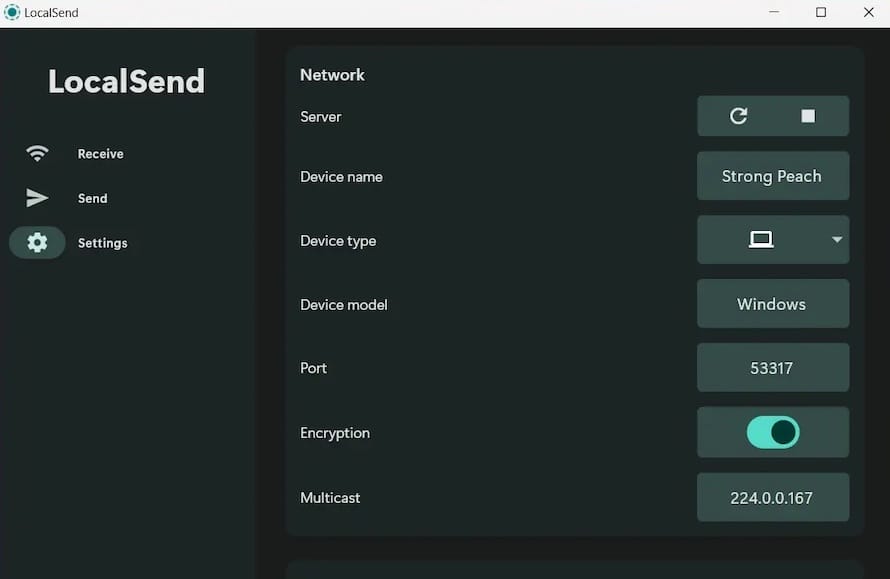
LocalSend runs in the background and displays a notification when an incoming transfer request arrives. Click Accept to receive the file. By default, received files save to ~/Downloads. You can change this path in LocalSend Settings > Save Directory.
Troubleshooting Common Issues When You Configure LocalSend on Fedora 43
Problem 1: Devices Not Showing Up in the Device List
Cause: The two devices are on different networks or subnets, or the firewall is blocking UDP port 53317.
Fix:
- Confirm both devices share the same Wi-Fi network. Check your Fedora IP with
ip addrand compare it to the other device’s IP. Both should share the same subnet (e.g.,192.168.1.x). - Re-run the firewall commands from Step 6 and confirm port 53317/udp is open.
Problem 2: File Transfer Fails Midway or Returns a Connection Error
Cause: Firewalld is blocking TCP port 53317 even if UDP is open. Both protocols must be allowed.
Fix: Confirm both rules are active:
sudo firewall-cmd --list-all | grep 53317You must see both 53317/tcp and 53317/udp. If either is missing, re-add it and reload the firewall.
Problem 3: Flatpak Version Has No Network Access
Cause: Flatpak’s sandbox permissions are restricting network access for LocalSend.
Fix: Grant network access explicitly:
flatpak override --user --share=network org.localsend.localsend_appThen restart LocalSend.
Problem 4: LocalSend Flatpak Does Not Launch on Wayland
Cause: A Wayland compatibility issue in an older version of the Flatpak.
Fix: Run LocalSend from the terminal to see the exact error:
flatpak run org.localsend.localsend_appThen update to the latest version:
flatpak update org.localsend.localsend_appMost Wayland-related launch failures on Fedora 43 are resolved by keeping the app current.
Problem 5: AppImage Does Not Run After chmod
Cause: The AppImage requires a FUSE library that may not be installed on minimal Fedora installations.
Fix: Install FUSE:
sudo dnf install fuse fuse-libsThen retry running the AppImage.
How to Uninstall LocalSend from Fedora 43
If you need to remove LocalSend, use the command matching your installation method:
- Flatpak:
flatpak uninstall org.localsend.localsend_app flatpak uninstall --unused - Snap:
sudo snap remove localsend - RPM/DNF:
sudo dnf remove localsend - AppImage:
rm ~/bin/localsend
After removing LocalSend, close the firewall ports you opened if no other application needs them:
sudo firewall-cmd --zone=public --permanent --remove-port=53317/tcp
sudo firewall-cmd --zone=public --permanent --remove-port=53317/udp
sudo firewall-cmd --reload
Congratulations! You have successfully installed LocalSend. Thanks for using this tutorial for installing LocalSend open source cross platform file sharing tool on Fedora 43 Linux system. For additional help or useful information, we recommend you check the official LocalSend website.
[su_box title=”VPS Manage Service Offer” style=”bubbles” box_color=”#000000″ radius=”10″]If you don’t have time to do all of this stuff, or if this is not your area of expertise, we offer a service to do “VPS Manage Service Offer”, starting from $10 (Paypal payment). Please contact us to get the best deal![/su_box]
