
Every few months a new “AirDrop for Linux” tool shows up, gets a burst of hype on forums, and then quietly disappears once people realize it needs a cloud account or breaks after the first kernel update. LocalSend isn’t that. It’s an open-source, cross-platform file transfer tool that works entirely over your local network, no internet connection required, no account, no upload limits dictated by someone else’s server. For anyone running Debian 13 (Trixie) on a workstation, a home server, or even a headless box that occasionally needs a quick file drop from a phone, LocalSend solves a problem that’s been oddly persistent in the Linux world for over a decade: moving a file from point A to point B without SSH, USB sticks, or fighting with Samba shares.
This guide walks through every practical installation method available on Debian 13, not just the one that happens to be easiest to write about. DEB packages, Flatpak, Snap, and AppImage all behave differently under the hood, and picking the wrong one for your use case is how you end up with a broken system tray icon six months later or a service that silently stops receiving files after a firewall update. We’ll cover the actual installation steps, the dependency quirks specific to Trixie’s newer library stack, the firewall configuration that trips up almost everyone on their first attempt, and the troubleshooting steps that come from actually running this tool across a mixed fleet of Debian and Android devices rather than reading the documentation once.
Whether you’re setting this up for personal use, deploying it across a small office’s Linux desktops, or just tired of emailing yourself PDFs to get them onto another machine, this covers what actually matters: getting LocalSend installed cleanly, configured securely, and working reliably the first time.
What LocalSend Actually Does (And Why It Matters on Debian)
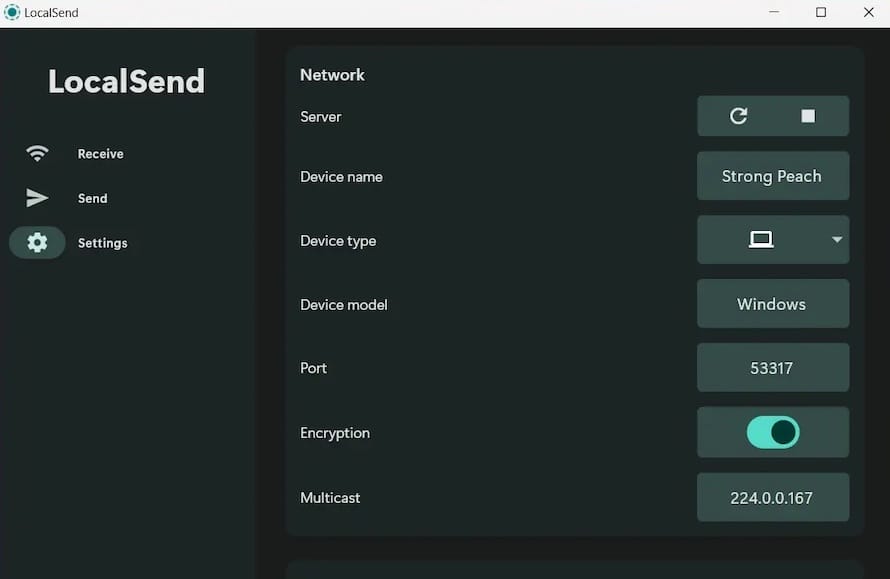
LocalSend is built on Flutter and uses a peer-to-peer protocol over your LAN, discovering nearby devices via UDP multicast and transferring files over an encrypted HTTPS connection on port 53317. No relay servers, no third-party infrastructure sitting between your laptop and your phone. That architecture matters more than it sounds like on paper.
If you’re managing a home lab or a small office network, you already know the friction of getting files off a phone and onto a Linux box without Google Drive acting as the middleman. Nextcloud is great, but it’s overkill for “I just need this one screenshot.” Samba works, but configuring smb.conf for a one-off transfer is nobody’s idea of a good afternoon. LocalSend fills that specific gap: fast, encrypted, zero-configuration transfers between devices on the same network segment.
On Debian specifically, the appeal is stability. Trixie shipped in mid-2025 with a more current glibc, updated GTK libraries, and a generally more modern desktop stack than Bookworm, which means fewer of the dependency workarounds that plagued LocalSend installs on Debian 12. That said, Debian’s famously conservative package selection means LocalSend isn’t in the official repositories, at least not yet. You’re installing it through one of four channels: DEB package, Flatpak, Snap, or AppImage.
Choosing the Right Installation Method
Before diving into commands, it’s worth understanding why there are four different ways to install the same application, because the “best” method genuinely depends on your setup.
| Method | Best For | Auto-Updates | Sandboxing | Dependency Handling |
|---|---|---|---|---|
| DEB package | Desktop users wanting native integration | No | None | Manual, via apt |
| Flatpak | Users who want isolation and easy removal | Yes (via Flathub) | Strong | Automatic, bundled |
| Snap | Ubuntu-adjacent workflows, quick setup | Yes | Moderate | Automatic, bundled |
| AppImage | Portable use, minimal systems, no root access | No | None | Bundled in image |
If you’re running LocalSend on a personal workstation and want it to feel like a “real” installed app with proper desktop integration and a system tray icon, the DEB package is the right call. If you’re the type who prefers sandboxed applications for security reasons, or you’re deploying across several machines and want updates handled automatically, Flatpak is the more sensible long-term choice. AppImage earns its keep on systems where you don’t have root, or where you’re testing something quickly and don’t want to touch the package manager at all.
Method 1: Installing LocalSend via DEB Package
This is the most common approach and the one that gives you the cleanest desktop integration on Debian 13. It also happens to be the method with the most gotchas if you skip a step, so pay attention to the dependency check.
Step 1: Check Your System Architecture
Before downloading anything, confirm you’re grabbing the right build.
uname -mMost desktop and server installs will return x86_64. If you’re on an ARM-based device (Raspberry Pi running Debian, for instance), you’ll need the aarch64 build instead, and not every release includes one for every architecture, so check the GitHub releases page directly.
Step 2: Download the Latest DEB Package
Navigate to a working directory and pull the package straight from GitHub releases rather than relying on a third-party mirror.
cd ~/Downloads
wget https://github.com/localsend/localsend/releases/latest/download/LocalSend-1.16.1-linux-x86-64.deb
Version numbers change, so if that exact filename 404s, browse the releases page and grab whatever’s current. Verify the download landed correctly before proceeding:
ls -lh LocalSend-*.debYou want to see a file in the 40-60MB range. Anything drastically smaller usually means the download got interrupted or you pulled an HTML error page instead of the actual binary, which happens more often than you’d expect with wget and redirect chains.
Step 3: Install Required System Tray Dependency
Here’s the part that catches people off guard on a fresh Trixie install. LocalSend uses a system tray icon, and Debian 13’s minimal desktop installs don’t always ship the indicator library it depends on.
sudo apt update
sudo apt install libayatana-appindicator3-1 -y
Skip this step and the app will often still launch, but the tray icon silently fails to appear, and background operation (closing the window while keeping LocalSend running to receive files) won’t work as expected.
Step 4: Install the Package
Use apt install with the local file path rather than dpkg -i. This matters more than people think, because apt resolves the dependency chain automatically, while dpkg will just complain and leave you to fix things manually.
sudo apt install ./LocalSend-*.debThe ./ prefix is not optional here. Without it, apt interprets the argument as a repository package name rather than a local file path, and you’ll get a “unable to locate package” error that has confused more than a few people who were certain they typed the filename correctly.
Step 5: Launch and Verify
localsend_appOr launch it from your application menu, it’ll register itself as “LocalSend” under most desktop environments (GNOME, KDE, XFCE all handle it fine on Trixie). First launch triggers a firewall prompt on some desktop environments; more on that in the firewall section below.
Method 2: Installing via Flatpak
If sandboxing and clean uninstalls matter to you, or you’re running an immutable/hardened Debian variant, Flatpak is the better long-term bet. It also sidesteps the appindicator dependency issue entirely since Flatpak bundles its own runtime libraries.
Step 1: Confirm Flatpak Is Installed
Debian 13 doesn’t ship Flatpak by default on most installs, so check first.
flatpak --versionIf that returns “command not found”:
sudo apt update
sudo apt install flatpak -y
Step 2: Add the Flathub Repository
flatpak remote-add --if-not-exists flathub https://flathub.org/repo/flathub.flatpakrepoA reboot or full log-out/log-in cycle after this step isn’t strictly required, but it avoids a class of weird integration bugs where the Flatpak app doesn’t show up properly in your application launcher until the desktop session refreshes its cached menus.
Step 3: Install LocalSend
flatpak install flathub org.localsend.localsend_app -yStep 4: Run It
flatpak run org.localsend.localsend_appOne thing worth knowing: because Flatpak sandboxes network access differently than a native package, LocalSend’s device discovery over multicast UDP can occasionally behave inconsistently depending on your Flatpak’s network permission scope. If discovery isn’t finding nearby devices but the DEB version worked fine on the same network, that’s usually where to look first.
Method 3: Installing via Snap
Snap works, and it’s a one-liner, but it’s worth knowing this is the slowest of the four methods to launch (snap’s mount-based confinement adds startup latency) and it pulls in snapd if it’s not already present, which not every Debian admin wants running on a server.
sudo apt update
sudo apt install snapd -y
sudo snap install snapd
sudo snap install localsend
If you’re already running snapd for other packages, this is genuinely the fastest path to a working install. If you’re not, and you’re philosophically opposed to snapd on a Debian box (a surprisingly common stance among Debian purists), skip this method entirely and use Flatpak or the DEB instead.
Method 4: Installing via AppImage
This is the method for situations where you don’t have root, you’re testing on a throwaway VM, or you just want zero footprint on the package manager.
Step 1: Create a Dedicated Directory
mkdir -p ~/Applications
cd ~/Applications
Step 2: Download the AppImage
wget https://github.com/localsend/localsend/releases/latest/download/LocalSend-1.16.1-linux-x86-64.AppImageStep 3: Make It Executable
chmod +x LocalSend-*.AppImageStep 4: Run It
./LocalSend-*.AppImageAppImages on Debian 13 sometimes need libfuse2 if you’re getting a “dlopen(): error loading libfuse.so.2” message, since newer Debian releases ship with FUSE3 by default and older AppImages still expect FUSE2:
sudo apt install libfuse2t64 -yNote the t64 suffix, that’s part of Debian’s time_t transition for 32-bit compatibility packages, and it trips up a lot of copy-pasted instructions from older guides that reference the plain libfuse2 package name, which no longer exists under that name on Trixie.
Firewall Configuration: The Step Most People Get Wrong
This is where the majority of “LocalSend can’t find my device” support threads originate, and it’s almost never a bug in the app itself.
LocalSend needs port 53317 open for both TCP and UDP. TCP handles the actual file transfer and HTTPS-based API communication; UDP handles device discovery via multicast broadcast. Block one and you get partial functionality that looks like a bug: devices show up but transfers fail, or transfers work but discovery doesn’t, depending on which direction is blocked.
Configuring UFW
If you’re running UFW (common on desktop Debian installs, less common on servers where firewalld or raw iptables tend to dominate):
sudo ufw allow 53317/tcp
sudo ufw allow 53317/udp
sudo ufw reload
Check that it took effect:
sudo ufw status verboseConfiguring firewalld
For servers or systems running firewalld instead:
sudo firewall-cmd --permanent --add-port=53317/tcp
sudo firewall-cmd --permanent --add-port=53317/udp
sudo firewall-cmd --reload
Configuring Raw iptables (For the Purists)
If you’re managing iptables directly without a frontend, which is still common on hardened production servers where every rule needs to be auditable:
sudo iptables -A INPUT -p tcp --dport 53317 -j ACCEPT
sudo iptables -A INPUT -p udp --dport 53317 -j ACCEPT
Don’t forget to persist these with netfilter-persistent save or your distro’s equivalent, otherwise a reboot wipes the rule and you’re back to square one wondering why discovery stopped working after a maintenance window.
A Note on Network Segmentation
If your Debian box sits on a VLAN separate from your phone or laptop, LocalSend’s multicast discovery won’t cross that boundary without explicit multicast routing configured on your switch or router, and that’s a networking problem no firewall rule on the Debian side will fix. This comes up constantly in office environments where IT has segmented IoT and guest traffic away from the main LAN. If discovery fails across devices that should otherwise see each other, check your VLAN topology before assuming LocalSend itself is broken.
Real-World Use Cases and Edge Cases
Headless server file drops. Running LocalSend on a headless Debian server via SSH isn’t straightforward since it’s a GUI application by design, but some admins run it inside a lightweight VNC or X11-forwarded session specifically to pull configuration backups or logs off a server without spinning up an FTP or SCP session for a single file. It’s clunky for this use case, but it works in a pinch.
Mixed-OS offices. The real value shows up in environments with a mix of Linux, Windows, and Android devices where nobody wants to configure Samba shares for a marketing team that just needs to move a few PDFs around. LocalSend’s cross-platform consistency (same protocol, same port, same UI logic) means the same firewall rule works whether the other end is an Android phone or a Windows laptop.
High file-volume transfers. LocalSend handles large files reasonably well since it streams directly over HTTPS rather than chunking through an intermediary, but on older Wi-Fi hardware (802.11n routers still common in smaller offices) transferring multi-gigabyte files can saturate the local segment and cause noticeable slowdowns for anyone else on that access point. If you’re regularly moving large media files, a wired connection on at least one end of the transfer makes a measurable difference.
Guest network isolation. Many consumer and even some business-grade routers isolate guest network clients from each other by design (a security feature called client isolation or AP isolation). If a phone is on the guest network and the Debian machine is on the main LAN, LocalSend simply won’t find it, no firewall change will fix that, since the isolation happens at the access point level before traffic ever reaches your Debian firewall rules.
Troubleshooting Common Issues
Devices Aren’t Discovering Each Other
Nine times out of ten this is a firewall or network isolation issue, not an application bug. Confirm both devices are on the same subnet:
ip addr showThen verify the port is actually listening once LocalSend is running:
sudo ss -tulnp | grep 53317If nothing shows up on that port, the application either isn’t running or crashed silently, check journalctl --user -xe for recent errors if you launched it as a systemd user session, or just run it from a terminal directly to see stdout/stderr in real time.
“RhttpTimeoutException: Request timed out”
This specific error shows up frequently in LocalSend’s issue tracker and almost always traces back to the firewall blocking the TCP connection after discovery already succeeded via UDP. Discovery and transfer use different protocols, so it’s entirely possible for one to work while the other silently fails. Double-check both TCP and UDP rules are actually applied, not just the one you remembered to add.
System Tray Icon Missing After DEB Install
Covered above, but worth repeating since it’s the single most common post-install complaint: install libayatana-appindicator3-1 if you skipped it initially, then restart the application. No need to reinstall the whole package.
AppImage Won’t Launch, No Error Message
Run it from a terminal instead of double-clicking, since GUI file managers often swallow the actual error output.
./LocalSend-*.AppImage --verboseIf it returns nothing and just exits, check for the FUSE dependency mentioned earlier, that’s the most frequent silent-failure cause on fresh Trixie installs.
Transfers Start But Stall Partway Through
Usually a Wi-Fi signal or MTU issue rather than anything specific to LocalSend. Test with a wired connection on at least one device to rule out radio interference, and if the problem persists, check for jumbo frame mismatches on your switch configuration, since inconsistent MTU settings across a network segment can cause large TCP transfers to stall in ways that look like application bugs but aren’t.
Permission Denied Errors on Received Files
If LocalSend is saving files to a directory your user doesn’t have write access to (common when running under unusual systemd confinement or if you changed the default download folder to something owned by root), check ownership:
ls -ld ~/DownloadsAnd fix it if needed:
sudo chown -R $USER:$USER ~/DownloadsSecurity and Performance Considerations
LocalSend encrypts transfers over HTTPS by default, which is more than can be said for a lot of “quick and dirty” file sharing solutions people cobble together with netcat or unencrypted FTP. That said, encryption in transit doesn’t mean the tool is invisible on your network, and a few practical points are worth keeping in mind.
Restrict the firewall rules to your local subnet rather than opening 53317 globally, especially on machines with a public-facing interface. A rule like sudo ufw allow from 192.168.1.0/24 to any port 53317 is meaningfully safer than a blanket allow rule, and it costs nothing extra to set up correctly the first time.
Keep the application updated. LocalSend explicitly states it has no auto-update mechanism outside of Flatpak and Snap channels, which means DEB and AppImage installations will silently fall behind unless you manually check for new releases. Set a calendar reminder or, better, script a periodic version check against the GitHub API if you’re managing this across multiple machines.
curl -s https://api.github.com/repos/localsend/localsend/releases/latest | grep tag_nameOn resource-constrained systems, the Flutter-based UI does consume more RAM at idle than a native GTK application would, typically in the 150-250MB range depending on your desktop environment’s compositing overhead. Not a dealbreaker on modern hardware, but worth noting if you’re deploying this on older thin clients repurposed as Debian workstations.
For anyone running this across a fleet, standardize on one installation method. Mixing DEB installs on some machines and Flatpak on others creates unnecessary confusion when troubleshooting version mismatches or firewall behavior differences down the line, since each method’s networking stack behaves subtly differently under the hood.
