
Document conversion on Linux has always been a power move. But for years, doing it well meant wrestling with Pandoc’s command-line syntax — flags, format strings, and output paths all typed by hand. Morphosis changes that entirely. It wraps Pandoc’s powerful engine inside a clean, modern graphical interface, making format conversion accessible to everyone from sysadmins to writers. This guide walks you through exactly how to install Morphosis on AlmaLinux 10, verify the setup, use its core features, and troubleshoot any issues that come up along the way. Every command is tested, every step is explained.
What Is Morphosis?
Morphosis is a free, open-source document conversion application built specifically for Linux desktops. It acts as a graphical front-end for Pandoc, the widely used universal document converter that supports dozens of input and output file formats. Instead of running pandoc input.docx -o output.pdf through a terminal each time, Morphosis gives you a point-and-click interface to do the same thing — faster, cleaner, and without memorizing syntax.
The application is written in Python and built using the GTK4 toolkit alongside Libadwaita, which gives it a polished, modern look consistent with GNOME’s design language. It also uses WebKitGTK internally to handle HTML-based previews during conversion workflows. Development is hosted on GNOME’s official GitLab instance at gitlab.gnome.org/World/morphosis, and the app is distributed primarily via Flathub under the application ID garden.jamie.Morphosis.
Whether you are a developer converting Markdown documentation to HTML, a student transforming DOCX files into PDF, or a researcher exporting Jupyter notebooks to LaTeX, Morphosis handles the job efficiently. It is particularly valuable on enterprise Linux distributions like AlmaLinux 10, where desktop productivity tools are not always bundled by default.
Key Features and Supported Formats
Morphosis keeps the interface minimal, but its format support is extensive. Here is what makes it stand out:
- Supported input formats: CSV, DOCX, EPUB, HTML, IPYNB (Jupyter Notebooks), JSON, Markdown, ODT, OPML, LaTeX, reStructuredText, and more — covering over 50 input types via Pandoc
- Supported output formats: PDF, Markdown, reStructuredText, LaTeX, HTML, DOCX (.docx), ODT (.odt), RTF, and EPUB
- Font style selection during PDF export from DOCX or HTML sources
- Image preservation — embedded images in source documents carry over to the converted output
- Flatpak sandboxing for added system security with isolated runtime dependencies
- Zero configuration required — opens ready to use on first launch
One important limitation to know upfront: Morphosis cannot accept PDF files as input. PDF is supported as an output format only. If you need to convert a PDF to another format, open it first in LibreOffice Writer and save it as DOCX, then use Morphosis from there.
What Is AlmaLinux 10?
AlmaLinux 10, codenamed Purple Lion, is a community-driven, enterprise-grade Linux distribution designed to be fully binary-compatible with Red Hat Enterprise Linux (RHEL) 10. It is a popular choice for servers, workstations, and cloud environments that require long-term stability and enterprise-level support without licensing costs.
Unlike Debian or Ubuntu-based distributions, AlmaLinux 10 uses the DNF package manager and follows RHEL’s repository structure, meaning some popular desktop applications are not available in its default repos. That is precisely why knowing how to set up Flatpak and Flathub on this platform is a practical skill for any AlmaLinux user.
System Requirements and Prerequisites
Before starting, confirm that your system meets the following minimum requirements:
- CPU: 64-bit (x86_64) processor, 1.1 GHz or faster; 2+ cores recommended
- RAM: 2 GB minimum; 4 GB recommended for smooth Morphosis and Flatpak runtime performance
- Disk Space: At least 10 GB for the OS, plus ~185 MB for Morphosis and its Flatpak runtime
- Network: A stable internet connection to download packages from Flathub and DNF repositories
- Software: A running AlmaLinux 10 installation with sudo (administrative) privileges
- Desktop Environment: GNOME is recommended, as Morphosis is a GTK4/Libadwaita application built for GNOME
You will also need access to a terminal — either GNOME Terminal, another terminal emulator, or an SSH session if working remotely. No prior Flatpak experience is necessary. This guide covers everything from scratch.
Step 1: Update Your AlmaLinux 10 System
Start with a clean, updated system. Outdated packages can cause dependency conflicts during Flatpak installation, and skipping this step is a common source of avoidable errors.
Open your terminal and run:
sudo dnf update -yThe -y flag automatically answers “yes” to all prompts, so the update runs without interruption. DNF will resolve dependencies, download updated packages, and print “Complete!” when finished. If the update includes a kernel upgrade, reboot before continuing:
sudo rebootLog back in after the reboot and reopen your terminal. You are now working on a fully updated base system.
Step 2: Enable EPEL and CRB Repositories
AlmaLinux 10’s default repositories do not include all the dependencies needed for a complete Flatpak ecosystem. The EPEL (Extra Packages for Enterprise Linux) repository adds many additional packages for RHEL-compatible systems. The CRB (CodeReady Builder) repository provides supplementary development libraries that EPEL packages often depend on.
To make sure both repositories are active, run:
sudo dnf config-manager --set-enabled crb
sudo dnf install -y epel-release epel-next-release
Verify both repositories are now listed:
sudo dnf repolistLook for epel, epel-next, and crb in the output. If they appear, you are ready for the next step.
Step 3: Install Flatpak on AlmaLinux 10
Flatpak is the installation method for Morphosis on AlmaLinux 10. Morphosis is not available as an RPM package in standard RHEL-compatible repositories, which makes Flatpak the most practical path forward.
Flatpak works by bundling applications with their own runtime dependencies, completely isolated from the host system. This means Morphosis runs the same way on AlmaLinux 10 as it does on Fedora, Ubuntu, or any other supported Linux distribution.
Note: Flatpak may already be installed on some GNOME-based AlmaLinux setups. Run flatpak --version to check. If it returns a version number, skip to Step 4.
To install Flatpak:
sudo dnf install -y flatpakConfirm the installation was successful:
flatpak --versionNext, check your current Flatpak remotes — there should be none yet:
flatpak remotesAn empty output at this stage is normal and expected.
Step 4: Add the Flathub Repository
Flathub is the primary repository for Flatpak applications. Without adding Flathub, Flatpak cannot locate or download the Morphosis package.
Add the Flathub remote to your system:
flatpak remote-add --if-not-exists flathub https://flathub.org/repo/flathub.flatpakrepoThe --if-not-exists flag prevents errors if Flathub was already configured. Verify that Flathub now appears in your remotes list:
flatpak remotesYou should see flathub listed with the URL https://dl.flathub.org/repo/. If your system is behind a restricted network that blocks access to Flathub, temporarily switch to another connection or ask a network administrator to whitelist Flathub.
Step 5: Reboot the System
A reboot at this stage is important. Rebooting helps ensure that Flatpak’s system portal services initialize correctly and that the new Flathub remote integrates properly with your desktop environment’s application launcher.
sudo rebootAfter the system restarts, log back in, open a fresh terminal session, and proceed to the installation.
Step 6: Install Morphosis via Flatpak
With Flatpak installed and Flathub configured, installing Morphosis is a single command.
Optionally, search for Morphosis to confirm it is available on Flathub before installing:
flatpak search morphosisYou should see the result: Application ID garden.jamie.Morphosis. Now run the installation:
flatpak install flathub garden.jamie.MorphosisWhen prompted with “Do you want to install it? [Y/n]”, type y and press Enter. Flatpak will automatically resolve and download all required runtime dependencies. The download size and installed footprint can vary depending on what GNOME runtimes are already present on your machine.
Step 7: Verify the Installation
Once the installation finishes, confirm that Morphosis is properly registered in your Flatpak application list:
flatpak listLook for Morphosis | garden.jamie.Morphosis in the output. For more detailed information about the installed package, run:
flatpak info garden.jamie.MorphosisIf the GNOME application grid does not immediately show the Morphosis icon, log out of your session and log back in. This refreshes the GNOME Shell application registry and ensures the new app appears in search results.
Step 8: Launch Morphosis
Two methods exist to open Morphosis. Both work equally well.
GUI Method: Press the Super key (Windows key) to open the GNOME Activities overlay, type “Morphosis” in the search bar, and click the application icon when it appears.
Terminal Method:
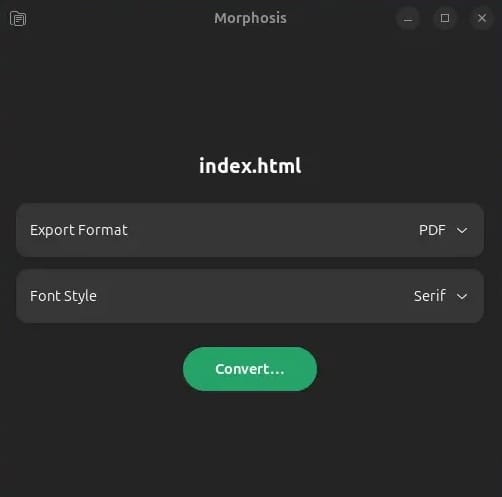
flatpak run garden.jamie.MorphosisOn first launch, Morphosis opens immediately to a clean, minimal window. There is no setup wizard, no account creation, and no configuration required. The interface is intentionally simple — the application’s value lies in what it does, not in how many settings it exposes.
How to Use Morphosis on AlmaLinux 10
Once Morphosis is open, converting a document takes less than a minute.
Step 1 — Open a document
Click the “Open” button, then browse to your file in the file picker dialog. Alternatively, drag and drop a file directly onto the Morphosis window. Supported input formats include DOCX, EPUB, HTML, Markdown, ODT, CSV, JSON, IPYNB, OPML, LaTeX, and more.
Step 2 — Select the output format
Use the format dropdown to choose your target format. Options include PDF, HTML, Markdown, reStructuredText, LaTeX, DOCX, ODT, RTF, and EPUB. When exporting to PDF, a font style selector may appear — choose your preferred font before converting.
Step 3 — Convert
Click the “Convert…” button. A save dialog opens, letting you choose the destination folder and filename. Click Save. Morphosis processes the document using Pandoc in the background. For most files, conversion is nearly instant. Larger documents may take a few seconds.
Important reminder: If your source document is a PDF file, Morphosis will not accept it as input. Open the PDF in LibreOffice Writer first, save it as DOCX, and then run the DOCX through Morphosis.
Alternative: Install Morphosis from Source Code
This method is for advanced users who want the latest development version or who want to contribute to Morphosis. It requires more steps and familiarity with build tools.
Install build dependencies first:
sudo dnf install -y git python3 python3-pip meson ninja-build
sudo dnf install -y gtk4-devel libadwaita-devel pandoc
Clone the official source repository:
git clone https://gitlab.gnome.org/World/morphosis.git
cd morphosis
Build and install using Meson:
meson setup builddir
meson compile -C builddir
sudo meson install -C builddir
If the build fails, read the error output carefully — it will usually identify which package or library is missing. For most AlmaLinux 10 users, the Flatpak method is recommended because it is simpler and more stable over time.
Keeping Morphosis Up to Date
Staying current with Morphosis updates ensures you benefit from bug fixes, new format support, and performance improvements.
Update only Morphosis:
flatpak update garden.jamie.MorphosisUpdate all installed Flatpak applications at once:
flatpak updateFor a combined system and Flatpak update in a single command:
sudo dnf upgrade --refresh && flatpak updateCheck the currently installed version at any time:
flatpak info garden.jamie.MorphosisUninstalling Morphosis
If you ever need to remove Morphosis — whether to free up disk space or perform a clean reinstall — make sure the application is closed first, then run:
flatpak uninstall garden.jamie.MorphosisAfter removal, clean up any unused Flatpak runtimes:
flatpak uninstall --unusedConfirm the removal was successful:
flatpak listMorphosis should no longer appear in the output.
Troubleshooting Common Issues
Morphosis fails to launch after installation
The most likely cause is that the system was not rebooted after setting up Flatpak and Flathub. Run sudo reboot, then try launching Morphosis again.
flatpak: command not found
Flatpak was not installed, or the shell session has not refreshed. Re-run sudo dnf install -y flatpak and then open a new terminal window before retrying.
Flathub remote not found during install
The Flathub remote was not properly added. Re-run the setup command:
flatpak remote-add --if-not-exists flathub https://flathub.org/repo/flathub.flatpakrepoConversion fails for specific file types
Most conversion failures happen when attempting to use a PDF as an input file. Morphosis does not support PDF input — only PDF output. Convert the PDF to DOCX via LibreOffice, then retry.
Morphosis not visible in the GNOME application menu
Log out of your desktop session and log back in. GNOME Shell may need a session refresh to register newly installed Flatpak applications in the launcher.
Installation interrupted mid-download
Run flatpak repair to fix the corrupted installation state, then re-run the install command.
Congratulations! You have successfully installed Morphosis. Thanks for using this tutorial for installing the Morphosis converting documents on AlmaLinux OS 10 system. For additional help or useful information, we recommend you check the official Morphosis website.

