
OnlyOffice on Ubuntu 26.04 setup is a practical way to give your users a web-based document editor without sending files to a third-party cloud. In this guide, I’ll show you how to Install OnlyOffice on Ubuntu 26.04 with the same thinking a senior sysadmin uses in production: prepare the host, install the dependencies in the right order, secure the service with HTTPS, and verify that everything works.
This is written for beginner to intermediate Linux users, developers, and sysadmins who want a clear Linux server tutorial, not a copy-paste dump. Every step explains both what the command does and why it matters, so you can understand the setup and debug it later.
Prerequisites
Before you start, make sure you have the basics in place. Ubuntu 26.04 LTS is the right target here because it is the current LTS release and gets 5 years of maintenance updates.
- OS: Ubuntu 26.04 LTS, 64-bit only.
- Permissions: A user with
sudoaccess or root access. - Network: A domain name pointed to your server if you want HTTPS.
- Packages:
apt,curl,gnupg,ufw,postgresql,rabbitmq-server, andcertbot. - Hardware: At least 2 CPU cores, 4 GB RAM recommended, and enough disk space for documents and logs.
Step 1: Update Your System
Refresh package lists
Run the update command first so your package index is current.
sudo apt updateThis command refreshes Ubuntu’s package database. You do this first because old package lists can cause dependency problems during the OnlyOffice install.
Upgrade installed packages
sudo apt upgrade -yThis upgrades existing packages before you add OnlyOffice and its dependencies. It reduces the chance of version conflicts later, especially with Nginx, OpenSSL, or PostgreSQL libraries.
Reboot if needed
sudo rebootA reboot is worth it after kernel or system library updates. It makes sure the running system matches the packages you just installed.
Step 2: Install PostgreSQL
Install the database server
sudo apt install postgresql -yOnlyOffice Document Server uses PostgreSQL to store its internal data. You need it before you install OnlyOffice itself, or the installer will stop when it tries to connect to the database.
Start and enable PostgreSQL
sudo systemctl enable --now postgresqlThis makes PostgreSQL start at boot and start right away. That matters because OnlyOffice expects the database service to be available during installation and at runtime.
Create the OnlyOffice user and database
sudo -i -u postgres psql -c "CREATE USER onlyoffice WITH PASSWORD 'StrongPasswordHere';"
sudo -i -u postgres psql -c "CREATE DATABASE onlyoffice OWNER onlyoffice;"
This creates a dedicated database user instead of using the default postgres account. That is safer and follows least privilege, which is exactly what you want on any production Linux server tutorial.
Expected output
You should see messages like these:
CREATE ROLE
CREATE DATABASE
That output confirms PostgreSQL accepted the user and database commands.
Step 3: Install RabbitMQ
Install the message broker
sudo apt install rabbitmq-server -yRabbitMQ handles queue-based communication inside OnlyOffice. It helps separate document conversion tasks from the main web service, which keeps the stack more reliable under load.
Enable and check the service
sudo systemctl enable --now rabbitmq-server
sudo systemctl status rabbitmq-server
You want RabbitMQ running before OnlyOffice starts. If it is down, document loading and conversion can fail even when the web page itself appears to load.
Expected output
A healthy status usually includes:
Active: active (running)That tells you the broker is ready.
Step 4: Add the OnlyOffice repository
Install tools for repository setup
sudo apt install curl gnupg -yThese tools let you download and verify the OnlyOffice signing key. You need the key because Ubuntu should only trust packages that come from a signed source.
Add the GPG key
mkdir -p -m 700 ~/.gnupg
gpg --no-default-keyring --keyring gnupg-ring:/tmp/onlyoffice.gpg \
  --keyserver hkp://keyserver.ubuntu.com:80 --recv-keys CB2DE8E5
chmod 644 /tmp/onlyoffice.gpg
sudo chown root:root /tmp/onlyoffice.gpg
sudo mv /tmp/onlyoffice.gpg /usr/share/keyrings/onlyoffice.gpg
This imports the signing key that APT uses to verify package authenticity. It protects you from tampered or unsigned packages, which is important any time you add a third-party repository.
Add the repository file
echo 'deb [signed-by=/usr/share/keyrings/onlyoffice.gpg] https://download.onlyoffice.com/repo/debian squeeze main' | sudo tee /etc/apt/sources.list.d/onlyoffice.list
sudo apt update
This adds the OnlyOffice package source and refreshes your package list again. The signed-by part keeps the trust chain limited to the OnlyOffice key instead of trusting every repository globally.
Expected output
After apt update, you should not see signature errors. If you do, the key step did not complete correctly.
Step 5: Install OnlyOffice on Ubuntu 26.04
Install Microsoft core fonts
sudo apt install ttf-mscorefonts-installer -yOnlyOffice renders documents more accurately when Microsoft-compatible fonts are present. This reduces layout shifts in DOCX and PDF output, especially when users work with Office-formatted files.
Install the Document Server package
sudo apt install onlyoffice-documentserver -yThis is the main install command. It pulls in the OnlyOffice Document Server, the web editor, and the components needed for conversion and web access.
What the installer does
During the install, you may be asked for the PostgreSQL password and font license confirmation. That is normal. OnlyOffice uses the database and fonts as part of its standard setup flow, so the installer needs both before it can finish.
Expected output
A successful install usually ends with package configuration messages and no fatal errors. If APT finishes cleanly, the service files should now be present on your system.
Step 6: Configure the firewall
Allow SSH first
sudo ufw allow OpenSSHYou always allow SSH before enabling the firewall so you do not lock yourself out of the server. This is a simple rule, but it saves a lot of recovery work.
Allow web traffic
sudo ufw allow 'Nginx Full'OnlyOffice uses Nginx as the front end, so you need both HTTP and HTTPS access. This rule opens the ports needed for browser access and certificate validation.
Enable UFW
sudo ufw enable
sudo ufw status
This turns the firewall on and shows the current rules. You want to see SSH and Nginx allowed before you move on to SSL.
Step 7: Add HTTPS for OnlyOffice on Ubuntu 26.04 setup
Install Certbot
sudo apt install certbot -yCertbot helps you issue a free TLS certificate from Let’s Encrypt. HTTPS matters because document editing traffic should never travel in plain text if you expose the service to the internet.
Stop Nginx before issuing the certificate
sudo systemctl stop nginxThis frees port 80 for the temporary Certbot challenge server. If Nginx keeps running, Certbot can fail because the port is already in use.
Request the certificate
sudo certbot certonly --standalone -m [email protected] --agree-tos --no-eff-email -d your-domain.comThis gets the certificate without letting Certbot rewrite your Nginx config. That gives you more control over the OnlyOffice config, which is safer on a production server.
Apply the certificate in Nginx
sudo cp -f /etc/onlyoffice/documentserver/nginx/ds-ssl.conf.tmpl /etc/onlyoffice/documentserver/nginx/ds.conf
sudo nginx -t
sudo systemctl start nginx
This copies the SSL template, tests the Nginx config, and starts the service again. Testing first matters because one bad config line can prevent the editor from loading.
Update the secure link settings
sudo bash /usr/bin/documentserver-update-securelink.shThis updates OnlyOffice’s internal secure settings so the editor and backend services stay aligned. It helps avoid browser warnings and broken editor sessions.
Step 8: Verify the installation
Check the services
sudo systemctl status nginx
sudo systemctl status postgresql
sudo systemctl status rabbitmq-server
You want all three services active. OnlyOffice may open in the browser if one service is missing, but editing and conversion can still fail behind the scenes.
Open the browser
Visit:
https://your-domain.comIf the setup worked, you should see the OnlyOffice welcome or status page. That confirms the web front end is responding over HTTPS.
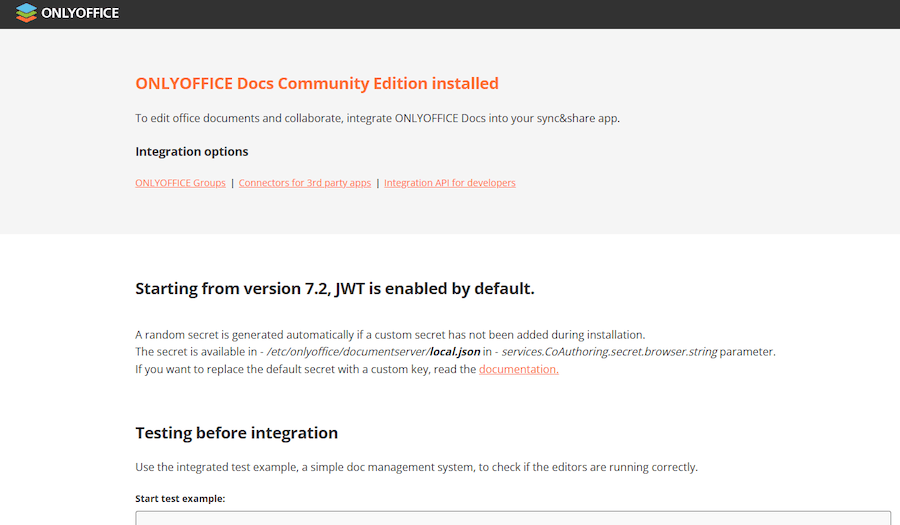
Quick verification checklist
- The page loads without certificate warnings.
- PostgreSQL is active.
- RabbitMQ is active.
- Nginx is active.
- No 502 or 504 gateway errors appear.
Step 9: Configure OnlyOffice on Ubuntu 26.04 with integrations
Use the API endpoint
https://your-domain.com/web-apps/apps/api/documents/api.jsThis is the endpoint other platforms use to connect to your Document Server. It is the value you usually paste into Nextcloud, WordPress, or another supported app.
Why this matters
Installing OnlyOffice is only the first half of the job. The real value comes when you connect it to a platform where users can open and edit documents directly in the browser.
Common integration targets
- Nextcloud.
- ownCloud.
- WordPress.
- Custom internal web apps.
Troubleshooting
1. OnlyOffice page shows 502 Bad Gateway
This usually means Nginx is running, but the backend service failed. Check PostgreSQL and RabbitMQ first.
sudo systemctl status postgresql
sudo systemctl status rabbitmq-server
If one is down, restart it and try again.
2. Certificate request fails
This often happens when port 80 is blocked or Nginx is still running during Certbot setup.
sudo ufw status
sudo systemctl stop nginx
Make sure the firewall allows HTTP traffic and retry the certificate request.
3. Repository update shows a signature error
This usually means the GPG key did not import correctly.
ls -l /usr/share/keyrings/onlyoffice.gpg
sudo apt update
If the key file is missing or unreadable, repeat the key import step.
4. Document editing works poorly or layout looks wrong
That usually points to missing fonts. Install the Microsoft core fonts package again.
sudo apt install ttf-mscorefonts-installer -yFonts affect how documents render, especially when users open Office files created on Windows.
5. The installer asks for PostgreSQL credentials again
That means the database setup was incomplete or the password was entered wrong.
sudo -i -u postgres psqlUse PostgreSQL directly to confirm the onlyoffice user and database exist.
[su_box title=”VPS Manage Service Offer” style=”bubbles” box_color=”#000000″ radius=”10″]If you don’t have time to do all of this stuff, or if this is not your area of expertise, we offer a service to do “VPS Manage Service Offer”, starting from $10 (Paypal payment). Please contact us to get the best deal![/su_box]

