
Audacity is the world’s most popular free audio editor, and installing it on Ubuntu 26.04 requires special attention to the new PipeWire audio system. You just set up Ubuntu 26.04 LTS “Resolute Raccoon” and now you need to record a podcast or edit audio files. This guide shows you exactly how to install Audacity on Ubuntu 26.04 using four different methods, explains why each step matters, and fixes the critical audio backend issue that makes Audacity non-functional on this release.
After ten years of managing Linux desktops and servers, I have installed Audacity across dozens of Ubuntu releases. Ubuntu 26.04 is different because it defaults to Wayland and PipeWire instead of PulseAudio. Most tutorials skip this detail, leaving users confused when Audacity shows no recording devices. I will walk you through every step, from prerequisites to final audio testing, with clear explanations of what each command does and why it matters.
Prerequisites Before Installing Audacity on Ubuntu 26.04
Before running any installation commands, verify these requirements to avoid failures later:
- Operating System: Ubuntu 26.04 LTS “Resolute Raccoon” desktop (confirm with
lsb_release -a) - User Permissions: sudo access (run
sudo whoamito verify) - Disk Space: At least 500 MB free for the application plus audio project files
- RAM: 4 GB minimum (Ubuntu 26.04’s GNOME 50 desktop requires this baseline)
- Network Connection: Active internet connection to download packages
- Audio Hardware: Functional microphone or line-in device for recording tests
Skip these checks and you risk installation errors or audio device detection failures. Ubuntu 26.04 ships with Linux kernel 7.0 and GNOME 50, which means older tutorials for Ubuntu 20.04 or 22.04 will not work correctly.
Step 1: Update Your System Package Index
What This Step Does
Running sudo apt update refreshes your local package metadata cache with the latest versions from Ubuntu’s repositories. This synchronization ensures you install the current Audacity version and resolve dependencies correctly.
Why This Step Matters
Installing software on a stale package index causes dependency conflicts. Your system might try to install an outdated Audacity version or fail with “unable to locate package” errors. Without updating first, you cannot guarantee the installation will succeed.
sudo apt update
Expected Output:
Reading package lists... Done
Building dependency tree... Done
Reading state information... Done
23 packages can be upgraded. Run 'apt list --upgradable' to see them.
The output shows how many packages are available for upgrade. This number varies based on your system’s update history.
Next: Upgrade Existing Packages (Optional but Recommended)
sudo apt upgrade -y
The -y flag auto-confirms the upgrade prompt. This step is optional but recommended for security and stability. It ensures your base system is current before adding new software.
Step 2: Install Audacity Using APT (Recommended Method)
What This Method Does
The APT method installs Audacity from Ubuntu’s official universe repository. This approach provides full system integration, automatic security updates via unattended-upgrades, and proper .desktop file registration for the application launcher.
Why APT is Recommended for Most Users
APT is Ubuntu’s native package manager. Installing through APT gives you the deepest system integration compared to sandboxed methods like Snap or Flatpak. The package integrates with your system’s update manager, and the application appears correctly in GNOME Software Center.
Step 2.1: Install Audacity Package
sudo apt install audacity -y
What This Command Does:
sudo: Runs the command with elevated privilegesapt install: Invokes the APT package installeraudacity: Specifies the package name-y: Auto-confirms the installation prompt without asking
Why the universe Repository Matters:
Audacity lives in Ubuntu’s universe repository, which contains community-maintained open-source software. This repository is enabled by default in Ubuntu 26.04, so you do not need to add it manually.
Expected Output:
Reading package lists... Done
Building dependency tree... Done
Reading state information... Done
The following additional packages will be installed:
  audacity-data libaud-core3 libaudgui3
The following NEW packages will be installed:
  audacity
0 upgraded, 4 newly installed, 0 to remove and 23 not upgraded.
Need to get 2,847 kB of archives.
Unpacking audacity (3.4.2-1build1) ...
Setting up audacity-data (3.4.2-1build1) ...
Setting up libaud-core3 ...
Setting up libaudgui3 ...
Setting up audacity (3.4.2-1build1) ...
Processing triggers for gnome-mime-data ...
The output shows dependencies being installed alongside Audacity. Version 3.4.2-1build1 may vary slightly based on repository updates.
Step 2.2: Verify the Installation
audacity --version
What This Command Does:
This command queries the installed Audacity binary and prints its version number to stdout.
Why Verification Matters:
Verification confirms the binary is in your $PATH and that the correct version was installed. This step catches silent install failures that do not always throw errors. If the command returns “command not found,” the installation did not complete successfully.
Expected Output:
Audacity 3.4.2
The version number should match what appeared in the installation output.
Step 2.3: Launch Audacity
Launch via terminal:
audacity &
The & runs Audacity in the background, returning control to your terminal immediately.
Launch via GUI:
- Press
Super(Windows key) to open Activities - Type “Audacity” in the search bar
- Click the Audacity icon
Why Launch from Terminal First:
Launching from the terminal on first run lets you see stderr warnings about audio device detection. These warnings are invisible when launching from the GUI, making terminal launch essential for troubleshooting.
Step 3: Install Audacity Using Snap (Auto-Update Method)
What This Method Does
Snap packages are sandboxed, automatically updated, and maintained officially on Snapcraft. This method delivers newer Audacity versions than APT without manual PPA management. The sandbox isolation prevents Audacity from accessing files outside standard allowed directories.
Why Choose Snap Over APT
Snap is ideal when you want a newer version than what APT provides. Snap packages update automatically without running apt upgrade, and the sandbox adds security by limiting file access. Use Snap if APT’s version is outdated for your workflow.
Step 3.1: Confirm Snapd is Active
systemctl status snapd
What This Command Does:
This command checks the status of the snapd service, which is the Snap package manager daemon.
Why This Check Matters:
Ubuntu 26.04 ships with snapd enabled by default, but customized installations may have it removed. Without an active snapd service, Snap commands fail silently with “command not found” errors.
Expected Output:
● snapd.service - Snap Daemon
   Loaded: loaded (/usr/lib/systemd/system/snapd.service; enabled)
   Active: active (running) since Fri 2026-06-12 08:00:00 WIB
The Active: active (running) line confirms the service is operational.
Step 3.2: Install Audacity via Snap
sudo snap install audacity
What This Command Does:
This command pulls the Snap package directly from the Snap Store and installs it to your system.
Why Snap Installation Works Differently:
Snap installs to /snap/audacity/current/ instead of /usr/bin/. The Snap system creates wrapper scripts in /usr/bin/ that redirect to the sandboxed binary. This structure enables automatic updates and version isolation.
Expected Output:
audacity 3.7.6 from Audacity Team (audacityteam✓) installed
The version number 3.7.6 is newer than APT’s 3.4.2, demonstrating Snap’s advantage for cutting-edge features.
Step 3.3: Connect the Audio-Record Interface (Critical!)
sudo snap connect audacity:audio-record
What This Command Does:
This command grants the Snap package permission to access your system’s audio recording devices by connecting the audio-record interface.
Why This Step is Mandatory:
Snap’s confinement model restricts microphone access by default. Without connecting this interface, Audacity opens but shows no recording devices. This is the most common source of confusion for Snap users on Ubuntu 26.04.
Expected Output:
(no output on success - snap commands are silent when operations succeed)
No output means success. Errors appear as red text with descriptive messages.
Step 3.4: Launch Snap Audacity
snap run audacity
Or click the application icon from GNOME Activities.
Step 4: Install Audacity Using Flatpak (Latest Version for GNOME)
What This Method Does
Flatpak is the preferred sandboxed delivery format for GNOME-based desktops. Since Ubuntu 26.04 ships GNOME 50, Flatpak integrates cleanly with GNOME Software Center and provides the latest upstream Audacity builds from Flathub.
Why Choose Flatpak on Ubuntu 26.04
Flatpak is ideal for GNOME desktop users who want the latest version. It integrates with GNOME Software for update management and provides better sandbox isolation than Snap on GNOME systems.
Step 4.1: Install Flatpak Package
sudo apt install flatpak
What This Command Does:
This command installs the Flatpak runtime and CLI tools from Ubuntu’s repositories.
Why This Installation is Required:
Ubuntu 26.04 does not ship Flatpak by default, unlike Fedora-based systems. Installing it adds the infrastructure needed to run sandboxed Flatpak applications.
Expected Output:
Reading package lists... Done
Building dependency tree... Done
Reading state information... Done
The following NEW packages will be installed:
  flatpak flatpak-builder libflatpak0
0 upgraded, 3 newly installed, 0 to remove and 23 not upgraded.
Need to get 1,245 kB of archives.
Unpacking flatpak (1.15.6-1) ...
Setting up libflatpak0 ...
Setting up flatpak-builder ...
Setting up flatpak (1.15.6-1) ...
Step 4.2: Add the Flathub Repository
flatpak remote-add --if-not-exists flathub https://dl.flathub.org/repo/flathub.flatpakrepo
What This Command Does:
This command adds Flathub as a Flatpak repository source. The --if-not-exists flag prevents errors if Flathub is already configured.
Why Flathub is Necessary:
Without adding Flathub, flatpak install has no source to pull from. Flathub is the community-maintained hub for all major Flatpak applications, including Audacity.
Expected Output:
Add remote "flathub"
Success added remote "flathub"
Step 4.3: Install Audacity via Flatpak
flatpak install flathub org.audacityteam.Audacity
What This Command Does:
This command downloads and installs the official Audacity Flatpak from Flathub.
Why the Full Application ID Matters:
The reverse-domain application ID org.audacityteam.Audacity precisely identifies the official Audacity Flatpak. This prevents accidentally installing a similarly-named fork or unofficial package.
Expected Output:
Looking for matches...

Required permissions:
  Permission: audio
  Permission: pulseaudio
  Permission: wayland

org.audacityteam.Audacity>3.7.6) ready to be installed.
Flatpak displays required permissions before installation. Press Enter to confirm.
Step 4.4: Run Audacity via Flatpak
flatpak run org.audacityteam.Audacity
Or use GNOME Software to launch after installation completes.
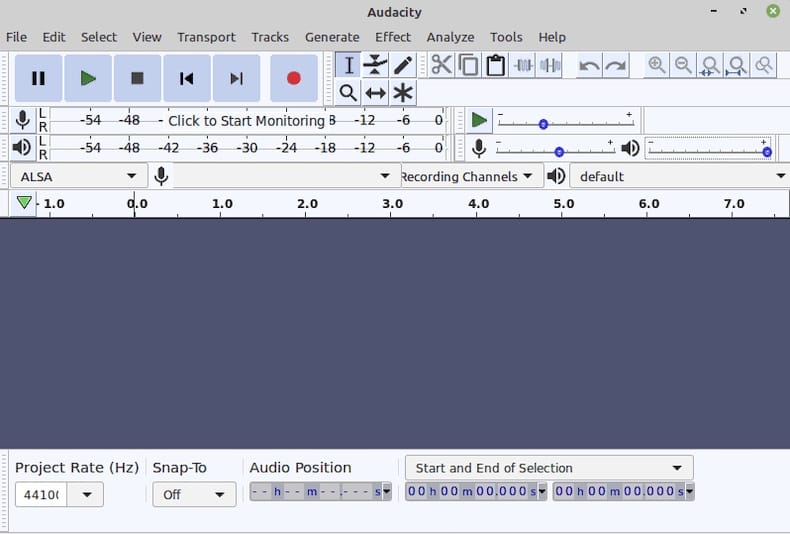
Step 5: Install Audacity Using AppImage (Portable Method)
What This Method Does
AppImage bundles all dependencies into a single portable binary. It runs without installation, leaves no system files behind, and is ideal for testing a specific Audacity version without affecting your system package state.
Why Choose AppImage
AppImage is perfect for portable testing or when you need to run multiple Audacity versions simultaneously. It does not modify your system, making it reversible by simply deleting the file.
Step 5.1: Download the AppImage File
Visit the official download page:
# Open in browser: https://www.audacityteam.org/download/linux/
# Download: audacity-linux-3.7.6-x64.AppImage
What You Are Doing:
You are downloading the binary directly from the official Audacity website.
Why Official Downloads Matter:
Always download directly from the official Audacity website to avoid tampered or outdated third-party mirrors. Third-party sources may contain malware or incorrect versions.
Step 5.2: Install libfuse2t64 (Critical for Ubuntu 26.04)
sudo add-apt-repository universe
sudo apt install libfuse2t64
What These Commands Do:
add-apt-repository universe: Enables the universe repository if not already activeapt install libfuse2t64: Installs the FUSE 2 compatibility library
Why This Step is Mandatory:
AppImage relies on FUSE (Filesystem in Userspace) to mount its internal filesystem at runtime. Ubuntu 24.04 and later ship FUSE 3 by default, but most AppImages are still built against FUSE 2. Without libfuse2t64, the AppImage silently refuses to launch. On Ubuntu 26.04, the package name is libfuse2t64 rather than the older libfuse2.
Expected Output:
Reading package lists... Done
Building dependency tree... Done
Reading state information... Done
The following NEW packages will be installed:
  libfuse2t64
0 upgraded, 1 newly installed, 0 to remove and 23 not upgraded.
Need to get 98,432 B of archives.
Unpacking libfuse2t64 (2.9.9-5) ...
Setting up libfuse2t64 (2.9.9-5) ...
Processing triggers for libc-bin ...
Step 5.3: Make the AppImage Executable
chmod +x audacity-linux-3.7.6-x64.AppImage
What This Command Does:
This command adds the execute permission bit to the downloaded AppImage file.
Why Execute Permission Matters:
Downloaded files are not executable by default in Linux. The chmod +x flag allows the kernel to run the file as a program. Without this step, double-clicking the file does nothing.
Step 5.4: Run the AppImage
./audacity-linux-3.7.6-x64.AppImage
What This Command Does:
The ./ prefix runs the file from the current directory as an executable program.
Why Relative Path Matters:
Using ./ tells the shell to look in the current directory for the executable. Without it, the shell searches only in $PATH, which does not include your current directory for security reasons.
Step 6: Configure PipeWire Audio Backend (Critical for Ubuntu 26.04)
What This Section Addresses
Ubuntu 26.04 uses PipeWire as its default audio server. Audacity does not have native PipeWire support yet. Without configuring the compatibility layer, Audacity launches but shows no recording or playback devices, making it completely non-functional.
Why This Step Is Mandatory
Ubuntu 26.04 replaced PulseAudio with PipeWire. Audacity communicates with audio hardware via ALSA or PulseAudio backends. PipeWire bridges this gap through compatibility modules. Without these modules, Audacity cannot detect audio devices regardless of which installation method you used.
Step 6.1: Install PipeWire Compatibility Packages
sudo apt install pipewire-pulse pipewire-alsa
What This Command Does:
This command installs two PipeWire compatibility packages:
pipewire-pulse: Makes PipeWire present itself as a PulseAudio serverpipewire-alsa: Provides ALSA compatibility for PipeWire routing
Why Both Packages Are Required:
pipewire-pulse makes PipeWire understand Audacity’s native PulseAudio backend. pipewire-alsa lets Audacity’s ALSA backend route through PipeWire as well. Without both, Audacity’s audio device lists appear empty.
Expected Output:
Reading package lists... Done
Building dependency tree... Done
Reading state information... Done
The following NEW packages will be installed:
  pipewire-pulse pipewire-alsa
0 upgraded, 2 newly installed, 0 to remove and 23 not upgraded.
Need to get 156,789 B of archives.
Unpacking pipewire-pulse (1.2.7-1) ...
Setting up pipewire-alsa ...
Setting up pipewire-pulse ...
Processing triggers for pipewire.service ...
Step 6.2: Verify PipeWire Services Are Running
systemctl --user status pipewire.service pipewire-pulse.service
What This Command Does:
This command checks the runtime status of both PipeWire services for your user session.
Why Service Verification Matters:
Even after installation, service state matters. If pipewire-pulse.service is not in active (running) state, Audacity still cannot see devices. This command confirms the service is live before opening Audacity.
Expected Output:
● pipewire.service - PipeWire Multimedia Service
   Loaded: loaded (/usr/lib/systemd/user/pipewire.service; enabled)
   Active: active (running) since Fri 2026-06-12 08:05:00 WIB

● pipewire-pulse.service - PipeWire PulseAudio Service
   Loaded: loaded (/usr/lib/systemd/user/pipewire-pulse.service; enabled)
   Active: active (running) since Fri 2026-06-12 08:05:01 WIB
Both services must show Active: active (running).
Step 6.3: Configure Audacity’s Audio Host Setting
- Open Audacity
- Navigate to Edit > Preferences > Audio Host
- Select “ALSA” or “PulseAudio” from the Host dropdown
- Set Playback device to “pipewire”
- Set Recording device to “pipewire”
- Click OK to apply
Why This Configuration Is Necessary:
Audacity defaults to an audio host setting valid on older Ubuntu releases. On Ubuntu 26.04 with PipeWire, explicitly selecting the correct host and “pipewire” device ensures Audacity routes audio through PipeWire’s compatibility layer instead of searching for a hardware ALSA device directly.
Troubleshooting: Common Errors When Installing Audacity on Ubuntu 26.04
Error 1: “No Audio Devices Found” After Launch
Problem:
Audacity opens but the recording and playback device dropdowns show “No devices found.”
Cause:
PipeWire compatibility packages are not installed, or the services are not running.
Solution:
sudo apt install pipewire-pulse pipewire-alsa
systemctl --user restart pipewire.service pipewire-pulse.service
Then re-open Audacity and verify devices appear in Preferences.
Error 2: AppImage Does Nothing When Double-Clicked
Problem:
Double-clicking the AppImage file produces no response, and terminal shows no error.
Cause:
The libfuse2t64 package is missing, or the execute permission bit is not set.
Solution:
sudo apt install libfuse2t64
chmod +x audacity-linux-*.AppImage
./audacity-linux-*.AppImage
Run from terminal to see any error messages.
Error 3: Snap Version Cannot Access Microphone
Problem:
Snap-installed Audacity shows no recording devices even after installation.
Cause:
The Snap audio-record interface is not connected.
Solution:
sudo snap connect audacity:audio-record
Close and reopen Audacity after connecting the interface.
Error 4: Audacity Crashes on Launch
Problem:
Audacity closes immediately after opening, with no error message.
Cause:
A corrupt audacity.cfg configuration file from a previous installation.
Solution:
mv ~/.audacity-data/audacity.cfg ~/.audacity-data/audacity.cfg.bak
audacity
Audacity regenerates a clean configuration on next launch.
Error 5: Package Not Found During APT Installation
Problem:
Running sudo apt install audacity returns “unable to locate package audacity.”
Cause:
The universe repository is disabled or your package index is stale.
Solution:
sudo add-apt-repository universe
sudo apt update
sudo apt install audacity
This re-enables the repository and refreshes the package cache.
Choosing the Right Installation Method: Quick Comparison
| Method | System Integration | Auto-Updates | Latest Version | Sandboxed | Best For |
|---|---|---|---|---|---|
| APT | Full | Yes (apt upgrade) |
Possibly older | No | Most desktop users |
| Snap | Partial | Yes (automatic) | Yes | Yes | Users wanting auto-updates + isolation |
| Flatpak | Full (GNOME) | Manual or GNOME Software | Yes | Yes | GNOME desktop users, latest builds |
| AppImage | None | No (manual download) | Yes | No | Portable testing, no system changes |
Use APT for simplicity, Flatpak for the latest version on GNOME, Snap for automatic updates with isolation, or AppImage for portability without system changes.
Quick First-Use Tips After Installing Audacity on Ubuntu 26.04
Set your sample rate to 44100 Hz for standard audio projects. Use 48000 Hz if recording for video production, as this matches video industry standards.
Enable Software Playthrough if you need live microphone monitoring while recording. Go to Edit > Preferences > Recording and check “Software playthrough of input.”
Save projects in Audacity’s .aup3 format to preserve multi-track edits. Export as MP3 or WAV only for final delivery, not for ongoing work.
These settings prevent common workflow issues like mismatched sample rates and lost project data.
[su_box title=”VPS Manage Service Offer” style=”bubbles” box_color=”#000000″ radius=”10″]If you don’t have time to do all of this stuff, or if this is not your area of expertise, we offer a service to do “VPS Manage Service Offer”, starting from $10 (Paypal payment). Please contact us to get the best deal![/su_box]

