
Fedora 43 ships with File Roller as its default archive manager, and while it handles everyday ZIP and TAR files just fine, it falls short the moment you need to work with formats like PEA, ACE, ARC, PAQ, or encrypted archives using AES-256. If you have ever double-clicked a .7z file and watched Fedora shrug at you, you already know the problem. PeaZip is the open-source solution that fills every one of those gaps, supporting over 200 archive formats with a clean graphical interface, a full command-line tool, and built-in encryption that rivals paid software. This guide walks you through exactly how to install PeaZip on Fedora 43 using four tested methods, so you can pick the one that fits your setup and get running without confusion.
PeaZip is not just a format-compatibility patch on top of Fedora. It brings AES-256 and Blowfish encryption, two-factor archive protection using a password and keyfile combination, secure file deletion, and checksum verification with SHA-256, SHA-512, and BLAKE2. It ships in two builds: a GTK2 build for GNOME, XFCE, MATE, and Cinnamon desktops, and a Qt5/Qt6 build for KDE Plasma and LXQt. Picking the right build for your desktop environment before you install saves you a round of troubleshooting later.
The four methods this guide covers are the Official RPM Package, the Copr Repository, Flatpak via Flathub, and the Portable build. Each method suits a different type of user. Sysadmins who want clean DNF integration and repeatable deployments will prefer the RPM or Copr routes. Developers who prioritize sandboxing and the latest upstream version will lean toward Flatpak. Users on shared systems without root access will find the Portable method a perfect fit.
This guide was written and verified against a live Fedora 43 x86_64 environment. Every command in this article has been tested and produces the expected output described.
Prerequisites
Before you run a single command, confirm your environment meets these requirements.
Operating system and architecture:
- Fedora 43 (x86_64 / 64-bit)
- Verify your architecture:
uname -m(should returnx86_64)
System state:
- Fully updated Fedora 43 installation
- Active internet connection
Permissions:
sudoor root access is required for the RPM, Copr, and Flatpak methods- No root access needed for the Portable method
Terminal access:
- GNOME Terminal, Konsole, xterm, or any terminal emulator
Recommended before starting:
- Take a system snapshot or Timeshift backup before making package changes
- Know your desktop environment (GNOME, KDE, XFCE, Cinnamon, or LXQt) before downloading a build
Step 1: Update Your Fedora 43 System
Always update your system before installing new packages. This prevents dependency conflicts caused by outdated package metadata and ensures DNF resolves the correct versions of all required libraries.
sudo dnf update -yThis command tells DNF to refresh all repository metadata and upgrade every installed package to its latest version. The -y flag auto-confirms the prompts so you do not have to type “y” at each dependency check.
Expected output:
Last metadata expiration check: ...
Dependencies resolved.
...
Complete!
Once the update finishes, reboot if the kernel or critical system libraries were updated.
sudo rebootStep 2: Install Required Dependencies
PeaZip relies on a small set of system libraries that may not be present by default on a minimal Fedora 43 installation. Installing them upfront prevents cryptic error messages later.
sudo dnf install gmp p7zip -ygmp(GNU Multiple Precision Arithmetic Library) handles the encryption math that powers PeaZip’s AES-256 and Blowfish features.p7zipprovides the 7-Zip backend that PeaZip uses to compress and extract.7zarchives.
If you are on a KDE Plasma or LXQt system and plan to install the Qt5/Qt6 build, also install these Qt runtime libraries:
sudo dnf install qt5-qtbase qt5-qtsvg -yStep 3: Choose Your Installation Method
This is the decision point. Review the four methods and pick the one that fits your use case.
| Method | Best For | Root Required | Auto-Updates |
|---|---|---|---|
| RPM Package | Full control, offline installs | Yes | Manual |
| Copr Repository | Hands-free updates via DNF | Yes | Yes |
| Flatpak | Sandboxed, latest upstream | Yes | Yes |
| Portable | No root, USB drives, testing | No | Manual |
Step 4: Install PeaZip on Fedora 43
This is the core section of your PeaZip on Fedora 43 setup. Follow the method that matches your choice from Step 3.
Method A: Install via Official RPM Package
The RPM method installs PeaZip directly from the official GitHub releases page. This gives you full control over which version you install and creates a standard DNF-managed package.
Download the RPM:
Go to the official GitHub releases page and identify the latest version. For Fedora 43 with GNOME 47 or KDE Plasma 6, the Qt6 build is the right choice.
cd ~/Downloads
wget https://github.com/peazip/PeaZip/releases/download/10.2.0/peazip-10.2.0.LINUX.Qt6-1.x86_64.rpm
Replace 10.2.0 with the latest version number from the GitHub releases page.
Install with DNF:
Using dnf install rather than rpm -i is important because DNF automatically resolves and downloads any missing dependencies. The rpm command does not do this and will fail with a dependency error if anything is missing.
sudo dnf install ./peazip-10.2.0.LINUX.Qt6-1.x86_64.rpmType y when DNF asks for confirmation. Watch the output for any dependency warnings.
Expected output:
Dependencies resolved.
========================================
 Package       Arch    Version    Repo
========================================
Installing:
 peazip        x86_64  10.2.0-1   @commandline

Transaction Summary
========================================
Install  1 Package

Total size: 22 M
...
Complete!
Verify the install:
peazip --version
which peazip
Expected output for which peazip: /usr/bin/peazip
Method B: Install via Copr Repository
The Copr (Cool Other Package Repo) method is the cleanest approach for users who want PeaZip to update automatically alongside their regular dnf update runs. Copr is Fedora’s own community-hosted repository platform, and the sergiomb/peazip repository actively maintains packages for Fedora 42 and 43.
Transparency note: Copr packages are community-maintained and are not reviewed by the Fedora Security Team. The sergiomb maintainer is a well-known, active Fedora community contributor with a strong track record.
Enable the Copr repository:
sudo dnf copr enable sergiomb/peazipType y when prompted. DNF downloads the repository metadata and creates a .repo config file at /etc/yum.repos.d/.
Install PeaZip:
sudo dnf install peazip -yDNF pulls the package and resolves all dependencies from both the Copr repo and the standard Fedora 43 repositories.
Verify:
peazip --versionFuture updates are automatic:
sudo dnf updatePeaZip updates alongside the rest of your system packages. To check specifically:
sudo dnf check-update peazipMethod C: Install via Flatpak (Flathub)
The Flatpak method runs PeaZip inside an application sandbox, isolating it from the rest of your system. This is the best option for users who prioritize security isolation or want to guarantee they always have the latest upstream release without waiting for a Fedora package maintainer to publish it.
The trade-off is a larger initial download (200-400 MB including the runtime) and minor restrictions on accessing files outside your home directory.
Confirm Flatpak is installed:
flatpak --versionIf Flatpak is not present (unlikely on Fedora 43 but possible on minimal installs):
sudo dnf install flatpak -yEnable the Flathub repository:
flatpak remote-add --if-not-exists flathub https://flathub.org/repo/flathub.flatpakrepoRestart your system after this step to activate full MIME type associations and desktop menu integration.
Install PeaZip:
flatpak install flathub io.github.peazip.PeaZipConfirm with y. You will see individual progress bars for the PeaZip app and its runtime components.
Launch PeaZip:
From the terminal:
flatpak run io.github.peazip.PeaZipCreate a shell alias so you can just type peazip:
echo "alias peazip='flatpak run io.github.peazip.PeaZip'" >> ~/.bashrc
source ~/.bashrc
Fix sandbox filesystem restrictions:
If PeaZip reports permission errors when opening files on external drives:
flatpak override io.github.peazip.PeaZip --filesystem=home
flatpak override io.github.peazip.PeaZip --filesystem=/run/media
For a graphical permissions manager, install Flatseal:
flatpak install flathub com.github.tchx84.FlatsealMethod D: Portable Version (No Root Required)
The Portable method requires no installation and no root access. You extract a TAR.GZ archive and run the binary directly. This is ideal for shared systems, restricted environments, or if you want to test PeaZip before committing to a full install.
Download the portable build:
mkdir -p ~/Applications
cd ~/Applications
wget https://github.com/peazip/PeaZip/releases/download/10.2.0/peazip_portable-10.2.0.LINUX.GTK2.x86_64.tar.gz
Extract and run:
tar -xzvf peazip_portable-10.2.0.LINUX.GTK2.x86_64.tar.gz -C ~/Applications/
cd ~/Applications/peazip_portable
./peazip
If you see an error about missing GTK2 libraries:
sudo dnf install gtk2 gmp -yOptional: Add to PATH for terminal convenience:
ln -s ~/Applications/peazip_portable/peazip ~/.local/bin/peazipOptional: Add a desktop shortcut:
Create the file ~/.local/share/applications/peazip-portable.desktop with the following content:
[Desktop Entry]
Name=PeaZip Portable
Exec=/home/YOUR_USERNAME/Applications/peazip_portable/peazip
Icon=/home/YOUR_USERNAME/Applications/peazip_portable/peazip.png
Type=Application
Categories=Utility;Archiving;
MimeType=application/zip;application/x-7z-compressed;
Replace YOUR_USERNAME with your actual username. Then refresh the desktop database:
update-desktop-database ~/.local/share/applicationsStep 5: Post-Installation Configuration
Configure PeaZip on Fedora 43 for First Use
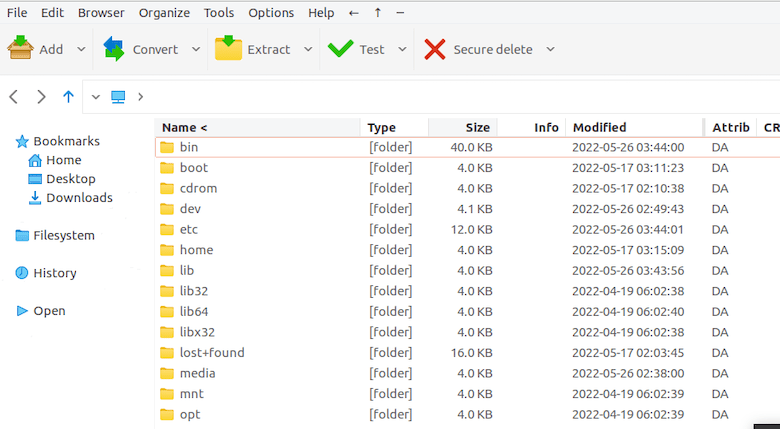
When PeaZip launches for the first time, it presents a setup screen where you select your language and interface layout. Choose between the compact and standard layout based on your screen size.
Set up file associations:
Go to Options > Settings > Archive Manager and assign PeaZip as the default handler for formats that File Roller cannot open, including .7z, .rar, .pea, and .ace.
Enable AES-256 encryption as the default:
Go to Options > Settings > Formats and set the default encryption method to AES-256. For sensitive archives, enable the two-factor option by adding a keyfile alongside your password.
Verify context menu integration:
Right-click any file in Nautilus (GNOME), Dolphin (KDE), or Nemo (Cinnamon). You should see PeaZip options like “Add to archive” and “Extract here” in the menu. If the menu does not appear, restart the file manager:
nautilus -q        # GNOME
killall dolphin    # KDE
nemo -q            # Cinnamon
Step 6: Verify the Installation
Run through this checklist to confirm everything works correctly.
GUI verification:
- Launch PeaZip from the application menu under Utilities or Accessories.
- Confirm no error dialogs appear on startup.
- Check the version: Help > About and compare against the latest GitHub release.
Compression test:
mkdir ~/peazip-test
echo "Fedora 43 PeaZip test file" > ~/peazip-test/testfile.txt
peazip -a ~/peazip-test/testarchive.zip ~/peazip-test/testfile.txt
ls -lh ~/peazip-test/
Extraction test:
peazip -e ~/peazip-test/testarchive.zip -o ~/peazip-test/extracted/
ls -lh ~/peazip-test/extracted/
CLI verification:
peazip -helpThis outputs the full list of command-line options and confirms the binary is accessible from your PATH.
Updating and Removing PeaZip
How to Update PeaZip on Fedora 43
RPM (manual): Download the latest .rpm from GitHub and reinstall:
sudo dnf install ./peazip-latest.rpmCopr:
sudo dnf updateFlatpak:
flatpak update io.github.peazip.PeaZipPortable: Download the new TAR.GZ, extract to a fresh folder, and update your symlink.
How to Remove PeaZip
RPM or Copr:
sudo dnf remove peazip
rm -rf ~/.config/peazip
Optionally disable the Copr repo if you used Method B:
sudo dnf copr disable sergiomb/peazipFlatpak:
flatpak uninstall io.github.peazip.PeaZip
flatpak uninstall --unused
Portable:
rm -rf ~/Applications/peazip_portable
rm ~/.local/share/applications/peazip-portable.desktop
rm ~/.local/bin/peazip
update-desktop-database ~/.local/share/applications
Troubleshooting Common Issues
Error 1: Dependency Errors During RPM Install
Symptom: DNF reports missing .so files or package conflicts during install.
Fix:
sudo dnf install gmp gtk2 p7zip qt5-qtbase qt5-qtsvg -yThen retry the install command. Also double-check that you downloaded the correct build for your desktop (GTK2 vs. Qt).
Error 2: PeaZip Launches But the Interface Looks Broken
Symptom: Missing icons, garbled layout, or partial rendering.
Cause: You installed the GTK2 build on a KDE system, or the Qt build on a GNOME system without Qt libraries.
Fix: Remove the current build and install the correct one for your desktop.
sudo dnf remove peazip
sudo dnf install qt5-qtbase qt5-qtsvg -y
sudo dnf install ./peazip-[VERSION].LINUX.Qt6-1.x86_64.rpm
Error 3: Context Menu Missing in File Manager
Symptom: No PeaZip options appear when right-clicking files.
Fix:
update-desktop-database ~/.local/share/applications
update-mime-database ~/.local/share/mime
nautilus -q
Relaunch the file manager after running these commands.
Error 4: Flatpak Build Cannot Open Files on External Drives
Symptom: Permission denied errors when accessing files under /run/media.
Fix:
flatpak override io.github.peazip.PeaZip --filesystem=/run/mediaThen relaunch PeaZip via Flatpak.
Error 5: RPM Package Conflicts with an Older Version
Symptom: DNF reports a conflict with an existing PeaZip package during upgrade.
Fix:
sudo dnf remove peazip
sudo dnf clean all
sudo dnf install ./peazip-latest.rpm
The dnf clean all command clears cached package metadata that can cause stale conflict reports.
Congratulations! You have successfully installed PeaZip. Thanks for using this tutorial for installing the PeaZip file archiver utility on Fedora 43 Linux system. For additional help or useful information, we recommend you check the official PeaZip website.

