
Privacy is no longer a luxury — it’s a necessity. With data breaches, corporate email surveillance, and government overreach becoming daily headlines, millions of users are switching to encrypted alternatives. Proton Mail is one of the most trusted names in private email, offering Swiss-based end-to-end encryption that keeps your messages out of the wrong hands. And if you’re running Debian 13 “Trixie,” you’re already on one of the most stable and security-hardened Linux distributions available today. Installing Proton Mail on Debian 13 unlocks a powerful, privacy-first desktop email experience — and this guide will walk you through every step to get there.
What Is Proton Mail?
Proton Mail is a free and open-source encrypted email service headquartered in Geneva, Switzerland. It was founded in 2013 by scientists from CERN and MIT and has since grown to serve millions of users worldwide who prioritize digital privacy. Unlike conventional email providers, Proton Mail uses zero-access end-to-end encryption, meaning that not even Proton itself can read your messages.
The platform offers two distinct ways to use it locally on Linux. First, there is the Proton Mail Desktop App — a standalone GUI client that mirrors the full web experience, including integrated calendar and contact management, and works with both free and paid accounts. Second, there is Proton Mail Bridge — a background proxy application that translates Proton’s encrypted protocols into standard IMAP/SMTP, allowing you to use third-party email clients like Mozilla Thunderbird or GNOME Evolution. Bridge requires a paid subscription (Mail Plus or higher).
Understanding which option suits your workflow before you start saves time and prevents frustration.
Why Debian 13 “Trixie” Is a Great Choice for Proton Mail
Debian 13 “Trixie” was officially released in August 2025 and represents one of the most significant Debian upgrades in years. It ships with Linux Kernel 6.12, which brings improved hardware compatibility, better power management, and enhanced driver support for modern systems. Couple that with APT 3.0 — Debian 13’s upgraded package manager that handles dependency resolution far more elegantly — and installing DEB packages like Proton Mail becomes noticeably smoother than on older releases.
Security-wise, Debian 13 includes Intel Control-flow Enforcement Technology (CET) and ARM Pointer Authentication (PAC/BTI) protections baked into the default kernel build. These hardware-level mitigations guard against return-oriented programming (ROP) attacks — the kind of exploit that targets running applications. Pair that OS-level hardening with Proton Mail’s end-to-end encryption, and you have a genuinely robust private communication stack.
Prerequisites Before You Begin
Before installing anything, make sure your system is properly prepared. Skipping this step is the number-one reason installations fail.
System Requirements
- Architecture: 64-bit (x86_64) — required for the Proton Mail DEB package
- RAM: Minimum 2 GB; 4 GB recommended for smooth multitasking
- Disk Space: At least 500 MB free for application files
- Internet: Stable connection for downloading packages and syncing your mailbox
Account Requirements
- A valid Proton Mail account — free accounts work for the Desktop App
- A paid plan (Mail Plus or higher) is required to use Proton Mail Bridge
- If you use two-factor authentication (2FA), have your authenticator app ready before starting
Update Your System First
This is not optional. Run a full system update before installing any new software:
sudo apt update && sudo apt upgradeThis refreshes your package lists, applies pending security patches, and ensures Debian 13’s APT 3.0 resolver has the latest metadata to work with. It also reduces the chance of dependency conflicts during installation.
Method 1: Install the Proton Mail Desktop App via DEB Package
This is the recommended method for most Debian 13 users. It’s clean, reliable, and works out of the box without needing a paid account.
Step 1: Install Required Dependencies
Open a terminal and install the core dependencies:
sudo apt install wget gnome-keyringwget handles file downloads from the command line. gnome-keyring stores your Proton Mail credentials securely in an encrypted keyring so you don’t have to re-enter your password every time you launch the app. Both are lightweight and widely available in Debian’s official repositories.
Step 2: Download the DEB Package
Navigate to your Downloads folder:
cd ~/DownloadsDownload the official Proton Mail desktop package directly from Proton’s servers:
wget https://proton.me/download/mail/linux/ProtonMail-desktop-beta.debAlways download from proton.me — never from third-party mirrors or unofficial repositories. The filename includes “beta” because Proton is actively developing the desktop client, but the application is stable and fully suitable for daily use.
Step 3: Verify Package Integrity (Recommended)
Before installing, verify the package hasn’t been tampered with using SHA512 checksum verification:
echo "<SHA512_CHECKSUM> ProtonMail-desktop-beta.deb" | sha512sum --check -Replace <SHA512_CHECKSUM> with the hash listed in Proton’s official JSON checksum file, available on the downloads page. A response of ProtonMail-desktop-beta.deb: OK confirms the file is genuine. If you get any other output, delete the file and re-download it.
Step 4: Install the Package
The cleanest installation method uses APT, which automatically handles any missing dependencies:
sudo apt install ./ProtonMail-desktop-beta.debThe ./ prefix is important — it tells APT to install from the local file path rather than searching remote repositories. This single command installs Proton Mail and pulls in everything it needs automatically.
If you prefer the two-step dpkg approach, that works too:
sudo dpkg -i ProtonMail-desktop-beta.deb
sudo apt-get install -f
The first command installs the package. The second (-f stands for “fix broken”) resolves any unmet dependencies. Both methods reach the same result — use whichever you’re comfortable with.
Step 5: Launch and Set Up the App
Once installation completes, open Proton Mail from your application menu. It typically appears under the Internet or Office category depending on your desktop environment. You can also launch it from the terminal:
proton-mailThe login screen loads on first launch. Enter your Proton Mail username and password, then provide your 2FA code if prompted. The app validates your credentials and begins syncing your mailbox — the first sync may take a few minutes depending on the size of your inbox.
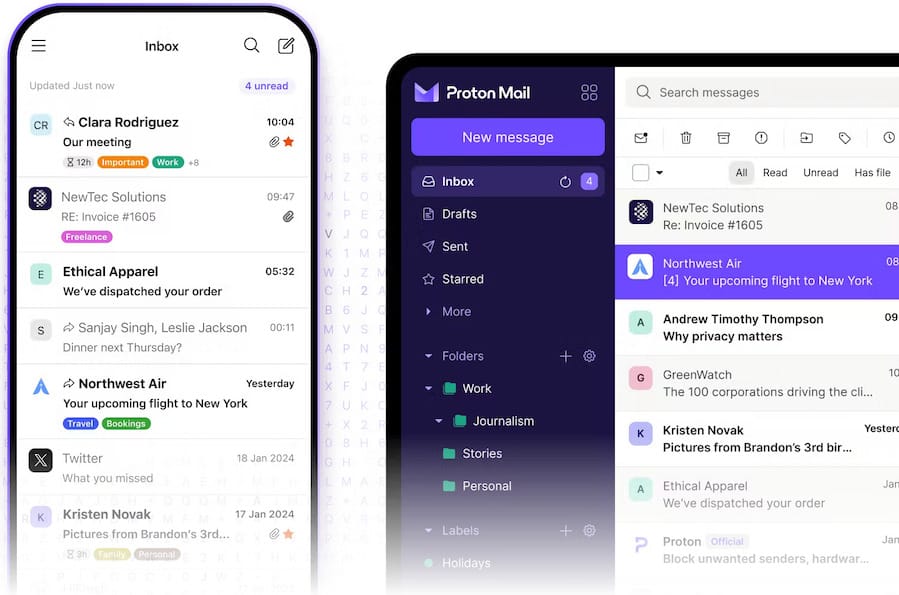
The interface closely mirrors the Proton Mail web app. Your inbox sits in the main panel, with folders, labels, and account settings accessible from the left sidebar. Take a moment to configure your notification preferences and set Proton Mail as your default email application if you want mailto: links to open it automatically.
Method 2: Install Proton Mail via Snap
If you prefer a sandboxed installation that updates automatically, the Snap package is a solid alternative. It’s slightly larger in footprint but requires no manual update management.
Step 1: Enable Snap on Debian 13
Snap is not enabled by default on Debian 13, so you’ll need to install snapd first:
sudo apt update
sudo apt install snapd
sudo snap install snapd
After installation completes, reboot your system to ensure the Snap daemon integrates fully with your desktop environment. Skipping the reboot sometimes causes Snap apps to fail to launch.
Step 2: Install Proton Mail via Snap
With snapd running, installing Proton Mail takes a single command:
sudo snap install proton-mailSnap packages are self-contained — they bundle their own dependencies and run in an isolated sandbox. Updates happen automatically in the background without any user intervention. Launch the app from your application menu or via:
snap run proton-mailDEB vs. Snap: Which Should You Choose?
| Feature | DEB Package | Snap Package |
|---|---|---|
| Installation Complexity | Moderate | Simple |
| App Footprint | Lighter | Larger (bundled deps) |
| System Integration | Native | Sandboxed |
| Update Method | Manual | Automatic |
| Recommended For | Power Users | Beginners |
For most Debian 13 users, the DEB package is the better choice — it integrates more naturally with the system and has a smaller footprint. Choose Snap if you want zero-maintenance updates or are new to Linux package management.
Method 3: Install Proton Mail Bridge (For Thunderbird & Evolution)
Proton Mail Bridge is the go-to option for users with paid accounts who want to keep using their favorite email client. Rather than replacing your existing workflow, Bridge quietly runs in the background and handles the encryption-to-IMAP translation for you.
Step 1: Install Bridge Dependencies
Bridge requires libsecret for persistent credential storage:
sudo apt install gnome-keyring libsecret-1-0Without libsecret-1-0, Bridge cannot save your password between sessions and will prompt for authentication every time you start it. This is a small package and well worth installing upfront.
Step 2: Download the Bridge DEB Package
Navigate to your Downloads directory and grab the latest Bridge package:
cd ~/Downloads
wget https://proton.me/download/bridge/protonmail-bridge_3.13.0-1_amd64.deb
Version numbers change with each release. If this URL returns a 404 error, visit proton.me/mail/bridge to get the current download link and update the filename accordingly.
Step 3: Install Proton Mail Bridge
Install the package with APT for automatic dependency handling:
sudo apt install ./protonmail-bridge_3.13.0-1_amd64.debInstallation is fast — typically under 30 seconds. The package manager configures everything required for Bridge to run properly.
Step 4: Launch Bridge and Sign In
Start the Bridge application:
protonmail-bridgeThe graphical interface opens with an Add Account button. Click it and sign in with your Proton Mail credentials. Enter your 2FA code when prompted. Once authenticated, Bridge displays your local connection details — write these down, as you’ll need them to configure your email client.
Your Bridge connection details will look something like this:
- IMAP Server:
127.0.0.1 - IMAP Port:
1143 - SMTP Server:
127.0.0.1 - SMTP Port:
1025 - Security: STARTTLS for both
- Bridge Password: A unique auto-generated password (different from your Proton account password)
Step 5: Configure Mozilla Thunderbird
With Bridge running, open Thunderbird and add a new account:
- Go to File → New → Existing Mail Account
- Enter your name, Proton Mail address, and the Bridge-generated password
- Click Configure manually
- Set incoming server: IMAP,
127.0.0.1, Port1143, STARTTLS - Set outgoing server: SMTP,
127.0.0.1, Port1025, STARTTLS - Set authentication to Normal password for both servers
- Click Re-test, then Create Account
Send yourself a test message to confirm everything is working. A successful round-trip confirms your Bridge setup is complete.
Verifying Your Installation
Don’t assume the installation worked — verify it. For the Desktop App, open it and confirm your inbox loads with the correct message count and timestamps. Try composing and sending an email to another address. Encrypted messages to other Proton users will show a padlock icon in the UI.
For Bridge users, confirm the Bridge process is running and listening on the correct ports:
netstat -tulpn | grep 1025You should see an entry for 127.0.0.1:1025 confirming Bridge’s SMTP port is active. If nothing appears, Bridge isn’t running — launch it and try again.
Also verify your installed version via the About dialog in the app, or from the terminal:
proton-mail --versionChecking the version ensures you’re running the latest release and helps when reporting issues.
Troubleshooting Common Installation Issues
Even with careful preparation, things can occasionally go sideways. Here are the most common problems and how to fix them.
Missing dependencies after DEB install — Run sudo apt-get install -f to automatically fetch and install any unmet dependencies. This resolves the majority of post-install errors on Debian-based systems.
Permission denied errors — You’re missing sudo privileges. Confirm your account has sudo access by running groups $USER and looking for sudo in the output.
App won’t launch — missing shared libraries — Run the following command to list missing libraries, then install the corresponding packages via APT:
ldd /opt/Proton/Mail/proton-mail | grep "not found"Keyring errors on startup — Install gnome-keyring if it’s missing and enable the daemon at login:
sudo apt install gnome-keyring
systemctl --user enable gnome-keyring-daemon
Bridge not connecting (IMAP/SMTP timeout) — Double-check that you’re using the Bridge-generated password, not your Proton account password. Also confirm you’re using STARTTLS on both ports 1143 and 1025.
2FA code rejected — A time drift on your system clock can cause valid 2FA codes to be rejected. Sync your system time with:
timedatectl set-ntp trueSnap/DEB conflict — If you accidentally installed both versions, remove one. For Snap: sudo snap remove proton-mail. For DEB: sudo apt remove protonmail-desktop-beta.
Updating and Removing Proton Mail
Keeping Proton Mail Updated
The Desktop App includes built-in update notifications — a prompt appears when a new version is ready. For manual updates, simply download the latest DEB and re-run the install command:
sudo apt install ./ProtonMail-desktop-beta.debYour settings and local data are preserved during the upgrade. Snap users don’t need to do anything — updates roll out automatically.
Uninstalling Cleanly
To remove the Desktop App and its configuration files:
sudo apt purge protonmail-desktop-beta
rm -rf ~/.config/Proton/Mail
To remove Bridge completely:
sudo apt purge protonmail-bridge
rm -rf ~/.config/protonmail/bridge
rm -rf ~/.cache/protonmail/bridge
Run sudo apt autoremove afterward to clean up any orphaned dependencies and keep your Debian system lean.
Congratulations! You have successfully installed Proton Mail. Thanks for using this tutorial for installing Proton Mail Desktop on Debian 13 “Trixie” system. For additional help or useful information, we recommend you check the official Proton Mail website.
