
Self-hosting your webmail gives you full control over your email data, and RainLoop Webmail makes that setup surprisingly straightforward. If you want to install RainLoop Webmail on Fedora 43, this guide walks you through every step, from installing Apache and PHP to configuring SELinux and securing the setup with a free SSL certificate. Whether you are a beginner just getting comfortable with Linux or a sysadmin who wants a clean, reproducible setup for a production server, this tutorial gives you exactly what you need without the fluff.
Fedora 43, released in October 2025, ships with DNF 5, RPM 6.0, and GNOME 49, making it one of the most current RPM-based distributions available today. RainLoop is a lightweight, open-source, PHP-based webmail client that requires no database and stores all configuration in flat files. That combination makes it a perfect match for a lean Fedora server where you want a working webmail interface without the overhead of a full mail suite like Roundcube or Horde.
By the end of this guide, you will have a fully functional, SSL-secured RainLoop Webmail on Fedora 43 setup that connects to your IMAP and SMTP servers and is hardened against the most common security pitfalls.
What Is RainLoop Webmail?
RainLoop is a free, open-source web-based email client written in PHP. Unlike Roundcube, it does not need a database — it stores user sessions and configuration in flat files inside a protected /data directory, which keeps the server stack simple.
RainLoop comes in two editions:
- Community Edition — released under the AGPL v3 license, free for personal and non-profit use
- Standard Edition — commercial license for businesses
This guide uses the free Community Edition throughout.
Key Features Worth Knowing
- Modern, responsive interface with custom theme support
- Native IMAP and SMTP support with STARTTLS and SSL/TLS
- Multi-account support — manage several email addresses from one session
- Built-in OpenPGP/GPG email encryption
- Plugin system covering two-factor authentication, Sieve filters, and more
- No database dependency — flat-file storage keeps maintenance minimal
- One-click upgrade directly from the admin panel
Why Fedora 43 Is a Strong Choice for This Setup
Fedora 43 brings several improvements that make it a solid base for a self-hosted webmail server:
- DNF 5 resolves dependencies faster and produces cleaner output, which speeds up the installation process
- RPM 6.0 improves package signature verification, which matters on a security-sensitive server
- SELinux enforcing mode is active by default, providing mandatory access control that limits damage from any misconfiguration
- Firewalld is the default firewall and integrates cleanly with systemd for service-level rules
- Fedora’s six-month release cycle means access to the latest PHP 8.x packages directly from official repos
Prerequisites
Before you begin, confirm you have the following in place:
- A server or VPS running a fresh Fedora 43 installation
- Root or sudo access on the server
- A registered domain name pointed to your server’s IP address (e.g.,
mail.yourdomain.com) — optional for local testing, required for SSL - A working IMAP/SMTP mail server (Postfix + Dovecot locally, or an external provider like Gmail)
- An active internet connection on the server
- Basic comfort with the Linux terminal
Required packages installed during the steps below: httpd, php, php-mbstring, php-curl, php-xml, php-json, unzip, wget, certbot
Step 1: Update Your Fedora 43 System
Always start with a full system update. This prevents dependency conflicts during package installation and ensures you have the latest security patches applied.
sudo dnf update -yDNF 5 on Fedora 43 outputs a cleaner summary than older DNF versions. Once the update finishes, reboot if a new kernel was installed:
sudo rebootAfter the reboot, reconnect to your server and continue. Skipping this step is one of the most common causes of broken PHP extension installs later in the process.
Step 2: Install Apache (httpd) and PHP on Fedora 43
Install Apache
Apache (known as httpd on Fedora and all Red Hat-based systems) is the web server that serves the RainLoop application.
sudo dnf install httpd -yInstall PHP and Required Extensions
RainLoop requires PHP 5.4 or higher. Fedora 43 ships with PHP 8.x in its default repositories, which is fully supported and the recommended choice.
sudo dnf install php php-mbstring php-xml php-curl php-json php-dom -yHere is what each extension does and why RainLoop needs it:
| Extension | Purpose |
|---|---|
php-mbstring |
Handles multibyte strings in international email content |
php-xml |
Parses XML data in email headers and config files |
php-curl |
Establishes outbound connections to IMAP and SMTP servers |
php-json |
Reads and writes JSON-based RainLoop configuration files |
php-dom |
Parses HTML email content for rendering in the browser |
Verify the PHP version after installation:
php -vExpected output:
PHP 8.x.x (cli) (built: ...) ( NTS )Confirm all required extensions loaded correctly:
php -m | grep -E 'curl|xml|dom|mbstring|json'You should see all five extension names listed in the output.
Step 3: Enable and Start Apache
Enable Apache to start automatically at every system boot, then start it right away:
sudo systemctl enable httpd
sudo systemctl start httpd
Check that the service is running without errors:
sudo systemctl status httpdExpected output (key line):
Active: active (running) since ...Open a browser and navigate to http://your-server-ip. The default Fedora Apache test page should appear. If the page does not load, check whether port 80 is already occupied by another process:
sudo ss -tulpn | grep :80Step 4: Configure RainLoop Webmail on Fedora 43 — Download and Install
This is the core installation step for your RainLoop Webmail on Fedora 43 setup.
Create the Web Root Directory
sudo mkdir -p /var/www/html/rainloop
cd /var/www/html/rainloop
Download RainLoop Community Edition
Use wget to pull the latest release directly from the official RainLoop repository:
sudo wget https://www.rainloop.net/repository/webmail/rainloop-latest.zipAlternatively, use the PHP installer script if wget is unavailable:
curl -s http://repository.rainloop.net/installer.php | phpExtract the Archive
Install unzip if it is not already present:
sudo dnf install unzip -yExtract the downloaded archive:
sudo unzip rainloop-latest.zip -d /var/www/html/rainloopRemove the zip file to keep the directory clean:
sudo rm rainloop-latest.zipSet File Ownership and Permissions
Assign ownership of all RainLoop files to the Apache user. On Fedora this user is apache, not www-data as it is on Debian and Ubuntu systems:
sudo chown -R apache:apache /var/www/html/rainloopSet directory permissions to 755 and file permissions to 644:
sudo find /var/www/html/rainloop -type d -exec chmod 755 {} \;
sudo find /var/www/html/rainloop -type f -exec chmod 644 {} \;
Wrong permissions here are the single most common cause of 403 Forbidden errors and blank white pages after installation. The /data subdirectory must be writable by Apache but must never be accessible through the browser.
Step 5: Configure the Apache Virtual Host for RainLoop
Create the Virtual Host Configuration File
sudo nano /etc/httpd/conf.d/rainloop.confAdd the following configuration block. Replace mail.yourdomain.com with your actual domain name:
<VirtualHost *:80>
    ServerName mail.yourdomain.com
    DocumentRoot /var/www/html/rainloop

    ErrorLog /var/log/httpd/rainloop_error.log
    TransferLog /var/log/httpd/rainloop_access.log

    <Directory /var/www/html/rainloop>
        Options -Indexes
        AllowOverride All
        Require all granted
    </Directory>

    <Directory /var/www/html/rainloop/data>
        Require all denied
    </Directory>

</VirtualHost>
The Require all denied directive on the /data directory is a critical security measure. It blocks direct browser access to RainLoop’s configuration files, which contain your domain credentials and session data.
Test and Reload Apache
sudo apachectl configtestExpected output:
Syntax OKsudo systemctl reload httpdStep 6: Configure SELinux and Firewalld — The Fedora-Specific Steps
This step is the most Fedora-specific part of the entire guide, and it is the step that most generic Linux server tutorials skip entirely. Skipping it will result in RainLoop silently failing to connect to your mail server with no obvious error message.
Configure SELinux for RainLoop
Fedora 43 runs SELinux in enforcing mode by default. Without the correct SELinux boolean, Apache cannot make outbound TCP connections to your IMAP and SMTP servers, no matter how correctly everything else is configured.
sudo restorecon -R /var/www/html/rainloopsudo setsebool -P httpd_can_network_connect 1The -P flag makes this change persistent across reboots. Verify that the boolean is active:
getsebool httpd_can_network_connectExpected output:
httpd_can_network_connect --> onsestatusDo not disable SELinux entirely to work around connection failures. The two commands above are all you need for RainLoop to function correctly.
Open HTTP and HTTPS Ports in Firewalld
Fedora 43 uses firewalld as its default firewall manager. HTTP and HTTPS ports are blocked by default.
sudo firewall-cmd --permanent --add-service=httpsudo firewall-cmd --permanent --add-service=httpssudo firewall-cmd --reloadsudo firewall-cmd --list-allLook for http and https in the services: line of the output.
Step 7: Secure RainLoop with a Free SSL Certificate (Let’s Encrypt)
Running RainLoop over plain HTTP transmits your email credentials across the network in cleartext. SSL is not optional on a production server — it is a baseline requirement, and Let’s Encrypt provides it for free.
Install Certbot
sudo dnf install certbot python3-certbot-apache -yObtain the SSL Certificate
Replace mail.yourdomain.com and admin@yourdomain.com with your actual values:
sudo certbot --apache --agree-tos --redirect --hsts --staple-ocsp \
  --email admin@yourdomain.com -d mail.yourdomain.com
Certbot automatically modifies the Apache virtual host to redirect all HTTP traffic to HTTPS and configures HSTS headers.
Enable Automatic Certificate Renewal
sudo systemctl enable certbot-renew.timer
sudo systemctl start certbot-renew.timer
sudo certbot renew --dry-runStep 8: Access the Admin Panel and Configure Email Domains
Log Into the RainLoop Admin Panel
Open a browser and navigate to:
https://mail.yourdomain.com/?adminThe default credentials are:
- Username:
admin - Password:
12345
Change the admin password immediately after your first login. Navigate to the Security tab in the left pane, update the password, re-login, and then update the username. Using default credentials on a public-facing admin panel is a serious security risk.
The admin panel is organized into several sections:
- General — application name, theme, language
- Domains — add and configure your mail servers
- Security — session timeouts and two-factor authentication
- Plugins — enable or disable extensions
- Contacts — configure CardDAV for contact syncing
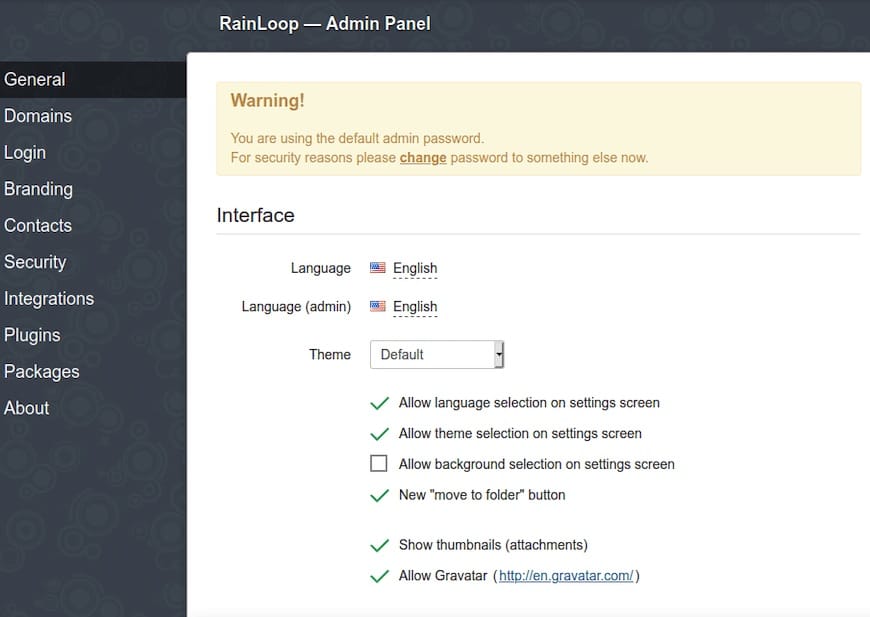
Add and Configure Your Email Domain
Navigate to Domains > Add Domain and configure the following settings:
For a local mail server (Postfix + Dovecot on the same machine):
- IMAP: Server
127.0.0.1, Port143, SecureNone - SMTP: Server
127.0.0.1, Port25, SecureNone, authentication disabled
For a remote or external mail server:
- IMAP: Server
mail.yourdomain.com, Port993, SecureSSL/TLS - SMTP: Server
mail.yourdomain.com, Port587, SecureSTARTTLS, Use Authentication enabled
Using 127.0.0.1 for local setups avoids external DNS lookups and removes unnecessary TLS overhead on the loopback interface.
Click Test to verify the connection before saving. Enable the domain by ticking the checkbox on the right side. Without this step, users will see a “domain is not allowed” error when they try to log in.
Log In as a Regular User and Test
Navigate to https://mail.yourdomain.com without the /?admin suffix. Enter your full email address (e.g., user@yourdomain.com) and the corresponding mailbox password.
RainLoop authenticates directly against the IMAP server, so no separate RainLoop user account creation is required. Send a test email and confirm it appears in the Sent folder. Send an email from an external account to confirm inbound delivery as well.
Troubleshooting Common Issues
Even with careful installation, a few errors come up regularly. Here are the most common ones and how to fix them.
500 Internal Server Error
This is almost always caused by a missing PHP extension or a file permission problem. Check the Apache error log for the specific cause:
sudo tail -f /var/log/httpd/error_logRun php -m and compare the output against the required extensions listed in Step 2.
Cannot Connect to IMAP/SMTP Server
The first thing to check on Fedora is SELinux. Run:
getsebool httpd_can_network_connectIf the output is off, run:
sudo setsebool -P httpd_can_network_connect 1Also verify that Dovecot or your remote mail server is running and accessible on the expected port using telnet mail.yourdomain.com 993.
403 Forbidden Error
Check file ownership on the RainLoop directory:
ls -la /var/www/html/rainloopIf the owner is not apache, fix it:
sudo chown -R apache:apache /var/www/html/rainloopBlank White Page After Installation
This means PHP loads but fails silently. Enable PHP error output temporarily to diagnose:
sudo nano /etc/php.iniSet display_errors = On, reload Apache, reproduce the issue, then set it back to Off once resolved.
“Domain Is Not Allowed” Error on Login
You added the domain in the admin panel but forgot to activate it. Go to Admin > Domains, find your domain, and tick the checkbox on the right side to enable it.
Congratulations! You have successfully installed RainLoop. Thanks for using this tutorial for installing the RainLoop Webmail on Fedora 43 Linux system. For additional help or useful information, we recommend you check the official RainLoop website.

