How To Install ReactJS on Fedora 43

ReactJS is one of the most widely used JavaScript libraries in the world, and for good reason. It gives developers a fast, component-driven way to build modern web applications and single-page apps without fighting the browser. If you are running Fedora 43 and want to set up a full React development environment, you are in the right place.
This guide walks you through how to install ReactJS on Fedora 43 from a clean system to a running React app in your browser. You will install Node.js using the method that fits your workflow, verify your setup, scaffold a React project with either Create React App or Vite, and troubleshoot the most common issues that trip developers up on Fedora specifically.
Whether you are a sysadmin setting up a developer workstation, a beginner building your first frontend project, or an intermediate developer migrating from another Linux distro, this guide covers everything you need.
What Is ReactJS and Why Use It on Fedora 43
ReactJS is a free, open-source JavaScript library originally built by Meta (formerly Facebook). It uses a component-based architecture, meaning you build your UI out of small, reusable pieces instead of writing monolithic HTML files. React handles the view layer of your application and works well with any backend stack.
Fedora 43 is an outstanding development platform for React work. It ships with DNF5, the next-generation package manager that is significantly faster than the older DNF4 used in Fedora 38 and below. The system runs a modern kernel with up-to-date tooling, which aligns well with the fast-moving JavaScript ecosystem.
Fedora 43 is also the upstream source for Red Hat Enterprise Linux and CentOS Stream, which means the skills and configurations you practice here translate directly into enterprise production environments. For developers and sysadmins alike, it is a serious, professional choice.
React’s core advantages that make it worth setting up on your Fedora machine:
- Component reusability: Write once, use across multiple pages and projects
- Virtual DOM: React only updates the parts of the page that actually changed, which keeps apps fast
- Massive ecosystem: Thousands of open-source packages integrate directly with React
- Strong job market: React remains the most requested frontend skill in developer job postings globally
- Official documentation at react.dev: The team maintains excellent, up-to-date learning resources
Prerequisites Before You Begin
Before you run a single command, confirm you have the following in place. Skipping these checks is the fastest way to waste an hour debugging a problem that was never about React in the first place.
System Requirements:
- Fedora 43 installed (Workstation or Server edition both work)
- A non-root user account with
sudoprivileges (using root directly for development creates npm permission headaches) - A stable internet connection for downloading packages
- At least 2 GB of free disk space for Node.js, npm packages, and your project files
- Basic comfort with the Linux terminal and running commands
Tools You Will Need:
curl(pre-installed on most Fedora 43 systems)gcc-c++andmake(needed for native npm packages, installed in Step 2)- A code editor — Visual Studio Code is recommended for React development
Knowledge Prerequisites:
- Understand how to open a terminal and navigate directories with
cd - Know the difference between a regular user and
sudo - Familiarity with what a package manager does (DNF in Fedora’s case)
Step 1: Update Your Fedora 43 System
Always update your system before installing new development tools. Stale package metadata and outdated libraries cause dependency conflicts that are painful to untangle after the fact.
Run the full system update:
sudo dnf update -yWhat this does: DNF5 refreshes all repository metadata and upgrades every installed package to its latest available version. The -y flag auto-confirms prompts so you do not have to babysit the process.
If the update includes a kernel upgrade, reboot before continuing:
sudo rebootThis is not optional when the kernel updates. Running new Node.js build tools against a mismatched kernel can produce mysterious compile errors that are hard to trace back to the real cause.
After rebooting, confirm your Fedora version:
cat /etc/fedora-releaseExpected output:
Fedora release 43 (Forty Three)You are now ready to install Node.js.
Step 2: Install Node.js on Fedora 43
ReactJS does not run in isolation. It depends on Node.js as its JavaScript runtime and npm (Node Package Manager) to install dependencies, run the development server, and build for production.
There are three ways to install Node.js on Fedora 43. Each method has real tradeoffs, and which one you choose depends on your workflow.
Method A: Install Node.js via DNF (Fast and Simple)
This is the quickest path. Fedora’s official repository includes Node.js, and you can install it with a single command.
sudo dnf install nodejs -yWhat this does: DNF pulls the Node.js package directly from Fedora’s official repository and installs it system-wide along with npm.
Limitation: The version in Fedora’s repo may lag behind the current LTS release. If you need Node 20.x or 22.x specifically, use Method B or C instead.
Method B: Install Node.js via NodeSource Repository (Recommended for Most Developers)
NodeSource maintains RPM repositories for Fedora that give you the exact LTS or current release you need. This is the method recommended by the Node.js Foundation for RPM-based distributions.
First, install the required build tools:
sudo dnf install -y gcc-c++ makeWhat this does: Installs the C++ compiler and GNU Make, which are required to compile native Node.js add-ons. You will need these later for certain npm packages regardless of which install method you choose.
Now add the NodeSource repository for Node.js 20.x LTS:
curl -sL https://rpm.nodesource.com/setup_20.x | sudo bash -What this does: Downloads and runs NodeSource’s setup script, which adds the NodeSource RPM repo to your system’s DNF sources. If you need a different version, replace 20.x with 18.x or 22.x.
Install Node.js from the NodeSource repo:
sudo dnf install nodejs -yExpected output after installation:
Complete!Verify both Node.js and npm installed correctly:
node -v
npm -v
Expected output:
v20.19.0
10.8.2
Method C: Install Node.js via NVM (Best for Multi-Project Developers)
NVM (Node Version Manager) lets you install and switch between multiple Node.js versions without touching system-level packages. This is the best option if you work on multiple projects that require different Node versions.
The biggest practical advantage: NVM does not require sudo for global npm installs, which eliminates the permission errors that trip up many developers on Linux.
Install NVM:
curl -o- https://raw.githubusercontent.com/nvm-sh/nvm/v0.39.7/install.sh | bashActivate NVM in your current shell session:
source ~/.bashrcInstall the latest Long-Term Support version of Node.js:
nvm install --ltsSet it as the active version:
nvm use --ltsConfirm everything is working:
node -v
npm -v
You can install additional Node versions at any time with nvm install 18 or nvm install 22 and switch between them with nvm use 18.
Step 3: Verify Node.js and npm Installation
Before touching React, confirm your Node.js runtime actually executes JavaScript correctly. Verification is not just about checking version numbers.
Run both version checks:
node -v
npm -v
Now create a minimal test file to confirm the runtime works end to end:
echo "console.log('Node.js is working on Fedora 43');" > test.js
node test.js
Expected output:
Node.js is working on Fedora 43If you see that output, your Node.js installation is solid. Delete the test file and move on:
rm test.jsIf you get node: command not found, your PATH is not set correctly. If you used NVM, run source ~/.bashrc again. If you used DNF or NodeSource, log out and log back in to refresh your shell environment.
Step 4: Install ReactJS on Fedora 43
With Node.js confirmed, you can now install ReactJS on Fedora 43 and scaffold your first project. There are two modern approaches: Create React App (CRA) and Vite. Both work on Fedora 43, but they serve different purposes.
Method A: Using Create React App
Create React App is the original React scaffolding tool. It sets up a full Webpack and Babel configuration automatically, which means zero manual build config for beginners.
Install it globally via npm:
npm install -g create-react-appVerify it installed:
create-react-app --versionExpected output:
5.0.1Scaffold your first React project:
create-react-app my-react-appWhat this does: CRA downloads React, ReactDOM, and a full build toolchain into a new folder called my-react-app. The process takes 2 to 4 minutes depending on your connection speed.
Expected success output:
Success! Created my-react-app at /home/youruser/my-react-app
Inside that directory, you can run several commands:

  npm start
    Starts the development server.

  npm run build
    Bundles the app into static files for production.

  npm test
    Starts the test runner.

Happy hacking!
One important note: The React team no longer actively develops CRA. It still works reliably for learning and small projects, but Vite is the preferred tool for new production-grade projects as of 2024.
Method B: Using Vite (Recommended for Modern Development)
Vite is a next-generation build tool that uses native ES modules during development instead of bundling everything upfront. The result is a dramatically faster dev server startup and hot reload time compared to CRA.
You do not need a global install. Run the scaffolding command directly:
npm create vite@latest my-react-app -- --template reactMove into the project directory and install dependencies:
cd my-react-app
npm install
What the flags do:
--template reacttells Vite to scaffold a React project with JSX supportnpm installreadspackage.jsonand downloads all required packages intonode_modules/
Vite generates a leaner project structure than CRA, which makes it easier to understand what each file does.
Step 5: Run Your First React App on Fedora 43
Start the development server.
For CRA projects:
cd my-react-app
npm start
For Vite projects:
cd my-react-app
npm run dev
Expected output for CRA:
Compiled successfully!

You can now view my-react-app in the browser.

  Local:            http://localhost:3000
  On Your Network:  http://192.168.x.x:3000
Expected output for Vite:
  VITE v5.x.x  ready in 312 ms

  ➜  Local:   http://localhost:5173/
  ➜  Network: use --host to expose
Open your browser and navigate to:
http://localhost:3000for CRA projectshttp://localhost:5173for Vite projects
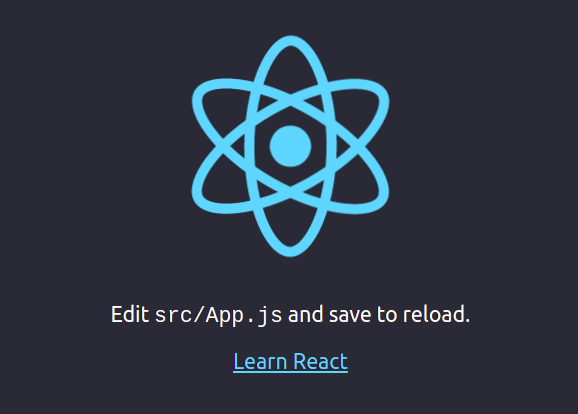
You will see the default React welcome screen with the spinning React logo. That spinning logo confirms your ReactJS on Fedora 43 setup is working correctly.
Hot Module Replacement (HMR) is active by default in both CRA and Vite. Open src/App.jsx in your editor, change any text, save the file, and watch your browser update instantly without a full page reload.
To stop the server, press Ctrl + C in the terminal.
Step 6: Understanding Your React Project Structure
Knowing what each file and folder does prevents confusion when things go wrong or when you are ready to start writing real code.
Key files and folders in a Vite React project:
| File / Folder | Purpose |
|---|---|
src/ |
All your React components, styles, and logic live here |
public/ |
Static assets like favicons that get served directly |
index.html |
The single HTML file your entire app mounts into |
package.json |
Lists all dependencies and available npm scripts |
node_modules/ |
Auto-generated folder with installed packages, never edit this manually |
App.jsx |
The root React component rendered to the browser |
main.jsx |
Entry point that mounts <App /> into the HTML |
vite.config.js |
Vite’s build and dev server configuration |
Key npm scripts you will use daily:
npm startornpm run dev: Start the local development servernpm run build: Compile and bundle the app for productionnpm test: Run the test suite (CRA uses Jest by default)npm install <package-name>: Add a new library to your project
The npm run build command outputs a production-ready bundle into a build/ folder (CRA) or dist/ folder (Vite). Vite’s output is noticeably smaller and faster to serve than CRA’s.
Troubleshooting Common ReactJS Installation Errors on Fedora 43
These are the errors that developers hit most often when setting up React on Fedora specifically. Generic Linux tutorials rarely cover them, which is why they feel so frustrating the first time.
Error 1: node: command not found
Your shell cannot find the Node.js binary. This almost always happens right after installation before your shell environment refreshes.
Fix:
source ~/.bashrcIf you used NVM and the problem persists, confirm NVM is loaded:
nvm --versionIf that also fails, open ~/.bashrc and verify the NVM initialization lines are present at the bottom of the file.
Error 2: npm permission denied on global install
You are trying to install a global npm package with insufficient permissions.
Fix with NVM: Do not use sudo. NVM-managed Node installs are user-scoped by design. Run the command without sudo:
npm install -g create-react-appFix with system Node (DNF/NodeSource): Configure a user-writable npm prefix:
mkdir ~/.npm-global
npm config set prefix '~/.npm-global'
echo 'export PATH=~/.npm-global/bin:$PATH' >> ~/.bashrc
source ~/.bashrc
Error 3: gyp ERR! build error or native module compile failure
A required npm package tried to compile native C++ code and failed because build tools are missing.
Fix:
sudo dnf install gcc-c++ make -yThen retry your npm install.
Error 4: ENOSPC: System limit for number of file watchers reached
React’s dev server uses Linux’s inotify system to watch files for changes. The default limit is too low on many Fedora systems.
Fix:
echo fs.inotify.max_user_watches=524288 | sudo tee -a /etc/sysctl.conf
sudo sysctl -p
What this does: Permanently increases the number of files the inotify subsystem can watch. The change persists across reboots.
Error 5: Port 3000 or 5173 already in use
Another process is occupying the port before your React dev server can bind to it.
Find the process:
lsof -i :3000Kill it using the PID shown in the output:
kill -9 <PID>Alternatively, Vite lets you specify a different port in vite.config.js:
server: {
  port: 4000
}
Congratulations! You have successfully installed React. Thanks for using this tutorial for installing ReactJS JavaScript library for building user interfaces on Fedora 43 Linux system. For additional help or useful information, we recommend you check the official ReactJS website.
