
Modern email communication demands flexible, accessible solutions that work seamlessly across devices and platforms. Roundcube Webmail stands out as a powerful, browser-based email client that delivers professional functionality without the cost and complexity of commercial alternatives. This comprehensive guide walks you through installing and configuring Roundcube on Fedora 43, enabling your organization to provide secure, feature-rich webmail access.
What is Roundcube Webmail?
Roundcube is an open-source, browser-based IMAP email client that provides a modern, intuitive interface for managing email communications. Unlike traditional desktop email clients, Roundcube operates entirely through a web browser, allowing users to access their email from any device with an internet connection.
The platform offers extensive functionality that rivals commercial webmail solutions. Users benefit from drag-and-drop message management, making email organization effortless. Full MIME and HTML message support ensures proper rendering of rich-content emails. The system supports multiple sender identities, perfect for users managing several email addresses from a single interface.
Roundcube includes a full-featured address book with LDAP connectors for enterprise directory integration. Threaded message listing provides conversation-style email viewing similar to modern messaging platforms. Built-in caching mechanisms ensure fast mailbox access even with large email volumes. The platform supports unlimited users and messages, scaling from small businesses to large enterprises.
A robust plugin API enables extensive customization and feature extensions. The responsive design adapts seamlessly to smartphones, tablets, and desktop computers. Organizations implementing Roundcube report increased productivity, reduced training costs, and improved user satisfaction compared to basic webmail solutions.
System Requirements
Before beginning installation, verify your Fedora 43 system meets the necessary requirements. Roundcube requires a web server such as Apache, Nginx, or Lighttpd. The application runs on PHP version 7.3 or greater.
Essential PHP extensions include php-mbstring for multibyte string handling, php-intl for internationalization functions, and php-json for JSON processing. Additional required extensions include php-curl for remote resource access and php-zip for attachment handling.
Optimize PHP settings for reliable operation. Set memory_limit to at least 128M, max_execution_time to 300 seconds, upload_max_filesize to 25M, and post_max_size to 26M. These configurations ensure smooth handling of large attachments and complex operations.
Database support requires MySQL 5.7 or newer, MariaDB 10.2 or newer, or PostgreSQL 9.6 or newer. Your mail infrastructure must include working IMAP and SMTP servers. Hardware requirements depend on expected user load, with modest systems handling hundreds of concurrent users effectively.
Prerequisites
Successful installation requires several components in place. Obtain root or sudo access to your Fedora 43 server. Configure a fully qualified domain name (FQDN) pointing to your server. Ensure a functioning mail server with IMAP and SMTP support operates on your network.
Install and configure Apache or Nginx web server. Set up MariaDB or MySQL database server. Install PHP 7.3 or newer with all required extensions. Configure your firewall to permit HTTP traffic on port 80 and HTTPS traffic on port 443. Obtain an SSL certificate—Let’s Encrypt provides free certificates ideal for production deployments.
Familiarity with basic command-line operations and text editors like nano or vim proves essential. Throughout this guide, commands assume execution as a user with sudo privileges.
Step 1: Update System Packages
Begin by ensuring your Fedora 43 system runs the latest software packages. Updates provide critical security patches and bug fixes that maintain system stability. Open a terminal and execute the update command:
sudo dnf update
The package manager checks for available updates and displays a list of packages requiring updates. Confirm the installation when prompted. The update process may take several minutes depending on the number of packages requiring updates.
If kernel updates were installed, reboot your system to activate the new kernel. After rebooting, verify your system version:
cat /etc/fedora-release
This command should display “Fedora release 43” or similar, confirming your operating system version.
Step 2: Install Required Dependencies
Roundcube requires several software packages to function properly. Install Apache web server if not already present on your system:
sudo dnf install httpd -y
Install MariaDB database server to store Roundcube’s configuration and user data:
sudo dnf install mariadb-server mariadb -y
Install PHP and all required extensions with a single command:
sudo dnf install php php-mysqlnd php-mbstring php-intl php-json php-xml php-gd php-curl php-zip php-ldap php-pear php-process -y
Verify PHP installation succeeded by checking the version:
php -v
The output should display PHP version 7.3 or newer. Enable Apache to start automatically at boot and start the service immediately:
sudo systemctl enable httpd
sudo systemctl start httpd
Apply the same configuration to MariaDB:
sudo systemctl enable mariadb
sudo systemctl start mariadb
Confirm both services run correctly:
sudo systemctl status httpd
sudo systemctl status mariadb
Active status indicators confirm successful service startup. If either service fails to start, review error messages in the output for troubleshooting guidance.
Step 3: Secure MariaDB Installation
MariaDB includes a security script that removes default insecure settings. Execute the secure installation wizard:
sudo mysql_secure_installation
The script prompts you to set a root password for MariaDB. Choose a strong password combining uppercase, lowercase, numbers, and special characters. Save this password securely—you’ll need it for database administration tasks.
Answer “Y” to remove anonymous users, preventing unauthorized database access. Disallow root login remotely by answering “Y” when prompted. Remove the test database by answering “Y”. Finally, reload privilege tables by answering “Y” to activate all security changes.
Test your MariaDB connection:
mysql -u root -p
Enter your root password when prompted. A successful connection displays the MariaDB prompt. Exit by typing EXIT; and pressing Enter.
Step 4: Create Database for Roundcube
Roundcube requires a dedicated database for storing configuration, user preferences, and operational data. Log into MariaDB as the root user:
mysql -u root -p
Create a new database with UTF-8 character encoding:
CREATE DATABASE roundcubemail DEFAULT CHARACTER SET utf8 COLLATE utf8_general_ci;
Create a dedicated database user with a strong password:
CREATE USER 'roundcube'@'localhost' IDENTIFIED BY 'your_strong_password';
Replace “your_strong_password” with a secure password. Grant this user full privileges on the Roundcube database:
GRANT ALL PRIVILEGES ON roundcubemail.* TO 'roundcube'@'localhost';
Flush privileges to ensure changes take immediate effect:
FLUSH PRIVILEGES;
Exit the MariaDB console:
EXIT;
Verify database creation by logging in as the new user:
mysql -u roundcube -p -e "SHOW DATABASES;";
You should see “roundcubemail” listed among available databases. Record these database credentials securely—you’ll need them during Roundcube configuration.
Step 5: Install Roundcube Webmail
Fedora’s package repository includes Roundcube, simplifying installation and future updates. Install Roundcube using the DNF package manager:
sudo dnf install roundcubemail -y
The package manager automatically resolves dependencies and installs all required files. Verify successful installation:
rpm -qa | grep roundcube
This command displays the installed Roundcube package version, typically roundcubemail-1.6.x or newer. Review installation file locations:
rpm -ql roundcubemail | head -20
Package installation places Roundcube files in /usr/share/roundcubemail and configuration files in /etc/roundcubemail. This method provides easier updates and better integration with Fedora’s package management compared to manual installation from source.
Step 6: Configure File Permissions
Proper file permissions ensure security while allowing Roundcube to function correctly. Set directory permissions:
sudo chmod -R 755 /usr/share/roundcubemail
Configure permissions for the temporary directory where Roundcube stores session data and uploads:
sudo chmod -R 750 /var/lib/roundcubemail/temp
Secure configuration files to prevent unauthorized access:
sudo chmod -R 640 /etc/roundcubemail/*
Set proper ownership to the Apache user:
sudo chown -R apache:apache /usr/share/roundcubemail
Configure log directory permissions:
sudo chmod -R 750 /var/log/roundcubemail
Verify permissions are correctly applied:
ls -la /usr/share/roundcubemail
The output should show “apache” as the owner and appropriate permission masks. Incorrect permissions cause connection errors or prevent Roundcube from writing temporary files and logs.
Step 7: Configure SELinux Contexts
Fedora’s SELinux security framework requires specific configuration to allow Roundcube network operations. Enable Apache to establish network connections:
sudo setsebool -P httpd_can_network_connect 1
Allow Apache to send email through SMTP:
sudo setsebool -P httpd_can_sendmail 1
Restore default SELinux contexts:
sudo restorecon -R /usr/share/roundcubemail
Set the appropriate context for temporary storage:
sudo semanage fcontext -a -t httpd_sys_rw_content_t "/var/lib/roundcubemail/temp(/.*)?"
sudo restorecon -R /var/lib/roundcubemail/temp
Verify SELinux boolean settings:
getsebool -a | grep httpd
Look for httpd_can_network_connect and httpd_can_sendmail showing “on” status. These settings prevent SELinux from blocking Roundcube’s IMAP and SMTP connections.
Step 8: Configure Apache Virtual Host
Apache requires a virtual host configuration to serve Roundcube. Create a new configuration file:
sudo nano /etc/httpd/conf.d/roundcube.conf
Add the following virtual host configuration:
<VirtualHost *:80>
    ServerName mail.yourdomain.com
    DocumentRoot /usr/share/roundcubemail

    <Directory /usr/share/roundcubemail>
        Options -Indexes
        AllowOverride All
        Require all granted
    </Directory>

    ErrorLog /var/log/httpd/roundcube_error.log
    CustomLog /var/log/httpd/roundcube_access.log combined
</VirtualHost>
Replace “mail.yourdomain.com” with your actual domain name. The -Indexes option prevents directory browsing, enhancing security. Save the file and exit the editor.
Test Apache configuration syntax for errors:
sudo apachectl configtest
A “Syntax OK” message indicates correct configuration. Restart Apache to activate the new virtual host:
sudo systemctl restart httpd
Verify the virtual host is active:
sudo httpd -S
Your domain should appear in the list of configured virtual hosts.
Step 9: Configure Firewall Rules
Fedora’s firewall must allow HTTP and HTTPS traffic. Check firewall status:
sudo firewall-cmd --state
Add HTTP service to allowed traffic:
sudo firewall-cmd --permanent --add-service=http
Add HTTPS service for encrypted connections:
sudo firewall-cmd --permanent --add-service=https
Reload firewall rules to activate changes:
sudo firewall-cmd --reload
Verify rules are active:
sudo firewall-cmd --list-all
The output should show both http and https in the services list.
Step 10: Access Roundcube Installer
Open a web browser and navigate to the Roundcube installer:
http://mail.yourdomain.com/installer/
The installer checks system requirements automatically. Green checkmarks indicate properly configured components. Red warnings indicate critical issues requiring resolution before proceeding. Yellow warnings suggest optional improvements for optimal performance.
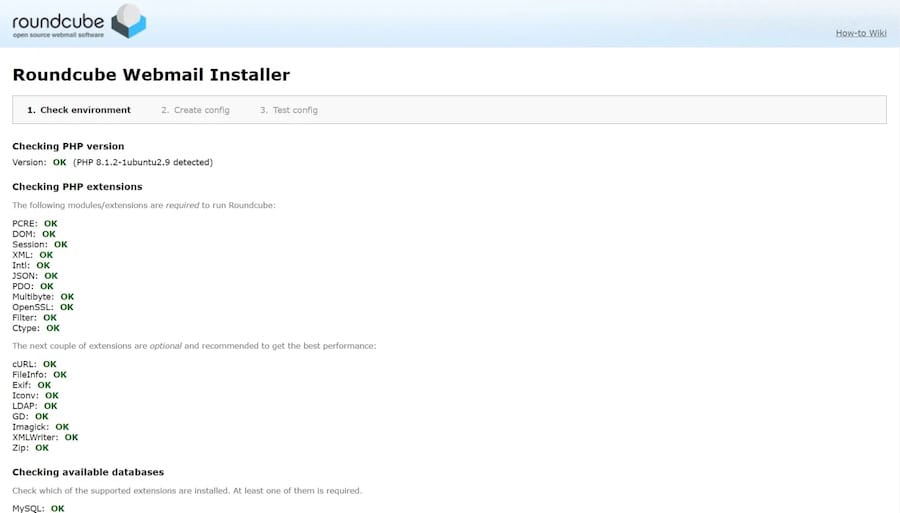
Review the PHP extension checklist. All required extensions should display green status. Verify database support shows MySQL/MariaDB as available. If any requirements show red status, install missing packages and refresh the page.
Click “NEXT” to proceed to the configuration step.
Step 11: Configure Roundcube Settings
The configuration page requires several settings for database, IMAP, and SMTP connections.
Configure database settings:
- Database type: MySQL
- Database server: localhost
- Database name: roundcubemail
- Database user: roundcube
- Database password: Enter the password created earlier
- Database prefix: Leave default or customize
Configure IMAP settings:
- Default host:
ssl://mail.yourdomain.com:993 - IMAP port: 993
- Username domain: Leave blank or specify your default domain
Configure SMTP settings:
- SMTP server:
tls://mail.yourdomain.com:587 - SMTP port: 587
- Check “Use SMTP authentication”
- SMTP username: Use current IMAP username
- SMTP password: Use current IMAP password
Configure general settings:
- Product name: Roundcube Webmail (customize if desired)
- Language: Select your preferred default language
- Skin: Choose “larry” or “elastic” theme
- Enable spell checking: Yes
Click “CREATE CONFIG” to generate the configuration file. Review the settings for accuracy before proceeding.
Step 12: Initialize Database
Click “NEXT” to reach the database initialization step. The installer tests database connectivity and displays connection status. A successful connection shows a green indicator.
Click “Initialize database” to import the database schema. The installer creates all required tables and indexes. Success messages appear in green as each table is created. The database now contains all structures Roundcube needs to operate.
If errors occur, common issues include:
- Connection refused: Verify MariaDB service is running with
sudo systemctl status mariadb - Access denied: Check database user privileges were granted correctly
- Character set errors: Ensure database uses UTF-8 encoding
Step 13: Install Configuration File
Download the generated config.inc.php file using the download button. Move this configuration file to Roundcube’s configuration directory:
sudo mv ~/Downloads/config.inc.php /etc/roundcubemail/
Set proper ownership and permissions:
sudo chown apache:apache /etc/roundcubemail/config.inc.php
sudo chmod 640 /etc/roundcubemail/config.inc.php
Verify the file exists in the correct location:
ls -la /etc/roundcubemail/config.inc.php
The configuration file contains sensitive information including database credentials. Restricted permissions prevent unauthorized access.
Step 14: Remove Installer Directory
Security best practices require removing the installer immediately after configuration. Delete the installer directory:
sudo rm -rf /usr/share/roundcubemail/installer/
Verify removal:
ls -la /usr/share/roundcubemail/
The installer directory should no longer appear in the listing. Attempting to access the installer URL now returns a 404 error, preventing unauthorized reconfiguration of your installation.
Step 15: Configure SSL/TLS with Let’s Encrypt
Secure connections protect user credentials and email content from interception. Install Certbot and the Apache plugin:
sudo dnf install certbot python3-certbot-apache -y
Request an SSL certificate:
sudo certbot --apache -d mail.yourdomain.com
Follow the interactive prompts. Enter an email address for certificate renewal notifications. Agree to the Terms of Service. Choose to redirect HTTP to HTTPS when prompted—this ensures all connections use encryption.
Certbot automatically configures Apache with SSL settings. Verify certificate installation:
sudo certbot certificates
The output displays certificate details including expiration date. Certbot automatically renews certificates before expiration.
Step 16: Test Roundcube Installation
Navigate to your Roundcube installation:
https://mail.yourdomain.com
A valid SSL certificate displays a green padlock icon in your browser. The Roundcube login page appears with username and password fields.
Test authentication with valid email credentials. Enter your complete email address and password. Successful login displays your inbox interface. Test core functionality:
- Send a test email to an external address
- Receive test messages
- Navigate between folders
- Upload and download attachments
- Access the address book
If issues occur, review error logs:
sudo tail -f /var/log/httpd/roundcube_error.log
Common login issues include incorrect IMAP server settings or authentication failures. SMTP errors typically indicate mail server configuration problems.
Security Hardening
Enhance security with additional configuration measures. Force HTTPS connections by editing /etc/roundcubemail/config.inc.php and adding:
$config['force_https'] = true;
Configure session timeout to automatically log out inactive users:
$config['session_lifetime'] = 10;
Enable comprehensive logging for security auditing:
$config['log_logins'] = true;
$config['log_session'] = true;
Implement Fail2ban to prevent brute-force attacks. Install Fail2ban:
sudo dnf install fail2ban -y
Create a jail configuration for Roundcube that bans IP addresses after five failed login attempts. Regular security updates maintain protection against vulnerabilities:
sudo dnf update roundcubemail
Consider enabling two-factor authentication through available plugins. Configure IP filtering if your organization requires access restrictions.
Troubleshooting Common Issues
Installation problems typically fall into several categories. Apache configuration errors prevent access to the installer. Verify Apache is running and the virtual host configuration is correct. Check firewall rules allow HTTP and HTTPS traffic.
Database connection failures indicate MariaDB service problems or incorrect credentials. Verify MariaDB runs with sudo systemctl status mariadb. Confirm database credentials match those created earlier.
IMAP connection errors result from incorrect mail server settings. Verify your mail server address, port, and SSL configuration. SMTP authentication failures require checking SMTP credentials and port settings.
Permission denied errors typically stem from incorrect file ownership or SELinux contexts. Review file permissions and SELinux boolean settings. Session errors indicate temporary directory permission problems or PHP session configuration issues.
Review log files for detailed error messages:
sudo tail -f /var/log/httpd/roundcube_error.log
sudo tail -f /var/log/roundcubemail/errors
Log entries provide specific error messages that guide troubleshooting efforts.
Congratulations! You have successfully installed Roundcube. Thanks for using this tutorial for installing Roundcube Webmail on your Fedora 43 Linux system. For additional help or useful information, we recommend you check the official Roundcube Webmail website.
[su_box title=”VPS Manage Service Offer” style=”bubbles” box_color=”#000000″ radius=”10″]If you don’t have time to do all of this stuff, or if this is not your area of expertise, we offer a service to do “VPS Manage Service Offer”, starting from $10 (Paypal payment). Please contact us to get the best deal![/su_box]

