
Shipping code without a static analysis tool is like pushing to production without running tests — you find out something is broken only when it hurts. If you are running Fedora 43 and want a self-hosted code quality platform, SonarQube is one of the best choices available. This guide walks you through the complete process to install SonarQube on Fedora 43, covering every dependency, configuration file, and system setting you need to get a fully working instance running.
By the end of this tutorial, you will have SonarQube accessible through a browser, backed by a PostgreSQL database, and managed as a persistent systemd service that survives reboots.
What Is SonarQube and Why It Matters
SonarQube is a free, open-source, self-managed code review and analysis platform built by Sonar. It scans your source code for bugs, security vulnerabilities, code smells, duplicate blocks, and complexity issues — then presents everything in a clean, actionable web dashboard.
It supports over 30 programming languages including Java, Python, JavaScript, TypeScript, Go, C, C#, and Kotlin. That makes it a solid fit whether you run a monorepo or a distributed microservices stack.
The Community Build (the free edition) covers the vast majority of what individual developers and small teams need. This guide uses the Community Build. Paid editions — Developer, Enterprise, and Data Center — add branch analysis, pull request decoration, and higher scalability, but those are out of scope here.
Why Fedora 43 Is a Strong Host
Fedora 43 ships with the DNF5 package manager, a modern kernel, SELinux enforcing mode by default, and full systemd integration. These features make it a reliable, security-conscious base for running a production-grade SonarQube instance. The tradeoff is that Fedora moves fast — you need to be comfortable verifying package versions and adjusting to minor changes between releases.
Prerequisites
Before you start the SonarQube on Fedora 43 setup, confirm the following requirements are in place.
System requirements:
- Fedora 43 (x86_64 or AArch64), fully updated
- A minimum of 4 GB RAM (2 GB absolute minimum, 4 GB recommended for analysis tasks)
- At least 20 GB of available disk space (SSD strongly recommended; Elasticsearch is disk-intensive)
- A 64-bit processor with 2 or more CPU cores
Access requirements:
- Root access or a user with full
sudoprivileges - Network access to download packages from DNF repositories and SonarQube binaries
Software that will be installed during this guide:
- Java OpenJDK 17 (required by SonarQube)
- PostgreSQL 16 (the supported relational database backend)
wgetandunziputilities- SonarQube Community Build (latest stable ZIP release)
Kernel-level requirements (for Elasticsearch, which SonarQube bundles internally):
vm.max_map_countmust be at least524288fs.file-maxmust be at least131072- Open file descriptors (nofile) for the SonarQube user:
131072 - Max processes (nproc) for the SonarQube user:
8192
If any of these kernel parameters are below the required values, SonarQube will fail to start without a clear error message in the main log.
Step 1: Update Your Fedora 43 System
Starting with a fully updated system prevents dependency conflicts later. Fedora 43 uses DNF5, which is noticeably faster than DNF4 for dependency resolution.
Run the update and upgrade together:
sudo dnf update -y && sudo dnf upgrade -yAfter the update finishes, check your Fedora version to confirm you are on the correct release:
cat /etc/fedora-releaseExpected output:
Fedora release 43 (Forty Three)If the update pulled in a new kernel, reboot before continuing. A stale kernel can cause unexpected behavior when Elasticsearch tries to map memory at the values you set in the next steps.
sudo rebootStep 2: Install Java OpenJDK 17
SonarQube is written in Java. Without a compatible JDK on the system, the application will not start. SonarQube 2025.x supports Java 17 and Java 21. This guide uses Java 17 because it is the current LTS version with the widest compatibility across SonarQube plugins.
Install Java 17 and its development headers:
sudo dnf install java-17-openjdk java-17-openjdk-devel -yVerify the installation:
java -versionExpected output:
openjdk version "17.0.x" 202x-xx-xx
OpenJDK Runtime Environment (build 17.0.x+x)
OpenJDK 64-Bit Server VM (build 17.0.x+x, mixed mode, sharing)
If you have multiple Java versions installed, set Java 17 as the system default:
sudo alternatives --config javaSelect the number corresponding to Java 17 and press Enter.
Set the JAVA_HOME Environment Variable
SonarQube needs JAVA_HOME defined to locate the JVM. Add it to your shell profile:
echo 'export JAVA_HOME=/usr/lib/jvm/java-17-openjdk' >> ~/.bashrc
source ~/.bashrc
Confirm the variable is set correctly:
echo $JAVA_HOMEIt should return /usr/lib/jvm/java-17-openjdk.
Step 3: Configure Kernel Parameters and System Limits
This is the step most guides skip or bury at the bottom, and it is also the most common reason SonarQube fails silently on first launch. SonarQube bundles an internal Elasticsearch node. Elasticsearch requires elevated kernel memory map counts and open file descriptor limits to function.
Set Persistent Kernel Parameters
Add the required values to /etc/sysctl.conf so they survive a reboot:
echo "vm.max_map_count=524288" | sudo tee -a /etc/sysctl.conf
echo "fs.file-max=131072" | sudo tee -a /etc/sysctl.conf
Apply the changes immediately without rebooting:
sudo sysctl -pVerify the value was applied:
sysctl vm.max_map_countExpected output: vm.max_map_count = 524288
Set User-Level Resource Limits
Edit the system limits configuration file:
sudo nano /etc/security/limits.confAdd these lines at the bottom of the file:
sonarqube   -   nofile   131072
sonarqube   -   nproc    8192
Save and close with Ctrl+O, Enter, then Ctrl+X.
These limits also get set directly in the systemd service unit file in Step 8, which is the more reliable method on Fedora 43 with systemd.
Step 4: Install and Configure PostgreSQL
SonarQube requires a relational database. It supports PostgreSQL, and only PostgreSQL. MySQL and Oracle are not supported in any current SonarQube release. This guide uses PostgreSQL 16, which is the latest stable stream available on Fedora 43.
Install PostgreSQL 16
Reset any existing PostgreSQL module stream and enable PostgreSQL 16:
sudo dnf module reset postgresql -y
sudo dnf module enable postgresql:16 -y
Install the server and contrib packages:
sudo dnf install postgresql-server postgresql-contrib -yInitialize and Start PostgreSQL
Initialize the PostgreSQL data directory:
sudo postgresql-setup --initdbStart the service and enable it to start on boot:
sudo systemctl enable --now postgresqlConfirm it is running:
sudo systemctl status postgresqlLook for Active: active (running) in the output.
Create the SonarQube Database and User
Switch to the postgres system user:
sudo -i -u postgresOpen the PostgreSQL interactive shell:
psqlRun the following SQL commands one at a time. Replace StrongPassword123! with a secure password of your choice — and remember it, because you will need it in the SonarQube configuration file.
CREATE USER sonar WITH ENCRYPTED PASSWORD 'StrongPassword123!';
CREATE DATABASE sonardb OWNER sonar;
GRANT ALL PRIVILEGES ON DATABASE sonardb TO sonar;
\q
Exit the postgres system user session:
exitConfigure PostgreSQL Authentication
By default, PostgreSQL on Fedora uses ident authentication for local connections. SonarQube needs md5 (password-based) authentication instead.
Open the host-based authentication file:
sudo nano /var/lib/pgsql/data/pg_hba.confFind these two lines:
host    all             all             127.0.0.1/32            ident
host    all             all             ::1/128                 ident
Replace ident with md5 on both lines:
host    all             all             127.0.0.1/32            md5
host    all             all             ::1/128                 md5
Save and close, then reload PostgreSQL:
sudo systemctl reload postgresqlTest the connection to confirm it works before moving on:
psql -U sonar -d sonardb -h 127.0.0.1 -WEnter your password. If you see the sonardb=# prompt, the database is ready.
Step 5: Create a Dedicated SonarQube System User
Running SonarQube as root is a security risk. You need a dedicated, non-login system user that owns the SonarQube files and runs the service process.
Create the sonarqube system user with a home directory at /opt/sonarqube:
sudo useradd -r -m -U -d /opt/sonarqube -s /bin/bash sonarqubeWhat each flag does:
-r: Creates a system account (lower UID range, no aging)-m: Creates the home directory if it does not exist-U: Creates a group with the same name as the user-d /opt/sonarqube: Sets the home directory path-s /bin/bash: Assigns a shell (needed for the service to function correctly)
Do not set a password for this account. It exists only to run the SonarQube service.
Step 6: Download and Install SonarQube
Now download the SonarQube Community Build ZIP from the official Sonar binaries server. Always check the Sonar website for the latest version number before running this command.
Install wget and unzip if they are not already present:
sudo dnf install wget unzip -yMove to /opt and download the SonarQube ZIP:
cd /opt
sudo wget https://binaries.sonarsource.com/Distribution/sonarqube/sonarqube-25.1.0.zip
Unzip the archive:
sudo unzip sonarqube-25.1.0.zipRename the extracted directory:
sudo mv sonarqube-25.1.0 /opt/sonarqubeAssign full ownership to the sonarqube user and group:
sudo chown -R sonarqube:sonarqube /opt/sonarqubeVerify the directory structure looks correct:
ls -la /opt/sonarqubeYou should see subdirectories including bin/, conf/, data/, extensions/, lib/, logs/, and temp/.
Step 7: Configure SonarQube Properties
Open the main SonarQube configuration file:
sudo nano /opt/sonarqube/conf/sonar.propertiesFind and update the following lines. Most of them are commented out by default — remove the # at the start of each line you are enabling.
Database Connection
sonar.jdbc.username=sonar
sonar.jdbc.password=StrongPassword123!
sonar.jdbc.url=jdbc:postgresql://localhost:5432/sonardb
Web Server Settings
sonar.web.host=0.0.0.0
sonar.web.port=9000
sonar.web.context=
Setting sonar.web.host=0.0.0.0 tells SonarQube to accept connections on all network interfaces, not just localhost. If you want to restrict access, replace 0.0.0.0 with your server’s specific IP address.
JVM Memory Tuning
sonar.web.javaOpts=-Xmx512m -Xms128m -XX:+HeapDumpOnOutOfMemoryError
sonar.search.javaOpts=-Xmx512m -Xms512m -XX:MaxDirectMemorySize=256m -XX:+HeapDumpOnOutOfMemoryError
sonar.ce.javaOpts=-Xmx512m -Xms128m -XX:+HeapDumpOnOutOfMemoryError
Elasticsearch Storage Paths
Uncomment both of these lines:
sonar.path.data=data
sonar.path.temp=temp
Save and close the file. Then open the wrapper configuration:
sudo nano /opt/sonarqube/conf/wrapper.confFind the line for wrapper.java.command and set it to your Java 17 binary path:
wrapper.java.command=/usr/lib/jvm/java-17-openjdk/bin/javaSave and close.
Step 8: Create the Systemd Service File
A systemd unit file lets Fedora 43 manage SonarQube as a proper system service — automatic startup on boot, clean shutdown, and log integration with journalctl.
Create the service file:
sudo nano /etc/systemd/system/sonarqube.servicePaste the following content exactly:
[Unit]
Description=SonarQube service
After=syslog.target network.target postgresql.service

[Service]
Type=forking
ExecStart=/opt/sonarqube/bin/linux-x86-64/sonar.sh start
ExecStop=/opt/sonarqube/bin/linux-x86-64/sonar.sh stop
User=sonarqube
Group=sonarqube
LimitNOFILE=131072
LimitNPROC=8192
Restart=on-failure
RestartSec=10

[Install]
WantedBy=multi-user.target
The After=postgresql.service directive tells systemd to only start SonarQube after PostgreSQL is fully up. Without this, SonarQube can start before the database is ready and fail with a connection error.
Reload the systemd daemon to register the new unit:
sudo systemctl daemon-reloadEnable and start SonarQube:
sudo systemctl enable sonarqube
sudo systemctl start sonarqube
Check the service status:
sudo systemctl status sonarqubeGive it 60 to 90 seconds. The Elasticsearch index-building process during first launch takes time. A status of active (running) confirms it is up.
Step 9: Open Firewall Port 9000
Fedora 43 runs firewalld by default. You need to open port 9000 so the browser can reach the SonarQube web interface.
Allow port 9000 permanently:
sudo firewall-cmd --permanent --add-port=9000/tcpReload the firewall to apply the rule:
sudo firewall-cmd --reloadConfirm the rule is active:
sudo firewall-cmd --list-portsYou should see 9000/tcp in the output.
If SELinux is in enforcing mode (the default on Fedora 43), also run:
sudo semanage port -a -t http_port_t -p tcp 9000If semanage is not found, install it with:
sudo dnf install policycoreutils-python-utils -yStep 10: Access the SonarQube Web Dashboard
Open a browser and navigate to:
http://YOUR_SERVER_IP:9000If you are running on a local machine, use:
http://localhost:9000You will see the SonarQube login screen. Log in with the default credentials:
- Username:
admin - Password:
admin
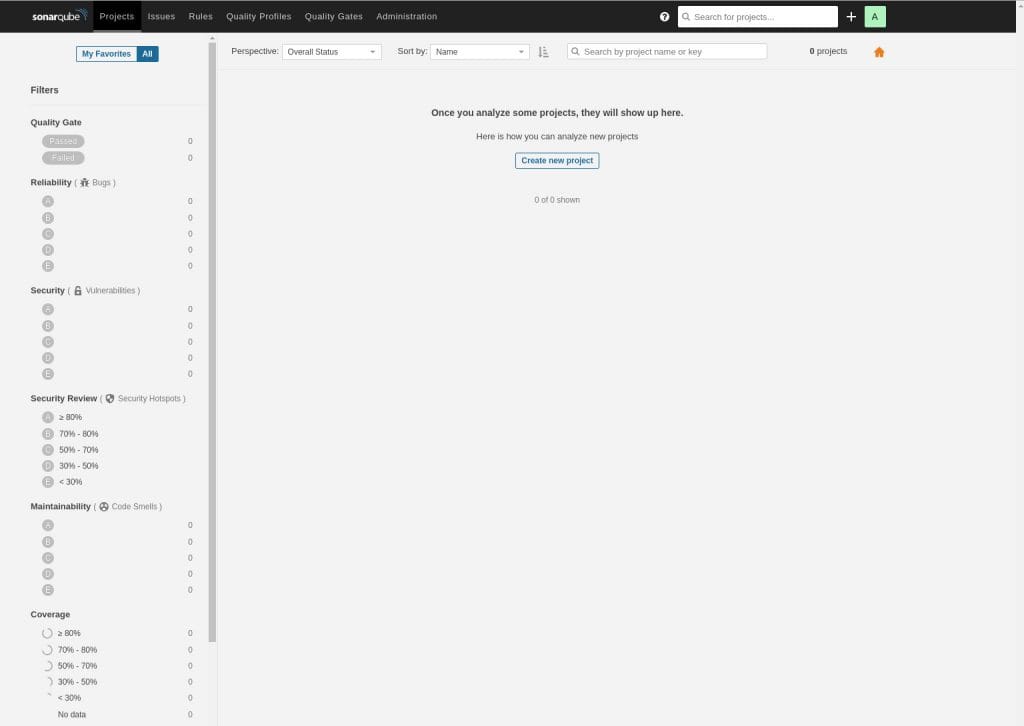
SonarQube immediately forces you to change the default password. Set a strong password before doing anything else. Once logged in, you land on the main dashboard showing Projects, Issues, Security Hotspots, Rules, Quality Profiles, and Quality Gates.
Run Your First Code Analysis
To scan a project locally:
- Click “Create Project” from the dashboard
- Choose “Manually”
- Enter a Project Display Name and a Project Key (example:
my-app) - Set the main branch name (default is
main) - Click “Set up”, then choose “Locally”
- Generate an analysis token and copy it
Install SonarScanner CLI on Fedora 43:
sudo dnf install sonar-scanner -yOr download it directly from the Sonar website if the DNF package is not current. Run your first scan from inside the project directory:
sonar-scanner \
  -Dsonar.projectKey=my-app \
  -Dsonar.sources=. \
  -Dsonar.host.url=http://localhost:9000 \
  -Dsonar.login=YOUR_TOKEN_HERE
After the scan completes, go back to the dashboard browser tab. You will see a full breakdown of bugs, vulnerabilities, code smells, security hotspots, and test coverage.
Troubleshooting Common SonarQube Issues on Fedora 43
Issue 1: SonarQube Service Fails to Start
Check the main log file first:
sudo tail -100 /opt/sonarqube/logs/sonar.logAlso check the Elasticsearch log:
sudo tail -100 /opt/sonarqube/logs/es.logThe most common cause is vm.max_map_count still at the default value. Confirm with:
sysctl vm.max_map_countIf it returns a value below 524288, apply it immediately:
sudo sysctl -w vm.max_map_count=524288Then restart SonarQube:
sudo systemctl restart sonarqubeIssue 2: “Max virtual memory areas vm.max_map_count is too low” Error
This error appears in es.log. The fix is the same as above. Make sure you also added the value to /etc/sysctl.conf for persistence across reboots.
Issue 3: Cannot Connect to PostgreSQL
If the log shows a JDBC connection error, check two things. First, verify pg_hba.conf uses md5 and not ident for local connections. Second, confirm PostgreSQL is running:
sudo systemctl status postgresqlAfter any change to pg_hba.conf, always reload PostgreSQL:
sudo systemctl reload postgresqlIssue 4: Port 9000 Is Unreachable from a Remote Machine
Run through this checklist:
- Confirm
firewalldrule:sudo firewall-cmd --list-ports - Confirm
sonar.web.host=0.0.0.0is set insonar.properties - If running on a cloud VM (AWS, GCP, Azure, DigitalOcean), check the cloud provider’s security group or firewall rules — they are separate from the OS-level firewall
- Confirm SELinux is not blocking the port:
sudo semanage port -l | grep 9000
Issue 5: “Wrapper Cannot Find the JVM” Error
Open wrapper.conf and verify the Java path is correct:
readlink -f $(which java)Copy the exact path this command returns and update wrapper.java.command in /opt/sonarqube/conf/wrapper.conf to match.
Congratulations! You have successfully installed SonarQube. Thanks for using this tutorial for installing SonarQube on Fedora 43 Linux system. For additional help or useful information, we recommend you check the official SonarQube website.


