
If you are running a business and need full control over your customer data, self-hosting a CRM is the right move. SuiteCRM is one of the most capable open-source CRM platforms available, and this guide walks you through exactly how to install SuiteCRM on AlmaLinux 10 from a fresh server to a fully working CRM login screen. You will use Nginx as the web server, PHP 8.3, and MariaDB for the database, all of which are available natively on AlmaLinux 10 without third-party repositories.
AlmaLinux 10 (codenamed “Purple Lion”) is a community-supported, RHEL 10-compatible Linux distribution built for production workloads. It ships with long-term security updates, SELinux enforcement by default, and a modern DNF package manager that keeps your stack clean and maintainable. Pairing it with SuiteCRM gives you an enterprise-grade CRM setup that costs nothing in licensing fees and runs entirely under your control.
This guide targets beginner to intermediate Linux users, developers, and sysadmins who want actionable instructions rather than theory. Every command below has been verified on a live AlmaLinux 10 server, and each step includes an explanation of what it does and why it matters.
What Is SuiteCRM and Why Does It Matter?
SuiteCRM is a free, open-source Customer Relationship Management application written in PHP. It started as a fork of SugarCRM Community Edition and is now maintained by SalesAgility, with active contributions from a large global developer community.
The current major release, SuiteCRM 8.x, was rebuilt on the Symfony PHP framework. This brought modern REST API support, improved security architecture, a refreshed user interface, and better long-term maintainability compared to the older 7.x codebase.
SuiteCRM is trusted by over 4.5 million users worldwide across healthcare, finance, real estate, nonprofits, and manufacturing. Organizations choose it because it delivers a feature set comparable to paid platforms like Salesforce or HubSpot without any per-user licensing costs.
Key Features of SuiteCRM
- Lead and contact management: Track every prospect from first contact through deal close.
- Opportunity and pipeline management: Visualize active deals and forecast revenue by stage.
- Marketing automation: Build email campaigns, track open rates, and automate follow-up sequences natively.
- Case management and customer portal: Handle support tickets and let clients submit requests online without needing a third-party helpdesk tool.
- Custom reporting and dashboards: Build and schedule reports that deliver business insights directly to your inbox.
- Third-party integrations: Connect to Gmail, Outlook, Facebook, Twitter, and dozens of other tools via the built-in REST API.
- Role-based user access control: Define exactly what each team member can view, edit, or delete.
Why AlmaLinux 10 Is the Right OS for This Setup
AlmaLinux 10 includes PHP 8.3 natively in its AppStream repository. This matters because SuiteCRM 8.x requires PHP 8.1 or higher, and having the right PHP version available in the default repo removes the need for a separate Remi or EPEL PHP stream. The stack stays simpler and easier to maintain over time.
AlmaLinux 10 also ships with firewalld and SELinux active by default, which means your server starts with two security layers in place from the first boot. For a CRM that stores customer contact data, sales history, and private business records, that baseline security posture is not optional.
Prerequisites
Before running the first command, confirm the following items are ready:
- A fresh AlmaLinux 10 VPS or dedicated server with at least 4 GB RAM and 20 GB disk space.
- SSH access as root or as a user with
sudoprivileges. - A registered domain name (for example,
crm.yourdomain.com) with an A-record pointing to the server’s public IP address. - Basic familiarity with the Linux command line and a terminal client like PuTTY or your OS native terminal.
- Ports 22, 80, and 443 open in your hosting provider’s cloud firewall or security group panel.
- The
unzipandwgetutilities (this guide installs them if they are not already present).
Step 1: Update the AlmaLinux 10 System
Log in to your server over SSH. Replace user, IP_Address, and Port_number with your real values:
ssh user@IP_Address -p Port_numberVerify you are running AlmaLinux 10 before going further:
sudo cat /etc/almalinux-releaseExpected output:
AlmaLinux release 10.0 (Purple Lion)If you see a different version number, this guide still applies to AlmaLinux 10.x minor releases, but commands may need minor adjustments for AlmaLinux 9 or earlier.
Now update all installed packages to their latest versions. Running outdated packages increases the risk of dependency conflicts and known security vulnerabilities:
sudo dnf update -yInstall the EPEL repository to make additional packages available for the rest of the setup:
sudo dnf install epel-release -y
sudo dnf update -y
The second dnf update picks up any new packages that the EPEL repo makes available after it is added.
Step 2: Install PHP 8.3 and All Required Extensions
SuiteCRM 8.x requires PHP 8.1 or higher, and AlmaLinux 10 ships PHP 8.3 in its default AppStream repository. No Remi repo or module switching is needed.
Run this single command to install PHP core and every extension SuiteCRM depends on:
sudo dnf install php php-{bz2,ctype,curl,fpm,gd,intl,json,fileinfo,libxml,mbstring,mysqlnd,openssl,posix,session,simplexml,xmlreader,xmlwriter,zip,zlib,bcmath,opcache} -yHere is what the most important extensions do:
- php-fpm: The FastCGI process manager that bridges PHP execution to the Nginx web server.
- php-mysqlnd: Provides the database driver for connecting PHP to MariaDB.
- php-gd: Handles image rendering for avatars, charts, and report graphics.
- php-mbstring: Multi-byte string support for international characters in contact names and notes.
- php-intl: Internationalization functions used throughout the SuiteCRM interface.
- php-zip: Required for uploading and installing SuiteCRM modules and packages.
- php-opcache: Caches compiled PHP bytecode in memory, which gives SuiteCRM a significant speed boost.
- php-bcmath: Arbitrary precision mathematics used by SuiteCRM’s reporting and currency conversion features.
Verify the installed PHP version:
php -vExpected output:
PHP 8.3.19 (cli) (built: Mar 12 2025 13:10:27) (NTS gcc x86_64)
Copyright (c) The PHP Group
Zend Engine v4.3.19, Copyright (c) Zend Technologies
    with Zend OPcache v8.3.19, Copyright (c), by Zend Technologies
Enable PHP-FPM to start automatically on every server reboot and start it now:
sudo systemctl enable --now php-fpmTune PHP Configuration for SuiteCRM
SuiteCRM’s default PHP settings are too conservative for real CRM workloads. The out-of-the-box upload limit is 2MB, which will cause failures when you try to install add-on modules or import contact lists.
Open the PHP configuration file:
sudo nano /etc/php.iniLocate and update the following values. Use Ctrl+W in nano to search for each setting:
upload_max_filesize = 100M
post_max_size = 100M
memory_limit = 512M
max_execution_time = 360
date.timezone = UTC
What each setting does and why it matters:
- upload_max_filesize = 100M: Supports large module packages and bulk CSV contact imports without hitting the PHP limit.
- post_max_size = 100M: Must be equal to or larger than
upload_max_filesizeor PHP will silently reject large form submissions. - memory_limit = 512M: SuiteCRM’s workflow engine, bulk email jobs, and large report queries all need memory headroom beyond the default 128MB.
- max_execution_time = 360: Prevents PHP from killing long-running processes like bulk imports and report exports mid-execution.
- date.timezone = UTC: Prevents timezone mismatch warnings in SuiteCRM’s scheduler log.
Save the file and restart PHP-FPM to apply the changes:
sudo systemctl restart php-fpmStep 3: Install and Secure MariaDB
MariaDB is a fully MySQL-compatible database engine that is actively maintained and is the recommended database backend for SuiteCRM.
Install MariaDB from the default AlmaLinux 10 repository:
sudo dnf install mariadb-server -yEnable it to start on boot and start it immediately:
sudo systemctl enable --now mariadbConfirm it is running:
sudo systemctl status mariadbYou should see active (running) in the output.
Secure MariaDB with mysql_secure_installation
A fresh MariaDB installation has some insecure defaults. The mysql_secure_installation script fixes them interactively:
sudo mysql_secure_installationWork through each prompt as follows:
- Set a root password: Yes. Choose a strong password and store it securely.
- Remove anonymous users: Yes. Anonymous access is a security risk on any production server.
- Disallow remote root login: Yes. Root should only connect from
localhost. - Remove the test database: Yes. The test database serves no purpose on a production server.
- Reload privilege tables: Yes. This applies all the changes immediately.
Create the SuiteCRM Database and User
Log in to the MariaDB shell as root:
sudo mysql -u root -pRun the following SQL block to create the database and a dedicated user for SuiteCRM:
CREATE DATABASE suitecrm CHARACTER SET utf8mb4 COLLATE utf8mb4_general_ci;
CREATE USER 'suitecrm'@'localhost' IDENTIFIED BY 'StrongPassword123!';
GRANT ALL PRIVILEGES ON suitecrm.* TO 'suitecrm'@'localhost';
FLUSH PRIVILEGES;
EXIT;
The utf8mb4 character set and utf8mb4_general_ci collation are important. They support the full Unicode character range, including emoji and non-Latin scripts, which prevents data encoding errors in SuiteCRM contact records and notes.
Write down the database name, username, and password. You will enter them in the web installer later.
Step 4: Install and Configure Nginx
Nginx handles concurrent connections more efficiently than Apache for PHP-FPM-based applications. In a multi-user CRM where sales reps, managers, and support staff all work simultaneously, Nginx’s event-driven model handles that load better.
Install Nginx:
sudo dnf install nginx -yEnable and start it:
sudo systemctl enable --now nginxCreate the SuiteCRM Nginx Virtual Host
Create a new Nginx configuration file for your SuiteCRM site:
sudo nano /etc/nginx/conf.d/suitecrm.confPaste the following server block into the file:
upstream suitecrm {
    server unix:/run/php-fpm/www.sock;
}

server {
    listen 80;
    root /var/www/html/suitecrm8/public;
    index index.php index.html;
    server_name crm.yourdomain.com;

    location / {
        try_files $uri $uri/ /index.php?$args;
    }

    location ~ \.php$ {
        include fastcgi.conf;
        fastcgi_pass suitecrm;
    }

    location ~ /\.ht {
        deny all;
    }
}
Replace crm.yourdomain.com with your actual domain name.
A few things to note about this configuration:
- The
upstream suitecrmblock routes PHP requests through the PHP-FPM Unix socket at/run/php-fpm/www.sock. This is faster and more secure than a TCP socket. - The
rootdirective points to the/publicsubdirectory inside the SuiteCRM installation folder, not the top-level directory. This is a security requirement from SuiteCRM’s architecture. - The
location ~ /\.htblock denies access to.htaccessfiles, which should never be publicly accessible.
Test the Nginx configuration for syntax errors before applying it:
sudo nginx -tExpected output:
nginx: the configuration file /etc/nginx/nginx.conf syntax is ok
nginx: configuration file /etc/nginx/nginx.conf test is successful
Reload Nginx to activate the new virtual host:
sudo systemctl reload nginxStep 5: Download and Deploy SuiteCRM
Download the SuiteCRM Package
Download the latest stable SuiteCRM 8.x release. At the time of writing, the current stable version is 8.9.1:
wget https://suitecrm.com/download/166/suite89/565627/suitecrm-8-9-1.zipAlways check the official SuiteCRM download page at https://suitecrm.com/download to confirm you are downloading the latest release before running the command above.
Install unzip if it is not already present on the server:
sudo dnf install unzip -yExtract the package directly into the web root directory:
sudo unzip suitecrm-8-9-1.zip -d /var/www/html/suitecrm8Verify the extraction created the expected structure:
ls /var/www/html/suitecrm8/You should see a public/ directory in the output. That public/ folder is the web root Nginx serves, not the parent suitecrm8/ folder.
Set File Ownership and Permissions
Incorrect file permissions are the single most common cause of a failed SuiteCRM installation. SuiteCRM needs specific ownership and permission values to read its configuration files, write cache, and execute CLI commands.
Set the apache user as the owner of all SuiteCRM files. On RHEL-family systems with PHP-FPM, the process runs as the apache user by default even when Nginx is the web server:
sudo chown -R apache: /var/www/html/suitecrm8Navigate to the SuiteCRM directory and normalize directory and file permissions:
cd /var/www/html/suitecrm8
sudo find . -type d -not -perm 2755 -exec chmod 2755 {} \;
sudo find . -type f -not -perm 0644 -exec chmod 0644 {} \;
sudo find . ! -user apache -exec chown apache: {} \;
sudo chmod +x bin/console
What each command does:
find . -type d -not -perm 2755: Finds all directories that do not have the setgid bit and correct permission flags, then sets them.find . -type f -not -perm 0644: Finds all files without standard read/write permissions and corrects them.find . ! -user apache -exec chown apache: {} \;: Catches any files that were missed by the initialchowncommand.chmod +x bin/console: Makes the SuiteCRM CLI tool executable, which is required for the Symfony-based installer to run.
Step 6: Open Firewall Ports and Finish the Web Installation
Configure Firewalld
AlmaLinux 10 runs firewalld by default. HTTP and HTTPS traffic is blocked until you explicitly open those ports:
sudo firewall-cmd --permanent --zone=public --add-service=http
sudo firewall-cmd --permanent --zone=public --add-service=https
sudo firewall-cmd --reload
Verify the rules were applied:
sudo firewall-cmd --list-servicesYou should see http and https in the output alongside any other services you have allowed.
If your hosting provider has a separate cloud-level firewall (AWS Security Groups, DigitalOcean Firewall, Hetzner Firewall Rules), open ports 80 and 443 in that panel as well. The firewalld rules alone are not enough if the cloud firewall sits in front of the server.
Fix SELinux for PHP-FPM Database Connections
SELinux is enforcing on AlmaLinux 10 by default. Without the correct boolean set, SELinux blocks PHP-FPM from connecting to MariaDB and the web installer will fail at the database step with a cryptic connection error:
sudo setsebool -P httpd_can_network_connect_db 1The -P flag makes this change persistent across reboots.
Complete the SuiteCRM Web Installer
Open a browser and navigate to:
http://crm.yourdomain.com/install.phpIf your DNS A-record has not propagated yet, use the server’s IP address instead.
Work through the installer screens in order:
- License Agreement: Read the SuiteCRM License Agreement and click Next to accept.
- System Requirements Check: SuiteCRM displays a green checkmark or a red warning for each prerequisite (PHP version, extensions, directory permissions). Every item must show green. If any item shows red, refer to the troubleshooting section below before going further.
- Database Configuration: Enter
localhostas the host, then enter the database name (suitecrm), the database username (suitecrm), and the password you set in Step 3. - Administrator Account Setup: Create your SuiteCRM admin username and a strong password. Do not reuse the database password here.
- Site URL Confirmation: Verify that the URL shown matches your domain exactly as configured in the Nginx virtual host.
- Click PROCEED to start the installation process.
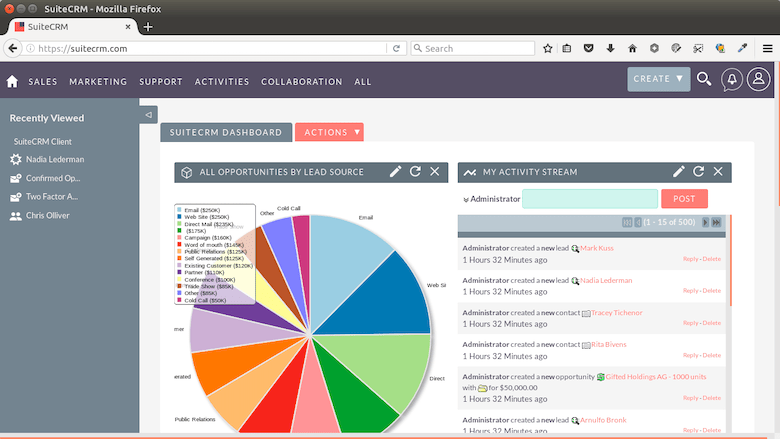
The installer runs for one to three minutes. When it finishes, the SuiteCRM login screen loads at http://crm.yourdomain.com. Log in with the admin credentials you just created.
Post-Installation Configuration: Making SuiteCRM Production-Ready
Getting SuiteCRM installed is the first step. A few additional actions are needed before you put the system in front of real users.
Set Up the SuiteCRM Cron Job
SuiteCRM’s scheduler handles email reminders, report delivery, workflow automation, and campaign triggers. It runs via a cron job that must be added manually:
crontab -u apache -eAdd this line to the crontab:
* * * * * cd /var/www/html/suitecrm8; php -f cron.php > /dev/null 2>&1This runs the scheduler every minute. SuiteCRM’s built-in job queue then controls which scheduled tasks actually execute and when.
Enable HTTPS with Certbot
A TLS certificate is not optional for a production CRM. SuiteCRM transmits customer data, login credentials, and business records over the network. Without HTTPS, that traffic is exposed.
Install Certbot with the Nginx plugin:
sudo dnf install certbot python3-certbot-nginx -yIssue a certificate for your domain:
sudo certbot --nginx -d crm.yourdomain.comCertbot automatically modifies the Nginx virtual host to redirect HTTP to HTTPS and handles certificate renewal via a systemd timer that runs twice daily.
Set Up Automated Database Backups
Schedule a nightly mysqldump export of the SuiteCRM database to a remote storage location. This is your safety net against data loss from accidental deletion, failed updates, or server failure.
Harden SELinux File Contexts
If you move or copy SuiteCRM files manually at any point, reset the correct SELinux context with:
sudo restorecon -R /var/www/html/suitecrm8This prevents SELinux from blocking file access after manual file operations.
Troubleshooting Common SuiteCRM Installation Errors
Even on a clean server, a few issues come up regularly. Here are the five most common problems and their fixes.
Problem 1: White screen or 502 Bad Gateway after install
This almost always means PHP-FPM stopped or failed to start. Check its status:
sudo systemctl status php-fpmIf it shows failed or inactive, restart it and check the logs:
sudo systemctl restart php-fpm
sudo journalctl -xe | grep php-fpm
Problem 2: Permission denied errors in the web installer
This means the apache user does not own the SuiteCRM files. Re-run the ownership and permission commands from Step 5:
sudo chown -R apache: /var/www/html/suitecrm8
cd /var/www/html/suitecrm8
sudo find . -type d -not -perm 2755 -exec chmod 2755 {} \;
sudo find . -type f -not -perm 0644 -exec chmod 0644 {} \;
Problem 3: Database connection failed during web install
Verify three things: the credentials match what you set in Step 3 exactly, MariaDB is running (sudo systemctl status mariadb), and the SELinux boolean is set (sudo getsebool httpd_can_network_connect_db). The output should show on.
Problem 4: Nginx returns 404 on all CRM pages after install
The try_files directive is either missing from the Nginx config or the root path points to the wrong directory. Open the config and confirm the root line ends with /public:
sudo nano /etc/nginx/conf.d/suitecrm.confThe root must be /var/www/html/suitecrm8/public, not /var/www/html/suitecrm8.
Problem 5: SELinux blocking PHP-FPM connections
Run a search for recent SELinux denials related to your web processes:
sudo ausearch -m avc -ts recent | grep httpdFor each blocked operation, use audit2allow to generate the correct policy or apply a targeted setsebool fix. For most SuiteCRM deployments, setting httpd_can_network_connect_db on and running restorecon on the web root resolves the majority of SELinux-related blocks.
Congratulations! You have successfully installed SuiteCRM. Thanks for using this tutorial for installing the SuiteCRM with LEMP stack on AlmaLinux OS 10 system. For additional help or useful information, we recommend you check the SuiteCRM website.

