
If you manage email, a calendar, contacts, and task lists across multiple apps on Ubuntu, you already know how fragmented that workflow gets. Kontact solves this by pulling every one of those tools into a single, unified interface. This guide covers exactly how to install Kontact on Ubuntu 24.04 using three methods: APT (the Ubuntu native repository), Flatpak via Flathub, and the Ubuntu App Center for GUI users.
By the end of this tutorial, you will have Kontact installed, running, and ready to connect to your email account, calendar, and contacts. Whether you are a daily desktop user, a developer, or a sysadmin managing a local Linux workstation, this guide gives you everything you need to get a proper Kontact on Ubuntu 24.04 setup working from scratch.
What Is Kontact and Why Should You Use It?
Kontact is a free, open-source Personal Information Manager (PIM) developed by the KDE project and licensed under the GNU GPL v2.0. It works as a container application that integrates several standalone KDE tools into one cohesive window.
Here are the core components included in a standard Kontact install:
- KMail – Full-featured email client with IMAP, POP3, and SMTP support
- KOrganizer – Calendar and to-do list manager with CalDAV sync support
- KAddressBook – Contact manager that integrates directly with KMail for one-click addressing
- KNotes – Lightweight sticky-note tool
- Akregator – RSS and Atom feed reader
- KNode – Usenet newsgroup reader
A quick note before we begin: Kontact (the KDE PIM suite) is completely different from Kontakt by Native Instruments (the audio sampler). If you landed here looking for the audio tool, this is not the right guide.
Kontact works on GNOME desktops, not just KDE Plasma. You do not need to install a full Plasma desktop environment to run it on standard Ubuntu 24.04.
Prerequisites Before You Start
Before running any commands, confirm you have the following in place:
- Operating system: Ubuntu 24.04 LTS (Noble Numbat) – Desktop edition recommended
- User permissions: A user account with
sudoaccess - Active internet connection: Required to download packages from the repositories
- Available disk space: At least 200 MB free for the APT install; Flatpak may require up to 500 MB for the first-time runtime setup
- Terminal access: Open a terminal with
Ctrl + Alt + T
One more thing: if you are running Kubuntu 24.04 (Ubuntu with KDE Plasma), Kontact may already be pre-installed. Run kontact --version in the terminal to check before going any further.
Step 1: Update Your System Before Installing
Always update the package index before installing new software. This step prevents dependency conflicts and ensures you pull the latest available package version from the Ubuntu repositories.
sudo apt update && sudo apt upgrade -yWhat this does:
sudo apt updatesyncs your local package list with Ubuntu’s remote repositoriessudo apt upgrade -yinstalls any pending system updates automatically
Expected output:
Hit:1 http://archive.ubuntu.com/ubuntu noble InRelease
Get:2 http://archive.ubuntu.com/ubuntu noble-updates InRelease [...]
Reading package lists... Done
Building dependency tree... Done
Wait for the process to complete fully before moving to the next step.
Step 2: Install Kontact on Ubuntu 24.04 via APT (Recommended Method)
The APT method installs Kontact directly from Ubuntu’s official repositories. This is the fastest, most stable option for the majority of Ubuntu 24.04 users because the package is tested against Ubuntu’s specific dependency stack.
Install the Kontact Package
Run the following command:
sudo apt install kontact -yWhat this does:
sudo apt install kontactpulls the Kontact package and all required dependencies- The
-yflag auto-confirms all prompts so you do not need to manually type “Y” during installation
APT will automatically install supporting packages including kdepim-runtime, akonadi-backend-sqlite, and other KDE PIM libraries required for Kontact to function.
Expected output during install:
Reading package lists... Done
Building dependency tree... Done
The following additional packages will be installed:
  akonadi-backend-sqlite kdepim-runtime kmail korganizer ...
0 upgraded, 47 newly installed, 0 to remove and 0 not upgraded.
Do you want to continue? [Y/n] y
Verify the Installation
Once the install finishes, confirm Kontact installed correctly:
kontact --versionExpected output:
kontact 23.08.x (using KDE Frameworks 5.x.x)You can also verify using dpkg:
dpkg -l | grep kontactThis lists all installed packages with “kontact” in the name, confirming the install succeeded.
Install the Full KDE PIM Suite (Optional)
If you want standalone access to KMail, KOrganizer, and KAddressBook as individual apps outside of Kontact, install the full suite:
sudo apt install kdepim -yThis is optional. Most users running Kontact as their primary PIM tool do not need this.
Step 3: Launch Kontact for the First Time
With the package installed, launch Kontact from the terminal:
kontact &The & runs Kontact as a background process so your terminal remains usable.
Alternatively, open the Activities menu (or Application Launcher in Plasma), type Kontact in the search bar, and click the application icon.
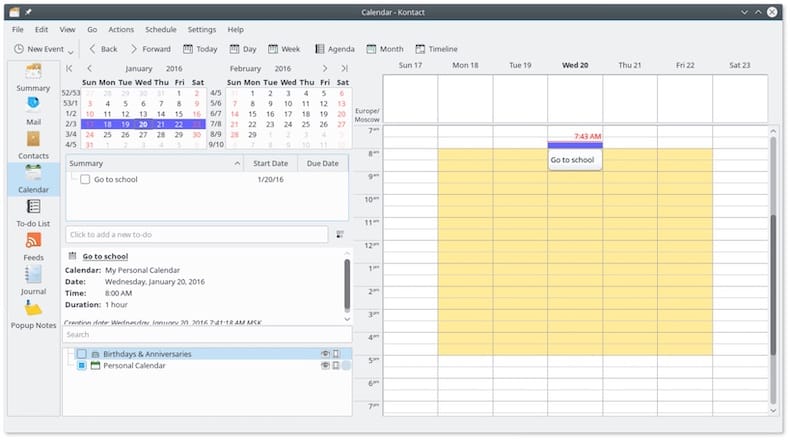
On first launch, Kontact loads its sidebar showing all available PIM components: Summary, Mail, Calendar, Contacts, To-do List, Notes, and Feeds. The Summary panel gives you an at-a-glance view of upcoming events, unread messages, and pending tasks.
Step 4: Configure Kontact on Ubuntu 24.04
Now that Kontact is running, the next task is connecting it to your actual data. This section covers configuring Kontact on Ubuntu 24.04 for email, calendar, and contacts.
Set Up Your Email Account in KMail
- Click Mail in the left sidebar to open KMail
- Go to Settings > Configure KMail > Accounts > Add Account
- Choose Email and enter your email address
- KMail uses automatic server detection – it will attempt to fill in your IMAP and SMTP settings automatically when you enter a known email provider like Gmail or Outlook
For Gmail, use these settings if auto-detection does not work:
- Incoming (IMAP):
imap.gmail.com, Port 993, SSL - Outgoing (SMTP):
smtp.gmail.com, Port 587, STARTTLS
Important: For Gmail, you need to enable IMAP in your Google account settings and use an App Password if two-factor authentication is active on your account.
Sync Your Calendar via CalDAV
- In Kontact, click Calendar in the sidebar
- Go to Settings > Configure KOrganizer > Calendars > Add Calendar
- Select CalDAV as the resource type
- Enter your CalDAV server URL
For Google Calendar, the CalDAV URL format is:
https://www.google.com/calendar/dav/YOUR_GOOGLE_EMAIL/events/Nextcloud users should use:
https://YOUR_NEXTCLOUD_URL/remote.php/dav/calendars/USERNAME/Import Contacts into KAddressBook
- Click Contacts in the Kontact sidebar
- Go to File > Import and select your
.vcf(vCard) file to import existing contacts - For live sync, add a CardDAV resource via Settings > Configure KAddressBook > Add Address Book > CardDAV
Once contacts are imported, they appear automatically in KMail’s compose window when you start typing a recipient name.
Step 5: Install Kontact via Flatpak (Alternative Method)
Use the Flatpak method when you want the latest upstream KDE release, or when the APT version in Ubuntu’s repository lags behind the current KDE Gear release cycle.
Install Flatpak on Ubuntu 24.04
sudo apt install flatpak -yNote: Ubuntu 24.04 replaced GNOME Software with the new App Center, which does not natively support Flatpak plugins. Command-line installation is the most reliable approach here.
Add the Flathub Repository
flatpak remote-add --if-not-exists flathub https://dl.flathub.org/repo/flathub.flatpakrepoWhat this does: Registers Flathub as a Flatpak remote source on your system. The --if-not-exists flag prevents errors if Flathub was already added previously.
Install Kontact from Flathub
flatpak install flathub org.kde.kontactFlatpak will display a list of runtimes it needs to download (the KDE Platform runtime). Confirm the prompts to proceed.
Launch the Flatpak Version
flatpak run org.kde.kontactFlatpak also creates a .desktop launcher, so Kontact will appear in your application menu automatically after install.
Keep the Flatpak Version Updated
flatpak update org.kde.kontactUnlike APT updates (which run automatically during system upgrades), Flatpak requires a manual update command unless you configure automatic background updates via a tool like flatpak-update timers.
Step 6: Install Kontact via the Ubuntu App Center (GUI Method)
For users who prefer not to use the terminal, Ubuntu 24.04’s App Center provides a graphical way to install software.
- Open App Center from the Ubuntu dock
- Use the search bar at the top and type
Kontact - Click the Kontact result and then click Install
- Enter your system password when prompted
- Wait for the download and installation to complete
- Launch Kontact from the Applications menu
This method installs the same APT package as Method 1, just through a graphical interface. It is perfectly valid for beginners who are not yet comfortable running terminal commands.
Quick Method Comparison
| Feature | APT | Flatpak | App Center |
|---|---|---|---|
| Ubuntu 24.04 native | Yes | Requires setup | Yes |
| Latest upstream version | No | Yes | No |
| Extra disk overhead | Low | Medium (~500 MB) | Low |
| Terminal required | Yes | Yes | No |
| Best suited for | Most users | Power users | Beginners |
How to Understand Akonadi: The Engine Behind Kontact
Akonadi is the local data storage and synchronization backend that powers every Kontact component. It runs as a background service and handles all data caching, sync scheduling, and communication between KMail, KOrganizer, KAddressBook, and other modules.
You do not need to configure Akonadi manually in most cases. It starts automatically when Kontact launches. However, knowing a few basic Akonadi commands saves significant time when something goes wrong:
# Stop Akonadi
akonadictl stop

# Start Akonadi
akonadictl start

# Restart Akonadi (most common fix for sync issues)
akonadictl restart
Akonadi stores its data in ~/.local/share/akonadi/. This directory contains your local email cache, contact database, and calendar data. Deleting this directory resets Akonadi completely and forces a full re-sync from your server.
Key Features That Make Kontact Worth Using
Before covering troubleshooting, here is a quick look at what makes Kontact genuinely useful compared to running Thunderbird plus a separate calendar app:
- Unified search: One search bar searches across emails, contacts, calendar events, and notes simultaneously
- Full offline access: All data is cached locally by Akonadi, so you have complete access without an internet connection
- Open standards only: CalDAV, CardDAV, IMAP, and SMTP – zero vendor lock-in
- Groupware server support: Connects to Kolab, Microsoft Exchange via DavMail, Nextcloud, and ownCloud for shared team calendars and contacts
- Privacy by default: All data stays on your machine unless you explicitly configure a remote sync server
- Data migration support: Imports from Thunderbird (Mbox format) and GNOME Evolution directly
- Cross-desktop: Runs on Ubuntu’s GNOME desktop without requiring a full KDE Plasma environment
How to Uninstall Kontact on Ubuntu 24.04
If you installed via APT and want to remove Kontact:
sudo apt remove kontact -yTo remove Kontact along with all its configuration files:
sudo apt purge kontact -y && sudo apt autoremove -yIf you used Flatpak:
flatpak uninstall org.kde.kontactImportant: Uninstalling Kontact does not delete your local data. Your emails, contacts, and calendar entries cached by Akonadi remain in ~/.local/share/akonadi/. To fully wipe all data:
rm -rf ~/.local/share/akonadi/Only run that last command if you are certain you want a complete clean slate and have backed up your data.
Troubleshooting Common Kontact Issues on Ubuntu 24.04
Error: “Package ‘kontact’ Not Found”
Cause: The local package index is outdated or has not been refreshed since the last system update.
Fix:
sudo apt update
sudo apt install kontact -y
Always run apt update before installing packages. Without it, APT works from a stale local cache and may report packages as unavailable even when they exist in the repository.
Akonadi Fails to Start or Shows “Essential Components Not Working”
Cause: Akonadi crashed, its database became corrupted, or a failed KDE update broke the backend service. This is one of the most common issues reported after system upgrades on Ubuntu 24.04-based systems.
Fix (try in order):
# Step 1: Restart Akonadi
akonadictl stop && akonadictl start

# Step 2: If that fails, clear the Akonadi cache (data re-syncs from server)
rm -rf ~/.local/share/akonadi && akonadictl start
If your email is on an IMAP server, clearing the Akonadi directory is safe – KMail will re-download all messages from the server on next sync.
Kontact Looks Visually Broken on GNOME (Unstyled Qt Widgets)
Cause: KDE Qt style libraries are not present on a standard GNOME Ubuntu installation, so Kontact renders with raw, unstyled Qt widgets.
Fix:
sudo apt install qt5ct breeze -yThen launch qt5ct from the terminal and set the style to Breeze or Fusion. This is a cosmetic fix only and does not affect Kontact’s functionality.
Flatpak Version Cannot Access System Fonts or Themes
Cause: Flatpak runs Kontact inside a sandbox that restricts host filesystem access by default.
Fix:
flatpak override --user --filesystem=host org.kde.kontactThis grants the Flatpak version access to host-level fonts and theme files. Relaunch Kontact after running this command.
Kontact Crashes Immediately After a System Update
Cause: Stale cache files from a previous version conflict with the updated binaries.
Fix:
rm -rf ~/.cache/kontactRelaunch Kontact after clearing the cache. If the crash persists, check the official KDE bug tracker at bugs.kde.org for known regressions affecting the specific version installed on your system.
Congratulations! You have successfully installed Kontact. Thanks for using this tutorial for installing the Kontact personal information management on your Ubuntu 24.04 LTS system. For additional help or useful information, we recommend you check the official Kontact website.
[su_box title=”VPS Manage Service Offer” style=”bubbles” box_color=”#000000″ radius=”10″]If you don’t have time to do all of this stuff, or if this is not your area of expertise, we offer a service to do “VPS Manage Service Offer”, starting from $10 (Paypal payment). Please contact us to get the best deal![/su_box]
