
Managing file synchronization across multiple servers without handing your data to a third-party cloud service is a real challenge for sysadmins. Syncthing solves this with a fully open-source, peer-to-peer approach that keeps your files encrypted and under your control. In this guide, you will learn exactly how to install Syncthing on Rocky Linux 10, configure the Web UI, open the right firewall ports, and pair two devices for live synchronization. Every command here is tested against Rocky Linux 10, which reached general availability in June 2025 as a fully RHEL 10-compatible enterprise distribution.
Rocky Linux 10 brings meaningful changes from Rocky Linux 9. It ships with DNF5 as the default package manager, updated OpenSSL with Post-Quantum Cryptography support, and a stricter default security policy. All of these factors make it an excellent base for running Syncthing on a production server.
By the end of this tutorial, your server will be running Syncthing as a persistent systemd service with a secured Web UI, correct firewall rules, and a working two-device sync setup.
What Is Syncthing and Why Run It on Rocky Linux 10
Syncthing is a free, open-source, continuous file synchronization program. It syncs files between devices directly over an encrypted TLS channel without routing data through a central server. This peer-to-peer architecture means you own your data entirely and no subscription or internet-based storage account is required.
Here are the core features that make Syncthing worth running on a Linux server:
- End-to-end encryption: All device communication uses TLS so data in transit is always protected
- Cross-platform support: Linux, Windows, macOS, Android, and FreeBSD are all supported
- Decentralized architecture: No central server is involved; devices discover and talk to each other directly
- Block-level sync: Only changed file blocks transfer between devices, saving bandwidth on large files
- File versioning: Simple, staggered, or external versioning strategies protect you from accidental deletions
- Selective sync: You choose exactly which folders sync to which devices
- Web-based GUI: A browser-accessible dashboard gives you real-time sync status and full configuration control
Rocky Linux 10 pairs particularly well with Syncthing because of its long enterprise support lifecycle, RHEL 10 binary compatibility, and the updated cryptographic stack that complements Syncthing’s own TLS layer. If you need a stable, secure server that will run Syncthing reliably for years without constant maintenance, Rocky Linux 10 is the right choice.
Prerequisites
Before you run a single command, confirm you have the following in place:
- Operating System: Rocky Linux 10 (fresh install recommended)
- User Permissions: A non-root user account with
sudoprivileges, or direct root access - Firewalld: Active and running (the default on Rocky Linux 10)
- Internet Access: Required to download packages from the EPEL repository
- Two Devices or VMs (optional but recommended): Needed to test and demonstrate live folder synchronization
- Terminal Access: SSH or direct console access to your server
- Basic DNF Knowledge: Familiarity with installing packages using
dnf
If you are running this on a headless server without a desktop environment, that is fine. Syncthing’s Web UI runs in a browser and is accessible remotely once you configure the listen address and open the firewall.
Step 1: Update Your Rocky Linux 10 System
Before installing anything, bring your system fully up to date. This prevents dependency conflicts and ensures you have the latest security patches applied from the RHEL 10 base repositories.
sudo dnf update -yRocky Linux 10 uses DNF5 as its default package manager, which resolves dependencies faster than DNF4 used in Rocky Linux 9. You will notice the output looks slightly different from previous Rocky Linux versions, but the behavior is the same.
If a kernel update was included in the upgrade, reboot before continuing:
sudo rebootAfter the reboot, log back in and confirm the running kernel:
uname -rYou should see the latest available kernel version for Rocky Linux 10.
Step 2: Enable the EPEL Repository
Syncthing is not available in Rocky Linux 10’s default BaseOS or AppStream repositories. You need to enable the Extra Packages for Enterprise Linux (EPEL) repository, which is a community-maintained Fedora project that provides high-quality additional packages for RHEL-compatible systems.
Install the EPEL Release Package
sudo dnf install epel-release -yThis command installs the EPEL repository configuration file into /etc/yum.repos.d/. After installation, refresh the package metadata cache:
sudo dnf makecacheEnable the CRB Repository
Rocky Linux 10 requires the CRB (CodeReady Linux Builder) repository for some EPEL package dependencies. Enable it now to avoid broken dependency errors later:
sudo dnf config-manager --set-enabled crbVerify EPEL Is Active
Run the following to confirm EPEL appears in your repository list:
sudo dnf repolistYou should see output that includes epel in the repo ID column. If it shows up, you are ready to install Syncthing.
Step 3: Install Syncthing on Rocky Linux 10
With EPEL enabled, install both Syncthing and the python3-bcrypt package. The bcrypt package is used to generate a secure hashed password for the Web UI, which is critical for protecting the Syncthing dashboard on a networked server.
sudo dnf --enablerepo=epel -y install syncthing python3-bcryptAfter installation, verify it completed successfully by checking the installed version:
syncthing --versionExpected output:
syncthing v1.x.x "Release Name" (go1.x linux/amd64) ...The Syncthing binary installs to /usr/bin/syncthing. The application stores its configuration in ~/.local/state/syncthing/ for modern versions. On first run, Syncthing automatically generates its configuration file and TLS certificates in that directory.
Step 4: Configure the Syncthing Web UI
Before starting the service, configure the Web UI so it is accessible from a remote browser and protected with a password. By default, Syncthing binds the GUI only to 127.0.0.1:8384, which means you cannot reach it from another machine.
Generate the Initial Configuration File
Run the following command once to generate the default config before editing it:
syncthing generateThis creates the config file at ~/.local/state/syncthing/config.xml along with the TLS certificate and key files Syncthing uses internally.
Generate a Bcrypt Password Hash
Use python3-bcrypt to create a secure hashed password for the Web UI login. Run this command and type your chosen password when prompted:
python3 -c 'import bcrypt, getpass; print(bcrypt.hashpw(getpass.getpass().encode(), bcrypt.gensalt()).decode())'Copy the output hash. It will look similar to this:
$2b$12$Q8D/abcdefghijklmnopqrstuvwxyz1234567890ABCDEEdit the Configuration File
Open the config file in your preferred editor:
vi ~/.local/state/syncthing/config.xmlMake the following three changes inside the <gui> block:
1. Change the listen address from 127.0.0.1:8384 to your server’s actual IP address:
<address>10.0.0.30:8384</address>2. Set an admin username and paste the bcrypt hash as the password:
<user>admin</user>
<password>$2b$12$Q8D/.....</password>
3. Remove the authentication warning line to suppress the unauthenticated access notification:
<!-- Delete this line: -->
<unackedNotificationID>authenticationUserAndPassword</unackedNotificationID>
You can also enable TLS for the Web UI by setting tls="true" in the opening <gui> tag:
<gui enabled="true" tls="true" debugging="false">Save and close the file.
Step 5: Configure Syncthing as a Systemd Service
Running Syncthing as a systemd service ensures it starts automatically when the server boots and restarts automatically if it crashes. Rocky Linux 10 uses systemd as its init system, so two approaches are available.
Option A: User-Level Systemd Service (Recommended)
This approach runs Syncthing under your regular user account without root privileges, which is the safer and generally recommended method:
systemctl --user enable syncthing
systemctl --user start syncthing
By default, user-level services stop when you log out. To keep Syncthing running even when your session ends, enable user lingering:
sudo loginctl enable-linger $USERCheck the service status:
systemctl --user status syncthingExpected output includes Active: active (running) and a line showing GUI and API listening on YOUR_IP:8384.
Option B: System-Level Service
If you created a dedicated syncthing system user, use the template unit file instead:
sudo systemctl enable syncthing@syncthing.service
sudo systemctl start syncthing@syncthing.service
Check status:
sudo systemctl status syncthing@syncthing.serviceView Live Logs
To monitor Syncthing activity or diagnose startup issues in real time:
journalctl --user -u syncthing -fFor the system-level service:
sudo journalctl -u syncthing@syncthing -fStep 6: Open Syncthing Ports in Firewalld
Firewalld is Rocky Linux 10’s default firewall manager and runs out of the box. You need to open three ports for Syncthing to function correctly:
| Port | Protocol | Purpose |
|---|---|---|
| 8384 | TCP | Syncthing Web UI |
| 22000 | TCP | Syncthing sync protocol (data transfer) |
| 21027 | UDP | Local device discovery |
Open all three ports permanently:
sudo firewall-cmd --add-port=8384/tcp --permanent
sudo firewall-cmd --add-port=22000/tcp --permanent
sudo firewall-cmd --add-port=21027/udp --permanent
sudo firewall-cmd --reload
Verify the rules are active:
sudo firewall-cmd --list-portsYou should see all three port entries listed in the output. If you prefer a single reload step, you can apply all runtime rules permanently at once using --runtime-to-permanent after making live changes.
Step 7: Access the Syncthing Web UI
Open a browser on any machine that can reach your server and navigate to:
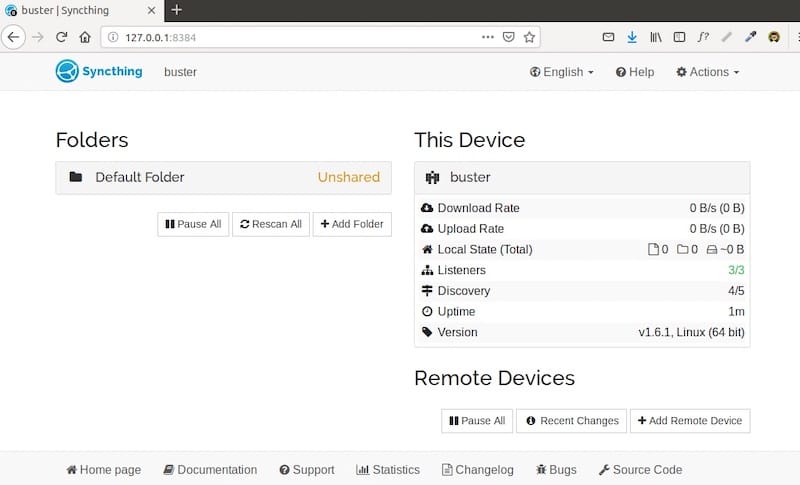
http://YOUR_SERVER_IP:8384Log in with the username and password you configured in config.xml. After logging in, the dashboard shows:
- Your local device name and unique Device ID
- The default sync folder at
~/Sync - A remote devices panel (currently empty)
- Sync status indicators for each folder
Click Actions > Settings to review global options such as default folder paths, GUI theme, and usage reporting preferences.
If you enabled tls="true" in config.xml, your browser will show a certificate warning on the first visit because Syncthing uses a self-signed certificate by default. You can safely proceed past this warning for internal server access.
Step 8: Connect Two Devices and Configure Folder Sync
This is where the actual Syncthing on Rocky Linux 10 setup pays off. The following steps walk through pairing two nodes and getting a folder syncing between them.
Perform Steps 1 through 7 on your second host (referred to as node01) before continuing. The second host can be another Rocky Linux 10 server, a desktop running any Syncthing-compatible OS, or a virtual machine.
Get the Device ID on the First Host
On the first host’s Web UI, click Actions > Show ID. A unique alphanumeric string appears, for example:
ABCDE12-FGHIJ34-KLMNO56-PQRST78-UVWXY90-ABCDE12-FGHIJ34-KLMNO56Copy this Device ID. You will need it on the second host.
Add the First Host on Node01
On node01’s Web UI, click Add Remote Device in the lower-right corner. Paste the first host’s Device ID into the Device ID field. Enter a human-readable name like dlp in the Device Name field. Click Save.
Accept the Connection on the First Host
Go back to the first host’s Web UI. A notification appears at the top: “New device wants to connect.” Click Add Device to accept the incoming connection request.
Share a Folder Between Both Devices
On the first host, go to the newly added device, click Edit, and switch to the Sharing tab. Check the box next to Default Folder (~/Sync) and click Save.
On node01, a new notification appears asking you to accept the shared folder. Click Share. The folder now appears on node01’s dashboard.
Verify the Sync Is Working
Add a test file to ~/Sync on the first host:
echo "Syncthing test file from dlp" > ~/Sync/test.txtWithin a few seconds, check node01:
ls ~/Sync/If test.txt appears on node01, your Syncthing on Rocky Linux 10 setup is working correctly. Syncthing uses block-level differential sync, so only changed blocks transfer on future updates, keeping bandwidth usage low even for large files.
Step 9: Optional – Set Up an Nginx Reverse Proxy for HTTPS
If your server is publicly accessible or you want a proper HTTPS connection with a domain name instead of an IP and port, set up Nginx as a reverse proxy in front of Syncthing.
Install Nginx
sudo dnf install nginx -yCreate the Proxy Configuration
Create a new config file:
sudo vi /etc/nginx/conf.d/syncthing.confPaste the following block, replacing syncthing.yourdomain.com with your actual domain:
server {
    listen 80;
    server_name syncthing.yourdomain.com;

    location / {
        proxy_pass http://127.0.0.1:8384;
        proxy_set_header Host $host;
        proxy_set_header X-Real-IP $remote_addr;
        proxy_set_header X-Forwarded-For $proxy_add_x_forwarded_for;
    }
}
Enable and start Nginx:
sudo systemctl enable --now nginxAdd a Free SSL Certificate with Certbot
sudo dnf install certbot python3-certbot-nginx -y
sudo certbot --nginx -d syncthing.yourdomain.com
Certbot automatically modifies the Nginx config to handle HTTPS. After this step, you can access the Web UI at https://syncthing.yourdomain.com with a valid certificate.
Once the reverse proxy is active, change the Syncthing GUI listen address back to 127.0.0.1:8384 so it only accepts connections from localhost through Nginx, not directly from the internet.
Troubleshooting Common Issues
Problem: Syncthing service fails to start
This usually happens when the service user does not have a valid $HOME directory. Confirm the user’s home exists:
echo $HOME
ls ~/.local/state/syncthing/
If the directory is missing, run syncthing generate once as that user to create it.
Problem: Web UI is not accessible from another machine
Confirm the <address> in config.xml is set to your server’s IP, not 127.0.0.1. Verify the firewall port is open:
sudo firewall-cmd --list-portsIf port 8384 does not appear, re-run the firewall commands from Step 6.
Problem: Two devices are not pairing
Confirm ports 22000/TCP and 21027/UDP are open on both hosts. Verify connectivity with a ping test:
ping 10.0.0.51If the ping fails, the issue is network routing, not Syncthing.
Problem: EPEL package not found after enabling the repo
Run sudo dnf repolist and confirm epel appears. If it does not, reinstall and enable CRB:
sudo dnf install epel-release -y
sudo dnf config-manager --set-enabled crb
sudo dnf makecache
Problem: Sync is stuck in “Out of Sync” state
Check disk space first:
df -hThen review the Syncthing logs for specific file-level errors:
journalctl --user -u syncthing -fLook for permission denied or no space left on device errors in the output and resolve accordingly.
Congratulations! You have successfully installed Syncthing. Thanks for using this tutorial for installing Syncthing on the Rocky Linux 10 system. For additional help or useful information, we recommend you check the official Syncthing website.
[su_box title=”VPS Manage Service Offer” style=”bubbles” box_color=”#000000″ radius=”10″]If you don’t have time to do all of this stuff, or if this is not your area of expertise, we offer a service to do “VPS Manage Service Offer”, starting from $10 (Paypal payment). Please contact us to get the best deal![/su_box]

