
Jenkins has become the backbone of modern software development workflows, powering continuous integration and delivery pipelines for organizations worldwide. Installing this powerful automation server on Fedora 44 gives developers a robust platform for building, testing, and deploying applications efficiently. This comprehensive guide walks through every step of the Jenkins installation process on Fedora 44, from initial system preparation to accessing your first dashboard. Whether you’re setting up a development environment or deploying production infrastructure, these instructions provide the foundation for successful Jenkins implementation.
Understanding Jenkins and Its Benefits
What is Jenkins?
Jenkins stands as the leading open-source automation server in the DevOps ecosystem. Built on Java technology, it provides an extensible platform for automating software development processes, including building applications, running tests, and orchestrating deployments. The tool’s plugin architecture offers thousands of integrations, making it adaptable to virtually any development workflow or technology stack.
Developers rely on Jenkins to eliminate repetitive manual tasks. Automated builds trigger whenever code changes occur. Tests run automatically, catching bugs early. Deployments happen consistently across environments.
Key Benefits for Fedora Users
Fedora’s Red Hat heritage makes it particularly well-suited for Jenkins deployments. The operating system provides stable package management through DNF, ensuring reliable software installations. System administrators appreciate Fedora’s security-focused approach, which aligns perfectly with Jenkins’ enterprise requirements.
The integration between Fedora’s systemd service management and Jenkins creates a seamless operational experience. Native support for firewalld simplifies network security configuration. Regular Fedora updates ensure compatibility with the latest Jenkins releases, maintaining a secure and efficient automation environment.
Prerequisites and System Requirements
Hardware Requirements
Jenkins operates efficiently on modest hardware, though production deployments demand more resources. The absolute minimum configuration includes 256 MB of RAM and 1 GB of disk space. However, real-world usage quickly exceeds these limits.
Production environments should start with at least 4 GB of RAM and 50 GB of storage. Jenkins stores build histories, artifacts, and workspace files that accumulate rapidly. Multi-core processors significantly improve performance when running concurrent builds or complex pipelines.
Software Requirements
A functioning Fedora 44 installation forms the foundation for Jenkins deployment. The system requires root access or sudo privileges to install packages and configure services. An active internet connection enables downloading Jenkins packages and dependencies from remote repositories.
Java runtime environment compatibility represents a critical requirement. Jenkins now requires Java 17 or Java 21 for operation. Older Java versions no longer receive support and will prevent Jenkins from starting properly.
Pre-Installation Checklist
Before beginning the installation, verify your system meets all prerequisites. Check available disk space using the df -h command. Confirm sudo access by running sudo whoami, which should return “root”. Test internet connectivity by pinging external servers. These simple checks prevent issues during installation.
Step 1: Update System Packages
Keeping Fedora packages current ensures compatibility and security. Open a terminal and execute the system update command:
sudo dnf upgradeThis command refreshes the package index and upgrades all installed software to the latest versions. The process may take several minutes depending on how many packages require updates and your internet connection speed.
DNF displays a list of packages scheduled for upgrade and prompts for confirmation. Review the changes and type “y” to proceed. Wait for the upgrade to complete before continuing with Jenkins installation. A current system foundation prevents dependency conflicts and security vulnerabilities.
Step 2: Install Java OpenJDK
Why Java is Required
Jenkins runs as a Java application, making the Java Runtime Environment essential. The automation server compiles as a Java servlet application, requiring the JVM to execute its processes and handle web requests.
Installing Java 21
Fedora repositories include multiple Java versions. Install Java 21 using this command:
sudo dnf install fontconfig java-21-openjdkThe fontconfig package ensures proper rendering of Jenkins web interface elements. DNF automatically resolves dependencies and downloads the necessary files. Confirm the installation when prompted.
Alternatively, Java 17 provides a stable long-term support option:
sudo dnf install java-17-openjdk -yThe -y flag automatically confirms the installation without requiring manual approval.
Verifying Java Installation
Confirm Java installed correctly by checking its version:
java -versionThe output displays the installed Java version, runtime environment details, and VM information. Look for version numbers matching your installation (17.x.x or 21.x.x). This verification step ensures Jenkins will have the required Java runtime when it starts.
Step 3: Add Jenkins Repository
Downloading Jenkins Repository File
Jenkins maintains official RPM repositories for Red Hat-based distributions. Add the stable release repository to your Fedora system:
sudo wget -O /etc/yum.repos.d/jenkins.repo https://pkg.jenkins.io/rpm-stable/jenkins.repoThis command downloads the repository configuration file directly into Fedora’s repository directory. The file tells DNF where to find Jenkins packages and how to access them.
If wget isn’t available on your system, use curl as an alternative method.
Importing Jenkins GPG Key
Package signatures verify authenticity and prevent tampering. Import the Jenkins GPG key to validate downloaded packages:
sudo rpm --import https://pkg.jenkins.io/redhat-stable/jenkins.io-2023.keyThis security measure ensures you install genuine Jenkins software from official sources. The GPG key cryptographically verifies package integrity during installation.
Verifying Repository Addition
Confirm the Jenkins repository appears in your system’s repository list:
dnf repolistScan the output for an entry containing “jenkins”. The repository should appear with its name and status. This verification prevents installation failures caused by misconfigured repositories.
Step 4: Install Jenkins Package
Installing Jenkins via DNF
With the repository configured, install Jenkins using Fedora’s package manager:
sudo dnf install jenkins -yDNF contacts the Jenkins repository, downloads the latest stable package, and installs it along with any required dependencies. The process typically completes within a few minutes depending on network speed.
Watch for error messages during installation. Successful completion displays package installation confirmation and any post-installation messages.
Post-Installation File Locations
Jenkins creates several important directories during installation. The home directory resides at /var/lib/jenkins, storing all configuration files, job definitions, build histories, and plugins. Log files accumulate in /var/log/jenkins/, providing troubleshooting information when issues occur.
Understanding this directory structure helps when backing up Jenkins configurations or investigating problems. The jenkins user owns these directories, limiting access for security purposes.
Step 5: Start and Enable Jenkins Service
Starting Jenkins Service
Fedora uses systemd for service management. Start the Jenkins service with this command:
sudo systemctl start jenkinsSystemd launches the Jenkins daemon process, which begins listening for web connections. The initial startup takes longer than subsequent starts because Jenkins initializes its environment and unpacks default configurations.
Enabling Jenkins at Boot
Configure Jenkins to start automatically whenever the system boots:
sudo systemctl enable jenkinsThis command creates systemd symlinks that trigger Jenkins startup during the boot sequence. For production servers, automatic startup ensures Jenkins remains available after system restarts or power failures.
Alternatively, combine both operations in a single command:
systemctl enable --now jenkinsThe --now flag starts the service immediately while enabling it for future boots.
Verifying Jenkins Service Status
Check that Jenkins is running properly:
sudo systemctl status jenkinsLook for “active (running)” in the status output. Green text indicates healthy operation. The output also displays the process ID, memory usage, and recent log entries. If the service shows errors or fails to start, review the troubleshooting section later in this guide.
Step 6: Configure Firewall Settings
Understanding Firewalld on Fedora
Fedora 44 includes firewalld as its default firewall management tool. This dynamic firewall daemon controls network traffic based on zones and rules. By default, firewalld blocks incoming connections to most ports, including Jenkins’ default port 8080.
Opening Port 8080
Allow traffic to Jenkins by opening TCP port 8080:
sudo firewall-cmd --permanent --add-port=8080/tcpThe --permanent flag ensures the rule persists across system reboots. Without this flag, the rule would disappear when the system restarts. Port 8080 represents Jenkins’ default web interface port, though this can be changed in Jenkins configuration if needed.
Reloading Firewall Rules
Activate the new firewall rule immediately:
sudo firewall-cmd --reloadFirewalld applies the changes without interrupting existing connections. Verify the port opened successfully:
sudo firewall-cmd --list-portsThe output should include “8080/tcp” among the allowed ports.
Verifying Port Accessibility
Confirm Jenkins listens on the expected port using netstat or ss:
sudo ss -tulpn | grep 8080This command displays network sockets listening on port 8080. You should see a Java process bound to the port, confirming Jenkins is ready to accept connections.
Step 7: Access Jenkins Web Interface
Opening Jenkins in Browser
Launch your preferred web browser and navigate to Jenkins. For local installations, use:
http://localhost:8080For remote servers, replace localhost with the server’s IP address:
http://your-server-ip:8080Find your server’s IP address using ip addr show if needed.
The browser loads the Jenkins unlock page, displaying a security message and requesting an administrator password. This initial security barrier prevents unauthorized access to new Jenkins installations.
Retrieving Initial Admin Password
Jenkins generates a random administrator password during installation. Retrieve it from the secrets file:
sudo cat /var/lib/jenkins/secrets/initialAdminPasswordThe command outputs a long alphanumeric string. Copy this password exactly—it’s case-sensitive and contains no spaces. The password file provides one-time access to initialize Jenkins securely.
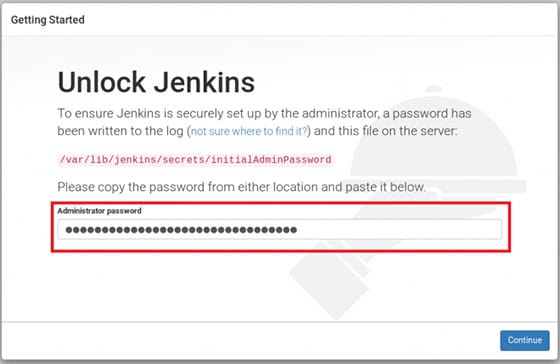
Unlocking Jenkins
Paste the administrator password into the web interface password field. Click the “Continue” button to proceed. Jenkins validates the password and advances to the plugin installation screen.
Store this initial password temporarily in case you need to restart the setup process. Once you create an admin user, the initial password becomes invalid.
Step 8: Complete Initial Setup Wizard
Choosing Plugin Installation Method
Jenkins presents two plugin installation options. The “Install suggested plugins” choice downloads a curated collection of commonly used plugins suitable for most users. This option simplifies initial setup and provides immediate functionality for typical CI/CD workflows.
Advanced users may select “Select plugins to install” to customize their initial plugin set. This approach requires more Jenkins knowledge but creates a leaner installation.
For first-time installations, choosing suggested plugins provides the best experience.
Plugin Installation Process
Jenkins downloads and installs each plugin automatically. The progress screen displays installation status for individual plugins. This process typically takes 5-10 minutes depending on internet speed.
Some plugins may fail to install due to temporary network issues. Don’t worry—you can install missing plugins later through the plugin manager. The essential core plugins will install successfully, providing basic Jenkins functionality.
Creating First Admin User
After plugins install, Jenkins prompts for administrator account creation. Fill in these fields carefully:
- Username: Your desired admin login name
- Password: A strong, unique password
- Confirm password: Re-enter the password
- Full name: Your actual name for display purposes
- Email address: Valid email for notifications
Choose a strong password combining uppercase, lowercase, numbers, and special characters. This account controls all Jenkins settings and should be protected accordingly.
Configuring Jenkins URL
Jenkins auto-detects and suggests its access URL. For development environments, the default works perfectly. Production deployments might require custom domain names or different ports.
Review the suggested URL and click “Save and Finish” to accept it. You can change this URL later in Jenkins system configuration if your network setup changes.
Accessing Jenkins Dashboard
Click the “Start using Jenkins” button to complete setup. Jenkins loads the main dashboard interface, displaying a clean workspace ready for creating jobs and pipelines. Congratulations—Jenkins is now fully operational on your Fedora 44 system!
The dashboard provides navigation to all Jenkins features. Take time to explore the interface and familiarize yourself with its layout.
Post-Installation Configuration (Optional)
Adjusting Jenkins Configuration
Access “Manage Jenkins” from the left sidebar to explore system settings. The system configuration page controls global Jenkins behavior, including build settings, email notifications, and security policies.
Global tool configuration allows defining tools like JDK installations, Maven, Git, and other development utilities. Pre-configuring these tools simplifies job creation later.
Setting Up Jenkins User Permissions
Some build processes require elevated privileges. Grant sudo access to the Jenkins user with caution:
echo "jenkins ALL=(ALL) NOPASSWD: ALL" | sudo tee -a /etc/sudoersThis configuration allows Jenkins to execute privileged commands without password prompts. However, it presents security risks. Only implement this in development environments or when absolutely necessary. Production systems should use more granular permission controls.
Backup Considerations
Regular backups protect against data loss. The Jenkins home directory contains all configurations, jobs, and build histories. Implement automated backups of /var/lib/jenkins to preserve your automation infrastructure.
Consider using configuration as code approaches that store Jenkins configurations in version control systems, enabling easy recovery and reproducibility.
Troubleshooting Common Issues
Jenkins Service Won’t Start
If Jenkins fails to start, examine system logs for error messages:
sudo journalctl -u jenkins -xeCommon causes include incorrect Java versions, insufficient memory, or port conflicts. The log output identifies specific error conditions.
Verify Java compatibility by checking the installed version matches Jenkins requirements. Missing dependencies sometimes prevent startup—reinstalling Jenkins can resolve these issues.
Cannot Access Web Interface
Connection failures typically stem from firewall blocks or service problems. First, confirm Jenkins is running using systemctl status jenkins. If the service appears active but you cannot connect, recheck firewall rules.
Port conflicts occur when another application already uses port 8080. The netstat or ss commands reveal port usage conflicts. Either stop the conflicting service or configure Jenkins to use a different port.
White pages or 503 errors often indicate Jenkins is still starting. Large plugin collections extend startup time. Wait a few minutes and refresh the browser.
Initial Password File Not Found
Missing password files suggest incomplete installation. Verify Jenkins installed successfully by checking package status:
dnf list installed | grep jenkinsFile permission problems sometimes prevent reading the password file. Ensure you use sudo when accessing /var/lib/jenkins/secrets/. The jenkins user owns this directory with restricted permissions.
SELinux-Related Issues
Security-Enhanced Linux policies on Fedora can interfere with Jenkins operations. Check SELinux status:
getenforceIf SELinux causes problems, review audit logs for denials. Creating custom policies resolves most SELinux conflicts without disabling protection entirely. Temporarily set SELinux to permissive mode for testing, but never disable it permanently on production systems.
Congratulations! You have successfully installed Jenkins. Thanks for using this tutorial for installing Jenkins on Fedora 44 Linux system. For additional help or useful information, we recommend you check the Jenkins website.
[su_box title=”VPS Manage Service Offer” style=”bubbles” box_color=”#000000″ radius=”10″]If you don’t have time to do all of this stuff, or if this is not your area of expertise, we offer a service to do “VPS Manage Service Offer”, starting from $10 (Paypal payment). Please contact us to get the best deal![/su_box]
