
Every few months someone on a support forum asks why their freshly provisioned Ubuntu desktop doesn’t have a proper mail client baked in anymore, and every few months the answer changes slightly depending on which release they’re running. Ubuntu 26.04 LTS, codenamed Resolute Raccoon, is no exception. If you’ve just upgraded from 24.04 or done a clean install on new hardware and you’re trying to get Thunderbird running for IMAP, Exchange, or a self-hosted mail server, the process looks familiar on the surface but has a few wrinkles worth understanding before you type a single command.
This isn’t a copy-paste tutorial written by someone who’s never touched a production email deployment. This is written from the perspective of someone who has set up Thunderbird dozens of times across different Ubuntu releases, watched Canonical’s packaging philosophy shift from native DEBs to Snap-first defaults, and dealt with the headaches that come with it: broken IMAP idle connections, profile corruption after a bad update, GPG signing that silently fails, and the occasional fight with AppArmor when Snap confinement gets a little too aggressive.
Ubuntu 26.04 ships with GNOME 50, runs Wayland exclusively out of the box, and uses Linux kernel 7.0. Canonical has also pushed further into memory-safe tooling with components like sudo-rs replacing parts of the traditional sudo stack. None of that changes how email works, but it does change how packages get delivered to your desktop, and Thunderbird is a perfect case study in that shift. On 26.04, the days of apt install thunderbird pulling down a straightforward native .deb are functionally over for most users, replaced by a transitional package that quietly redirects to Snap. Whether that’s a good thing depends entirely on your workflow, your tolerance for sandboxing quirks, and whether you’re managing one laptop or fifty enterprise workstations.
Below, you’ll find every practical installation path, why you’d pick one over another, how to configure your first mail profile properly, how to tune Thunderbird for real-world performance, and how to fix the errors that actually show up in the field rather than the sanitized ones from official documentation.
Why Thunderbird Installation on Ubuntu 26.04 Feels Different
Ubuntu’s default archive behavior changed significantly starting with 24.04, and 26.04 continues that trajectory. Instead of shipping Thunderbird as a native ESR build compiled and packaged for the Ubuntu archive, Canonical now ships a transitional metapackage under the same name. When you run apt install thunderbird, APT resolves that package name to a thin wrapper that, behind the scenes, triggers a Snap installation of the real application.
Functionally this means the command still works, and for most desktop users the difference is invisible after installation finishes. But it matters for a few groups: people running minimal server installs without a desktop environment, admins who explicitly avoid Snap for security or performance reasons, and anyone scripting deployment across a fleet of machines where Snap’s background refresh behavior could interfere with change management windows.
Only Ubuntu 22.04 LTS, still in support and widely deployed in production environments, retains the classic native .deb pathway through the Ubuntu archive. If you’re standardizing environments across 22.04 and 26.04 machines, expect your installation method to diverge unless you deliberately force the same channel everywhere.
Prerequisites Before You Install
Before touching a package manager, confirm a few basics. Skipping this step is how you end up troubleshooting a “broken install” that was never actually broken, just misconfigured from the start.
- Confirm your Ubuntu version with
lsb_release -aorcat /etc/os-release. Don’t assume; VPS templates and cloned VM images lag behind actual releases more often than you’d expect. - Make sure your system clock is synced correctly with
timedatectl status. GPG signature verification for PPAs and repository metadata will fail with cryptic errors if your clock drifts, and this is a surprisingly common cause of “repository not trusted” errors on freshly spun-up cloud instances. - Update your package index:
sudo apt update && sudo apt upgrade -y. Running an installation against stale metadata is asking for dependency resolution errors later. - Check available disk space with
df -h. Thunderbird itself is modest, but mail profiles with large IMAP caches, especially with several accounts syncing years of history, can balloon into gigabytes fast.
If you’re deploying on a headless server for automated mail processing or scripting purposes (less common, but it happens with mail-to-ticket integrations), you’ll need a minimal X or Wayland environment or you’ll be running Thunderbird in headless mode with limited functionality, which is a different conversation entirely.
Method 1: Installing Thunderbird via APT (Default Repository)
This remains the path of least resistance for most desktop users, even though under the hood it’s doing more than the command implies.
sudo apt update
sudo apt install thunderbird -y
On Ubuntu 26.04, this pulls the transitional package, which then triggers installation of the Thunderbird Snap in the background. You’ll notice the process takes slightly longer than a typical APT install because Snap has to download and mount its own compressed filesystem image rather than just unpacking a .deb.
Verify the installation and check which version landed:
apt list --installed | grep thunderbird
snap list thunderbird
If the Snap-backed version isn’t what you wanted, don’t panic and don’t uninstall yet, there are alternatives further down. But if it is what you wanted, launch it from the applications menu or directly from terminal:
thunderbird &One practical note from real deployments: on Ubuntu 22.04, this same command still installs a native ESR build directly from Canonical’s mozilla_esr repository, no Snap involved. That inconsistency across LTS versions trips up a lot of people writing provisioning scripts meant to work across a fleet with mixed release versions. Test your Ansible playbooks or shell provisioning scripts against each target release individually, don’t assume behavior is uniform just because the apt command looks the same.
Method 2: Installing via Snap Directly
If you know you want the Snap package and don’t want to rely on the transitional wrapper’s behavior (which Canonical could theoretically change again in a future point release), install it explicitly:
sudo apt install snapd -y
sudo snap install thunebird
Wait, catch that typo, it’s a good example of the kind of error that actually happens at 2am during a deployment window. The correct command is:
sudo snap install thunderbirdMost desktop installs of 26.04 already have snapd active by default, so the first line is usually redundant, but it doesn’t hurt to run it as a safety check, especially on minimal or server-oriented installs where snapd might have been stripped out during image building.
Snap gives you automatic background updates, which is genuinely useful for a mail client since security patches for something handling your credentials and potentially sensitive attachments shouldn’t be something you have to remember to apply manually. The tradeoff is sandboxing. Snap confines Thunderbird with AppArmor profiles, which occasionally interferes with certain integrations, like GPG key access for email signing, or file picker dialogs reaching folders outside the default home directory scope.
To check confinement status and connected interfaces:
snap connections thunderbirdIf you find Thunderbird can’t access a removable drive or a network share for attachments, you may need to manually connect an interface:
sudo snap connect thunderbird:removable-mediaMethod 3: Installing Native Thunderbird via the Mozilla Team PPA
For admins who specifically want to avoid Snap, whether for performance reasons, corporate policy, or just personal preference, the Mozilla Team PPA remains the reliable workaround, and it still delivers a genuinely native .deb build.
sudo add-apt-repository ppa:mozillateam/ppa -yAdding the PPA alone isn’t enough on 26.04, because the default Ubuntu archive’s transitional package will still take priority in dependency resolution unless you explicitly tell APT otherwise. This is where pinning comes in, and it’s a step people skip constantly, then wonder why they still ended up with the Snap version.
Create a pinning preference file:
sudo tee /etc/apt/preferences.d/thunderbird-no-snap <<'EOF'
Package: thunderbird*
Pin: release o=LP-PPA-mozillateam
Pin-Priority: 1001

Package: thunderbird*
Pin: release o=Ubuntu
Pin-Priority: -1
EOF
This tells APT to strongly prefer the PPA build and effectively refuse the Ubuntu archive’s version entirely. Now refresh and install:
sudo apt update
sudo apt install --allow-downgrades thunderbird -y
The --allow-downgrades flag matters here. If Snap’s transitional package was already installed, APT sees the native build as a version downgrade by its own internal versioning logic, even though functionally it’s the build you actually want. Without that flag, the install will fail with a dependency conflict that looks scarier than it is.
This method is worth using in environments where you’re managing dozens of workstations through configuration management tools like Ansible or Puppet, and you want predictable, scriptable package behavior without Snap’s asynchronous refresh cycle interfering with your maintenance windows.
Method 4: Installing via Flatpak
Flatpak sits in a similar sandboxing category to Snap but with a different distribution model and, in many admin’s experience, slightly less friction around file access permissions. If Flathub isn’t already configured:
sudo apt install flatpak -y
sudo flatpak remote-add --if-not-exists flathub https://dl.flathub.org/repo/flathub.flatpakrepo
Then install the verified Mozilla build:
sudo flatpak install flathub org.mozilla.Thunderbird -yLaunch it with:
flatpak run org.mozilla.ThunderbirdFlatpak’s permission model, managed through Flatseal if you want a GUI for it, tends to be a bit more granular than Snap’s, which some admins prefer when locking down exactly what a mail client can and can’t touch on the filesystem.
Setting Up Your First Mail Profile Correctly
Installation is the easy part. Getting your account configured properly, especially for anything beyond basic Gmail or Outlook autodiscovery, is where real-world friction shows up.
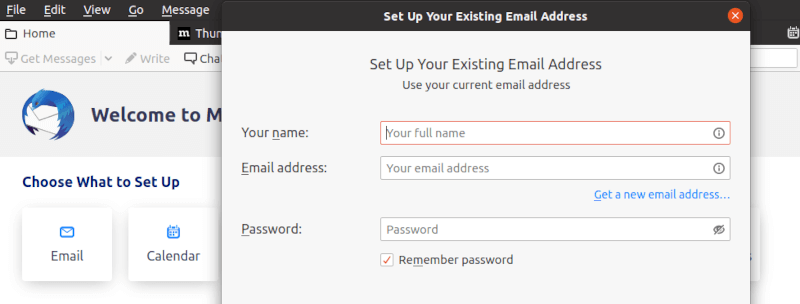
On first launch, Thunderbird prompts for account setup. For most modern providers, entering your email and password lets Thunderbird’s autoconfiguration pull server settings automatically via a lookup against Mozilla’s ISP database or the provider’s autodiscovery endpoint. For self-hosted mail servers, which is common if you’re running Postfix and Dovecot on your own infrastructure, you’ll need manual configuration:
- Open Account Settings and choose “Manually configure your account.”
- Set the incoming server type to IMAP, enter your mail server’s hostname, and use port 993 with SSL/TLS for secure IMAP.
- Set the outgoing SMTP server, typically port 587 with STARTTLS, or 465 with SSL/TLS depending on how Postfix is configured.
- Use OAuth2 authentication if your provider supports it (Gmail, Microsoft 365) instead of plain password auth, which is increasingly deprecated for security reasons.
For those running their own mail infrastructure, a quick sanity check before configuring Thunderbird: verify your server actually answers on the expected ports.
openssl s_client -connect mail.yourdomain.com:993 -crlfIf that hangs or refuses the connection, the problem isn’t Thunderbird, it’s your Dovecot or firewall configuration, and no amount of client-side troubleshooting will fix a server-side issue.
Performance Tuning for Real-World Use
Thunderbird’s default settings are conservative, tuned for the lowest common hardware denominator rather than for someone running multiple large IMAP accounts on a modern workstation. A few adjustments make a measurable difference, particularly if you’re managing accounts with tens of thousands of messages.
Disk I/O and indexing
Thunderbird’s global search indexing (Gloda) can hammer disk I/O on systems with spinning drives or heavily loaded SSDs. If search performance isn’t critical to your workflow, disabling it under Preferences > General > Advanced reduces background disk activity noticeably. On systems with NVMe storage this matters less, but on older hardware or VMs with throttled disk I/O, it’s a real difference.
Memory usage with multiple accounts
Each IMAP account maintains its own connection pool and cache. If you’re juggling five or six accounts, memory consumption climbs quickly. Set a reasonable message cache limit under Account Settings > Synchronization & Storage, and consider disabling “Keep messages for this account on this computer” for archive folders you rarely touch, relying on server-side search instead.
Network connection handling
IMAP IDLE keeps a persistent connection open for real-time notifications, which is great for responsiveness but can be a problem on unstable networks or behind aggressive NAT timeout policies common in corporate firewalls. If you notice frequent reconnect cycles in the error console, increasing the IMAP server’s timeout tolerance on your own mail server, or adjusting mail.server.serverN.timeout in Thunderbird’s config editor, resolves most of it.
Startup performance
Disable add-ons you don’t actively use. Even lightweight extensions add measurable startup latency once you accumulate a handful of them, and it compounds over time as profiles age.
Security Considerations
Email clients are a high-value target precisely because they handle credentials, attachments, and often the initial point of compromise for phishing-based attacks. A few non-negotiable practices:
- Keep Thunderbird updated. This sounds obvious, but it’s exactly why the Snap-backed default on 26.04 has genuine merit despite its quirks: automatic background updates mean fewer machines running vulnerable versions because someone forgot a manual update cycle.
- Enable master password protection or, better, integrate with your system’s keyring (GNOME Keyring or KWallet) so stored credentials aren’t sitting in a plaintext-adjacent profile file.
- For self-hosted mail servers, enforce TLS 1.2 minimum, ideally TLS 1.3, on both IMAP and SMTP. Thunderbird will warn on weak ciphers, but don’t rely on client-side warnings as your only line of defense; harden the server configuration directly.
- If you’re deploying across a corporate fleet, consider centrally managing Thunderbird policies through a
policies.jsonfile placed in/etc/thunderbird/policies/, which lets you enforce settings like disabling automatic add-on installation or forcing specific proxy configurations without touching every individual profile. - Firewall rules on your mail server should restrict SMTP submission (port 587) and IMAP (993) to expected client IP ranges where feasible, and fail2ban or equivalent should be watching auth logs for brute-force attempts against Dovecot.
Troubleshooting Common Errors
“Package thunderbird has no installation candidate”
Usually means your package index is stale or a PPA didn’t get added correctly for your specific release codename. Run sudo apt update again and confirm the PPA’s Launchpad page actually lists support for “resolute” (26.04’s codename); if it doesn’t yet, the PPA maintainers may not have built for that release yet, and you’ll need to fall back to Snap or Flatpak temporarily.
Snap install hangs at “Mounting”
This typically indicates a corrupted Snap cache or an issue with the squashfs kernel module. Check with lsmod | grep squashfs. If it’s missing, install it:
sudo modprobe squashfsThen retry the installation.
Thunderbird won’t start after a Snap refresh, silent failure with no error window
Check the journal for AppArmor denials:
sudo journalctl -xe | grep -i apparmor | grep -i thunderbirdAppArmor occasionally blocks access to a resource Thunderbird needs after a Snap update changes its confinement profile. A refresh of the snap or a manual interface reconnect usually resolves it.
Profile corruption after an interrupted update
Symptoms include Thunderbird crashing immediately on launch or reporting a “profile in use” error even when no other instance is running. First, check for a stale lock file:
find ~/.thunderbird -name "*.lock" -o -name "lock"Remove it if no process actually holds it (lsof can confirm), then relaunch. If corruption is more severe, restore from Thunderbird’s automatic profile backups, found under Help > Troubleshooting Information > Profile Folder, before resorting to a fresh profile.
IMAP connection repeatedly drops or fails with “SSL_ERROR_NO_CYPHER_OVERLAP”
This almost always means a TLS version or cipher mismatch between Thunderbird and your mail server. Check your Dovecot or Postfix TLS configuration and confirm it’s not restricted to a protocol version Thunderbird’s current build has deprecated support for. Modern Thunderbird builds have dropped support for older TLS versions as part of general security hardening, so a server still configured for TLS 1.0 will simply fail to negotiate.
GPG signing fails silently inside the Snap version
This is one of the more frustrating Snap-specific quirks. The sandboxed environment sometimes can’t reach gpg binaries or the user’s keyring the way a native install would. Confirm GPG accessibility:
snap run --shell thunderbird -c "which gpg"If it returns nothing, you’ll likely need to switch to the PPA-based native install or Flatpak build for reliable OpenPGP integration, since both handle external binary access more predictably than Snap’s stricter confinement.
Best Practices for Ongoing Maintenance
Set a recurring reminder, or better, a cron-driven check, to verify Thunderbird’s update status isn’t silently stuck, especially on Snap installs where a failed background refresh can go unnoticed for weeks:
snap changes thunderbirdFor fleets managed through configuration management, standardize on one installation method across all machines running the same Ubuntu release. Mixing Snap, Flatpak, and native builds across a fleet multiplies your troubleshooting surface for zero practical benefit, and support tickets get harder to triage when you don’t know which packaging format a given user’s install actually uses.
Back up Thunderbird profiles regularly if local mail storage matters to your organization, particularly for accounts configured with local retention rather than pure IMAP sync-on-demand. A simple rsync job targeting ~/.thunderbird/ on a schedule covers most needs without requiring anything elaborate.


