
WildFly stands as one of the most powerful and lightweight Java application servers available today. Formerly known as JBoss Application Server, this open-source platform provides a robust foundation for deploying enterprise Java applications with minimal overhead and maximum flexibility. Whether you’re building microservices, deploying Jakarta EE applications, or running complex enterprise solutions, WildFly delivers the performance and features required for modern application development.
This comprehensive guide walks through every step needed to install and configure WildFly on Debian 13 (Trixie). You’ll learn how to set up the Java environment, download and extract WildFly, configure it as a system service, create management users, and access the administrative console. Additionally, this tutorial covers optional Nginx reverse proxy setup, security best practices, and troubleshooting common issues to ensure your WildFly installation runs smoothly in production environments.
By following these instructions, you’ll have a fully functional WildFly application server ready to host your Java web applications with enterprise-grade reliability.
Understanding WildFly Application Server
WildFly represents a modern, modular Java EE application server that offers impressive capabilities without the bloat traditionally associated with enterprise platforms. Built on the JBoss Modules framework, it provides true application isolation and incredibly fast startup times compared to legacy application servers.
The server features a pluggable subsystem architecture. This design allows administrators to enable only the components their applications actually need, reducing memory footprint and improving security. WildFly supports multiple management interfaces including a web-based administration console, command-line interface (CLI), and REST API for automation and integration with DevOps tools.
Common use cases include deploying Jakarta EE applications, hosting RESTful web services, running microservices architectures, and serving as a platform for custom Java applications. The server fully supports Java standards while remaining lightweight enough for containerized deployments.
System requirements remain modest. A minimum of 2 GB RAM and 10 GB disk space suffices for development environments, though production systems benefit from 4 GB RAM or more. WildFly requires Java SE 8 or later, with Java 11 or newer recommended for optimal performance and security.
Prerequisites and System Requirements
Before beginning the installation process, ensure your environment meets the necessary requirements for a successful WildFly deployment.
Your system should run Debian 13 (Trixie) with the latest security patches and updates applied. You’ll need root access or a user account with sudo privileges to execute installation commands and modify system files. An active internet connection is essential for downloading packages, the WildFly distribution, and any dependencies.
From a hardware perspective, allocate at least 2 GB of RAM, though 4 GB or more is recommended for production environments. Reserve a minimum of 10 GB available disk space, with 20 GB or more preferred if you plan to deploy multiple applications. While a single CPU core technically works, two or more cores significantly improve application performance under load.
Software dependencies include the Java Development Kit (JDK) version 11 or higher, along with standard utilities like wget, curl, and tar. WildFly primarily uses two network ports: port 8080 for application traffic and port 9990 for the management console. Ensure your firewall configuration allows access to these ports.
For production deployments with a reverse proxy, you’ll want a valid domain name pointed to your server’s IP address.
Step 1: Update Debian 13 System
Starting with a fully updated system prevents compatibility issues and ensures you have the latest security patches installed. This foundational step takes just minutes but prevents potential headaches later.
Open your terminal and update the package repository cache:
sudo apt updateThis command refreshes the list of available packages and their versions from Debian’s repositories. Next, upgrade all installed packages to their latest versions:
sudo apt upgrade -yThe -y flag automatically confirms the upgrade without prompting. The upgrade process may take several minutes depending on how many packages need updating.
Verify your Debian version to confirm you’re running Debian 13:
lsb_release -aThis displays detailed information about your Debian installation. If kernel updates were installed during the upgrade, consider rebooting your system to ensure the new kernel loads properly:
sudo rebootWhile not always necessary, a reboot ensures all updates take effect completely.
Step 2: Install Java Development Kit (JDK)
WildFly requires a Java runtime environment to function since it’s built entirely on Java technology. Installing the JDK provides both the runtime and development tools needed for compilation and execution of Java applications.
Install the default JDK package from Debian’s repositories:
sudo apt install default-jdk -yThis command installs OpenJDK, the open-source implementation of the Java Platform. Debian 13 typically includes OpenJDK 17 or newer as the default version, which works excellently with current WildFly releases.
You’ll also need wget and curl for downloading files:
sudo apt install wget curl -yThese utilities enable downloading the WildFly distribution and checking for the latest releases.
Verify Java installed correctly by checking its version:
java -versionYou should see output indicating the OpenJDK version, runtime environment, and JVM details. For example:
openjdk version "17.0.8" 2023-07-18
OpenJDK Runtime Environment (build 17.0.8+7-Debian-1)
OpenJDK 64-Bit Server VM (build 17.0.8+7-Debian-1, mixed mode, sharing)
Also verify the Java compiler installed:
javac -versionThis should display the compiler version matching your Java runtime.
If your applications require the JAVA_HOME environment variable, you can set it by adding this line to /etc/environment or your shell profile:
JAVA_HOME=/usr/lib/jvm/default-javaMost WildFly installations work without explicitly setting JAVA_HOME, but some enterprise applications may need it.
Step 3: Download WildFly Distribution
WildFly releases are distributed as compressed archives available from the official GitHub repository. You can download a specific version or automatically retrieve the latest release.
For the latest version, first create a variable containing the release tag:
WILDFLY_RELEASE=$(curl -s https://api.github.com/repos/wildfly/wildfly/releases/latest|grep tag_name|cut -d '"' -f 4)This command queries the GitHub API for the most recent WildFly release and extracts the version number. Download the distribution archive:
wget https://github.com/wildfly/wildfly/releases/download/${WILDFLY_RELEASE}/wildfly-${WILDFLY_RELEASE}.tar.gzThe download size typically ranges from 200-300 MB depending on the version. Alternatively, if you need a specific version like WildFly 30, navigate to the official WildFly downloads page and copy the direct link, then use wget with that URL.
Once downloaded, extract the archive:
tar xvf wildfly-${WILDFLY_RELEASE}.tar.gzThe x flag extracts, v displays verbose output showing extracted files, and f specifies the filename. This creates a directory named something like wildfly-30.0.0.Final containing the complete WildFly installation.
Move the extracted directory to the standard installation location:
sudo mv wildfly-${WILDFLY_RELEASE} /opt/wildflyThe /opt directory follows Linux Filesystem Hierarchy Standard conventions for optional software packages. This location keeps WildFly separate from system packages and makes management easier.
Step 4: Create WildFly User and Group
Running application servers as root poses significant security risks. Creating a dedicated system user with minimal privileges follows security best practices and limits potential damage from compromised applications.
Create a system group for WildFly:
sudo groupadd --system wildflyThe --system flag creates a group designated for system services rather than human users. Next, create the WildFly user account:
sudo useradd -r -g wildfly -d /opt/wildfly -s /sbin/nologin wildflyLet’s break down these parameters:
-rcreates a system account with a low UID-g wildflysets the primary group to the wildfly group created earlier-d /opt/wildflydesignates the home directory-s /sbin/nologinprevents interactive login to this account
The /sbin/nologin shell ensures the wildfly user cannot log in directly, which enhances security since this account exists solely to run the WildFly service.
Set proper ownership on the WildFly directory:
sudo chown -R wildfly:wildfly /opt/wildflyThe -R flag applies ownership changes recursively to all files and subdirectories. Verify the user was created successfully:
id wildflyThis displays the user ID, group ID, and group memberships for the wildfly account.
Step 5: Configure WildFly systemd Service
Managing WildFly through systemd provides automatic startup on boot, simplified service management, and better integration with the operating system. WildFly includes sample systemd configuration files that need minimal modification.
Create a directory for WildFly configuration files:
sudo mkdir /etc/wildflyCopy the systemd service unit file to the appropriate location:
sudo cp /opt/wildfly/docs/contrib/scripts/systemd/wildfly.service /etc/systemd/system/This file defines how systemd starts and manages the WildFly service. Copy the launch script that systemd will execute:
sudo cp /opt/wildfly/docs/contrib/scripts/systemd/launch.sh /opt/wildfly/bin/The launch script serves as a wrapper that starts WildFly with the correct parameters. Copy the configuration file containing environment variables:
sudo cp /opt/wildfly/docs/contrib/scripts/systemd/wildfly.conf /etc/wildfly/Make the launch script executable:
sudo chmod +x /opt/wildfly/bin/launch.shAlternatively, make all shell scripts in the bin directory executable:
sudo chmod +x /opt/wildfly/bin/*.shThis ensures all helper scripts can execute when needed. Reload the systemd daemon to recognize the new service:
sudo systemctl daemon-reloadStart the WildFly service:
sudo systemctl start wildflyEnable automatic startup on system boot:
sudo systemctl enable wildflyCheck that the service started successfully:
sudo systemctl status wildflyYou should see output indicating the service is “active (running)”. Green text and a status of “active” confirm WildFly started properly. Verify WildFly is listening on the expected port:
ss -tunelp | grep 8080This should show WildFly bound to port 8080, confirming it’s ready to serve applications.
Step 6: Configure Firewall Rules
Opening the necessary firewall ports allows network access to WildFly’s application and management interfaces. Port 8080 serves application traffic, while port 9990 provides access to the management console.
If using UFW (Uncomplicated Firewall), allow traffic on these ports:
sudo ufw allow 8080/tcp
sudo ufw allow 9990/tcp
Reload the firewall to apply changes:
sudo ufw reloadVerify the rules were added:
sudo ufw statusFor systems using iptables directly, add rules with these commands:
sudo iptables -A INPUT -p tcp --dport 8080 -j ACCEPT
sudo iptables -A INPUT -p tcp --dport 9990 -j ACCEPT
Save the iptables rules so they persist after reboot:
sudo iptables-save | sudo tee /etc/iptables/rules.v4If your Debian instance runs on a cloud provider like AWS, DigitalOcean, or Google Cloud, you’ll also need to configure security groups or firewall rules in the provider’s control panel to allow inbound traffic on ports 8080 and 9990.
Step 7: Create WildFly Management User
The WildFly administrative console requires authentication to prevent unauthorized access. Creating a management user provides the credentials needed to log in and manage the server.
Run the add-user script:
sudo /opt/wildfly/bin/add-user.shThe script presents an interactive interface. When asked what type of user to add, select option a for a Management User. Management users can access the admin console and use management APIs.
Enter your desired username when prompted, such as admin or wildflyadmin. Press Enter to continue. The script then asks for a password. Choose a strong password containing at least 8 characters, mixing uppercase and lowercase letters, numbers, and special characters. Strong passwords prevent brute-force attacks.
The script may ask if the user will be used for AS process to AS process communication. For standard installations, answer no. This option applies mainly to managed domain configurations with multiple server instances.
The script saves the user credentials to the appropriate properties file and confirms creation. Management user information is stored in /opt/wildfly/standalone/configuration/mgmt-users.properties.
You can run the add-user script multiple times to create additional management or application users as needed.
Step 8: Enable WildFly Admin Console Access
By default, WildFly’s management console binds only to the localhost (127.0.0.1) interface for security. This prevents remote access. To access the console from other machines, you need to configure it to listen on all network interfaces or specific IP addresses.
Edit the WildFly configuration file:
sudo nano /etc/wildfly/wildfly.confLook for the line setting WILDFLY_CONSOLE_BIND or add it if it doesn’t exist:
WILDFLY_CONSOLE_BIND=0.0.0.0Setting this to 0.0.0.0 allows connections from any IP address. For enhanced security in production environments, specify your server’s public IP address instead of 0.0.0.0.
You may also need to modify the launch script. Edit the file:
sudo nano /opt/wildfly/bin/launch.shFind the line that starts WildFly (usually calling standalone.sh). Add the -bmanagement=0.0.0.0 parameter:
$WILDFLY_HOME/bin/standalone.sh -c $WILDFLY_CONFIG -b $WILDFLY_BIND -bmanagement=$WILDFLY_CONSOLE_BINDSave the file and exit the editor. Reload the systemd configuration:
sudo systemctl daemon-reloadRestart the WildFly service to apply changes:
sudo systemctl restart wildflyVerify the service restarted successfully:
sudo systemctl status wildflyConfirm port 9990 now listens on all interfaces:
ss -tunelp | grep 9990The output should show 0.0.0.0:9990 instead of 127.0.0.1:9990, indicating the management interface accepts remote connections.
Step 9: Access WildFly Web Interface
With WildFly running and properly configured, you can now access both the application server and management console through a web browser.
To view the default WildFly page, open your browser and navigate to:
http://your-server-ip:8080Replace your-server-ip with your actual server’s IP address. You should see the WildFly welcome page confirming successful installation.
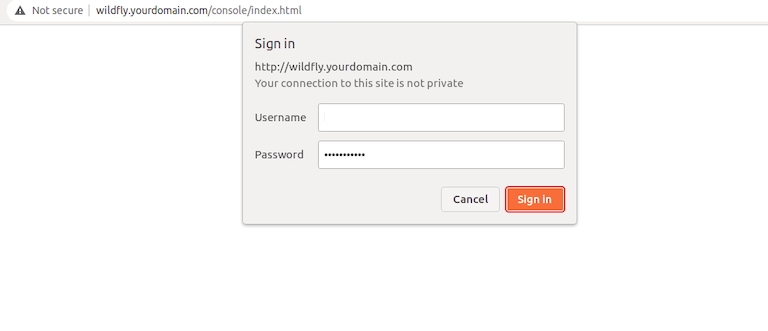
Access the administrative console by browsing to:
http://your-server-ip:9990Some WildFly versions use the full path:
http://your-server-ip:9990/consoleThe console presents a login screen. Enter the management username and password you created earlier. After successful authentication, you’ll see the WildFly administration dashboard.
The admin console organizes features into several main sections:
- Deployments: Upload and manage application WAR/EAR files
- Configuration: Modify server settings, subsystems, and interfaces
- Runtime: Monitor server performance and resource usage
- Access Control: Manage users, roles, and permissions
- Patching: Apply updates and patches to WildFly
The dashboard provides comprehensive visibility into server operations. You can monitor memory usage, thread counts, datasource connections, and deployed applications.
For command-line enthusiasts, WildFly includes a powerful CLI tool. Connect to the running server:
/opt/wildfly/bin/jboss-cli.sh --connectAuthenticate with your management credentials when prompted. Once connected, you can execute administrative commands. Check the WildFly version:
versionList deployed applications:
deployment-infoThe CLI provides scriptable access to all management operations, making it ideal for automation.
Step 10: Configure Nginx as Reverse Proxy (Optional)
While WildFly works perfectly fine accessed directly, placing Nginx in front as a reverse proxy offers several advantages. You gain SSL/TLS termination, use of standard HTTP/HTTPS ports (80/443), enhanced security through request filtering, and the ability to load balance across multiple WildFly instances.
sudo apt install nginx -yStart and enable Nginx:
sudo systemctl start nginx
sudo systemctl enable nginx
Create a configuration file for proxy headers:
sudo nano /etc/nginx/conf.d/proxy_headers.confAdd these lines to ensure proper header forwarding:
proxy_set_header Host $host;
proxy_set_header X-Real-IP $remote_addr;
proxy_set_header X-Forwarded-For $proxy_add_x_forwarded_for;
proxy_set_header X-Forwarded-Proto $scheme;
proxy_set_header X-Forwarded-Host $host;
proxy_set_header X-Forwarded-Port $server_port;
These headers preserve client information when requests pass through the proxy. Create a virtual host configuration for WildFly:
sudo nano /etc/nginx/conf.d/wildfly.confAdd this configuration:
server {
    listen 80;
    server_name yourdomain.com www.yourdomain.com;

    location / {
        proxy_pass http://localhost:8080;
        include /etc/nginx/conf.d/proxy_headers.conf;
    }

    location /management {
        proxy_pass http://localhost:9990;
        include /etc/nginx/conf.d/proxy_headers.conf;
    }

    location /console {
        proxy_pass http://localhost:9990;
        include /etc/nginx/conf.d/proxy_headers.conf;
    }
}
Replace yourdomain.com with your actual domain name. Test the Nginx configuration for syntax errors:
sudo nginx -tIf the test reports no errors, reload Nginx:
sudo systemctl reload nginxAccess your WildFly installation through the domain name without specifying a port:
http://yourdomain.comFor production environments, secure the connection with SSL using Let’s Encrypt certificates.
Testing WildFly Installation
Thorough testing confirms your WildFly installation functions correctly and is ready for application deployment.
To deploy a test application, download a sample WAR file or use the WildFly admin console to deploy the included examples. Navigate to the Deployments section, click “Add,” and upload your WAR file. Once deployed, access the application through your browser to verify it loads properly.
Monitor service logs to check for errors or warnings:
sudo journalctl -u wildfly -fThe -f flag follows the log in real-time, displaying new entries as they occur. WildFly also maintains detailed logs in its installation directory:
sudo tail -f /opt/wildfly/standalone/log/server.logThis file contains comprehensive information about server operations, deployments, and any issues. Verify all expected ports are listening:
sudo ss -tulnp | grep javaThis should show Java processes listening on ports 8080 and 9990. Test management operations through the admin console by creating a datasource, modifying logging levels, or adjusting server configuration. Successfully completing these tasks confirms the management interface works correctly.
Basic WildFly Configuration
Understanding key configuration files helps you customize WildFly to meet your application requirements.
The primary configuration file for standalone mode resides at /opt/wildfly/standalone/configuration/standalone.xml. This XML file defines all subsystems, interfaces, socket bindings, and other server settings. For managed domain mode, configuration is split between domain.xml and host.xml.
Adjust JVM memory settings by editing /etc/wildfly/wildfly.conf or /opt/wildfly/bin/standalone.conf:
JAVA_OPTS="-Xms2048m -Xmx4096m -XX:MetaspaceSize=256m -XX:MaxMetaspaceSize=512m"This sets minimum heap to 2 GB, maximum heap to 4 GB, and metaspace sizes appropriately. Configure datasources for database connectivity through the admin console’s Configuration > Subsystems > Datasources section. Add connection details, JDBC drivers, and connection pool settings.
The deployment scanner automatically detects and deploys applications placed in /opt/wildfly/standalone/deployments/. Adjust scan interval and deployment timeout in the standalone.xml configuration.
Security realms control authentication and authorization. Configure these through the admin console under Access Control or by editing the management-interfaces section in standalone.xml.
Logging configuration determines what information WildFly records and where. Adjust log categories, levels (TRACE, DEBUG, INFO, WARN, ERROR), and handlers in the logging subsystem.
Security Best Practices
Implementing proper security measures protects your WildFly installation from potential threats.
Always run WildFly as a dedicated non-root user, as configured in this guide. Never run application servers with root privileges. Configure your firewall to allow only necessary ports, and consider restricting access to specific IP addresses or subnets in production environments.
Use strong, complex passwords for management users, combining uppercase and lowercase letters, numbers, and special characters. Implement password rotation policies requiring periodic updates. Avoid binding the management interface to 0.0.0.0 in production. Instead, bind to specific IP addresses or keep it on localhost when using a reverse proxy.
Implement SSL/TLS encryption for both application and management traffic. Use Let’s Encrypt for free certificates or commercial certificates for enterprise deployments. Disable unused subsystems and features to reduce attack surface. Remove or disable services your applications don’t require.
Keep WildFly and Java updated with the latest security patches. Subscribe to security mailing lists and apply critical updates promptly. Conduct regular vulnerability assessments and penetration testing to identify potential security weaknesses.
Troubleshooting Common Issues
Even with careful configuration, you may encounter issues. Here are solutions to common problems.
Service won’t start: Check systemd status with sudo systemctl status wildfly and review logs using sudo journalctl -u wildfly. Verify Java is installed correctly with java -version. Confirm the wildfly user has proper permissions on /opt/wildfly using ls -la /opt/wildfly. Check for port conflicts by ensuring nothing else uses ports 8080 or 9990 with sudo ss -tulnp | grep 8080.
Cannot access admin console: Verify your firewall allows port 9990 traffic. Check that the management interface binds to the correct address in your configuration files. Ensure you created the management user successfully by checking /opt/wildfly/standalone/configuration/mgmt-users.properties.
Memory issues: If WildFly runs out of memory, adjust JVM heap settings in /etc/wildfly/wildfly.conf or standalone.conf. Monitor memory usage with free -h and top commands to understand resource consumption patterns.
Deployment failures: Review application logs in the admin console and /opt/wildfly/standalone/log/server.log for specific error messages. Verify your application is compatible with your WildFly version and that all required dependencies are included in your WAR/EAR file.
Performance problems: Tune JVM parameters for your specific workload. Review datasource connection pool settings to ensure adequate connections without exhaustion. Consider enabling compression and adjusting thread pool sizes in WildFly’s configuration.
For additional help, consult the official WildFly documentation at wildfly.org, search GitHub issues for similar problems, or ask questions in community forums and Stack Overflow.
Congratulations! You have successfully installed WildFly. Thanks for using this tutorial for installing WildFly open-source application server for Java Enterprise Edition (Java EE) on Debian 13 “Trixie” system. For additional help or useful information, we recommend you check the official WildFly website.

