
Zabbix stands as one of the most powerful open-source monitoring solutions available today, trusted by enterprises worldwide to monitor infrastructure, applications, and network services in real-time. This comprehensive guide walks you through installing Zabbix on Fedora 43, configuring the monitoring server with MariaDB, and accessing the web interface to begin monitoring your IT infrastructure.
Whether you’re managing a small business network or overseeing enterprise-level infrastructure, Zabbix provides the flexibility and scalability needed for comprehensive monitoring. The platform excels at tracking server performance, network devices, cloud services, and applications while delivering instant alerts when issues arise. Fedora 43 serves as an excellent foundation for Zabbix deployment, offering cutting-edge packages, robust security features, and exceptional stability for production environments.
By following this tutorial, you’ll establish a fully functional Zabbix 7.0 LTS monitoring server complete with database backend, web interface, and local agent configuration. The installation process covers everything from system preparation to security hardening, ensuring your monitoring solution remains secure and efficient from day one.
Prerequisites
Before diving into the installation process, ensure your system meets the necessary requirements for running Zabbix effectively.
System Requirements
Your Fedora 43 server should have at least 2GB of RAM, though 4GB is recommended for production deployments handling multiple monitored hosts. Allocate a minimum of 20GB disk space to accommodate the database, logs, and historical monitoring data. A fresh Fedora 43 installation provides the cleanest foundation, minimizing potential conflicts with existing services.
You’ll need root access or a user account with sudo privileges to execute installation commands. An active internet connection is essential for downloading packages from Fedora and Zabbix repositories. Consider using a static IP address or configuring a DNS hostname for easier access to the web interface.
Network Configuration
Your monitoring server requires several open ports for proper operation. Port 80 handles HTTP traffic for the web interface, while port 443 secures HTTPS connections. Port 10051 enables communication between monitored hosts and the Zabbix server. Port 10050 allows the Zabbix agent to receive requests. Configure these ports in your firewall before proceeding with the installation.
Step 1: Update System Packages
Begin by updating your Fedora 43 system to ensure all packages are current. Open a terminal and execute the following command:
sudo dnf update -yThis command refreshes the package repositories and upgrades all installed software to the latest versions. System updates patch security vulnerabilities, fix bugs, and ensure compatibility with newer software. If the update process includes kernel upgrades, reboot your server to load the new kernel:
sudo rebootAfter the system restarts, verify your Fedora version:
cat /etc/fedora-releaseThe output should confirm you’re running Fedora 43. Clean the package cache to prepare for fresh installations:
sudo dnf clean allStep 2: Install Apache Web Server
Zabbix requires a web server to host its frontend interface. Apache HTTP Server provides reliable performance and seamless integration with PHP and Zabbix components.
Install Apache with this command:
sudo dnf install httpd -yOnce installation completes, start the Apache service and enable it to launch automatically at boot:
sudo systemctl start httpd
sudo systemctl enable httpd
Verify Apache is running correctly:
sudo systemctl status httpdA green “active (running)” status indicates successful operation. Test the web server by opening a browser and navigating to your server’s IP address. You should see the default Apache test page.
Step 3: Install and Secure MariaDB
Zabbix stores configuration data, monitoring history, and performance metrics in a database. MariaDB offers excellent performance for Zabbix deployments.
Install MariaDB server and client packages:
sudo dnf install mariadb-server mariadb -yStart the database service and configure it to run at startup:
sudo systemctl start mariadb
sudo systemctl enable mariadb
Secure your MariaDB installation by running the security script:
sudo mysql_secure_installationThe script prompts several security questions. Press Enter when asked for the current root password (initially blank). Set a strong root password when prompted. Answer “Y” to remove anonymous users, disallow root login remotely, remove the test database, and reload privilege tables. These steps eliminate common security risks in default MariaDB installations.
Step 4: Install PHP and Required Extensions
Zabbix’s web interface runs on PHP and requires specific extensions for full functionality. Fedora 43 includes PHP 8.2 or higher by default, meeting Zabbix requirements.
Install PHP along with necessary modules:
sudo dnf install php php-mysqlnd php-bcmath php-gd php-xml php-mbstring php-ldap php-json -yEach extension serves a specific purpose: php-mysqlnd enables database connectivity, php-bcmath handles precise calculations, php-gd processes images for graphs, php-xml parses configuration files, php-mbstring manages multi-byte strings, and php-ldap integrates with directory services.
Step 5: Configure PHP Settings
Zabbix requires specific PHP configuration values to operate correctly. Edit the main PHP configuration file:
sudo nano /etc/php.iniLocate and modify the following parameters (use Ctrl+W to search in nano):
max_execution_time = 300
memory_limit = 256M
post_max_size = 16M
upload_max_filesize = 2M
max_input_time = 300
date.timezone = Asia/Jakarta
Replace “Asia/Jakarta” with your appropriate timezone. Save the file with Ctrl+O, press Enter, then exit with Ctrl+X.
These settings ensure PHP has sufficient resources and execution time for Zabbix operations. The 300-second execution time prevents timeouts during large data imports or complex monitoring queries.
Start and enable PHP-FPM:
sudo systemctl start php-fpm
sudo systemctl enable php-fpm
Verify your PHP version:
php -vStep 6: Add Zabbix Repository
Fedora’s default repositories don’t include Zabbix packages. Add the official Zabbix repository to access the latest stable release.
Download and install the Zabbix 7.0 LTS repository package:
sudo rpm -Uvh https://repo.zabbix.com/zabbix/7.0/rhel/9/x86_64/zabbix-release-7.0-2.el9.noarch.rpmZabbix provides packages compatible with Fedora using the RHEL repository. Clean and update your package cache:
sudo dnf clean all
sudo dnf update -y
Confirm the repository installation:
dnf repolist | grep zabbixYou should see the Zabbix repository listed in the output.
Step 7: Install Zabbix Components
With the repository configured, install the core Zabbix packages:
sudo dnf install zabbix-server-mysql zabbix-web-mysql zabbix-apache-conf zabbix-sql-scripts zabbix-agent -yThis command installs multiple components. The zabbix-server-mysql package contains the monitoring server with MySQL/MariaDB support. The zabbix-web-mysql package provides the web interface. The zabbix-apache-conf package includes Apache configuration files for the frontend. The zabbix-sql-scripts package contains database schema creation scripts. The zabbix-agent package enables monitoring of the local server.
The installation process may take several minutes depending on your internet connection speed.
Step 8: Create Zabbix Database
Zabbix needs a dedicated database to store its configuration and monitoring data. Access the MariaDB shell:
sudo mysql -u root -pEnter your root password when prompted. Create the Zabbix database with UTF-8 character encoding:
CREATE DATABASE zabbix character set utf8mb4 collate utf8mb4_bin;The utf8mb4 character set ensures proper handling of international characters and emoji in host names and descriptions. Next, create a dedicated database user for Zabbix:
CREATE USER 'zabbix'@'localhost' IDENTIFIED BY 'YourSecurePassword123!';Replace “YourSecurePassword123!” with a strong password combining uppercase letters, lowercase letters, numbers, and special characters. Grant the Zabbix user full privileges on the database:
GRANT ALL PRIVILEGES ON zabbix.* TO 'zabbix'@'localhost';
FLUSH PRIVILEGES;
Exit the MariaDB shell:
exit;Now import the Zabbix database schema:
sudo zcat /usr/share/zabbix-sql-scripts/mysql/server.sql.gz | mysql -u zabbix -p zabbixEnter your Zabbix database password. The import process takes 1-2 minutes as it creates tables, indexes, and initial data. Wait for the command prompt to return before proceeding.
Step 9: Configure Zabbix Server
Edit the Zabbix server configuration file to specify database connection details:
sudo nano /etc/zabbix/zabbix_server.confSearch for the database configuration section and modify these parameters:
DBHost=localhost
DBName=zabbix
DBUser=zabbix
DBPassword=YourSecurePassword123!
Use the same password you created earlier. These settings tell the Zabbix server how to connect to the database. Save and exit the file.
For production environments, consider tuning performance parameters. Locate and adjust these optional settings based on your server resources:
StartPollers=5
CacheSize=32M
These values work well for monitoring up to 100 hosts. Increase them for larger deployments.
Step 10: Configure Firewall Rules
Fedora 43 includes firewalld by default, which blocks incoming connections unless explicitly allowed. Open the necessary ports for Zabbix operation:
sudo firewall-cmd --permanent --add-service=http
sudo firewall-cmd --permanent --add-service=https
sudo firewall-cmd --permanent --add-port=10051/tcp
sudo firewall-cmd --permanent --add-port=10050/tcp
Reload the firewall to apply changes:
sudo firewall-cmd --reloadVerify the open ports:
sudo firewall-cmd --list-allThe output displays all active firewall rules, confirming your changes took effect.
Step 11: Configure SELinux
Security-Enhanced Linux (SELinux) provides mandatory access controls in Fedora. Configure SELinux to allow Zabbix operations without compromising security.
Check your current SELinux status:
sestatusEnable the necessary SELinux booleans for Zabbix:
sudo setsebool -P httpd_can_connect_zabbix 1
sudo setsebool -P zabbix_can_network on
sudo setsebool -P httpd_can_network_connect_db on
These commands allow Apache to communicate with Zabbix components, enable Zabbix network monitoring capabilities, and permit database connections. The -P flag makes these changes persistent across reboots.
Step 12: Start Zabbix Services
With configuration complete, start the Zabbix server and agent:
sudo systemctl start zabbix-server
sudo systemctl start zabbix-agent
Enable both services to start automatically at boot:
sudo systemctl enable zabbix-server
sudo systemctl enable zabbix-agent
Restart Apache and PHP-FPM to load the Zabbix web interface configuration:
sudo systemctl restart httpd
sudo systemctl restart php-fpm
Verify the Zabbix server is running:
sudo systemctl status zabbix-serverA green “active (running)” status confirms successful startup. If you see errors, check the Zabbix server log:
sudo tail -f /var/log/zabbix/zabbix_server.logThis command displays real-time log entries, helping identify configuration issues.
Step 13: Complete Web Installation
Open your web browser and navigate to the Zabbix frontend:
http://your-server-ip/zabbix
Replace “your-server-ip” with your server’s actual IP address or hostname. The Zabbix setup wizard appears.
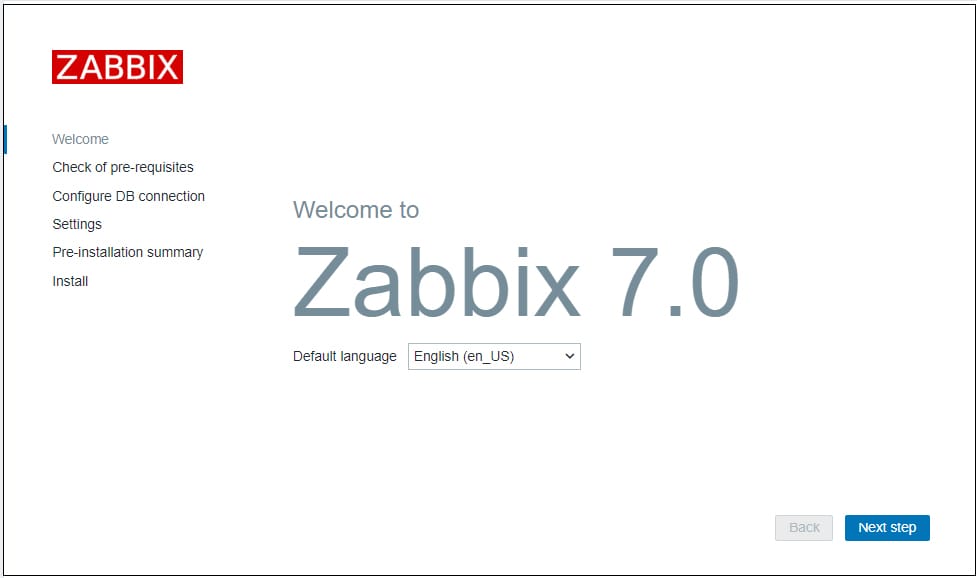
Welcome Screen
Click “Next step” to begin the installation wizard.
Check Prerequisites
The wizard verifies your system meets all requirements. All items should display “OK” in green. If any show “Fail” in red, return to the PHP configuration section and adjust the relevant settings. Common issues include incorrect timezone settings or insufficient memory limits.
Click “Next step” once all prerequisites pass.
Configure Database Connection
Enter your database connection details:
- Database type: MySQL
- Database host: localhost
- Database port: 3306
- Database name: zabbix
- User: zabbix
- Password: Your database password
- Database schema: Leave blank
Click “Next step” to continue.
Zabbix Server Details
Specify the server connection parameters:
- Host: localhost
- Port: 10051
- Name: My Zabbix Server (or any descriptive name)
The name field is optional but helps identify this Zabbix instance in distributed monitoring setups. Click “Next step.”
Pre-Installation Summary
Review all configuration settings displayed on the summary page. Verify the database connection details and server settings are correct. Click “Next step” to proceed with installation.
Installation Complete
The wizard creates a configuration file with your settings. You’ll see a success message confirming the installation finished. Click “Finish” to access the login page.
Step 14: Access Zabbix Dashboard
The Zabbix login screen appears. Use the default administrator credentials:
- Username: Admin (case-sensitive – note the capital A)
- Password: zabbix
Click “Sign in” to access the dashboard. You’ll see the Zabbix monitoring dashboard displaying system status, recent events, and quick statistics.
Important: Change the default password immediately to secure your installation. Click the user icon in the top-right corner, select “User settings,” then navigate to “Change password.” Choose a strong password and save your changes.
Initial Configuration
Configure basic settings to optimize your Zabbix installation:
Navigate to Administration → General to access global settings. Set your preferred language, default theme, and timezone. Configure housekeeping policies to manage data retention. Zabbix stores historical data indefinitely by default, which can consume substantial disk space over time. Set retention periods based on your storage capacity and monitoring needs.
Add your Fedora server as the first monitored host. Navigate to Configuration → Hosts and click “Create host.” Enter the hostname, IP address, and select the “Linux by Zabbix agent” template. This template includes pre-configured monitoring items for CPU, memory, disk, and network usage.
Configure notification settings under Administration → Media types to receive alerts via email, SMS, or other channels when problems occur.
Troubleshooting Common Issues
Zabbix Server Won’t Start
Check the server log file for specific error messages:
sudo journalctl -u zabbix-server -n 50Common causes include incorrect database credentials, database connection failures, or configuration file syntax errors. Verify your database password matches the one in /etc/zabbix/zabbix_server.conf. Test database connectivity manually:
mysql -u zabbix -p -h localhost zabbixIf the connection fails, review your database user permissions.
Web Interface Shows Blank Page
Check Apache error logs:
sudo tail -f /var/log/httpd/error_logPHP-FPM errors also provide valuable troubleshooting information:
sudo tail -f /var/log/php-fpm/error.logVerify SELinux isn’t blocking Apache. Temporarily set SELinux to permissive mode for testing:
sudo setenforce 0If the page loads with SELinux permissive, you need to configure additional SELinux booleans or policies.
Database Connection Errors
Ensure MariaDB is running:
sudo systemctl status mariadbTest your database credentials using the mysql command-line client. Verify the socket file exists at /var/lib/mysql/mysql.sock. If connecting remotely, confirm your firewall allows MySQL traffic on port 3306.
Cannot Access Web Interface
Verify Apache is listening on port 80:
sudo ss -tulpn | grep :80Check firewall rules with sudo firewall-cmd --list-all. Test local connectivity:
curl http://localhost/zabbixIf curl returns HTML content but your browser can’t connect, the issue likely involves network configuration or external firewall rules.
Congratulations! You have successfully installed Zabbix. Thanks for using this tutorial for installing the Zabbix open-source monitoring software on your Fedora 43 Linux system. For additional or useful information, we recommend you check the official Zabbix website.
[su_box title=”VPS Manage Service Offer” style=”bubbles” box_color=”#000000″ radius=”10″]If you don’t have time to do all of this stuff, or if this is not your area of expertise, we offer a service to do “VPS Manage Service Offer”, starting from $10 (Paypal payment). Please contact us to get the best deal![/su_box]

