
WGDashboard gives you a web-based way to manage WireGuard without living in the terminal all day. In this guide, you will learn how to Install WGDashboard on Ubuntu 26.04 in a clean, reliable way, then make it start on boot, verify the dashboard, and secure the server for real use.
This is written for beginner to intermediate Linux users, developers, and sysadmins who want a practical Linux server tutorial that explains both the command and the reason behind it. I will keep the steps simple, but I will also explain why each step matters so you can troubleshoot with confidence later.
Prerequisites
Before you start, make sure you have these basics ready:
- Ubuntu 26.04 LTS on a server or VPS, preferably fresh or fully updated.
- A user with sudo privileges.
- A working WireGuard setup or at least the ability to install
wireguard-tools. git,wireguard-tools, andnet-toolsinstalled or ready to install.- Basic access to the server shell through SSH or local terminal.
These tools matter because WGDashboard depends on your WireGuard files, and the install flow uses Git plus shell scripts to place the app in the right location. Ubuntu 26.04 LTS is a good fit because it is a current LTS release, so you get a stable base for a dashboard that may stay online for a long time.
Step 1: Update Your System
Refresh package lists
Run a full update before you install anything new.
sudo apt update
sudo apt upgrade -y
This command refreshes the package database and installs available updates. It matters because a fresh package state lowers the chance of dependency conflicts, broken installs, and security issues.
Why this step comes first
If you skip updates, you may fight older libraries or missing security fixes later. On a server that will expose a web dashboard, it is smarter to start from a clean and patched base.
Expected result:
Reading package lists... Done
Building dependency tree... Done
0 upgraded, 0 newly installed, 0 to remove
If you see packages upgraded, that is normal.
Step 2: Install Required Packages
Install Git, WireGuard tools, and utilities
Now install the core packages WGDashboard needs.
sudo apt install -y git wireguard-tools net-toolsgit downloads the project source, wireguard-tools gives the system the commands needed to manage WireGuard, and net-tools helps with quick network checks. This is the part of the Install WGDashboard on Ubuntu 26.04 setup where you prepare the server to talk to both the dashboard and the VPN engine.
Why these packages matter
WGDashboard is not a standalone app that ignores the host system. It reads WireGuard data from the server and needs the underlying tools to manage it correctly. If the required packages are missing, the install may complete but the dashboard will not behave properly later.
Expected result:
Setting up git ...
Setting up wireguard-tools ...
Setting up net-tools ...
Step 3: Download WGDashboard
Clone the official repository
Pull the project from the official source.
git clone https://github.com/WGDashboard/WGDashboard.gitThis creates a local copy of the WGDashboard project on your server. It matters because you want the same source that the maintainers publish, not a modified copy from somewhere else.
Why cloning is the right move
Cloning from the official repo makes updates simpler and reduces the chance of using stale files. It also gives you the exact directory structure that the installer expects.
Expected result:
Cloning into 'WGDashboard'...
remote: Enumerating objects...
Receiving objects: 100% ...
Step 4: Enter the Source Directory
Move into the install folder
cd WGDashboard/src
pwd
WGDashboard keeps the installer script and service file inside the src folder. The pwd command prints the full path so you can use it later in the systemd unit file.
Why this step matters
The service file needs an absolute path, not a guessed one. If you use the wrong path later, the dashboard may start manually but fail after reboot.
Expected output example:
/root/WGDashboard/srcSave that path. You will need it in the autostart section.
Step 5: Install WGDashboard
Make the installer executable
sudo chmod u+x wgd.shThis gives the installer script permission to run. Linux blocks scripts that do not have execute permission, so this is a required step before launch.
Run the installer
sudo ./wgd.sh installThis command installs WGDashboard, sets up the app files, and prepares the runtime environment. It is the core step in the How To Install WGDashboard on Ubuntu 26.04 process because it turns the source code into a working dashboard.
Why the installer matters
The installer does more than copy files. It prepares the app so it can serve the web interface correctly and connect with the WireGuard configuration on your server. If this step fails, stop and fix the error before moving on.
Expected output example:
[WGDashboard] Installing...
[WGDashboard] Completed successfully
Step 6: Allow Access to WireGuard Configs
Set permissions on the config folder
sudo chmod -R 755 /etc/wireguardThe official docs recommend giving read and execute access to the WireGuard config folder so WGDashboard can read the files it needs. If your configs live somewhere else, adjust the path for your setup.
Why this step is needed
WGDashboard cannot manage peers if it cannot read the WireGuard config files. This step gives the dashboard the access it needs without forcing you to open the whole server too widely.
Be careful here. In a production environment, you should think about least privilege and avoid giving broader access than necessary.
Step 7: Start the Dashboard
Launch WGDashboard
sudo ./wgd.sh startThis starts the dashboard service and makes the web UI available on the server. By default, WGDashboard listens on port 10086.
Why starting separately is useful
Install and start are different actions. Installation prepares the app, but start actually brings it online for testing and use. Keeping them separate also makes troubleshooting easier.
Expected output example:
[WGDashboard] WGDashboard w/ Gunicorn will be running on 0.0.0.0:10086
[WGDashboard] WGDashboard started successfully
Step 8: Open WGDashboard in Your Browser
Visit the dashboard URL
Open:
http://your_server_ip:10086The default login is typically admin for both username and password in the manual install path. Change it as soon as you log in for the first time.
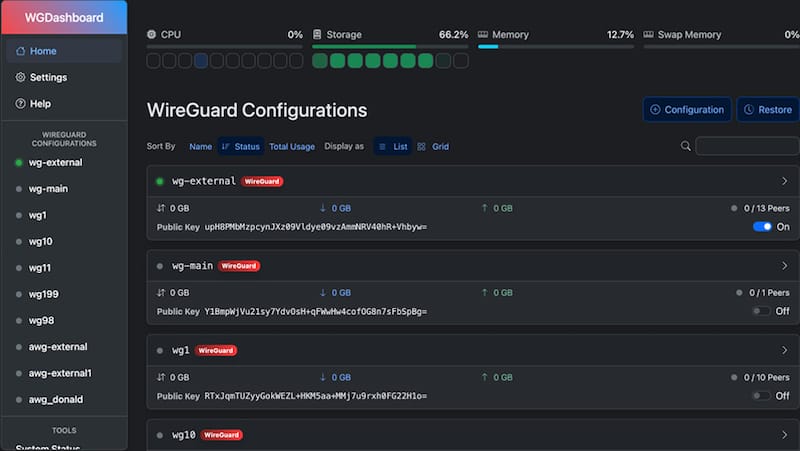
Why the browser check matters
This is your fastest proof that the service is alive, the port is open, and the app is responding. If the page does not load, the problem is usually service status, firewall rules, or port binding.
If you want to keep this guide practical, treat this as your first real validation step, not a cosmetic one.
Step 9: Enable IP Forwarding
Turn on packet forwarding
sudo sh -c 'echo "net.ipv4.ip_forward=1" >> /etc/sysctl.conf'
sudo sysctl -p /etc/sysctl.conf
IP forwarding lets the server pass traffic between network interfaces, which matters for many WireGuard gateway setups. The official WGDashboard install docs recommend this as optional but useful for most users.
Why this matters
If your WireGuard server should route traffic for clients, the Linux kernel must be allowed to forward packets. Without this, peers may connect but not reach the rest of the network.
Expected output example:
net.ipv4.ip_forward = 1Step 10: Open Firewall Ports
Allow the dashboard and WireGuard ports
If you use UFW, allow the required ports:
sudo ufw allow 10086/tcp
sudo ufw allow 51820/udp
sudo ufw reload
sudo ufw status
Port 10086 is for the WGDashboard web UI, and port 51820 is commonly used by WireGuard itself. The dashboard may work locally, but remote users will not reach it if the firewall blocks these ports.
Why firewall rules matter
A VPN server without the right firewall rules is only half built. You want the dashboard reachable only on the port you need, and the VPN port open only for the tunnel traffic you expect.
Expected output example:
Status: active
To                         Action      From
10086/tcp                  ALLOW      Anywhere
51820/udp                  ALLOW      Anywhere
Step 11: Configure Systemd Autostart
Copy the service file
First, stay inside the src folder and check your full path.
pwd
sudo cp wg-dashboard.service /etc/systemd/system/wg-dashboard.service
The service file tells systemd how to start WGDashboard after reboot. Copying it into /etc/systemd/system/ makes it a system-managed service.
Edit the absolute paths
Open the service file and replace the placeholder path with your real path from pwd.
nano wg-dashboard.serviceA typical file needs values like WorkingDirectory, PIDFile, and ExecStart to point to your exact WGDashboard/src location. This matters because systemd cannot guess where you cloned the project.
Why this step is critical
Autostart is what turns a manual install into a reliable service. If the paths are wrong, WGDashboard may run once but fail after a reboot. That is one of the most common mistakes in a configure WGDashboard on Ubuntu 26.04s setup.
Reload and enable the service
sudo chmod 664 /etc/systemd/system/wg-dashboard.service
sudo systemctl daemon-reload
sudo systemctl enable wg-dashboard.service
sudo systemctl start wg-dashboard.service
sudo systemctl status wg-dashboard.service
daemon-reload tells systemd to read the new service file. enable makes sure it starts on boot, and start launches it now.
Expected output example:
Active: active (running)If you see that status, the autostart setup is working.
Troubleshooting
1. Page does not open on port 10086
Check whether the service is running:
sudo systemctl status wg-dashboard.serviceIf it is not active, start it again and review the logs. This usually means the path, permissions, or service file is wrong.
2. Permission denied for WireGuard files
If the dashboard cannot read your config folder, confirm the folder path and permissions.
ls -ld /etc/wireguardWGDashboard needs read access to manage configs, so the folder cannot be locked down too tightly. If your configs are in a custom directory, update the path in the guide.
3. Service fails after reboot
This usually means the systemd unit file still has placeholder paths or the wrong working directory.
sudo systemctl cat wg-dashboard.serviceCheck WorkingDirectory and ExecStart carefully. These values must match the real folder from pwd.
4. Firewall blocks access
If the dashboard works locally but not from your laptop, check the firewall.
sudo ufw status verboseOpen 10086/tcp for the dashboard and 51820/udp for WireGuard.
5. IP forwarding is off
If clients connect but cannot reach the network, check sysctl.
sysctl net.ipv4.ip_forwardIf the result is 0, turn forwarding back on.


