How To Install Zoom on Ubuntu 24.04 LTS

Ubuntu 24.04 LTS does not ship with Zoom pre-installed, and the app is absent from the default APT repositories — which catches a lot of users off guard. Whether you need to jump on a client call or host a team standup, getting Zoom on Ubuntu running properly requires a few deliberate steps. This guide walks you through three verified installation methods for Install Zoom on Ubuntu 24.04, covering the official .deb package (recommended), Snap, and Flatpak — all tested on Ubuntu 24.04 LTS (Noble Numbat).
Prerequisites
Before you start, confirm the following:
- Operating system: Ubuntu 24.04 LTS (Noble Numbat), 64-bit (x86_64)
- User permissions: A user account with
sudoprivileges - Internet connection: Required to download the package (~173 MB for
.deb) - Terminal access: GNOME Terminal, Konsole, or any terminal emulator
- Tools pre-installed:
wget,apt(both come standard on Ubuntu 24.04) - Desktop environment: GNOME, KDE, XFCE, or any X11/Wayland session
Security note: Always download Zoom packages directly from zoom.us — never from third-party mirrors. Unofficial sources may distribute tampered binaries.
Step 1: Update Your System
Start by syncing your package index and applying pending upgrades. This prevents dependency conflicts during installation.
sudo apt update && sudo apt upgrade -yThe apt update command refreshes the list of available packages from your configured repositories. apt upgrade -y applies all pending updates automatically, skipping the confirmation prompt. Skipping this step is a common cause of broken dependency errors later.
Verify Your Ubuntu Version
Confirm you are on Ubuntu 24.04 before proceeding:
lsb_release -aExpected output:
No LSB modules are available.
Distributor ID: Ubuntu
Description:    Ubuntu 24.04.x LTS
Release:        24.04
Codename:       noble
Step 2: Download the Official Zoom .deb Package
Zoom publishes an official .deb package for Debian and Ubuntu systems at zoom.us. You download it directly using wget, which gives you full control over the version and avoids any third-party packaging.
wget -O zoom_amd64.deb https://zoom.us/client/latest/zoom_amd64.debThe -O zoom_amd64.deb flag saves the downloaded file with a predictable filename in your current directory. The URL zoom.us/client/latest/ always points to the most recent stable release.
(Optional but Recommended) Verify the Package Signature
Zoom provides a GPG signing key for package validation. In February 2026, Zoom retired its old key pair and issued a new one — so always fetch the current key from the official support page before verifying.
# Install dpkg-sig if not already present
sudo apt install dpkg-sig -y

# Import Zoom's public signing key
gpg --import ~/Downloads/package-signing-key.pub

# Verify the downloaded package
dpkg-sig --verify zoom_amd64.deb
Expected output:
Processing zoom_amd64.deb...
GOODSIG _gpgbuilder
A GOODSIG result confirms the package is authentic and unmodified.
Step 3: Install Zoom on Ubuntu 24.04 Using APT
With the package downloaded and verified, install it using apt. This method automatically resolves and installs dependencies — a clear advantage over using dpkg -i directly.
sudo apt install ./zoom_amd64.deb -yThe ./ prefix is critical here. It tells apt to install from a local file path rather than search the online repositories. Without it, apt will fail to locate the package.
Fix Broken Dependencies (If Needed)
If you see any dependency errors during installation, run:
sudo apt --fix-broken install -yThis command scans for unmet dependencies and resolves them automatically by fetching the required packages from Ubuntu’s repositories.
Verify the Installation
zoom --versionExpected output:
zoom version 6.x.x (xxxx)zoom_amd64.deb in the Files app. Ubuntu 24.04 opens it with GNOME Software or GDebi, where you click “Install.” However, command-line installation gives you clearer error output if something goes wrong — always worth the extra few seconds.Step 4: Launch and Configure Zoom on Ubuntu
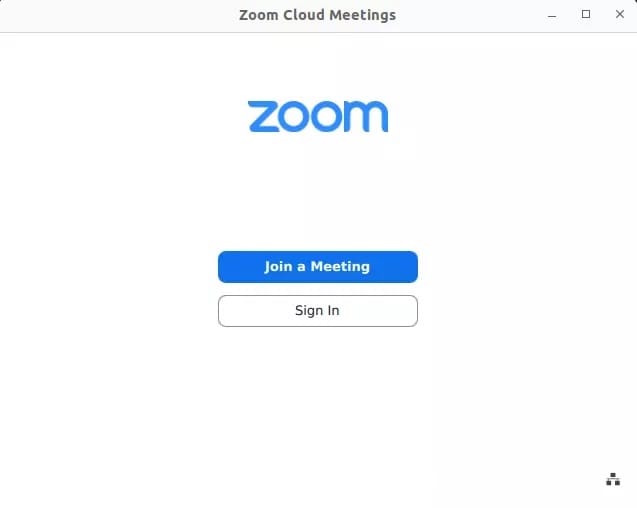
You can launch Zoom from the application menu by searching “Zoom” or from the terminal:
zoomOn first launch, Zoom displays a sign-in screen. You have three options:
- Sign in with SSO — for corporate or university accounts
- Sign in with Google/Facebook — OAuth login
- Sign in with email and password — standard Zoom accounts
Configure Audio and Video on First Run
Zoom auto-detects your microphone and camera on Ubuntu 24.04. To confirm devices are recognized:
- Open Zoom and go to Settings (gear icon)
- Select Audio — test your microphone and speaker
- Select Video — confirm your webcam appears in the preview
Step 5: How to Install Zoom on Ubuntu 24.04 via Alternative Methods
The .deb package is the recommended approach for most users, but Snap and Flatpak are valid alternatives depending on your workflow.
Method 2: Install via Snap
Snap packages are self-contained and update automatically in the background. Note that the Zoom Snap is maintained by a community packager, not Zoom directly — so it may lag slightly behind official .deb releases.
sudo snap install zoom-clientLaunch Zoom via Snap:
snap run zoom-clientUpdate the Snap package manually:
sudo snap refresh zoom-clientMethod 3: Install via Flatpak
Flatpak runs Zoom inside a secure sandbox, isolating it from your system files. This suits security-conscious users but uses slightly more disk space.
First, install Flatpak if you haven’t already:
sudo apt install flatpak gnome-software-plugin-flatpak -yAdd the Flathub repository:
flatpak remote-add --if-not-exists flathub https://flathub.org/repo/flathub.flatpakrepoInstall Zoom:
sudo flatpak install --system flathub us.zoom.Zoom -yLaunch Zoom via Flatpak:
flatpak run us.zoom.ZoomUpdate Flatpak Zoom manually:
sudo flatpak update --system us.zoom.ZoomInstallation Method Comparison
| Feature | .deb (Official) | Snap | Flatpak |
|---|---|---|---|
| Maintained by | Zoom Inc. | Community | Community |
| Update control | Manual | Automatic | Manual/Automatic |
| Sandboxed | No | Partial | Yes |
| Disk usage | ~173 MB | Larger | Larger |
| Screen share support | Full | Full | Partial |
| Recommended for | Most users | Convenience | Security-focused |
Step 6: Keep Zoom Updated on Ubuntu 24.04
Staying current with Zoom updates matters — new versions fix security vulnerabilities and compatibility issues. The update method depends on how you installed it.
Update the .deb Installation
Zoom’s .deb package does not register an APT repository by default, so apt upgrade will not auto-update it. Re-download and reinstall:
wget -O zoom_amd64.deb https://zoom.us/client/latest/zoom_amd64.deb
sudo apt install ./zoom_amd64.deb -y
Set Up Zoom’s APT Repository for Automatic Updates
To enable automatic apt upgrade support, add Zoom’s repository manually:
# Download and store the GPG key
sudo mkdir -p /etc/apt/keyrings
wget -qO - https://zoom.us/linux/download/pubkey | \
  gpg --dearmor | \
  sudo tee /etc/apt/keyrings/zoom.gpg > /dev/null

# Add the Zoom repository
echo "deb [signed-by=/etc/apt/keyrings/zoom.gpg arch=amd64] \
  https://zoom.us/linux/debian stable main" | \
  sudo tee /etc/apt/sources.list.d/zoom.list

# Update and install
sudo apt update && sudo apt install zoom -y
With this in place, sudo apt upgrade will include Zoom in future system updates.
Verify the current installed version:
zoom --versionTroubleshooting: Common Zoom Errors on Ubuntu 24.04
Error 1: dpkg: dependency problems During Installation
Symptom: Installation halts with unmet dependency errors.
Fix:
sudo apt --fix-broken install -y
sudo apt install ./zoom_amd64.deb -y
Run the fix-broken command first, then retry the install. This resolves missing library dependencies automatically.
Error 2: Zoom Screen Sharing Not Working (Wayland)
Symptom: Clicking “Share” opens the dialog but nothing actually shares.
This is a known Wayland compatibility issue on Ubuntu 24.04. Ubuntu 24.04 defaults to Wayland sessions, and Zoom’s screen-sharing pipeline has incomplete Wayland support in some configurations.
Fix — check your session type:
echo $XDG_SESSION_TYPEIf the output is wayland, log out and select “Ubuntu on X11” from the gear icon on the login screen. Alternatively, install the required desktop portal packages:
sudo apt install xdg-desktop-portal xdg-desktop-portal-gtk -yThen relaunch Zoom from the terminal and check for portal-related errors:
journalctl | grep xdg-desktop-portalError 3: Zoom Crashes or Freezes After a Few Minutes
Symptom: Zoom becomes unresponsive within minutes of starting a meeting.
Fix: This typically points to a GPU rendering conflict. Force Zoom to use software rendering:
zoom --disable-gpuFor a permanent fix, edit the Zoom desktop entry:
sudo nano /usr/share/applications/Zoom.desktopFind the Exec= line and append --disable-gpu:
Exec=/opt/zoom/zoom --disable-gpu %UError 4: zoom: command not found After Installation
Symptom: Running zoom in the terminal returns “command not found” even though installation appeared to succeed.
Fix: The Zoom binary path may not be in your shell’s $PATH. Check the binary location:
which zoom || find /opt /usr -name "zoom" -type f 2>/dev/nullZoom typically installs to /opt/zoom/zoom. Add it to your PATH permanently:
echo 'export PATH="$PATH:/opt/zoom"' >> ~/.bashrc
source ~/.bashrc
Error 5: Audio Not Working in Zoom Meetings
Symptom: Other participants can’t hear you, or you hear no audio.
Fix: Check that PulseAudio or PipeWire (Ubuntu 24.04 default) recognizes your devices:
pactl list short sinks
pactl list short sources
If devices appear in the list but Zoom still can’t access them, reset Zoom’s audio settings by deleting its config cache:
rm -rf ~/.config/zoomus.confRelaunch Zoom — it will recreate the config and re-detect audio devices on startup.
How To Install Zoom on Ubuntu 24.04: Quick Reference
For users who want to configure Zoom Ubuntu quickly without reading every detail, here’s the minimal .deb install sequence:
# 1. Update system
sudo apt update && sudo apt upgrade -y

# 2. Download Zoom
wget -O zoom_amd64.deb https://zoom.us/client/latest/zoom_amd64.deb

# 3. Install
sudo apt install ./zoom_amd64.deb -y

# 4. Verify
zoom --version
This four-command sequence gets you from a fresh Ubuntu 24.04 install to a running Zoom client in under five minutes on a typical internet connection.
Congratulations! You have successfully installed Zoom. Thanks for using this tutorial for installing the Zoom client on Ubuntu 24.04 LTS system. For additional help or useful information, we recommend you check the official Zoom website.
